本文档面向已经了解 面板小程序开发 的开发者,您需要充分了解什么是 面板小程序 和 产品功能。若对上述概念有所疑问,涂鸦推荐您了解以下预备知识。如已了解,可跳过本文。
理解关系
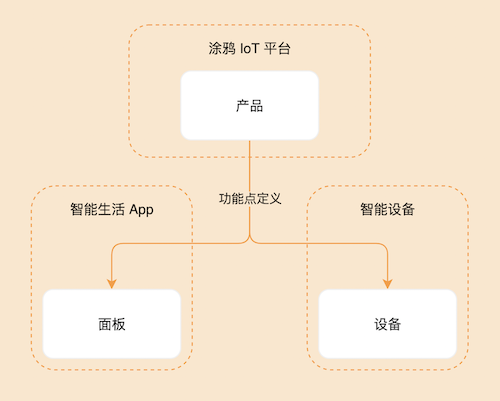
面板是 IoT 智能设备在 App 终端上的产品形态。创建产品之前,首先来了解一下什么是面板,以及面板和产品、设备之间的关系:
- 面板是运行在 智能生活 App、OEM App(涂鸦定制 App) 上的界面交互程序,用于控制智能设备的运行,展示智能设备的实时状态。
- 产品将面板与智能设备联系起来,产品描述了其具备的功能、在 App 上面板显示的名称、智能设备拥有的功能点等。
- 智能设备是搭载了涂鸦智能模组的设备,通常在设备上都会贴有一张二维码,使用 智能生活 App 扫描二维码,即可在 App 中获取并安装该设备的控制面板。
- 产品、面板、设备之间的关系可参考下图:
照明灯串模板使用 SDM (Smart Device Model) 开发。关于 SDM 相关,可以参考 SDM 文档。
相关概念
产品名称:照明幻彩灯串
产品介绍
照明灯串是一种支持多路控制的智能照明设备,根据支持的功能点不同,可分为不同路数:
- 五路:支持彩光
colour_data、白光亮度bright_value、白光色温temp_value - 四路:支持彩光、白光亮度
- 三路:支持彩光
- 二路:支持白光亮度、白光色温
- 一路:支持白光亮度
本模板主要支持 五路 灯串(彩光模式),其他路数可按逻辑自行适配。
需求原型
- 开关:单击开关按钮通过
switch_ledDP 切换开关状态。 - 首页:页面包含开关、工作模式切换(彩光、情景、音乐、DIY)、调光控制、更多功能入口。面板根据产品所配置的功能点进行具体展示。
- 工作模式:
- 彩光模式(colour):支持彩光调色和涂抹功能
- 白光模式(white):支持白光亮度和色温调节(如果产品支持)
- 情景模式(scene):支持内置情景和自定义情景
- 音乐模式(music):支持本地音乐和 App 音乐律动
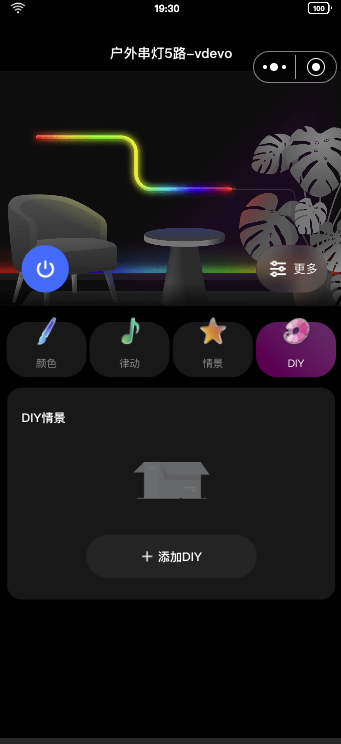
- DIY 模式(diy):支持自定义场景编辑
- 彩光调节:
- 支持点选和全选切换
- 支持涂抹操作(油漆桶、单点涂抹、橡皮擦)
- 支持色盘调色
- 支持亮度调节
- 通过
paint_colour_1DP 下发数据
- 白光调节:
- 支持亮度调节(
bright_value) - 支持色温调节(
temp_value,如果产品支持)
- 支持亮度调节(
- 情景功能:
- 内置情景:按照 DP 定义的格式编写拼接
- 自定义情景:允许用户自行进行场景效果编辑
- 通过
rgbic_linerlight_sceneDP 下发
- 音乐律动:
- 本地音乐:使用设备硬件的麦克风收音,面板下发对应音乐模式配置
- App 音乐:使用手机麦克风进行收音,面板转换 App 接收到的音频,通过 DP
dreamlightmic_music_data持续下发
- DIY 场景编辑:
- 支持涂抹编辑模式
- 支持颜色组合编辑模式
- 支持保存自定义场景
- 通过
diy_sceneDP 下发数据
- 更多功能:
- 定时倒计时功能:直接跳转功能页面实现
- 灯串裁剪功能:直接跳转功能页面实现
- 灯串调整:支持 LED 点数设置(
led_number_set)和段数设置(segment_num_set)
功能汇总
当前照明灯串模板必需的功能点:
switch_led,
work_mode,
paint_colour_1,
rgbic_linerlight_scene,
dreamlightmic_music_data,
music_data,
led_number_set,
segment_num_set,
当前照明灯串模板可选的功能点:
countdown,
bright_value,
temp_value,
colour_data,
diy_scene,
开关
参数 | 取值 |
dpid | 20 |
code | switch_led |
type | 布尔型(Bool) |
mode | 可下发可上报(rw) |
工作模式
参数 | 取值 |
dpid | 21 |
code | work_mode |
type | 枚举型(Enum) |
mode | 可下发可上报(rw) |
property | 枚举值: white, colour, scene, music |
白光亮度
参数 | 取值 |
dpid | 22 |
code | bright_value |
type | value |
mode | 可下发可上报(rw) |
property | { "min": 10, "max": 1000, "scale": 0, "step": 1, "type": "value" } |
白光色温
参数 | 取值 |
dpid | 23 |
code | temp_value |
type | value |
mode | 可下发可上报(rw) |
property | { "min": 0, "max": 1000, "scale": 0, "step": 1, "type": "value" } |
彩光数据
参数 | 取值 |
dpid | 24 |
code | colour_data |
type | 字符串型(String) |
mode | 可下发可上报(rw) |
倒计时
参数 | 取值 |
dpid | 26 |
code | countdown |
type | value |
mode | 可下发可上报(rw) |
property | { "unit": "s", "min": 0, "max": 86400, "scale": 0, "step": 1, "type": "value"} |
音乐灯
参数 | 取值 |
dpid | 27 |
code | music_data |
type | 字符串型(String) |
mode | 可下发可上报(rw) |
幻彩本地音乐律动
参数 | 取值 |
dpid | 52 |
code | dreamlightmic_music_data |
type | raw |
mode | 可下发可上报(rw) |
property | { "type": "raw", "maxlen": 128 } |
LED 点数设置
参数 | 取值 |
dpid | 58 |
code | led_number_set |
type | value |
mode | 可下发可上报(rw) |
property | { "min": 0, "max": 99999, "scale": 0, "step": 1, "type": "value" } |
段数设置
参数 | 取值 |
dpid | 63 |
code | segment_num_set |
type | value |
mode | 可下发可上报(rw) |
property | { "min": 2, "max": 20, "scale": 0, "step": 1, "type": "value" } |
涂抹调色1
参数 | 取值 |
dpid | 69 |
code | paint_colour_1 |
type | raw |
mode | 可下发可上报(rw) |
property | { "type": "raw", "maxlen": 128 } |
炫彩情景
参数 | 取值 |
dpid | 56 |
code | rgbic_linerlight_scene |
type | raw |
mode | 可下发可上报(rw) |
property | { "type": "raw", "maxlen": 128 } |
DIY 情景
参数 | 取值 |
dpid | 74 |
code | diy_scene |
type | raw |
mode | 可下发可上报(rw) |
property | { "type": "raw", "maxlen": 128 } |
以上为 raw 类型 以外的功能点,raw 类型 DP 的具体协议格式请查看代码实现或产品方案定义。
首先需要创建一个产品,定义产品有哪些功能点,然后再在面板中一一实现这些功能点。
注册登录 涂鸦开发者平台,并在平台创建产品:
- 单击页面左侧 产品 > 产品开发,在 产品开发 页面单击 创建产品。
- 在 标准类目 下选择 照明,产品品类选择 幻彩灯串。
- 选择智能化方式,选择产品方案为 幻彩灯串五路,并完善产品信息,如填写产品名称为 LampString。
- 单击 创建产品 按钮,完成产品创建。
注意:本模板主要支持幻彩灯串五路,其它路数可按逻辑自行适配。
🎉 在这一步,一个名为 LampString 的照明灯串产品创建完成。
开发者平台创建面板小程序
面板小程序的开发在 小程序开发者 平台上进行操作,首先请前往 小程序开发者平台 完成平台的注册登录。
详细操作步骤可以参考 面板小程序 > 创建面板小程序。
拉取并运行模板项目
面板模板仓库:仓库地址
- 首先,拉取项目。
git clone https://github.com/Tuya-Community/tuya-ray-materials.git - 进入照明灯串模板,安装依赖并启动项目。
cd ./template/LampStringLightTemplate - 打开 IDE 并点击导入。
- 选择下载的路径进行导入,并关联到已经创建的面板小程序与产品。
- 绑定具体设备即可,IDE 会自动安装依赖并构建项目。
工程目录
完成以上步骤后,一个面板小程序的开发模板初始化完成。以下为工程目录及其介绍:
├── public
│ ├── images # 项目的静态资源
├── src
│ ├── app.config.ts # 自动生成配置
│ ├── app.tsx # App 根组件
│ ├── components # 组件目录
│ │ ├── home-head # 首页头部组件(包含开关)
│ │ ├── light # 调光组件
│ │ │ ├── colorLight # 彩光调光
│ │ │ ├── whiteLight # 白光调光
│ │ │ └── SmearLight # 涂抹灯串组件
│ │ ├── light-strip # 灯串显示组件
│ │ ├── scene # 情景组件
│ │ ├── music # 音乐组件
│ │ ├── tab-diy # DIY 场景组件
│ │ └── work-mode # 工作模式切换组件
│ ├── constant # 常量目录
│ │ └── dpCodes.ts # DP 代码常量定义
│ ├── containers # 聚合的组件目录
│ ├── devices # 智能设备模型目录
│ │ ├── index.ts # 定义并导出智能设备模型
│ │ ├── protocols # 定义当前设备所需要的 DP 声明
│ │ │ ├── index.ts # 协议导出
│ │ │ ├── paintColour1.ts # paint_colour_1 DP 协议解析
│ │ │ ├── RgbicLinerlightSceneFormater.ts # 情景 DP 协议解析
│ │ │ ├── DiySceneFormatter.ts # DIY 场景 DP 协议解析
│ │ │ └── powerMemoryParser.ts # 断电记忆协议解析
│ │ └── schema.ts # 当前智能设备 DP 功能点描述,IDE 可自动生成
│ ├── global.config.ts
│ ├── hooks # 自定义 Hooks 目录
│ │ ├── useIsSupport.ts # 判断是否支持某个 DP
│ │ ├── useSceneSet.ts # 情景设置相关
│ │ └── ...
│ ├── i18n # 多语言目录
│ ├── pages # 页面目录
│ │ ├── home # 首页
│ │ ├── diyEdit # DIY 编辑页面
│ │ ├── staticDiyEdit # 静态 DIY 编辑页面
│ │ └── ...
│ └── routes.config.ts # 路由配置
├── typings # 业务类型定义目录
│ └── sdm.d.ts # 智能设备类型定义文件
需求实现
IDE 生成 SDM schema 到项目
生成 SDM schema 至项目中,可以查看 src/devices/schema.ts。
export const defaultSchema = [
  {
    code: 'switch_led',
    defaultValue: '',
    canTrigger: true,
    iconname: 'icon-dp_power2',
    type: 'obj',
    executable: true,
    mode: 'rw',
    defaultRecommend: false,
    name: '开关',
    property: {
      type: 'bool',
    },
    subType: 'bool',
    id: 20,
    editPermission: false,
  },
  {
    code: 'work_mode',
    defaultValue: '',
    canTrigger: true,
    iconname: 'icon-dp_mode',
    type: 'obj',
    executable: true,
    mode: 'rw',
    defaultRecommend: false,
    name: '工作模式',
    property: {
      range: ['white', 'colour', 'scene', 'music'],
      type: 'enum',
    },
    subType: 'enum',
    id: 21,
    editPermission: false,
  },
  // ...
] as const;
首页:开关控制实现
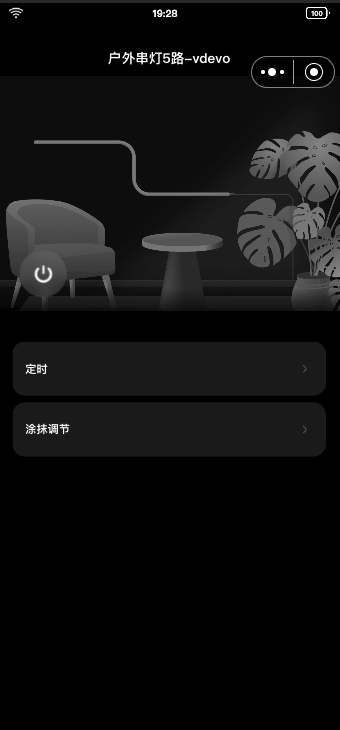
分析需求
- 首页添加组件 开关按钮。
- 根据
switch_led下发的值展示不同按钮图片。 - 单击开关组件触发事件,上报 开、关 的 DP 值。
- 根据
- 确认开关 DP 为
switch_led,可作为属性传入组件。 - 使用
useProps获取实时下发的 DP 值。示例:import React from "react"; import { View } from "@ray-js/ray"; import { useProps } from "@ray-js/panel-sdk"; export default function () { const power = useProps((props) => props.switch_led); return ( <View style={{ flex: 1 }}> <View>switch_led: {power}</View> </View> ); } - 使用
useActions下发 DP。关于如何通过 SDM 下发 DP,请参考:SDM 下发教程。示例:import React from "react"; import { View } from "@ray-js/ray"; import { useActions } from "@ray-js/panel-sdk"; export default function () { const actions = useActions(); const handleTogglePower = () => { actions.switch_led.toggle({ throttle: 300 }); }; return ( <View style={{ flex: 1 }}> <Button img={power} onClick={handleTogglePower} /> </View> ); }
实现开关组件
根据上述分析,来实现开关组件:src/components/home-head/index.tsx
import React from 'react';
import { Image, View } from '@ray-js/ray';
import { useActions, useProps } from '@ray-js/panel-sdk';
import Res from '../../res';
import styles from './index.module.less';

export const HomeHead = () => {
  const switchLed = useProps(state => state?.switch_led);
  const actions = useActions();

  return (
    <View className={styles.contain}>
      <Image
        className={styles.head}
        mode="aspectFill"
        src={switchLed ? Res.homeahead_on : Res.homeahead_off}
      />
      <View className={styles.bottom}>
        <View
          className={`${styles.switch} ${switchLed ? '' : styles.switchOff}`}
          hoverClassName="button-hover"
          onClick={() => {
            actions.switch_led.toggle();
          }}
        >
          <Image mode="aspectFit" className={styles.switchIcon} src={Res.switch_icon} />
        </View>
      </View>
    </View>
  );
};
工作模式切换
工作模式切换组件位于 src/components/work-mode/index.tsx,支持在 white、colour、scene、music、diy 之间切换。
// 使用示例
<WorkMode
  current={work_mode}
  onChange={mode => {
    if (['colour', 'white', 'scene', 'music'].includes(mode)) {
      deviceActions.work_mode.set(mode);
    }
    if (mode === 'diy') {
      // 初始化 DIY 场景
      setWorkModeDiy('diy');
    }
    setWorkMode(mode);
  }}
/>
彩光调节:涂抹调色功能
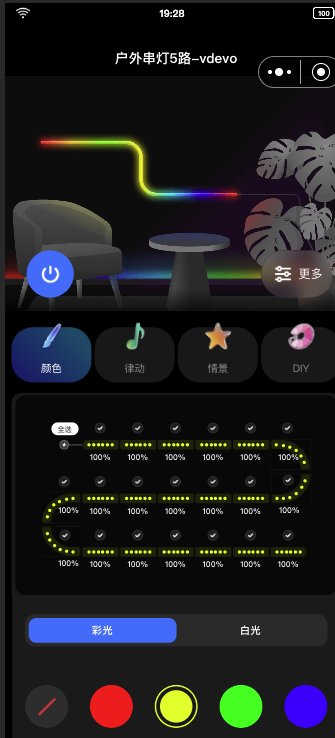
核心实现
彩光调节功能主要通过 paint_colour_1 DP 实现,该 DP 为 raw 类型,需要自定义协议解析器。
- 协议解析器:
src/devices/protocols/paintColour1.ts该文件定义了SmearFormater类,用于解析和格式化paint_colour_1DP 数据。export enum DimmerMode { white, // 白光模式 colour, // 彩光模式 colourCard, // 色卡模式 combination, // 组合模式 } export enum SmearMode { all, // 全选(油漆桶) single, // 单点涂抹 clear, // 橡皮擦 } export interface SmearDataType { version: number; // 版本号 dimmerMode: DimmerMode; // 调光模式 effect?: number; // 涂抹效果(0: 无, 1: 渐变) ledNumber?: number; // 灯串 UI 段数 smearMode?: SmearMode; // 涂抹动作 hue?: number; // 彩光色相 saturation?: number; // 彩光饱和度 value?: number; // 彩光亮度 brightness?: number; // 白光亮度 temperature?: number; // 白光色温 singleType?: number; // 点选类型(0: 连续,1: 单点) quantity?: number; // 当次操作的灯串数 indexs?: Set<number>; // 选中的灯珠索引 combination?: ColourData[]; // 颜色组合 } - 灯串组件:
src/components/light-strip/index.tsx该组件负责渲染灯串 UI,支持:- 显示每个灯珠的颜色
- 支持点击选择灯珠
- 支持涂抹操作(拖拽选择多个灯珠)
- 调光组件:
src/components/light/index.tsx该组件整合了灯串显示和调色功能,包括:- 彩光调色(
ColorLight) - 白光调色(
WhiteLight) - 涂抹操作(
SmearLight)
- 彩光调色(
使用示例
import { useActions, useStructuredActions, useStructuredProps } from '@ray-js/panel-sdk';
import { DimmerMode, SmearMode } from '@/devices/protocols/paintColour1';

// 获取当前涂抹数据
const paintColorData = useStructuredProps(p => p.paint_colour_1);
const structuredActions = useStructuredActions();

// 下发全选彩光
const handleSetAllColor = (hue: number, saturation: number, value: number) => {
  structuredActions.paint_colour_1.set({
    dimmerMode: DimmerMode.colour,
    smearMode: SmearMode.all,
    hue,
    saturation,
    value,
    ledNumber: 20, // 灯珠数量
  });
};

// 下发选中灯珠的颜色
const handleSetSelectedColor = (indexs: Set<number>, hsv: { hue: number; saturation: number; value: number }) => {
  structuredActions.paint_colour_1.set({
    dimmerMode: DimmerMode.colour,
    smearMode: SmearMode.single,
    hue: hsv.hue,
    saturation: hsv.saturation,
    value: hsv.value,
    indexs,
    ledNumber: 20,
  });
};
情景功能实现
情景功能通过 rgbic_linerlight_scene DP 实现,该 DP 为 raw 类型。
- 协议解析器:
src/devices/protocols/RgbicLinerlightSceneFormater.ts - 情景组件:
src/components/scene/index.tsx支持:- 内置情景列表(风景、氛围、节日等分类)
- 自定义情景
- 情景预览和切换
// 使用示例
import { useStructuredActions } from '@ray-js/panel-sdk';

const structuredActions = useStructuredActions();

// 设置情景
structuredActions.rgbic_linerlight_scene.set({
  key: 1, // 情景 ID
  value: {
    // 情景数据
    colors: [
      { hue: 0, saturation: 1000, value: 1000 },
      // ...
    ],
  },
});
音乐律动功能
音乐律动支持两种模式:
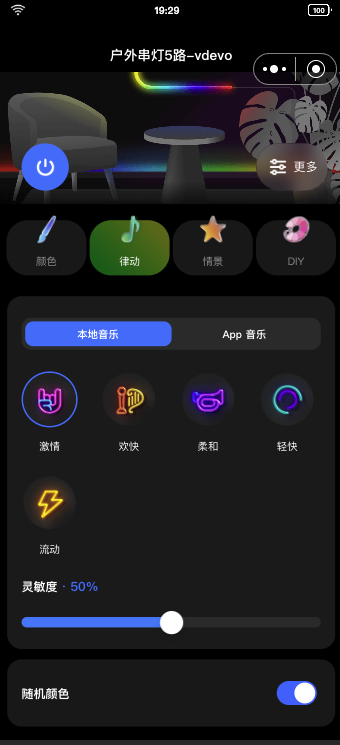
- 本地音乐:通过
dreamlightmic_music_dataDP 下发- 使用设备麦克风收音
- 组件:
src/components/music/local/index.tsx
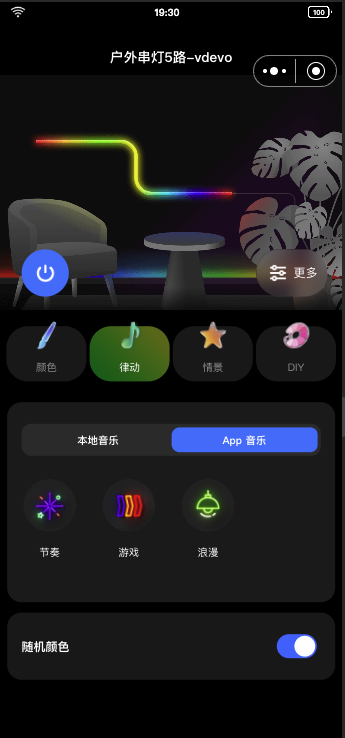
- App 音乐:通过
music_dataDP 下发- 使用手机麦克风收音
- 组件:
src/components/music/app/index.tsx
// 本地音乐使用示例
import { useActions } from '@ray-js/panel-sdk';

const actions = useActions();

// 设置本地音乐模式
actions.dreamlightmic_music_data.set(musicData, {
  success() {
    console.log('音乐模式设置成功');
  },
});
DIY 场景编辑
DIY 场景编辑功能通过 diy_scene DP 实现,支持两种编辑模式:
- 涂抹编辑模式:
src/pages/staticDiyEdit/index.tsx- 支持在灯串上涂抹颜色
- 支持保存自定义场景
- 颜色组合编辑模式:
src/pages/diyEdit/index.tsx- 支持选择多个颜色组合
- 支持设置变化类型和速度
// DIY 场景保存示例
import { useStructuredActions } from '@ray-js/panel-sdk';

const structuredActions = useStructuredActions();

// 保存 DIY 场景
structuredActions.diy_scene.set({
  name: '我的场景',
  segments: [
    {
      colors: [
        { hue: 0, saturation: 1000, value: 1000 },
        // ...
      ],
    },
  ],
});
首页布局
首页根据产品支持的功能点显示对应的 Tab 页:
- 如果支持彩光或白光,显示调光 Tab
- 如果支持情景,显示情景 Tab
- 如果支持音乐,显示音乐 Tab
- 如果支持 DIY,显示 DIY Tab
调光功能实现要点
- HSV 模型:彩光主要基于 HSV 模型,将 Hue(色调)、Saturation(饱和度)、Value(明度)三个数据整合成
paint_colour_1DP。 - 涂抹模式:
- 全选模式:单击或拖动色盘后,所有灯珠同步改变颜色
- 点选模式:需要先选择灯珠,再调色才会生效
- 橡皮擦:清除选中灯珠的颜色
- 云端存储:由于
paint_colour_1DP 只能记忆最近一次的灯光数据,需要将灯串的每个灯珠颜色值进行云端存储,每当 DP 变换时进行云端灯珠颜色同步。 - 灯串渲染:灯串图使用 Canvas 或组件进行绘制,为了方便计算涂抹位置,灯串形状可简化为矩形,同时也扩大了操作范围方便用户进行点击涂抹等操作。
情景功能实现要点
- 内置情景:按照 DP 定义的格式编写拼接,具体见
src/components/scene/scenes.ts - 自定义情景:通过 DIY 编辑功能创建,保存到云端,通过
diy_sceneDP 下发 - 情景切换:通过
rgbic_linerlight_sceneDP 下发情景数据
音乐律动实现要点
- 本地音乐:
- 通过
dreamlightmic_music_dataDP 下发 - 使用设备硬件麦克风收音
- 面板下发一次音乐配置的 DP 数据
- 通过
- App 音乐:
- 通过
dreamlightmic_music_dataDP 持续下发 - 使用手机麦克风进行收音
- 面板转换 App 接收到的音频数据
- 通过
- 协议格式:可参考
src/standModel/musicModel/目录下的实现
更多功能
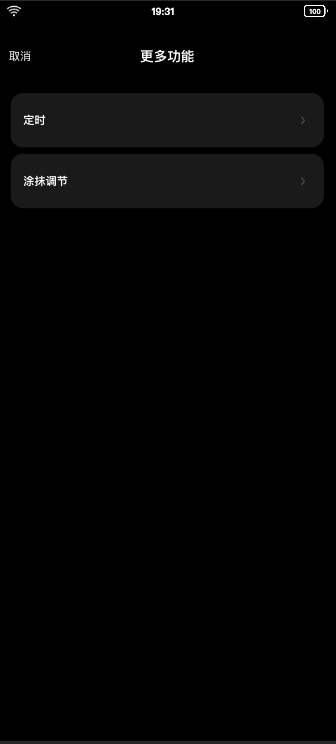
- 灯串裁剪:直接跳转功能页面实现,无需开发者自行开发功能
- 定时和倒计时:直接跳转功能页面实现,无需开发者自行开发功能
- 灯串调整:
- LED 点数设置:通过
led_number_setDP 设置 - 段数设置:通过
segment_num_setDP 设置
- LED 点数设置:通过
协议声明
对于简单协议转换,可以直接在 src/devices/protocols/index.ts 中声明:
import dpParser from './parsers';
import { lampSchemaMap } from '@/devices/schema';
const { colour_data } = lampSchemaMap;

export const protocols = {
  [colour_data.code]: [
    {
      name: 'hue' as const,
      bytes: 2,
      default: 0,
      defaultValue: 0,
    },
    {
      name: 'saturation' as const,
      bytes: 2,
      defaultValue: 1,
    },
    {
      name: 'value' as const,
      bytes: 2,
      defaultValue: 1,
    },
  ],
};
对于高级协议转换,可将对应协议规则放到 src/devices/protocols/ 目录下,再到 src/devices/protocols/index.ts 中进行引用:
import PaintColour1 from './paintColour1';
import RgbicLinerlightSceneFormater from './RgbicLinerlightSceneFormater';
import DiySceneFormatter from './DiySceneFormatter';

export const protocols = {
  [dpCodes.paint_colour_1]: new PaintColour1(),
  [dpCodes.rgbic_linerlight_scene]: new RgbicLinerlightSceneFormater(dpCodes.rgbic_linerlight_scene),
  [dpCodes.diy_scene]: new DiySceneFormatter(dpCodes.diy_scene),
};
相关资源
1. 如何判断产品支持哪些功能?
使用 useSupport Hook:
import { useSupport } from '@ray-js/panel-sdk';

const support = useSupport();

// 判断是否支持彩光
const isSupportColour = support.isSupportColour();

// 判断是否支持白光
const isSupportBright = support.isSupportBright();

// 判断是否支持某个 DP
const isSupportDp = support.isSupportDp('paint_colour_1');
2. 如何处理群组设备?
在 src/devices/index.ts 中已经处理了群组设备的判断:
const isGroupDevice = !!getLaunchOptionsSync()?.query?.groupId;

export const devices = {
  common: isGroupDevice
    ? new SmartGroupModel<SmartDeviceSchema, Abilities>(options as any)
    : new SmartDeviceModel<SmartDeviceSchema, Abilities>(options),
};
3. 如何同步灯珠颜色到云端?
参考 src/components/light/index.tsx 中的 handleUpdate2Cloud 方法,使用云端存储能力保存灯珠颜色数据。
4. 如何自定义情景?
参考 src/pages/diyEdit/index.tsx 和 src/pages/staticDiyEdit/index.tsx 的实现,支持两种编辑模式。
本文档介绍了照明灯串模板的核心功能实现,包括:
- 开关控制:通过
switch_ledDP 实现 - 工作模式切换:支持彩光、白光、情景、音乐、DIY 模式
- 彩光调节:通过
paint_colour_1DP 实现涂抹调色功能 - 情景功能:通过
rgbic_linerlight_sceneDP 实现 - 音乐律动:支持本地音乐和 App 音乐
- DIY 场景编辑:支持涂抹和颜色组合两种编辑模式
开发者可以根据实际需求,参考本文档和代码实现,进行功能扩展和定制。