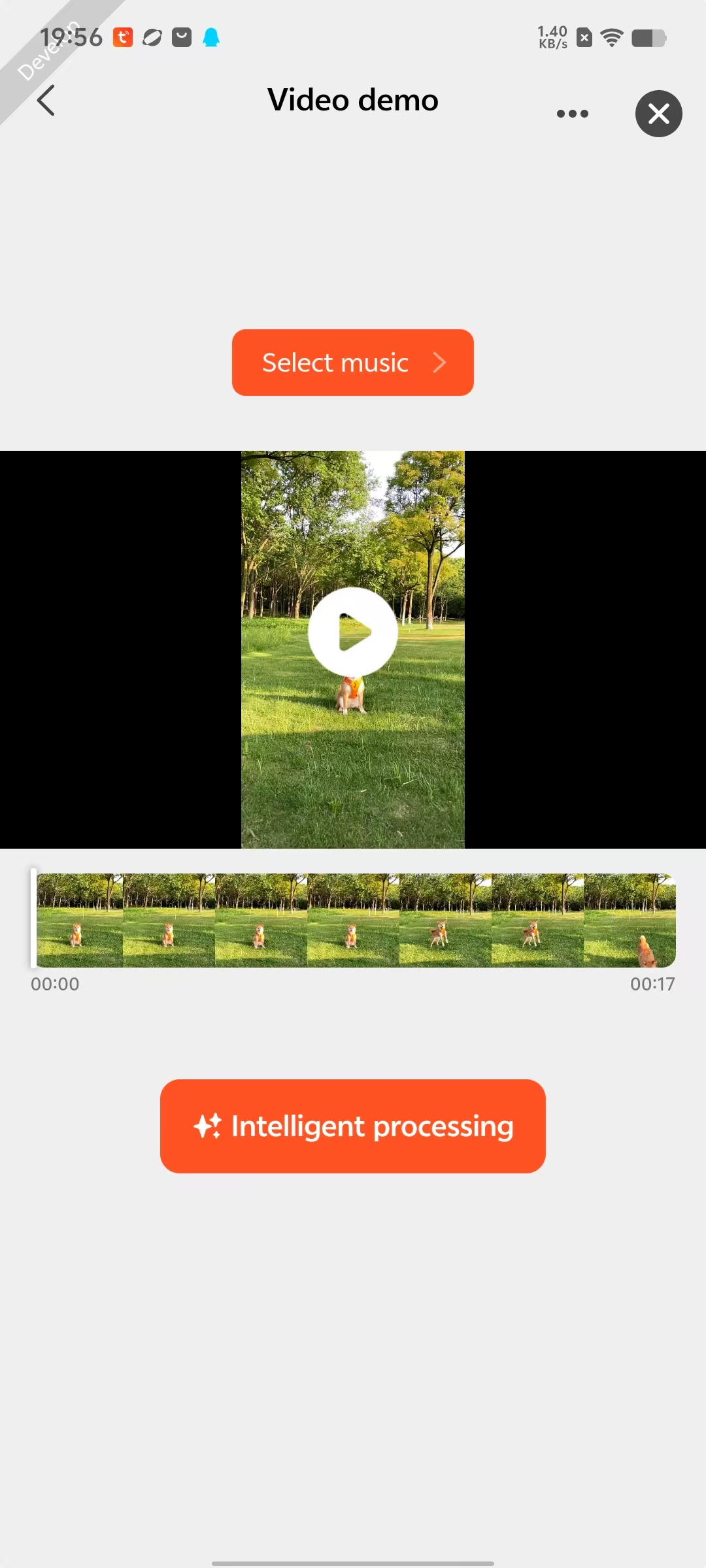
Highlights Video AI Editing On-App AI
### Function Introduction
1. The Highlights Video AI Editing mainly includes:
- Downloading videos from cloud to local;
- AI editing to highlight the main subject of videos;
- AI editing for video privacy protection;
- Customizable video background music.
2. The Highlights Video AI Editing relies mainly on the following key capabilities:
- **Download Cloud Video**
Developers can use the [startDownloadMessageVideoForComposition](/en/miniapp/develop/ray/api/ai/aiKit/startDownloadMessageVideoForComposition) API to download cloud videos that need editing to local storage.
- **Get Highlights Service Configuration Information**
Developers can use the [objectDetectForVideo](/en/miniapp/develop/ray/api/ai/aiKit/objectDetectForVideo) API to perform AI editing to highlight the main subject of the video.
- **Get Highlights Service Configuration Information**
Developers can use the [privacyProtectDetectForVideo](/en/miniapp/develop/ray/api/ai/aiKit/privacyProtectDetectForVideo) API to perform AI editing for privacy protection on the video.
### Interaction Flow
```mermaid
sequenceDiagram
participant User
participant Panel
participant Cloud
participant AI_Service
rect rgb(227, 242, 253)
User ->> Panel: 1. Batch select video files
Panel ->> Cloud: 2. startDownloadMessageVideoForComposition-api
Cloud -->> Panel: 3. Return composed video address
Panel ->> User: 4. Navigate to AI editing page
end
rect rgb(255, 243, 224)
User ->> Panel: 5. Select AI service + background music
alt Highlight main subject
Panel ->> AI_Service: 6. objectDetectForVideo-api
else Privacy protection
Panel ->> AI_Service: 6. privacyProtectDetectForVideo-api
end
par Parallel processing
AI_Service ->> AI_Service: 7. Video processing
AI_Service ->> Panel: 8. Progress notification (every second)
Panel ->> User: 9. Update progress bar
and Interruption listening
User ->> Panel: 10. Click cancel button
Panel ->> AI_Service: 11. Immediately terminate request
AI_Service -->> AI_Service: 12. Clean temporary resources
AI_Service -->> Panel: 13. Confirm termination (no data return)
Panel ->> User: 14. Display "Operation Canceled"
end
alt Completed normally
AI_Service -->> Panel: 15. Return final video
Panel ->> User: 16. Display preview interface
end
end
rect rgb(230, 245, 230)
User ->> Panel: 17. Click save
Panel ->> Cloud: 18. Upload to album
Cloud -->> Panel: 19. Confirm successful save
Panel ->> User: 20. Display save result
end
```