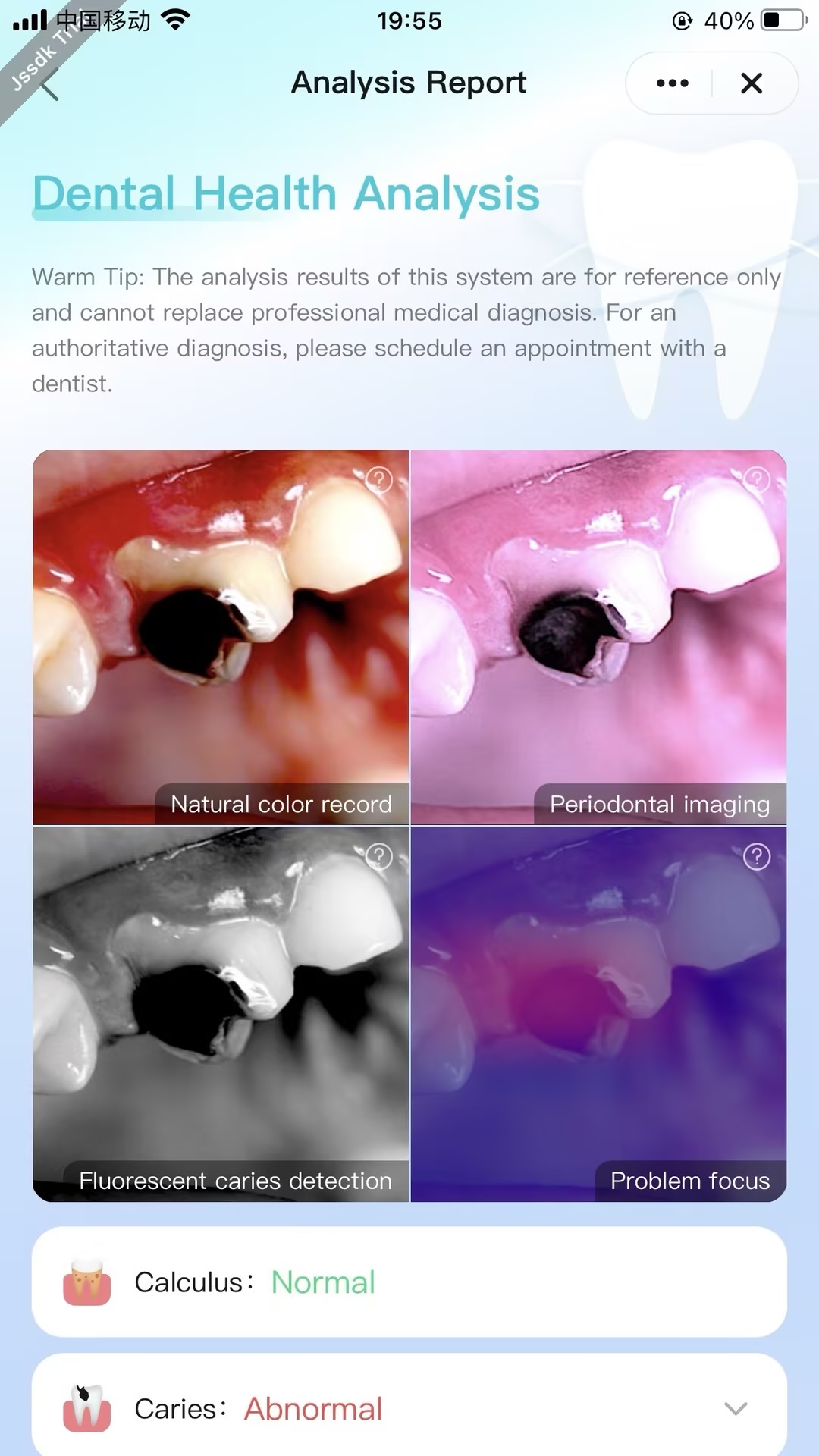
AI Oral Health Screening On-App AI
### Feature Introduction
Based on on-device On-App AI technology, intelligent oral health screening is achieved by analyzing oral mirror image data captured by users themselves.
### Process Overview
1. **Import Image**: Supports users taking a photo or importing oral assets from the local album.
2. **Intelligent Screening** (steps must be executed in the following order):
- Step 1: Initialize the oral health screening instance.
- Step 2: Listen to the initialization progress of the oral health screening instance (unregister the listener when the page is unmounted).
- Step 3: Start the oral health screening.
### Interaction Flow
```mermaid
sequenceDiagram
participant User
participant Panel
participant App Service
participant AI Engine
rect rgb(200, 230, 255)
Note over Panel,App Service: 1. Service Initialization
Panel ->> App Service: oralDiseaseInit()
Panel ->> App Service: onOralModelDownProgress()
App Service ->> AI Engine: Download oral model file
loop Progress Monitoring
AI Engine -->> App Service: Model download progress
App Service -->> Panel: Update UI progress bar
end
AI Engine -->> App Service: Model loading complete
App Service -->> Panel: Initialization complete
end
rect rgb(230, 240, 200)
Note over User,Panel: 2. Asset Preparation
alt Take a Photo
User ->> Panel: Tap to take photo
Panel ->> User: Open camera
User ->> Panel: Capture oral photo
else Select Locally
User ->> Panel: Select local image
Panel ->> User: Open album picker
end
Panel ->> Panel: Cache oral image
User ->> Panel: Tap [AI Analysis] button
end
rect rgb(200, 240, 230)
Note over Panel,AI Engine: 3. Intelligent Screening
Panel ->> App Service: oralDiseasePredictionRun(oral image)
App Service ->> AI Engine: Execute oral health analysis
AI Engine ->> AI Engine: Image preprocessing
AI Engine ->> AI Engine: Disease feature recognition
AI Engine ->> AI Engine: Health assessment calculation
AI Engine -->> App Service: Return screening results
App Service -->> Panel: Callback analysis results
end
rect rgb(240, 200, 230)
Note over Panel,User: 4. Result Display
Panel ->> Panel: Parse screening data
Panel ->> User: Render visualization report
Panel ->> User: Display health recommendations
end
rect rgb(255, 200, 200)
Note over Panel,App Service: 5. Resource Cleanup
User ->> Panel: Leave page / close app
Panel ->> App Service: offOralModelDownProgress()
App Service ->> AI Engine: Release model resources
AI Engine -->> App Service: Resources released
end
```