# AI Assistant SDK
## Version Notes
**⚠️ Important**: Starting from version 0.2.x, `@ray-js/t-agent-plugin-assistant` has been deprecated. Please use `@ray-js/t-agent-plugin-aistream` instead.
## Installation (Ray mini-program)
```shell
yarn add @ray-js/t-agent @ray-js/t-agent-plugin-aistream @ray-js/t-agent-ui-ray
```
> Make sure `@ray-js/t-agent`, `@ray-js/t-agent-plugin-aistream`, and `@ray-js/t-agent-ui-ray` are on the same version.
## Mini-program Kit Requirements
```json
{
"dependencies": {
"BaseKit": "3.12.0",
"BizKit": "4.10.0",
"DeviceKit": "4.6.1",
"HomeKit": "3.4.0",
"MiniKit": "3.12.1",
"AIStreamKit": "1.3.2"
},
"baseversion": "2.21.10"
}
```
> When using MCP features, `AIStreamKit` needs to be `2.2.1` or above.
## package.json Dependency Requirements
```json
{
"dependencies": {
"@ray-js/ray": ">=1.6.8"
}
}
```
## Development
```shell
# Develop the SDK
yarn run dev
# Develop the template mini-program
yarn run miniapp
```
## Usage Example
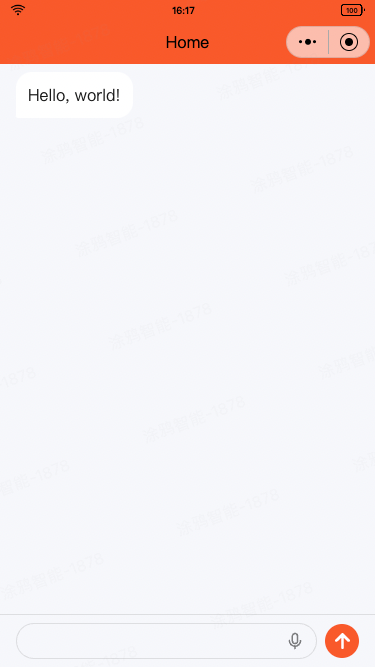
Build a chat page with Ray UI.
```tsx
// ChatPage.tsx
import React from 'react';
import { View } from '@ray-js/components';
import { createChatAgent, withDebug, withUI } from '@ray-js/t-agent';
import {
ChatContainer,
defaultRenderOptions,
MessageInput,
MessageList,
MessageActionBar,
} from '@ray-js/t-agent-ui-ray';
import { withAIStream, withBuildIn } from '@ray-js/t-agent-plugin-aistream';
const createAgent = () => {
const agent = createChatAgent(
withUI(),
withAIStream({
earlyStart: true,
agentId: 'your-agent-id',
tokenOptions: {
api: 'm.life.ai.agent.token.get',
version: '1.0',
extParams: {
dialogueMode: 1,
},
},
}),
withDebug(),
withBuildIn()
);
agent.plugins.aiStream.onUserDataRead((type, data, result) => {
if (type === 'start-event') {
result.userData = {
sessionAttributes: {
'custom.param': {
'custom.app.scene': {
value: 'chat-page',
},
},
},
};
}
});
const { onChatStart, createMessage } = agent;
onChatStart(async result => {
const hello = createMessage({
role: 'assistant',
});
hello.bubble.setText('Hello, world!');
result.messages.push(hello);
await hello.persist();
});
return agent;
};
const renderOptions = {
...defaultRenderOptions,
};
export default function ChatPage() {
return (
);
}
```
# t-agent
The t-agent package is a conversational assistant SDK written in TypeScript, used to build conversational agents. It supports a plugin mechanism that lets you extend the agent's capabilities.
This is a pure SDK package that contains no UI components, so it can be paired with any UI framework.
## Basic Concepts
### ChatAgent
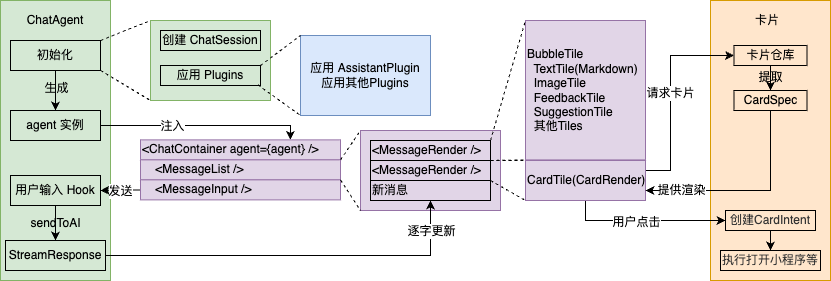
The core class of the conversational agent. It manages the conversation lifecycle, message creation, message persistence, and so on. It supports plugins and a hook mechanism to extend the agent's capabilities.
Use `createChatAgent` to create a ChatAgent instance:
```tsx
import { createChatAgent } from '@ray-js/t-agent';
const createAgent = () => {
/* Apply plugins in the createChatAgent arguments. Note that plugin order matters. */
const agent = createChatAgent();
return agent;
};
```
Main properties:
- `agent.session` — the ChatSession container, used to store session-related data
- `agent.plugins` — after applying plugins, the plugins' methods and hooks are stored here
Main methods:
- `agent.start()` — start
- `agent.dispose()` — release
- `agent.pushInputBlocks(blocks, signal)` — push message blocks into the ChatAgent from the outside, used when a user sends a message to the AI
- `agent.createMessage(data)` — create a message bound to the current agent
- `agent.emitTileEvent(tileId: string, payload: any)` — emit a tile event
- `agent.removeMessage(messageId: string)` — remove a message
- `agent.flushStreamToShow(message: ChatMessage, response: StreamResponse, composer: ComposeHandler)` — stream-update a message
### Hook Mechanism
ChatAgent only defines a runtime framework and data structures; the actual behavior is implemented through the hook mechanism. The hook mechanism is an event-driven programming model — you register callback functions to implement the agent's behavior.
```tsx
import { createChatAgent } from '@ray-js/t-agent';
const createAgent = () => {
const agent = createChatAgent();
const { onChatStart } = agent;
// The onChatStart hook fires when the conversation starts
onChatStart(result => {
console.log('Chat start', result);
});
return agent;
};
```
#### Hook Execution Order
Hooks execute in the following order:
```
onAgentStart → onChatStart/onChatResume → onMessageListInit → onInputBlocksPush
```
ChatAgent's main hooks and parameters:
- `agent.onAgentStart` — initialize the agent
- `agent.onChatStart` — fires when the conversation starts
- `result.messages` — used to initialize the message list
- `agent.onChatResume` — fires when the conversation resumes
- `result.messages` — the already-restored message list
- `agent.onMessageListInit` — fires when the message list is initialized, after chat start or resume
- `result.messages` — the message list used for rendering; it's the same list as the message in the two hooks above
- `agent.onInputBlocksPush` — fires when message blocks are pushed
- `blocks` — the input message blocks
- `signal` — the abort signal
- `agent.onMessageChange` — fires when a message changes
- `type` — the change type: `show`, `update`, `remove`
- `message` — the changed message
- `agent.onMessagePersist` — fires when a message is persisted
- `payload` — persistence-related parameters
- `message` — the target message being persisted
- `agent.onTileEvent` — fires when a tile event occurs
- `tile` — the tile that triggered the event
- `payload` — the event payload
- `agent.onAgentDispose` — fires when the agent is released
- `agent.onUserAbort` — fires when the user aborts
- `reason` — the abort reason
- `agent.onError` — fires on error
- `error` — the error object
These hooks all accept a callback function as their argument and call it when triggered. The callback can be synchronous or asynchronous, and its return value does not affect the result. If you need to change the result, modify the callback's `result` argument, or modify the tile or message object.
### ChatSession
ChatSession stores the message list of the conversation with the agent, context data, and so on. It is created together with the ChatAgent.
Main properties:
- `session.messages` — the message list
- `session.sessionId` — the session id
- `session.isNewChat` — whether this is a new conversation, used to distinguish a new chat (`onChatStart`) from a resumed chat (`onChatResume`)
Main methods:
- `session.set` — set session data, can be any type
- `session.get` — get session data
- `session.getData` — get session data in object form
- `session.getLatestMessage` — get the last message
Hooks:
- `session.onChange` — register a callback for session data changes
### ChatMessage
ChatMessage is an abstraction of a conversation message, used to store the message's content, status, and other information. It also provides a set of convenient methods for operating on messages.
A single ChatMessage can contain multiple ChatTiles, used to display different content.
Use the `createMessage` method to create a message:
```tsx
const createAgent = () => {
const agent = createChatAgent();
const { createMessage, onChatStart } = agent;
// When the chat initializes, send a message
onChatStart(async result => {
// Create a message sent by the assistant
const message = createMessage({
role: 'assistant',
});
// Access message.bubble to quickly create a text bubble
message.bubble.setText('Hello!');
result.messages.push(message);
});
return agent;
};
```
Main properties:
- `message.id` — the message id
- `message.role` — the message role, either `assistant` or `user`
- `message.tiles` — the message's tile list
- `message.status` — the message status, a `ChatMessageStatus` enum, which can be `START`, `UPDATING`, `FINISH`, etc.
- `message.meta` — extra data attached to the message
- `message.isShow` — whether the message has been displayed in the UI
- `message.bubble` — a shortcut to the message's bubble tile
Main methods:
- `message.show` — display the message in the UI
- `message.update` — update the current message's state in the UI
- `message.remove` — remove the current message from the UI
- `message.persist` — persist the message
- `message.addTile` — add a tile
- `message.removeTile` — remove a tile
- `message.setTilesLocked` — set the locked state of all tiles
- `message.set` — set message properties
- `message.setMetaValue` — set a meta property by key-value
- `message.deleteMetaValue` — delete a meta property
- `message.setMeta` — set the meta object directly
- `message.findTileByType` — find a tile by tile type
#### ChatTile
ChatTile is a block within a conversation message, used to display different content inside a message, such as text, images, cards, etc.
Use the `addTile` method to add a tile to a message:
```tsx
const message = createMessage({
role: 'assistant',
});
// Add an image tile
message.addTile('image', {
src: '/image.jpg',
});
await message.show();
```
ChatTile's main properties:
- `tile.id` — the tile id
- `tile.type` — the tile type
- `tile.data` — the tile data
- `tile.children` — the tile's child tiles
- `tile.locked` — whether the tile is locked
- `tile.fallback` — fallback content when the tile cannot be displayed
- `tile.message` — the message the tile belongs to
ChatTile's main methods:
- `tile.update` — a shortcut for `tile.message.update`
- `tile.show` — a shortcut for `tile.message.show`
- `tile.setLocked` — set the tile's locked state
- `tile.addTile` — add a child tile
- `tile.setData` — set the tile's data
- `tile.setFallback` — set the tile's fallback content
- `tile.findByType` — find a child tile by tile type
`message.bubble` is a shortcut — simply accessing it quickly adds a bubble tile to the current message:
```tsx
const message = createMessage({
role: 'assistant',
});
message.bubble.setText('Hello, world!');
// is equivalent to
message.addTile('bubble', {}).addTile('text', { text: 'Hello, world!' });
await message.show();
```
For bubble messages, in addition to the basic tile methods, some extra properties and methods are provided:
- `message.bubble.text` — property, read the bubble text
- `message.bubble.setText` — method, set the bubble text
- `message.bubble.isMarkdown` — property, whether the content is in markdown format
- `message.bubble.setIsMarkdown` — method, set whether the content is markdown
- `message.bubble.status` — property, the bubble status (`BubbleTileStatus`)
- `message.bubble.setStatus` — method, set the bubble status
- `message.bubble.info` — property, the bubble info
- `message.bubble.setInfo` — method, set the bubble info
- `message.bubble.initWithInputBlocks` — method, initialize the bubble with input blocks
**Bubble messages support long-press operations**, such as copy and delete. Animations are also shown while the message is loading and updating.
Bubble messages support the following long-press operations:
- Copy: copy the message text content
- Delete: delete the current message
### Lifecycle
ChatAgent triggers different hooks at different stages. Developers can register hooks to implement custom behavior. The sequence diagram below shows the ChatAgent lifecycle.
```mermaid
sequenceDiagram
participant AI as Backend(AI)
participant A as ChatAgent
participant UI as UI
actor User as User
User ->> UI: Open the chat UI
UI ->> UI: Create the agent object `agent`
UI ->> A: agent.start() starts the agent
rect rgba(255,255,0,0.1)
note over A: Hook: onAgentStart
A ->> AI: Check whether it's a new session
AI ->> A: Return
end
alt New session
A ->> AI: Start a new session
note over A: Hook: onChatStart
else Resume session
A ->> AI: Read session history
AI ->> A: Return history messages
note over A: Hook: onChatResume
end
rect rgba(255,255,0,0.1)
note over A: Hook: onMessageListInit
A ->> UI: Assemble the messages to display
UI ->> User: Display messages
end
opt Conversation
User ->> UI: Type and send a message
UI ->> A: agent.pushInputBlocks()
rect rgba(255,255,0,0.1)
note over A: Hook: onInputBlocksPush
A ->> A: Create message object `msg` set msg to the user's input text msg.show()
note over A: Hook: onMessageChange show
A -->> UI: Update the UI
UI -->> User: Display the new message
A ->> A: Create message object `respMsg` set respMsg to loading respMsg.show()
note over A: Hook: onMessageChange show
A -->> UI: Update the UI
UI -->> User: Display the loading response message
A ->> AI: Call the AI
AI ->> A: Return the message stream
loop Streaming messages
AI ->> A: Message packet
A ->> A: Update respMsg data respMsg.update()
note over A: Hook: onMessageChange update
A -->> UI: Update the UI
UI -->> User: Stream text / show cards
end
end
end
opt Operate on a message action point (single-select example)
User ->> UI: Select an option
UI ->> A: agent.emitTileEvent()
rect rgba(255,255,0,0.1)
note over A: Hook: onTileEvent
A ->> A: Set msg status msg.persist()
note over A: Hook: onMessagePersist
A ->> AI: Persist the message
AI ->> A: Return result
A ->> A: msg.update()
note over A: Hook: onMessageChange update
A ->> UI: Update the UI
UI ->> User: Dim the message, highlight the selection
end
end
opt Delete a message
User ->> UI: Delete a message
UI ->> A: agent.removeMessage()
rect rgba(255,255,0,0.1)
A ->> A: msg.remove()
A ->> AI: Mark the message as deleted
note over A: Hook: onMessageChange remove
A ->> UI: Update the UI
UI ->> User: The message disappears
end
end
```
### Plugin Mechanism
Plugins are implemented on top of the hook mechanism above. Plugins can implement agent capabilities, such as integrating with an AI platform or providing a UI. Plugins can also expose methods and properties for developers to use.
```tsx
import { createChatAgent, withUI } from '@ray-js/t-agent';
const createAgent = () => {
const agent = createChatAgent(
withUI() // The withUI plugin provides some UI rendering methods
);
return agent;
};
// ScrollToBottom.tsx
import React from 'react';
import { Button } from '@ray-js/components';
import { useChatAgent } from '@ray-js/t-agent-ui-ray';
const ScrollToBottom = () => {
const agent = useChatAgent();
const scroll = () => {
// Use a method exposed by a plugin
agent.plugins.ui.emitEvent('scrollToBottom', { animation: false });
};
return ;
};
```
#### Writing a Plugin
A plugin is a higher-order function that takes an options object and returns a function. That function receives a ChatAgent object, in which you can register hooks.
```tsx
import { ChatAgent, createHooks, Hookable } from '@ray-js/t-agent';
// Try a MyPlugin plugin
export type MyPlugin = GetChatPluginHandler;
export const withMyPlugin = (options: any) => {
// Create a Hookable object
const hooks = createHooks();
return (agent: ChatAgent) => {
const { onChatStart } = agent;
onChatStart(async () => {
console.log('Chat start');
// Trigger the plugin's hook
await hooks.callHook('onMyHook', 'Hello, world!');
});
// Expose the plugin's methods and hooks
return {
hooks,
myPlugin: {
// Expose a method
myMethod() {
console.log('My method');
},
// Expose a hook
onMyHook: fn => {
return hooks.hook('onMyHook', fn);
},
},
};
};
};
```
```tsx
// Use the plugin
import { createChatAgent } from '@ray-js/t-agent';
const createAgent = () => {
const agent = createChatAgent(
// Use the plugin
withMyPlugin({})
);
// Call a method exposed by the plugin
agent.plugins.myPlugin.myMethod();
// Register the plugin's hook
agent.plugins.myPlugin.onMyHook(msg => {
console.log(msg);
});
return agent;
};
```
## Built-in Plugins
### withDebug
The withDebug plugin prints logs to the console for convenient debugging.
```tsx
const agent = createChatAgent(
withDebug({
autoStart: true, // Whether to start automatically, defaults to true
})
);
// Start
agent.plugins.debug.start();
// Stop
agent.plugins.debug.stop();
```
### withUI
The withUI plugin provides some default UI behaviors, such as displaying and deleting messages, and an event bus.
```tsx
const agent = createChatAgent(withUI());
agent.plugins.ui.emitter; // The event bus
// Scroll to bottom
agent.plugins.ui.emitEvent('scrollToBottom', { animation: false });
// Listen for an event
const off = agent.plugins.ui.onEvent('scrollToBottom', payload => {
console.log('scroll to bottom', payload.animation);
});
// Stop listening
off();
```
The main events of the ui plugin are listed below; you can also freely register your own events:
- `messageListInit` — initialize the message list
- `payload.messages: ChatMessageObject[]` — the message list
- `messageChange` — message changed
- `payload.type: 'show' | 'update' | 'remove'` — the change type
- `payload.message: ChatMessageObject` — the message
- `scrollToBottom` — scroll to bottom
- `payload.animation: boolean` — whether to animate
- `sendMessage` — send a message, triggering a UI update
- `payload.blocks: InputBlock[]` — the input blocks
- `setInputBlocks` — set input blocks into the MessageInput field
- `payload.blocks: InputBlock[]` — the input blocks
- `sessionChange` — session data changed
- `payload.key: string` — the session data key
- `payload.value: any` — the session data value
- `payload.oldValue: any` — the old session data value
UI plugin enhancements (new in 0.2.x):
In 0.2.x, the withUI plugin adds a hook mechanism that lets developers customize message-feedback and history-clearing behaviors:
**Message feedback hook**:
- `agent.plugins.ui.hook('onMessageFeedback', async context => {})` — register a message feedback hook
- `context.payload.messageId: string` — the message ID
- `context.payload.rate: 'like' | 'unlike'` — the feedback type
- `context.payload.content?: string` — feedback content (optional)
- `context.result: { success: boolean }` — the return result; you must set whether it succeeded
**Clear history hook**:
- `agent.plugins.ui.hook('onClearHistory', async context => {})` — register a clear-history hook
- `context.payload: any` — the clear-history parameters
- `context.result: { success: boolean }` — the return result; you must set whether it succeeded
**Calling hooks**:
- `agent.plugins.ui.callHook('onMessageFeedback', payload)` — call the message feedback hook
- `agent.plugins.ui.callHook('onClearHistory', payload)` — call the clear-history hook
Usage example:
```tsx
const agent = createChatAgent(withUI(), withAIStream({ agentId: 'your-agent-id' }));
// Register message feedback handling
agent.plugins.ui.hook('onMessageFeedback', async context => {
const { messageId, rate, content } = context.payload;
try {
// Call your API to submit feedback
await submitFeedback({ messageId, rate, content });
context.result = { success: true };
} catch (error) {
context.result = { success: false };
}
});
// Register clear-history handling
agent.plugins.ui.hook('onClearHistory', async context => {
try {
// Call your API to clear history
await clearChatHistory();
context.result = { success: true };
} catch (error) {
context.result = { success: false };
}
});
```
> Note: `ChatMessageObject` here is a message object, not the `ChatMessage` type.
> It contains some of the message's properties and methods. This is to avoid modifying the message object in the UI layer, which would cause inconsistency with the message object in the ChatAgent.
> Modifications to message objects should always be done in the ChatAgent.
## Bundled utils
### getLogger(prefix: string): Logger
Create a logger for printing logs.
```tsx
import { getLogger } from '@ray-js/t-agent';
const logger = getLogger('MyPlugin');
logger.debug('Hello, world!');
```
### Emitter
Emitter is an event bus used to register and dispatch events.
```tsx
import { Emitter, EmitterEvent } from '@ray-js/t-agent';
const emitter = new Emitter();
// Register an event
const cb = event => console.log('detail', event.detail);
emitter.addEventListener('event', cb);
// Dispatch an event
emitter.dispatchEvent(new EmitterEvent('event', { detail: 'Hello, world!' }));
// Remove the event
emitter.removeEventListener('event', cb);
```
### StreamResponse
StreamResponse is a streaming response object used to handle streaming messages.
```tsx
import { StreamResponse } from '@ray-js/t-agent';
const partStream = await getPartStream(); // Get the stream data
const response = new StreamResponse(partStream);
const parts = response.parts();
for await (const part of parts) {
console.log('part', part);
}
```
### createHooks, Hookable
See the `hookable` npm package.
### isAbortError
Determine whether an error is an abort error.
### safeParseJSON
Safely parse a JSON string. Returns `undefined` if parsing fails.
```tsx
import { safeParseJSON } from '@ray-js/t-agent';
const obj = safeParseJSON<{ a: number }>('{"a": 1}');
console.log(obj.a); // 1
```
# t-agent-plugin-aistream
t-agent-plugin-aistream is a plugin that integrates with the mini-program AI agent platform, providing the ability to connect to it.
## Installation
```shell
yarn add @ray-js/t-agent-plugin-aistream
```
## Usage
```tsx
import { createChatAgent, withUI } from '@ray-js/t-agent';
import { withAIStream, withBuildIn } from '@ray-js/t-agent-plugin-aistream';
const createAgent = () => {
const agent = createChatAgent(
withUI(), // The withUI plugin is generally required
withAIStream({
agentId: 'your-agent-id', // Enter your agent ID
}),
withBuildIn()
);
return agent;
};
```
## Included Plugins
### withAIStream
Provides the ability to integrate with the mini-program AI agent platform.
Parameters:
- `agentId` — the agent ID (required)
- `clientType` — the client type, defaults to APP (2)
- `deviceId` — the device ID, required when `clientType` is DEVICE (1)
- `wireInput` — whether to pass input blocks to the agent, defaults to true. When set to false, you need to write your own `onInputBlocksPush` hook to handle input blocks
- `historySize` — the history message size, defaults to 1000
- `indexId` — the index ID, defaults to `'default'`
- `homeId` — the home ID; defaults to the current home if not provided
- `earlyStart` — whether to establish the connection during the `onAgentStart` stage
- `eventIdPrefix` — the eventId prefix, used to make cloud-side debugging and log tracing easier
- `tokenOptions` — parameters for getting the agent token
- `api` — the API name
- `version` — the API version
- `extParams` — extra parameters
- `createChatHistoryStore` — a custom message storage function
Methods:
- `agent.plugins.aiStream.send(blocks, signal, userData)` — send a message to the agent
- `blocks` — the input block array
- `signal` — an optional AbortSignal used to abort the request
- `userData` — optional user data attached to the sent message
- `agent.plugins.aiStream.chat(blocks, signal, options)` — send a message to the agent and generate a question ChatMessage and an AI answer ChatMessage, with streaming updates
- `blocks` — the input block array
- `signal` — an optional AbortSignal
- `options.sendBy` — the sender role, defaults to `'user'`
- `options.responseBy` — the responder role, defaults to `'assistant'`
- `options.userData` — optional user data
- `agent.plugins.aiStream.removeMessage(message)` — delete a history message
- `agent.plugins.aiStream.clearAllMessages()` — clear all messages of the current session and the local history
- `agent.plugins.aiStream.getChatId()` — get the current session's chatId, returns `Promise`
Hooks:
- `onMessageParse` — fires when reading and parsing history messages; you can modify the message in this hook
- `msgItem` — the stored message object
- `result.messages` — the parsed message list
- `onChatMessageSent` — fires after the user message and response message are created
- `userMessage` — the message sent by the user
- `respMessage` — the AI's response message
- `onTextCompose` — fires when text data is received, used to handle text rendering
- `respMsg` — the response message
- `status` — the message status
- `result.text` — the text content, can be modified
- `onSkillCompose` — fires when skill data is received, used to handle skill rendering
- `skill` — the current skill data (`ReceivedTextSkillPacketBody`)
- `respMsg` — the response message
- `result.messages` — the message list
- `onSkillsEnd` — fires when all skills have been processed
- `skills` — the skill data list (`ReceivedTextSkillPacketBody[]`)
- `respMsg` — the response message
- `result.messages` — the message list
- `onTTTAction` — fires when a tile uses `sendAction`
- `tile` — the triggering tile
- `result.action` — the TTTAction, which can be modified to change the action to execute
- `onCardsReceived` — fires when card data is received
- `skills` — the skill data list (`ReceivedTextSkillPacketBody[]`)
- `result.cards` — the card list
- `onUserDataRead` **(new in 0.2.x)** — fires when custom user data needs to be read, used to pass extra context information to the AI platform
- `type` — the trigger type, either `'create-session'` or `'start-event'`
- `'create-session'` — fires when creating a session, only once
- `'start-event'` — fires each time a message is sent
- `data` — the context data
- `data.blocks` — when type is `'start-event'`, contains the input blocks of this send
- `result.userData` — the returned user data object, which is merged and sent to the AI platform
### withMCP
Provides the ability to expose MCP services, allowing the agent to call tools provided inside the mini-program — implementing operations such as controlling Bluetooth devices, calling custom APIs, and reading local files. To use it, you first need to enable "Device MCP" on the agent node. In addition, MCP tool names must start with `device.`.
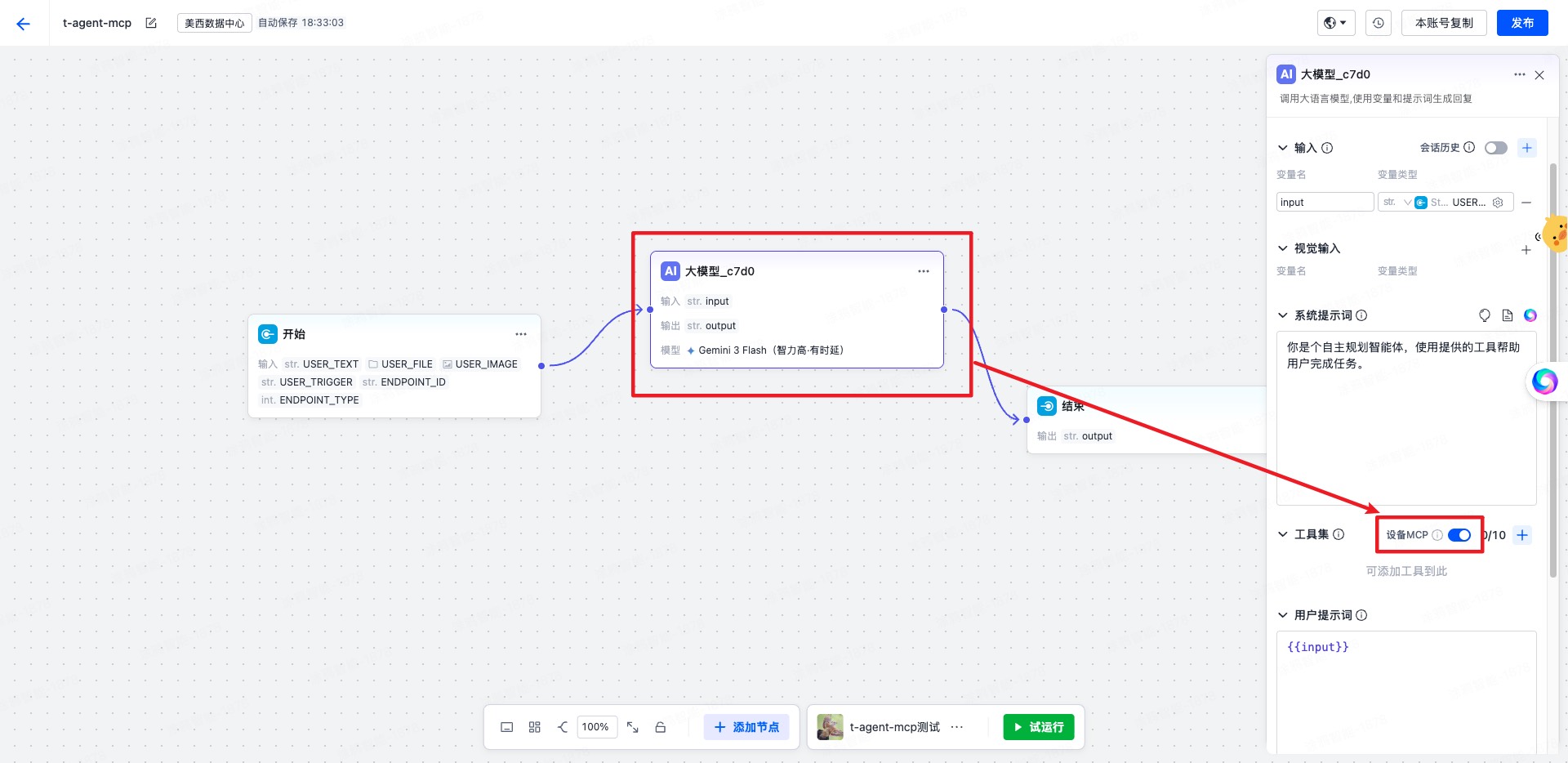
**Prerequisites**:
- Must be used after `withAIStream`
- When using MCP features, `AIStreamKit` needs to be `2.2.1` or above
- `createServer` must return an `McpServer` synchronously
Parameters:
- `createServer(agent)` — create the MCP service instance
- `createContext(event, agent)` — optional, supplements context for each MCP request
**Usage example**:
```tsx
import { createChatAgent, withUI } from '@ray-js/t-agent';
import { McpServer, withAIStream, withMCP } from '@ray-js/t-agent-plugin-aistream';
const createAgent = () => {
const server = new McpServer({
name: 'demo-mcp',
version: '1.0.0',
});
server.registerTool(
'device.echo',
{
description: 'Echo back the input parameters',
inputSchema: {
type: 'object',
properties: {
text: { type: 'string' },
},
},
},
async (args, context) => {
return {
content: [
{
type: 'text',
text: JSON.stringify({
text: args.text,
sessionId: context.sessionId,
}),
},
],
};
}
);
return createChatAgent(
withUI(),
withAIStream({
agentId: 'your-agent-id',
}),
withMCP({
createServer: () => server,
createContext: event => ({
traceId: event.eventId,
}),
})
);
};
```
Once enabled, the plugin will:
- Inject `sessionAttributes.deviceMcp` when creating a session
- Call the corresponding tool when an `MCP_CMD` event is received
- Return the tool execution result to AIStream in JSON-RPC response format
### Passing Custom Variables
In some cases you may need to pass custom variables into the agent as variables in the workflow. You need to configure the references to the custom variables in the workflow, and then pass them in from the mini-program:
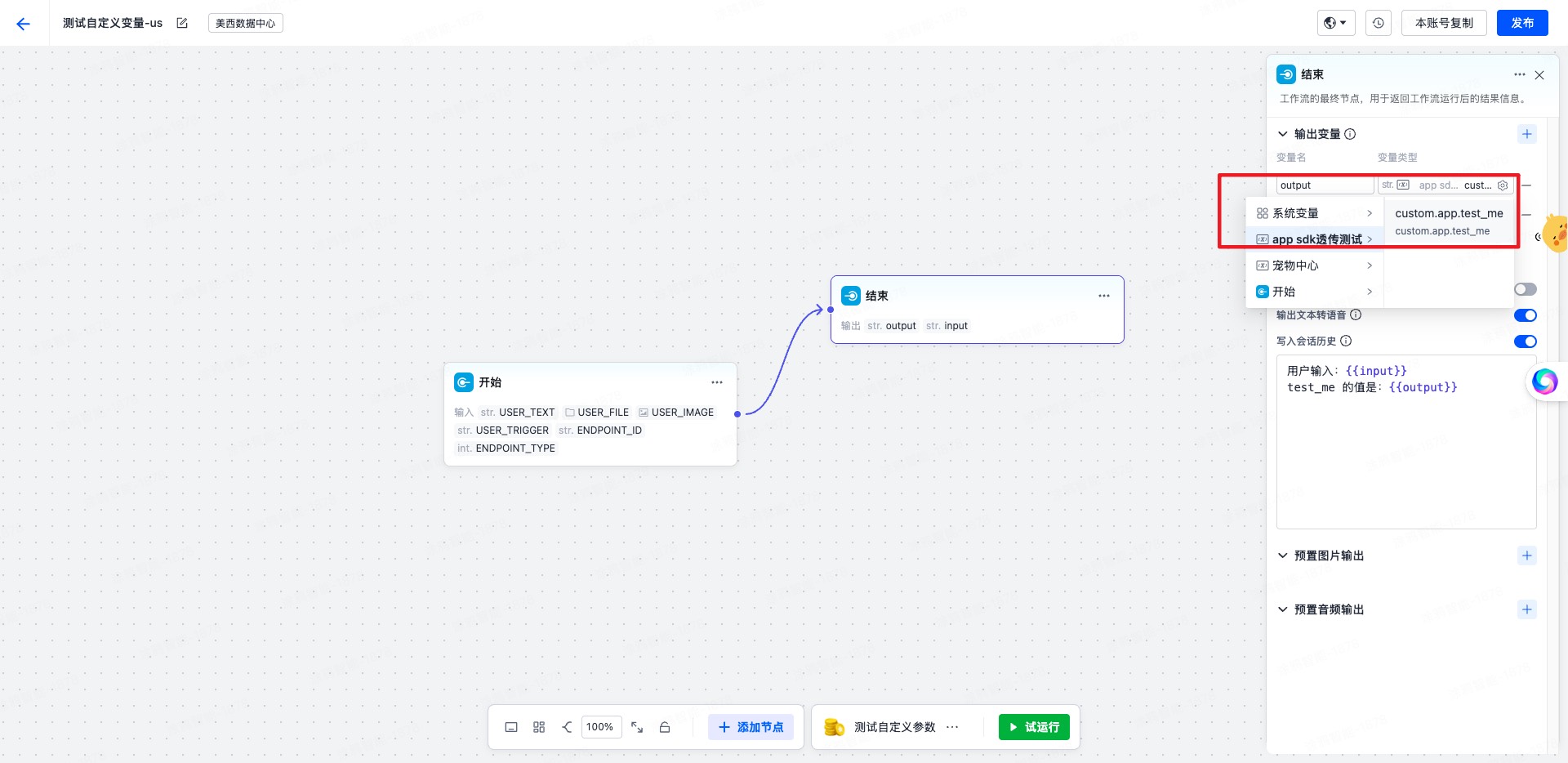
**Passing custom variables from the mini-program**:
```tsx
const agent = createChatAgent(
withUI(),
withAIStream({
agentId: 'your-agent-id',
})
);
agent.plugins.aiStream.onUserDataRead((type, data, result) => {
// Pass user information when creating a session
if (type === 'create-session') {
result.userData = {
sessionAttributes: {
'custom.param': {
'custom.app.test_me': {
// This is the parameter name configured to be received on the platform
value: `with value test me ${type} ${Date.now()}`,
},
},
},
};
return;
}
// Pass dynamic context each time a message is sent
if (type === 'start-event') {
result.userData = {
sessionAttributes: {
'custom.param': {
'custom.app.test_me': {
// This is the parameter name configured to be received on the platform
value: `with value test me ${type} ${Date.now()}`,
},
},
},
};
return;
}
});
```
### withBuildIn
Provides some built-in features, such as smart home and knowledge base search.
**Supported skills**:
- **Smart home**: device control, scene management
- **Knowledge base search**: display of related documents
#### Configuration Options
```tsx
withBuildIn({
// Whether to enable TTS auto-play by default, defaults to false
audioAutoPlay: true,
});
```
#### TTS Audio Playback
When `withAIStream({ enableTts: true })` is enabled, the server sends TTS audio packets along with messages. `withBuildIn` consumes these audio packets and provides full playback capabilities:
- **Auto-play**: when the audio stream starts (`StreamFlag.START`), if `AIStream.audioAutoPlay` is `true`, playback starts automatically.
- **Bubble play button**: after the audio stream ends, a `bubbleTool` tile (audio play / copy button) is inserted into the corresponding bubble. The playback parameters (`path` / `codecType` / `sampleRate` / `channels` / `bitDepth` / `pts`) are aggregated by audio stream id and written to the tile, so clicking replays the audio.
- **Single-item exclusivity**: only one item plays at a time. Starting a new playback or actively stopping will first stop the current playback.
- **Playback lifecycle**: it listens to the underlying `onAudioPlayChanged` and automatically resets the playback state when playback completes or errors.
**Exposed session state** (all broadcast via the `sessionChange` event; on the UI side you can subscribe with `useAgentSessionValue` and derive component state):
| key | Type | Description |
| --------------------------- | ---------------- | ------------------------------------ |
| `AIStream.audioAutoPlay` | `boolean` | Whether TTS auto-play is enabled |
| `AIStream.audioPlaying` | `boolean` | Whether playback is currently active |
| `AIStream.playingMessageId` | `string \| null` | The id of the message being played |
**Exposed UI events**:
| Event | Description |
| --------------- | ------------------------------------------------------------------- |
| `audioPlayStop` | Actively stop the current playback (whether or not auto-play is on) |
Example: a three-state (playing / auto-play / muted) toggle button at the top of the page:
```tsx
import { useAgentSessionValue, useEmitEvent } from '@ray-js/t-agent-ui-ray';
function AudioToggle() {
const [audioAutoPlay, setAudioAutoPlay] = useAgentSessionValue('AIStream.audioAutoPlay');
const [audioPlaying] = useAgentSessionValue('AIStream.audioPlaying');
const emitEvent = useEmitEvent();
const onClick = () => {
if (audioPlaying) {
// Playing: clicking immediately stops playback, regardless of mute state
emitEvent('audioPlayStop', undefined);
return;
}
// Otherwise toggle auto-play / mute
setAudioAutoPlay(prev => !prev);
};
const label = audioPlaying ? '🎵 Playing' : audioAutoPlay ? '🔊 Auto-play' : '🔇 Muted';
return {label};
}
```
> The `playing` state inside a component should be derived from the session (e.g. `audioPlaying && playingMessageId === message.id`). Do not maintain local playback state inside a tile, to avoid it being persisted or becoming inconsistent with the global state.
## Mock Mechanism
To make development easier, we provide a mock mechanism that lets you develop without connecting to the mini-program AI agent platform — you can develop directly using mock data.
### Mock AI Stream Response
```tsx
import { mock } from '@ray-js/t-agent-plugin-aistream';
mock.hooks.hook('sendToAIStream', context => {
if (context.options.blocks?.some(block => block.text?.includes('hello'))) {
context.responseText = 'hello, who are you?';
}
if (context.options.blocks?.some(block => block.text?.includes('smart home'))) {
context.responseText = 'Controlling your smart devices...';
context.responseSkills = [
{
code: 'smart_home',
general: {
action: 'control_device',
data: {
devices: [
{
deviceId: 'vdevo174796589841019',
icon: '',
dps: { range: '0', toggle: 'ON' },
name: 'Towel rack',
},
],
},
},
custom: {},
},
];
}
});
```
### Mock ASR Speech Recognition
```tsx
import { mock } from '@ray-js/t-agent-plugin-aistream';
mock.hooks.hook('asrDetection', context => {
context.responseText = 'Hello world!, I am a virtual assistant.';
});
```
### Mock MCP
The recommended approach is to decide which MCP tool to call inside the mock `sendToAIStream` hook based on the input content, and then run the full MCP call chain directly via `context.callMCPTool()`.
```tsx
import { mock } from '@ray-js/t-agent-plugin-aistream';
const getToolCall = (text: string) => {
if (text.includes('error') || text.includes('fail') || text.includes('exception')) {
return {
name: 'device.home.energy.summary.fail',
arguments: {
reason: 'mock-error-case',
},
};
}
if (text.includes('energy') || text.includes('power') || text.includes('data')) {
return {
name: 'device.home.energy.summary.get',
arguments: {
period: 'today',
},
};
}
return {
name: 'device.app.open',
arguments: {
category: 'music',
},
};
};
export const setupMockMCP = () => {
mock.hooks.hook('sendToAIStream', async context => {
const text = context.data
.filter(item => item.type === 'text')
.map(item => item.text)
.join(' ');
if (!/mcp|app|energy|power|data|error|fail|exception/i.test(text)) {
return;
}
const toolCall = getToolCall(text);
await context.writeText(`MCP mock is calling ${toolCall.name}...`);
try {
const result = await context.callMCPTool(toolCall.name, toolCall.arguments, {
delayMs: 80,
});
await context.writeText(
`Tool ${toolCall.name} returned: ${
typeof result === 'string' ? result : JSON.stringify(result == null ? {} : result)
}`
);
} catch (error) {
const message = error instanceof Error ? error.message : String(error);
await context.writeText(`MCP mock received a tool error: ${message}`);
}
await context.end();
});
};
```
Just register it once before creating the agent:
```tsx
const createAgent = () => {
setupMockMCP();
return createChatAgent(
withUI(),
withAIStream({
agentId: 'your-agent-id',
}),
withMCP({
createServer: () => server,
})
);
};
```
## Bundled utils (currently unstable, still under development)
### AbortController
This is a ponyfill of AbortController for the mini-program; see MDN.
### runTTTAction
Run a TTTAction to handle the user's operation behavior. The following actions are currently supported:
- `openRoute` — open a route
- `openMiniApp` — open a mini-program
- `openH5` — open an H5 page
- `sendMessage` — send a message
- `buildIn` — built-in action
### AsrAgent
An ASR (Automatic Speech Recognition) agent used to recognize the user's voice input.
Usage:
```tsx
import { createAsrAgent } from '@ray-js/t-agent-plugin-aistream';
async function startAsr() {
const asrAgent = createAsrAgent({
agentId: 'your-agent-id',
onMessage: message => {
if (message.type === 'text') {
console.log('Recognition result:', message.text);
} else if (message.type === 'file') {
console.log('Audio file:', message.file);
}
},
onFinish: () => {
console.log('Recognition finished');
},
onError: error => {
console.error('Recognition error:', error);
},
recordingOptions: {
saveFile: false,
sampleRate: 16000,
maxDuration: 60000, // Up to 60 seconds
},
});
// Start recognition
await asrAgent.start();
// Stop recognition
await asrAgent.stop();
}
```
### promisify TTT
Provides built-in promisify methods for a large number of TTT APIs, used to convert TTT APIs into Promises, with mock support.
Usage:
```tsx
import { promisify } from '@ray-js/t-agent-plugin-aistream';
interface RouterParams {
/** The route URL */
url: string;
complete?: () => void;
success?: (params: null) => void;
fail?: (params: {
errorMsg: string;
errorCode: string | number;
innerError: {
errorCode: string | number;
errorMsg: string;
};
}) => void;
}
const router = promisify(ty.router);
// mock, only takes effect in the IDE
mock.hooks.hook('router', context => {
console.log('call router', context.options);
});
// Call
await router({ url: '/pages/index/index' });
```
### sendBlocksToAIStream
**Note: this function is for internal use only; regular developers generally do not need to call it directly.**
Send message blocks to AIStream. This is a low-level function — you should generally use the `agent.plugins.aiStream.send` or `agent.plugins.aiStream.chat` methods.
#### When to Use
- ✅ **Suitable**: when you need direct control over how the streaming response is handled
- ✅ **Suitable**: when implementing custom message-sending logic
- ❌ **Not suitable**: for regular conversation scenarios — use `agent.plugins.aiStream.chat`
- ❌ **Not suitable**: for simple message sending — use `agent.plugins.aiStream.send`
#### Function Signature
```tsx
import { sendBlocksToAIStream } from '@ray-js/t-agent-plugin-aistream';
export interface SendBlocksToAIStreamParams {
blocks: InputBlock[];
session: AIStreamSession;
attribute?: AIStreamChatAttribute;
signal?: AbortSignal;
}
export function sendBlocksToAIStream(params: SendBlocksToAIStreamParams): {
response: StreamResponse;
metaPromise: Promise>;
};
```
#### Usage Example
```tsx
const send = async () => {
try {
// You need to get the AIStreamSession object first
const streamSession = agent.session.get('AIStream.streamSession');
const result = sendBlocksToAIStream({
blocks: [{ type: 'text', text: 'hello' }],
session: streamSession,
signal: new AbortController().signal,
});
// Get the metadata after sending
const meta = await result.metaPromise;
// Get the streaming messages
const parts = result.response.parts();
for await (const part of parts) {
console.log('part', part);
}
} catch (error) {
console.error('Send message failed:', error);
// Error handling logic
}
};
```
### Media File Functions
`uploadMedia`, `uploadVideo`, `uploadImage` — upload media files, with caching.
`isFullLink` — determine whether a link starts with the http(s) protocol.
`parseCloudKey` — parse the cloud storage key from a URL.
`isLinkExpired` — determine whether a link has expired.
`getUrlByCloudKey` — get the cloud storage download signed URL from the cache; returns `undefined` if not present.
`setUrlByCloudKey` — set the cloud storage download signed URL into the cache.
`resetUrlByCloudKey` — reset the cloud storage download signed URL cache.
`chooseImage`, `chooseVideo` — choose media files.
```tsx
import { useEffect } from 'react';
async function getPictureList() {
// Fetch the user's private picture list from the cloud
const list = await pictureListRequest();
// Set them into the cache so that no request is needed next time
for (const item of list) {
setUrlByCloudKey(item.path, item.displayUrl);
}
}
```
# t-agent-ui-ray
t-agent-ui-ray is a Ray-based UI component library that contains common chat UI components, such as the message list and the message input field.
## Installation
```shell
yarn add @ray-js/t-agent-ui-ray
```
## Usage
```tsx
import React from 'react';
import { View } from '@ray-js/components';
import {
ChatContainer,
defaultRenderOptions,
MessageActionBar,
MessageInput,
MessageList,
} from '@ray-js/t-agent-ui-ray';
// See the t-agent usage example for the createAgent implementation
import { createAgent } from './createAgent';
const renderOptions = {
...defaultRenderOptions,
};
export default function ChatPage() {
// createAgent must return a ChatAgent instance with the withUI and withAIStream plugins applied
return (
);
}
```
## Components
### ChatContainer
The chat container, used to wrap the message list and the message input field. It provides the `ChatAgent` context.
Props:
- `className` — the container's class name
- `createAgent` — a function that creates the `ChatAgent`; it is called to create the `ChatAgent` instance after `ChatContainer` mounts
- `agentRef` — a ref used to obtain the `ChatAgent` instance
- `renderOptions` — render options that determine how each element in the `MessageList` is rendered; see the "renderOptions custom rendering" section below
- `renderTileAs` — a function that determines how to render a tile within a message
- `customBlockTypes` — custom block types; only block types registered here will be rendered by `renderCustomBlockAs`
- `renderCustomBlockAs` — a function that determines how to render a custom block in a markdown bubble message; `echarts` is supported by default
- `renderCardAs` — a function that determines how to render a card within a message; you generally do not need to customize this
- `renderLongPressAs` **(new in 0.2.x)** — a function that determines how to render the long-press menu; you can customize the long-press menu's style and behavior
- `formatErrorMessageAs` **(new in 0.2.x)** — a function that determines how to format error messages; you can return a user-friendly message based on the error code
- `customCardMap` — a custom card map; without modifying `renderCardAs`, you just register card types and their corresponding components here
- `getStaticResourceBizType` — get the static resource `bizType`, used to fetch static resources
### MessageList
The message list, used to display messages. In 0.2.x, it integrates the LazyScrollView component for better performance.
**Props**:
- `className` — the list's class name
- `roleSide` — the alignment of message roles, defaults to `{ user: 'end', assistant: 'start' }`
**LazyScrollView integration (new in 0.2.x)**:
MessageList internally uses the LazyScrollView component to optimize rendering performance for large numbers of messages:
- **Lazy rendering**: only renders messages within the visible area, greatly improving performance
- **Adaptive height**: automatically calculates message heights, supporting dynamic content
- **notifyHeightChanged()**: automatically notifies a height update when message content changes
The component automatically handles the following scenarios:
- Always renders the bottom 10 messages, avoiding a blank screen when scrolling to the bottom
- Automatically updates the scroll position when message heights change
- Supports the scroll-to-bottom animation effect
### MessageInput
The message input field, used for typing messages, uploading attachments, and ASR speech recognition.
Props:
- `className` — the input field's class name
- `placeholder` — the input field's placeholder
- `placeholderStyle` — the placeholder's style
- `renderTop` — used to render content above the input field
- `style` — the input container's style
- `attachment` — whether to enable attachment upload, or pass `{ image, video, imageCount, videoCount }` for fine-grained control
- `maxTextLength` — the maximum text length, defaults to 200
- `maxAudioMs` — the maximum recording duration
- `onStateChange` — callback for input field state changes; see `MessageInputState` for state values
- `amplitudeCount` — the number of amplitude samples for the voice waveform
`MessageInput` currently exports `MessageInputAIStream` by default, suitable for scenarios where `withAIStream` has already been integrated.
### MessageActionBar (new in 0.2.x)
The message action bar component, used to show action buttons when multi-selecting messages. It supports deleting selected messages and clearing history.
**Props**:
No props need to be passed; the component automatically shows and hides based on the multi-select state.
**Features**:
- **Back button**: exit multi-select mode
- **Clear history button**: clear all history messages; calls the `onClearHistory` hook
- **Delete selected button**: delete the currently selected messages; the button is disabled when no messages are selected
**How it works**:
The MessageActionBar component listens to the `UIRay.multiSelect.show` state in the session data to decide whether to show. When the user long-presses a message and selects "Multi-select", the component automatically appears.
**Usage example**:
```tsx
export default function ChatPage() {
return (
);
}
```
### PrivateImage
The private image component, used to display private images. Its props are the same as `Image`, with an added `bizType` parameter.
### LazyScrollView
The lazy-loading scroll view component, used to optimize long list performance by automatically managing the rendering of the visible area.
Main features:
- Virtual scrolling: only renders elements in the visible area
- Height caching: automatically caches element heights to improve scrolling performance
- Dynamic loading: dynamically shows/hides elements based on the scroll position
- `notifyHeightChanged()`: when an element's height changes, you can call this method to notify the scroll view to update
Usage notes:
LazyScrollView is mainly used internally by MessageList; developers generally do not need to use it directly. If you need to dynamically change the height within a message, you can use the `notifyHeightChanged` parameter to notify of the height change:
```tsx
// Used inside a tile component
const MyTile = ({ notifyHeightChanged }) => {
const [expanded, setExpanded] = useState(false);
const handleToggle = () => {
setExpanded(!expanded);
// Notify of the height change
notifyHeightChanged();
};
return (
{expanded && Detailed content...}
);
};
```
### Built-in tile components
- bubble — bubble
- buttons — button group
- card — card
- divider — divider
- documents — related documents
- executeCard — execution result card
- file — file
- image — image
- operateCard — operation result card
- recommendations — recommended actions
- text — text, with markdown support
- time — time label
- tip — tip
- video — video
- workflow — workflow options
## React Hooks
### useChatAgent
Get the `ChatAgent` instance within the `ChatContainer` context.
### useAgentMessage
Get the `messages: ChatMessageObject[]` list within the `ChatContainer` context.
### useRenderOptions
Get the `renderOptions` object within the `ChatContainer` context.
### useOnEvent
Register a UI event within the `ChatContainer` context; it is automatically unregistered when the component unmounts.
```tsx
import { useOnEvent } from '@ray-js/t-agent-ui-ray';
const MyComponent = () => {
useOnEvent('scrollToBottom', payload => {
console.log('scroll to bottom', payload.animation);
});
return
My Component
;
};
```
### useEmitEvent
Emit a UI event within the `ChatContainer` context.
```tsx
import { useEmitEvent } from '@ray-js/t-agent-ui-ray';
const MyComponent = () => {
const emitEvent = useEmitEvent();
const scroll = () => {
emitEvent('scrollToBottom', { animation: false });
};
return ;
};
```
### useTileProps
Get the `TileProps` object within a tile component. If you're in a tile, you can get it directly from props.
```tsx
import { useTileProps } from '@ray-js/t-agent-ui-ray';
const MyTilePart = () => {
const { message, agent, tile, emitTileEvent } = useTileProps();
return
My Tile
;
};
```
### useSendAction
Send a TTTAction.
If the current component is inside a tile or card, it goes through `emitTileEvent` first.
If the current component is just a regular child component under `ChatContainer`, it falls back to triggering the `runTTTAction` UI event.
```tsx
import { useSendAction } from '@ray-js/t-agent-ui-ray';
const ActionPanel = () => {
const sendAction = useSendAction();
const handleClick = () => {
sendAction({
type: 'sendMessage',
blocks: [{ type: 'text', text: 'hello' }],
sendImmediately: true,
});
};
return ;
};
```
### useTranslate
Get the internationalization translation function, used to translate UI text, with full multilingual support.
```tsx
import { useTranslate } from '@ray-js/t-agent-ui-ray';
const MyComponent = () => {
const t = useTranslate();
return (