About this template
The Bluetooth lock accessory template is designed for lock accessories such as Bluetooth keypads. An accessory must first be bound to a lock before it can manage that lock's unlock methods, passwords, and biometric credentials.
Key terms
Term | Meaning and use in this tutorial |
DP (Data Point) | A device function or state, such as battery level, a switch, or an unlock method. A |
Schema (device function definitions) | Describes the DPs supported by a device, including their identifiers, data types, and allowed values. The template uses the schema to determine which unlock methods and settings to display. |
SDM (Smart Device Model) | The device model provided by |
TTT (Tuya's shared capabilities) | Shared capabilities that Tuya apps expose to miniapps and other applications through Kit plugins, such as device and home capabilities. In this tutorial, TTT dependencies are the version requirements for BaseKit, MiniKit, DeviceKit, BizKit, and HomeKit. See TTT capabilities. |
Configure TTT Kit versions in dependencies in project.tuya.json and the miniapp base library version in baseversion in the same file. These settings are separate from the npm dependencies in package.json.
Prerequisites
- Read Ray Getting Started to learn the basics of the Ray framework.
- Read Develop Universal Panel Based on Ray to learn the basics of Ray panel development.
- Understand product data points (DPs), device schemas, and Bluetooth device connections.
What you will need
- Smart Life App. See the version requirements under Capability dependencies.
- Tuya MiniApp IDE.
- Node.js 18 or later and Yarn Classic.
- A Bluetooth lock that supports accessory binding and a Bluetooth lock accessory for device testing.
Enable Bluetooth on your phone and keep it close to the devices when testing Bluetooth functions. Follow the App's prompts for Bluetooth access.
What you will build
In this Codelab, you will use the Bluetooth lock accessory template (KeyPadTemplate) to build a panel with the following features:
- Home: Device name, battery level, days protected, Bluetooth status, recent alarms, and feature entries.
- Bluetooth connection: Monitor the accessory's Bluetooth status and initiate reconnection when it is offline.
- Alarms and records: Paginated accessory alarms and lock/unlock records, with deduplication, empty states, and retry handling.
- Lock management: View bound and available locks, bind and unbind locks, and activate security keys.
- Unlock methods: Display Bluetooth keys, passwords, fingerprints, cards, faces, and palm veins according to device capabilities.
- Passwords and keys: Manage permanent and temporary Bluetooth keys, permanent passwords, online temporary passwords, offline passwords, and dynamic passwords.
- Biometric enrollment: Enrollment guidance, collection progress, result handling, renaming, editing, and deletion.
- Accessory settings: Boolean switches, enum settings, unlock modes, and operation guides generated from the device schema.
- Access control: Display home feature entries based on the user role.
Capability dependencies
- App version: Smart Life 4.5.0 or later.
- TTT capability dependencies (Kit and base library versions):
- BaseKit: 3.0.6
- MiniKit: 3.0.0
- DeviceKit: 3.0.0
- BizKit: 3.0.1
- HomeKit: 3.0.2
- baseversion: 2.30.9
- Main npm dependencies:
@ray-js/lock-sdk:^1.2.3@ray-js/panel-sdk:^1.16.1@ray-js/ray:^1.7.85@ray-js/smart-ui:^2.13.7
- Development dependency:
@ray-js/cli:^1.7.85.
Create a Bluetooth lock accessory product on the Tuya Developer Platform and configure the DPs supported by your device:
- Go to Product > Product Development and click Create.
- Under the standard categories, select the smart lock category and the Bluetooth lock accessory product type that matches your hardware.
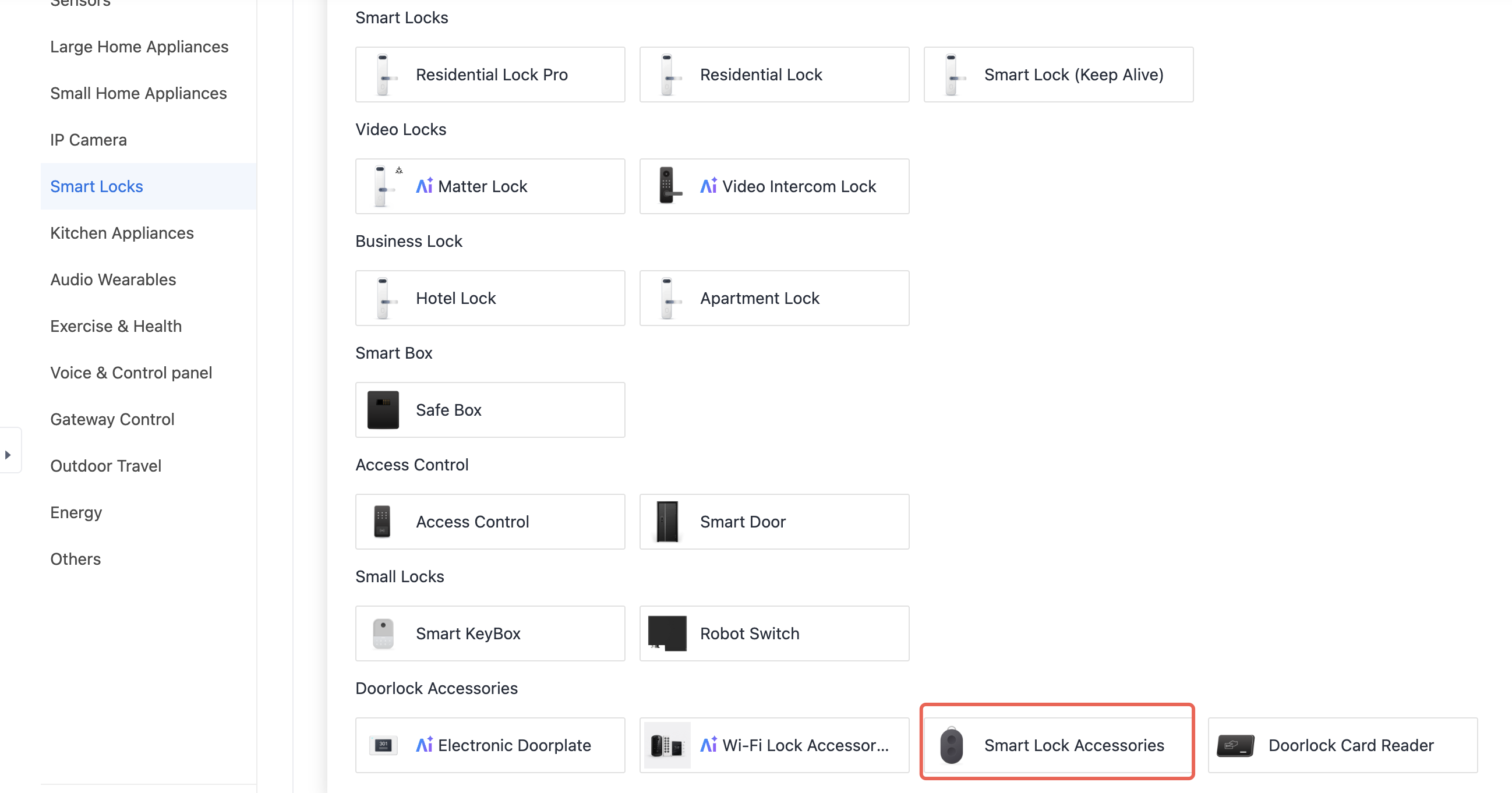
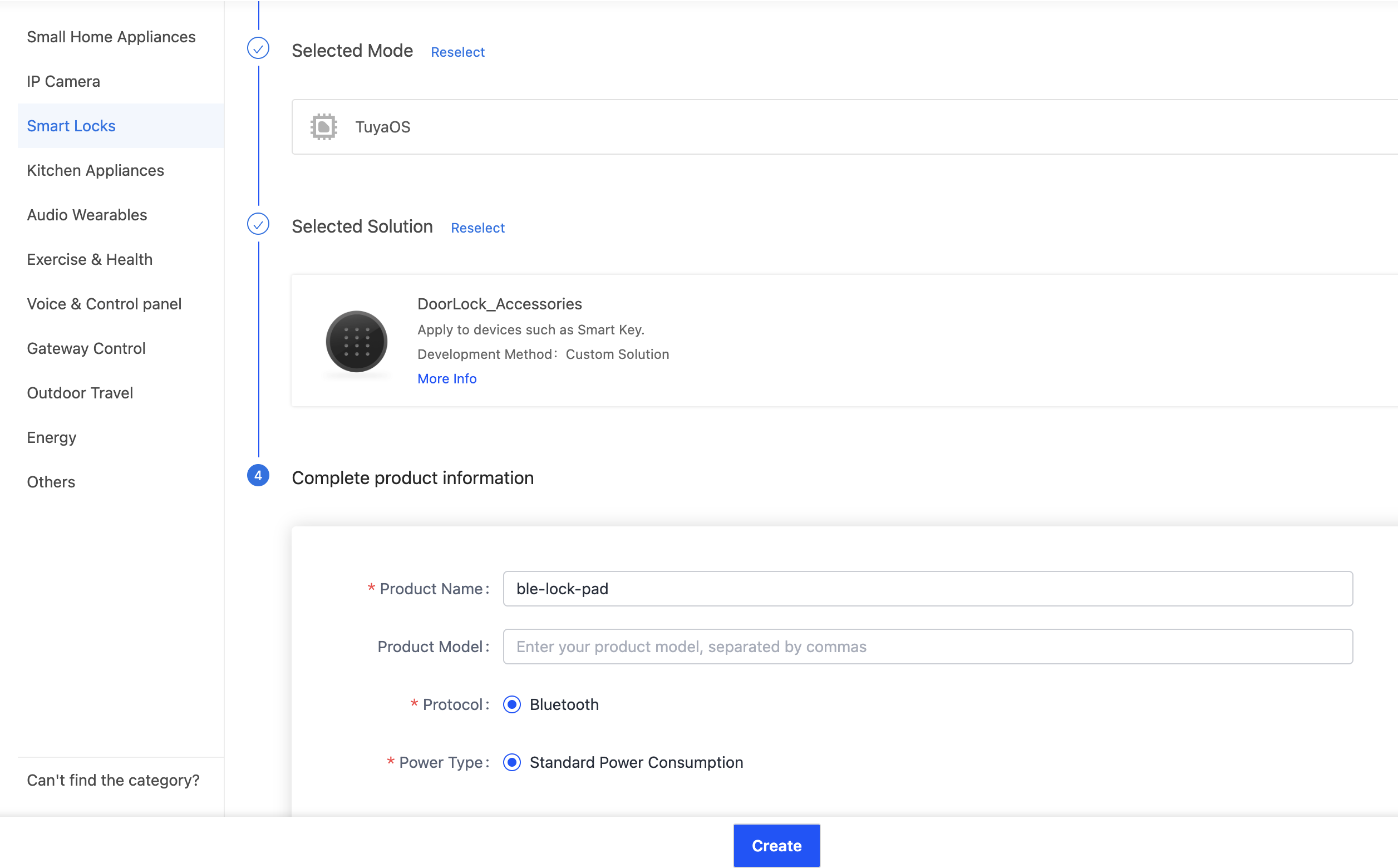
- Select product development, choose Bluetooth as the communication protocol, and enter the product name and other basic information.
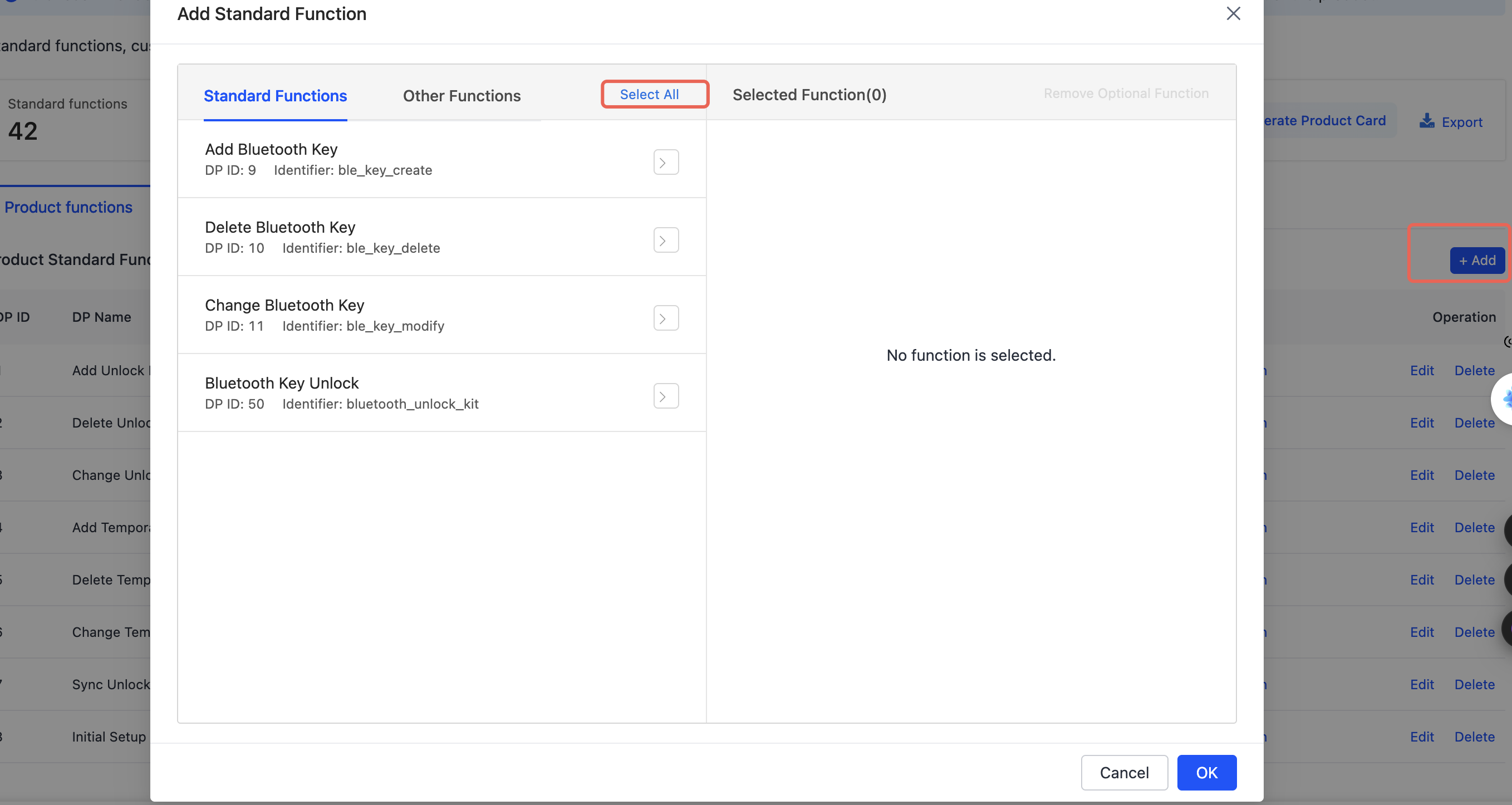
- After creating the product, add standard and custom functions according to the accessory's hardware capabilities.
- Prepare a real device under this product to test Bluetooth connections, lock binding, and unlock method enrollment.
The panel displays unlock methods and accessory settings based on the product schema. Configure the DPs supported by your device.
Create a panel miniapp on the Developer Platform
Panel miniapps are developed on the MiniApp Developer Platform. Sign up and sign in to the MiniApp Developer Platform first.
For detailed instructions, see Panel MiniApp > Quick Start.
Create a project based on a template
Open Tuya MiniApp IDE and create a panel miniapp project based on the Bluetooth lock accessory template (KeyPadTemplate).
For detailed project initialization instructions, see Panel MiniApp > Quick Start.
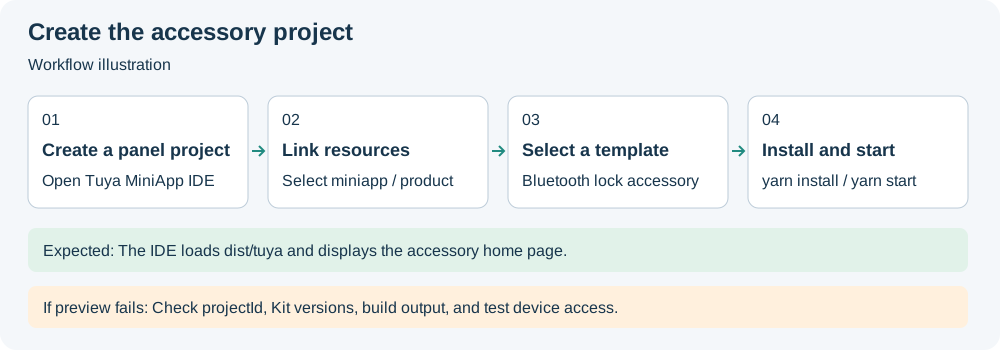
Workflow illustration; refer to the current IDE/App for actual screens and prompts.
Install dependencies and start debugging
Install Node.js 18 or later and Yarn Classic on your computer. In the template project root, install dependencies:
yarn install --frozen-lockfile
Set projectId for your miniapp in project.tuya.json and keep miniprogramRoot set to ./dist/tuya.
Start the development build:
yarn start
Preview and debug the panel in Tuya MiniApp IDE with the corresponding product and device. The IDE uses dist/tuya as the miniapp root, as specified in project.tuya.json.
Before publishing, run type checking, linting, and a production build:
yarn typecheck
yarn lint
yarn build
Build output is written to dist/tuya. Use the App with real devices to debug Bluetooth functions.
Page routes are defined in src/routes.config.ts. The main directories and files are:
├── cdn
│   └── cdnImage.json             # CDN image resource mapping
├── src
│   ├── components                # Shared components
│   ├── config                    # Theme, home image, and password length
│   ├── constant                  # Constants such as alarm DP codes
│   ├── devices                   # SDM device models
│   ├── hooks                     # Redux selectors and permission hooks
│   ├── i18n                      # English, Chinese, and DP text
│   ├── pages
│   │   ├── home                  # Home page
│   │   ├── alarm                 # Alarm list
│   │   ├── records               # Lock/unlock records
│   │   ├── lock                  # Bound and available locks
│   │   ├── openMode              # Unlock methods, passwords, and enrollment
│   │   └── set                   # Accessory settings
│   ├── redux                     # Shared home state
│   ├── app.less                  # Global page styles and background
│   ├── utils                     # Reconnection, method sync, and navigation
│   ├── composeLayout.tsx         # SDK init, listeners, and shared data
│   ├── global.config.ts          # Functional page and native route config
│   └── routes.config.ts          # Page routes
├── package.json
├── project.tuya.json             # Project, Kit versions, and output directory
├── README_zh.md                  # Chinese usage instructions
└── ray.config.ts
The template uses SDM to read the current device's schema and state. The device model does not hardcode product DPs, allowing the same template to support different combinations of accessory capabilities.
Code location: src/devices/index.ts
import { SmartDeviceModel, SmartGroupModel } from '@ray-js/panel-sdk';
import { getLaunchOptionsSync } from '@ray-js/ray';

const isGroupDevice = !!getLaunchOptionsSync()?.query?.groupId;

export const devices = {
  common: isGroupDevice ? new SmartGroupModel() : new SmartDeviceModel(),
};
In composeLayout.tsx, register the device initialization listener before calling devices.common.init(). Once device information is available, initialize accessory capabilities with init from @ray-js/lock-sdk.
Code location: src/composeLayout.tsx
import { init as initFit, getDeviceStatus, onDeviceStatusChange } from '@ray-js/lock-sdk';

this.initializedListenerId = devices.common.onInitialized(async device => {
  const devInfo = device.getDevInfo() as DevInfo;

  await initFit({ devInfo, kind: 'fit' });
  this.sdkReady = true;

  onDeviceStatusChange(this.handleDeviceStatusChange);
  this.handleDeviceStatusChange(getDeviceStatus());
  this.refreshHomeData();
});

devices.common.init();
kind: 'fit' initializes the SDK in lock accessory mode. The template then loads the alarm summary, days protected, and current user, and retrieves bound locks for administrators.
Accessory proximity operations depend on a Bluetooth connection. The template obtains the aggregated device status through onDeviceStatusChange and updates the page state based on whether onlineTypes contains ble.
private handleDeviceStatusChange = (status: DeviceStatus) => {
  dispatch(setBleOnline(!!status?.onlineTypes?.includes('ble')));
};
When the accessory is offline, the page calls reConnectBle(). This helper uses the SDK's connectDevice to reconnect and updates the countdown and result messages.
Code location: src/utils/reConnectBle.ts
import { reConnectBle } from '@/utils/reConnectBle';

await reConnectBle({
  countdown: 10,
  onTick: seconds => setReconnectSeconds(seconds),
});
The next action after reconnection depends on the operation:
Operation triggered while offline | After reconnection succeeds | If reconnection fails |
Open enum options on the settings page ( |
| Do not open the options or send the requested setting. |
Toggle a Boolean setting ( |
| Do not send the requested DP value. |
Add a non-password unlock method ( | Return to the current page after reconnection. The user must tap Add again. | Do not enter the add flow; show the connection error. |
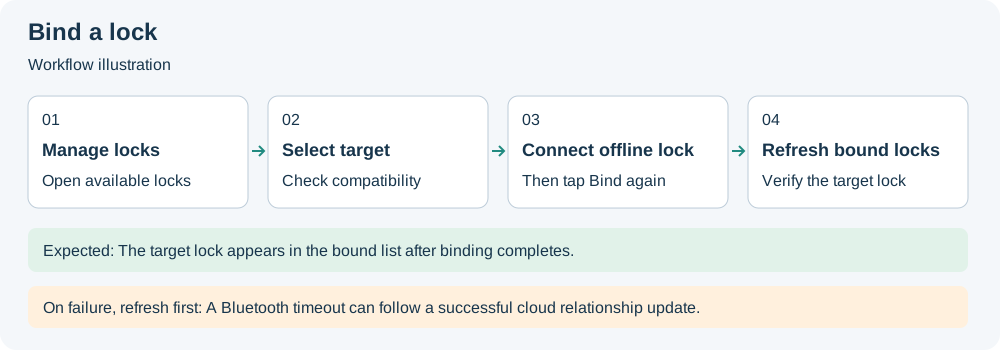
Bind a selected offline lock ( | Connect the target lock, refresh its online status, and return. The user must tap Bind again. | Do not start binding; show the connection error. |
The accessory and target lock have separate connection states. The password entry can be opened while the accessory is offline, but saving a permanent password still requires Bluetooth.
The home page consists of a top information area, a central Bluetooth status area, and a bottom feature area:
- The top area displays the battery level and days protected.
- The center displays the accessory image when Bluetooth is online and a reconnection entry when it is offline.
- The bottom displays the most recent alarm, an unread badge, and entries for records, unlock methods, lock management, and accessory settings.
Entries are mapped to routes centrally to make page structure changes easier.
Code location: src/utils/homeEntry.ts
const entryRoutes = {
  alarm: '/alarm',
  records: '/records',
  openMode: '/openMode',
  lock: '/lock',
  set: '/set',
};

export function openHomeEntry(entry: HomeEntry) {
  router.push(entryRoutes[entry]);
}
If the device schema contains bluetooth_unlock_kit and the administrator has no Bluetooth key, the home page prompts them to create one.
Workflow illustration; refer to the current IDE/App for actual screens and prompts.
Lock management provides two lists: bound locks and available locks.
getBoundLockList(): Get locks already bound to the accessory.getUnbindLockList(): Get available locks and the protocol and security version compatibility results.bindLockToFit(): Bind the accessory to a lock, including passthrough communication and security state updates.unbindLockToFit(): Unbind a lock from the accessory.activateLockToFit(): Reactivate security keys for an existing binding.
Before binding, check the target lock's local Bluetooth connection status. The target lock is not the device whose panel is currently open, so use getBLEOnlineState to query its status and call connectBLEDevice when necessary.
const locks = await getUnbindLockList();
const target = locks.find(item => item.devId === selectedDevId);

if (!target) return;

if (target.bindable === false) {
  // Show a Bluetooth or security version mismatch message based on unbindableReason.
  return;
}

await bindLockToFit(target);
If binding or unbinding reports an error, the template queries the lock list again and updates the page based on the actual binding relationship.
For an existing binding, when securityNeedUpdate is true, display an Activate button and call activateLockToFit to send the security keys again. New bindings update the security state during binding and do not require another activation.
The template generates unlock method tabs from the accessory's device schema rather than displaying all methods unconditionally. Supported methods and their DP codes are:
Unlock method | DP code |
Bluetooth key |
|
Password |
|
Fingerprint |
|
Card |
|
Face |
|
Palm vein |
|
Code location: src/pages/openMode/index.tsx
const supportedCodes = new Set((schema || []).map(item => item.code));
const tabs = OPEN_MODE_TABS.filter(code => supportedCodes.has(code));
Use getFitBleKeyList() to retrieve Bluetooth keys. Passwords use the online and offline password APIs. Fingerprints, cards, faces, and palm veins use getFitUnlockMethodList(). When entering a method other than Bluetooth keys, the template calls syncOpenModeRise() to obtain a synchronization command and sends it to the synch_method DP to synchronize the latest unlock methods from the lock.
Follow these rules when adding an unlock method:
- Methods other than Bluetooth keys require at least one bound lock.
- The password entry can be opened while the accessory is offline. Saving a permanent password still requires a Bluetooth connection to the accessory.
- Other methods require proximity communication. Reconnect Bluetooth first if the accessory is offline.
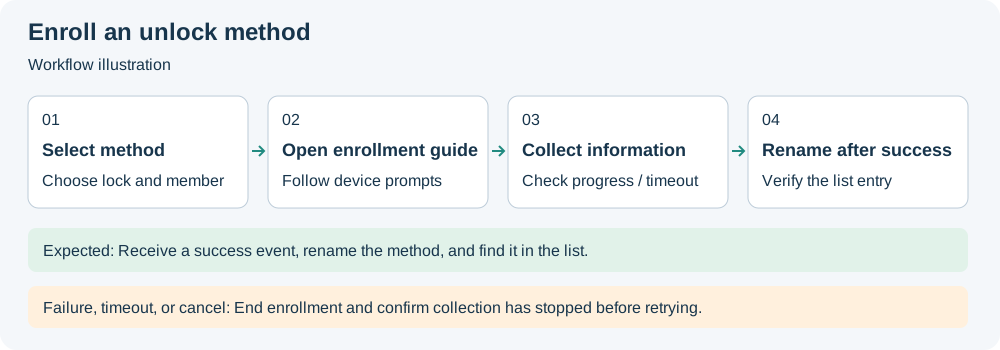
- For fingerprints, cards, faces, and palm veins, select a lock and then a member before starting enrollment.
The template supports the following key and password capabilities:
- Permanent Bluetooth keys: Select a home member and call
createFitPermanentBleKey(). - Temporary Bluetooth keys: Call
createFitTemporaryBleKey()with a name and validity period. - Permanent passwords: Call
fitAddPassword()to send and save the password. - Online temporary passwords: Create with
addFitTempPwd()and edit withupdateFitTempPwd(). - Offline one-time passwords: Retrieve with
getFitOfflineOncePassword(). - Offline time-limited passwords: Retrieve with
getFitOfflineLimitPassword(); these passwords can be renamed and revoked. - Dynamic passwords: Retrieve with
getFitDynamicPassword(). - Invalid passwords: Query with
getFitInvalidPwdList()and clear withclearFitInvalidPwd().
Password length is controlled centrally in the template configuration:
Code location: src/config/index.ts
export const templateConfig = {
  themeColor: '#239C8E',
  themeImage: getCdnUrl('homeIcon.png', cdnImage),
  password: { minLength: 6, maxLength: 10 },
};
When adapting the template to another accessory model, update the theme color, home device image, and password length limits here.
Workflow illustration; refer to the current IDE/App for actual screens and prompts.
Fingerprints, cards, faces, and palm veins share an enrollment workflow:
- Open the guide page for instructions on the selected method.
- Register the listener with
onFitAddUnlockMethod()before callingfitStartAddUnlockMethod()to start enrollment. - Update progress and reset the countdown on each collection step. Display the result on success or failure.
- Call
fitCancelAddUnlockMethod()if the user cancels or leaves before enrollment finishes. - After success, the user can enter a name and save it with
fitUpdateUnlockMethod().
Code location: src/pages/openMode/addRecord/index.tsx
onFitAddUnlockMethod(event => {
  if (finishedRef.current) return;
  if (event.stage === 'step') {
    setStep(event.step);
    setTotal(event.total);
    setIsError(false);
    startCountdown();
  } else if (event.stage === 'success') {
    finishSuccess(event.id, event.name);
  } else if (event.stage === 'fail') {
    finishFail(errorTextFor(type, event.error));
  }
});

await fitStartAddUnlockMethod({
  type,
  userId,
  lockDevId,
  timeout: 30000,
});
Fingerprints, cards, faces, and palm veins use the same enrollment page, with collection visuals and messages selected by type.
The alarm page loads data in pages through getAlarms() and refreshes the unread count with getAlarmUnreadCount(). The home page listens for alarm-related DP reports and delays refreshing the summary so that multiple DPs in one batch do not trigger repeated requests.
The lock/unlock records page retrieves data through getFitLogs(). Both lists provide:
- Initial loading states to avoid briefly displaying an empty state.
- Loading the next page when scrolling to the bottom.
- Deduplication by
logId. - Alarms grouped by today and history, and lock/unlock records grouped by date.
- Empty states, request failure handling, and retry options.
const result = await getFitLogs({ page, pageSize: 50 });

setList(previous => {
  const seen = new Set(previous.map(item => item.logId));
  const unique = (result.list ?? []).filter(item => {
    if (seen.has(item.logId)) return false;
    seen.add(item.logId);
    return true;
  });
  return [...previous, ...unique];
});
Add each new logId to seen to remove duplicates within a page and across pages. This example appends the next page; a refresh should replace the existing list.
Existing logIds | Incoming logIds | Merged result |
|
|
|
|
|
|
When a record contains relateDevName, the operation is associated with a bound lock. The page also displays the lock icon and device name.
The settings page determines visible items from the current device schema. Items whose DPs are absent are not rendered. The template supports:
- Boolean switches:
special_control,verify_lock_switch, andswitch_verify_lock. - Enum settings:
special_function,single_multiple,doorbell_song,doorbell_volume,key_tone,beep_volume, andlanguage. - Unlock mode:
unlock_switch. - Operation guide:
guide_page_act.
const schemaMap = Object.fromEntries(schema.map(item => [item.code, item]));

const visibleBoolDps = BOOL_DPS.filter(code => !!schemaMap[code]);
const visibleEnumDps = ENUM_DPS.filter(code => !!schemaMap[code]);
Enum options come from schema.property.range, and values are sent through useActions(). Boolean switches check the connection before toggling; enum settings check before opening the options. If offline, reconnect and then continue the operation.
The template retrieves the current user through getCurrentUser() and derives permissions from UserType:
const isOwner = userType === UserType.OWNER;
const isAdmin = userType === UserType.ADMIN;
const isShare = userType === UserType.SHARE;
const isManager = isOwner || isAdmin;
The home page obtains role flags through useUserPermission() and controls feature entries in src/pages/home/homeBottomView.tsx:
Role | Home entries |
OWNER, ADMIN | Show unlock methods, lock management, accessory settings, and records. |
MEMBER, SHARE | Show records and hide the management entries above. |
Reuse the role flags from useUserPermission() when adding home entries.
Connect real devices in the App and check the following:
- The device name, battery level, days protected, and Bluetooth status display correctly on the home page.
- An offline accessory can reconnect, with subsequent actions following the relevant page flow.
- Home feature entries match the user role.
- Binding and unbinding update the lock lists, and bindings that need new security keys can be activated.
- Unlock methods match device capabilities, and key, password, and biometric enrollment flows work correctly.
- Alarm and lock/unlock record pagination, deduplication, empty states, and retry handling work correctly.
- Settings match the schema, and changes update the device state.
Feedback
For help, submit a developer support ticket with reproduction steps and relevant error details.