前提条件
- 已阅读 Ray 新手村任务,了解 Ray 框架的基础知识。
- 已阅读 使用 Ray 开发万能面板,了解 Ray 面板开发的基础知识。
开发环境
- 智能生活 App
- Tuya MiniApp IDE
- NVM 及 Node 开发环境(建议使用 18.x 系列版本)
- Yarn 依赖管理工具
详见 面板小程序 > 搭建环境。
快速预览
打开 智能生活 App 或 涂鸦 App (v7.0.5 及以上版本),扫描下方二维码预览

创建产品
首先需要创建一个产品,定义产品有哪些功能点,然后再在面板中一一实现这些功能点。
注册登录 涂鸦开发者平台,并在平台创建产品:
- 单击页面左侧 AI 产品 > 产品开发,在 产品开发 页面单击 创建产品。

- 如需了解更多关于 AI 像素屏文生图产品 的创建细则,请联系您的项目经理或 提交工单 咨询。
开发者平台创建面板小程序
面板小程序的开发在 小程序开发者 平台上进行操作,首先请前往 小程序开发者平台 完成平台的注册登录。
详细操作步骤,可以参考 面板小程序 > 创建面板小程序。
IDE 基于模板创建项目工程
打开 Tuya MiniApp IDE, 在 IDE 中新建面板项目,选择 AI 像素屏文生图模板 即可快速创建项目, 如下图:
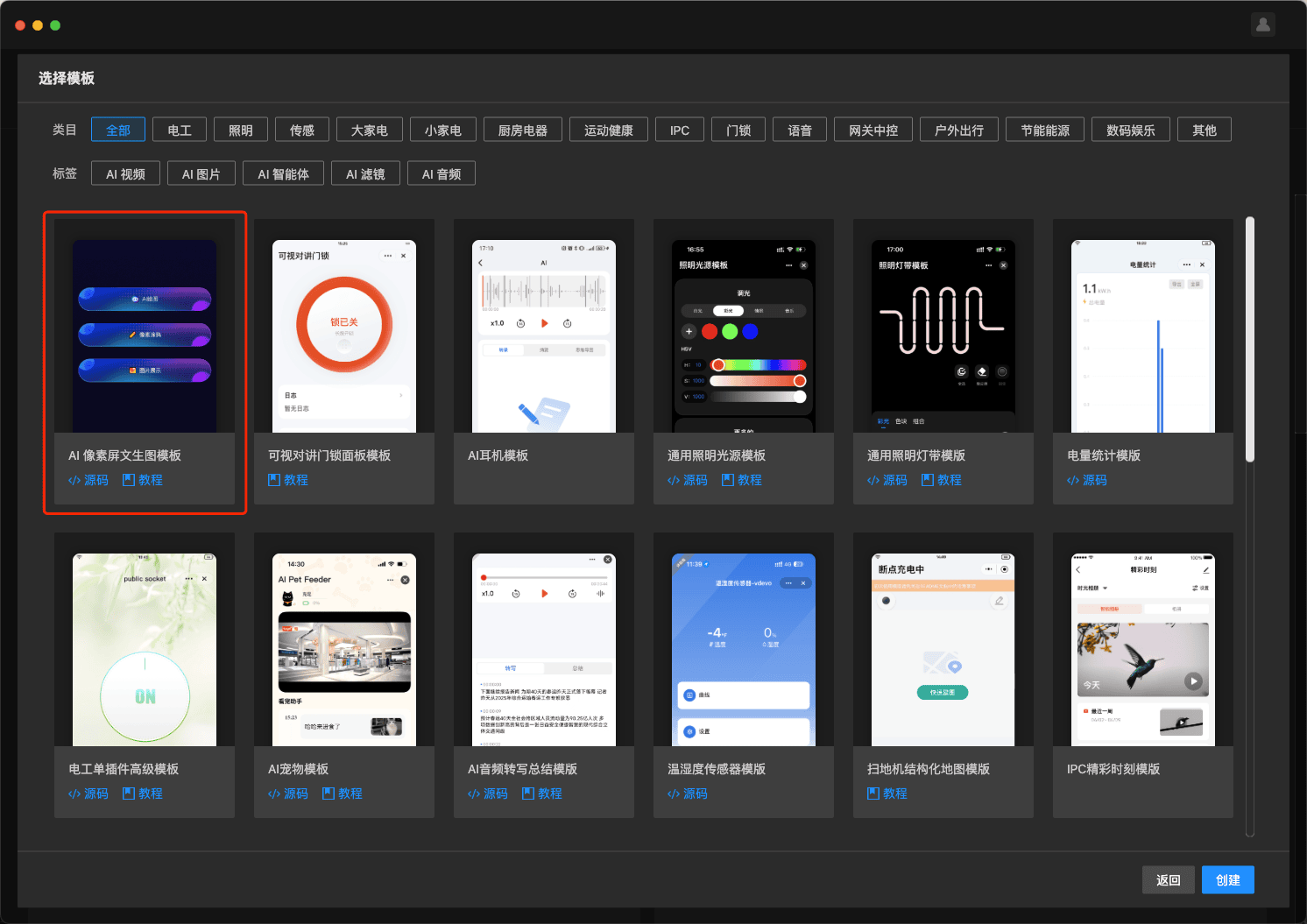
详细操作步骤,可以参考 面板小程序 > 初始化项目工程。
模板功能
您可以利用面板小程序开发构建出一个基于 Ray 框架具有端侧 AI 文生图能力的像素屏面板,并实现以下功能:
- 端侧 AI 文生图:选择客户端下发的标签发送后, 客户端会调用本地 AI 大模型根据标签文本生成对应图片。
- 像素涂鸦:通过画布涂鸦组件进行内容绘制, 可保存生成绘制的图片。
- 图片上传与剪裁:支持用户通过选取相册内容或拍照获取图像之后进行图片剪裁处理。
- 蓝牙大数据传输:支持将图片内容通过分片透传方式下发给设备进行显示。
- 蓝牙像素屏调试: 介绍了蓝牙像素屏整体调试链路, 方便开发同学快速进入开发调试。
相关物料
- App 版本
- 智能生活 或 涂鸦智能 App v7.0.5 及以上版本
- Kit 依赖
- BaseKit:v3.29.1
- MiniKit:v3.12.0
- DeviceKit:v4.6.1
- BizKit:v4.10.0
- HomeKit: 3.4.0
- AIKit: 1.8.1
- baseversion:v2.29.18
- 组件依赖
- @ray-js/ray^1.7.34
- @ray-js/panel-sdk^1.14.1
- @ray-js/smart-ui^2.7.3
- @ray-js/lamp-color-slider^1.1.7
- @ray-js/lamp-saturation-slider^1.1.7
- @ray-js/ray-error-catch^0.0.26
- omggif^1.0.10
- md5^1.0.10
图像生成初始化 On-App AI
- 功能:移动端本地图像生成模型初始化。
- 接口详情:pixelImageInit
图像生成标签列表 On-App AI
- 功能:移动端本地配置的图像生成标签列表。
- 接口详情:fetchPixelImageCategoryInfo
图像生成 On-App AI
- 功能:调用移动端本地图像生成模型, 返回生成的图像。
- 接口详情:generationPixelImage
初始化进度 On-App AI
- 功能:监听移动端本地图像生成模型初始化进度。
- 接口详情:onPixelImageInitProgressEvent
移除监听:初始化进度 On-App AI
- 功能:移除监听移动端本地图像生成模型初始化进度。
- 接口详情:offPixelImageInitProgressEvent
蓝牙数据透传
- 功能:BLE(thing)下发透传数据。
- 接口详情:publishBLETransparentData
图片剪裁
- 功能:图片剪裁。
- 接口详情:cropImages
功能展示
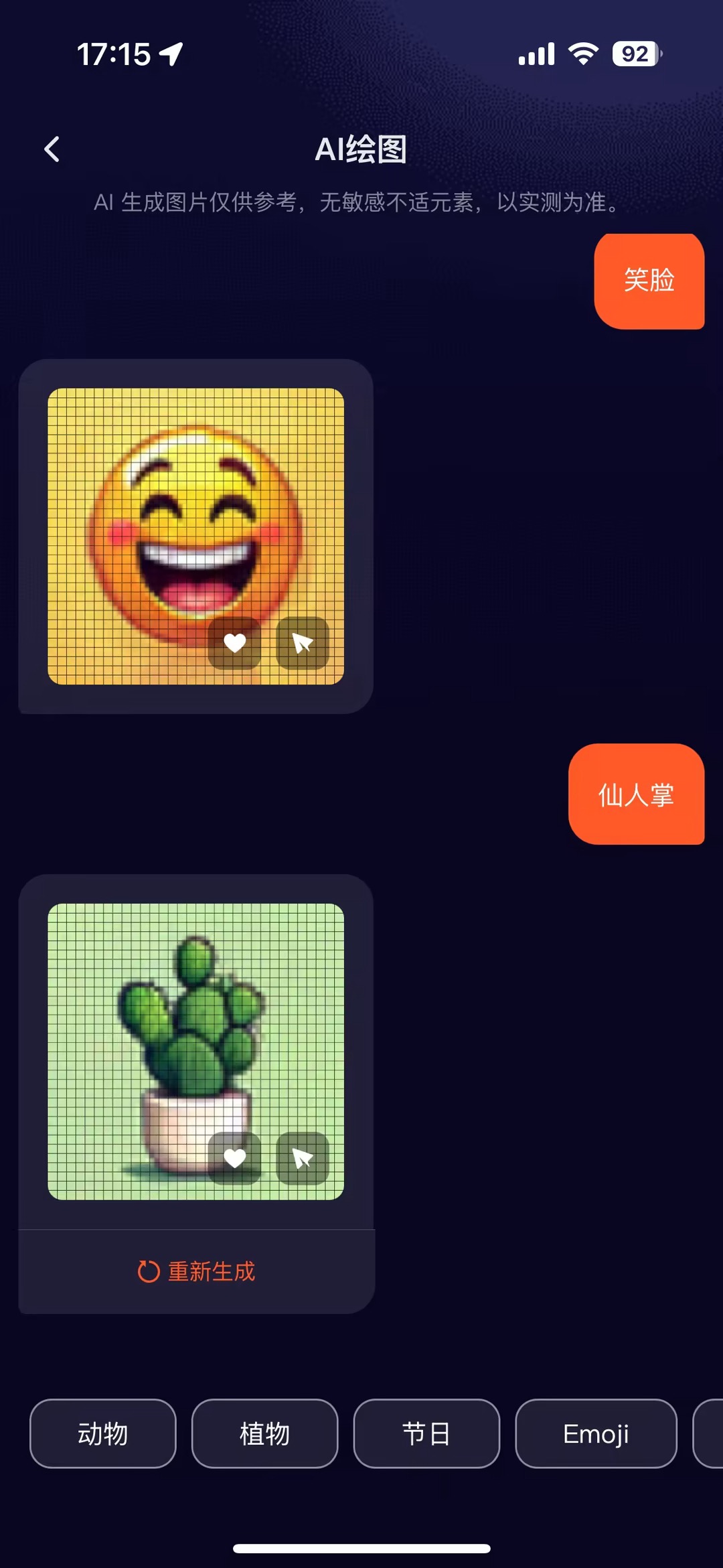
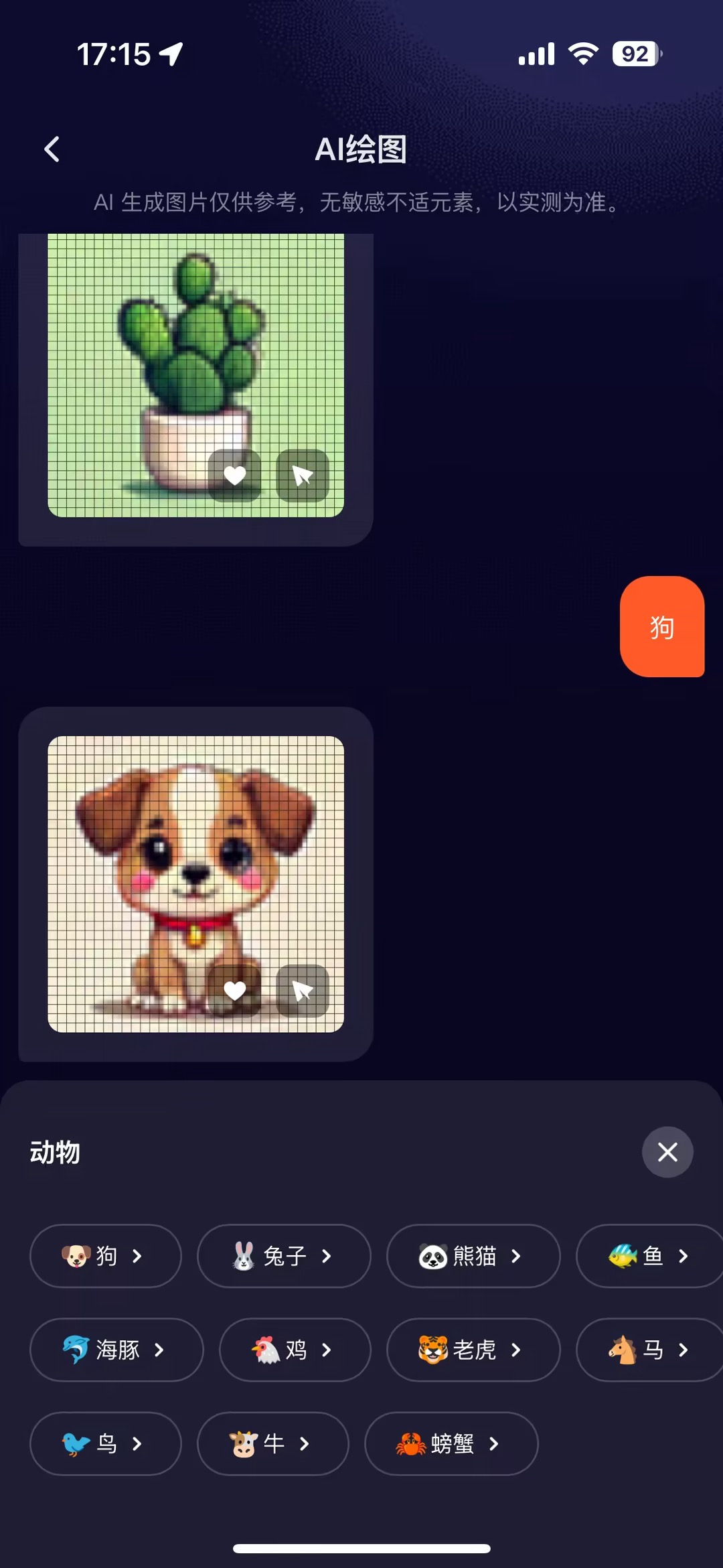
功能说明
- 选择标签发送后, 客户端会调用本地 AI 模型, 根据标签生成对应图片
- 点击图片上的收藏按钮, 会收藏到图库中
- 点击图片上的发送预览按钮, 会通过蓝牙数据透传给设备进行显示
代码逻辑
- 进入 AI 绘图页面判断是否初始化过本地 AI 模型
- 如果未初始化则调用 pixelImageInit 初始化本地模型
- 本地 AI模型初始化后调用 fetchPixelImageCategoryInfo 获取端侧 AI 文生图标签数据
- 点击标签调用 generationPixelImage 通过客户端本地 AI 模型生成图片
- 更新消息对话流, 显示生成的图片
- 点击图片上收藏按钮和发送按钮, 执行相应逻辑
代码片段
- 初始化本地模型与标签数据拉取
useEffect(() => {
  if (hasModelInit) {
    initLabels();
  } else {
    init();
  }
}, []);

 // 拉取客户端最新标签列表
const initLabels = async () => {
  const labelInfo = await fetchPixelImageCategoryInfo({});
  dispatch(updateLabelAsync(labelInfo));
};

// 初始化本地 AI 模型
const init = async () => {
  try {
    globalLoading.show('初始化中...', false);
    const isInit = await pixelImageInit({});
    dispatch(setHasModelInit(true));
    initLabels();
    setTimeout(() => {
      globalLoading.hide();
    }, 500);
  } catch (error) {
    setTimeout(() => {
      globalLoading.hide();
    }, 500);
  }
};
- AI 图片生成与处理
// 根据标签生成图片
const imageResult = await generationPixelImage({
  deviceId: devInfo.devId,
  label,
  imageWidth: 462,
  imageHeight: 462,
  outImagePath: localPath,
});
handleGenerationImage(imageResult);

// 处理返回的图片
const handleGenerationImage = result => {
  if (result.success) {
    // 获取最新的消息状态
    const currentMessages = selectMessageList(store.getState());
    const newMsgList = currentMessages.slice();
    const lastMsg = newMsgList[newMsgList.length - 1];

    if (!lastMsg || lastMsg.isLoaded) {
      // 如果没有未加载的消息,不做处理
      return;
    }

    const updatedMessages = [
      ...newMsgList.slice(0, newMsgList.length - 1),
      {
        ...lastMsg,
        isLoaded: true,
        path: result?.imagePath || '',
        type: 'image' as const,
      },
    ];
    // 更新消息对话流
    updateMessages(updatedMessages);
    setLoading(false);
  } else {
    handleImageFail();
    setLoading(false);
  }
};
- 点击发送预览按钮, 通过蓝牙数据透传接口下发给设备
const preview = async () => {
  try {
    // 判断是否有图像读取权限
    await authorizeAsync({ scope: 'scope.writePhotosAlbum' });
  } catch (error) {
    return;
  }

  if (md5Id && tempFilePath && rawData) {
    await sendPic();
    return;
  }
  // 未读取过先读取图片 base64 数据
  const _tempFilePath = cardData.path;
  const base64 = readFileBase64(_tempFilePath);
  const _base64Src = `data:image/jpg;base64,${base64}`;

  setType('preview');
  setTempFilePath(_tempFilePath);
  setBase64Src(_base64Src);
};

// 下发数据给设备
const sendPic = async () => {
  try {
    // 使用封装好的蓝牙分片透传方法, 进行数据下发
    const isSuccess = await sendPackets({
      data: rawData,
      dpCode: 'gif_pro',
      params: { md5Id, programId: 60 },
      sendDp: () => {
        dpActions.gif_pro.set({ md5Id, programId: 60 });
      },
    });
    if (isSuccess === true) {
      ToastInstance({
        selector: `#${cardData.id}native-smart-toast`,
        message: Strings.getLang('sentPleaseCheckTheEffectOnTheDevice'),
        position: 'middle',
      });
    }
  } catch (error) {
    console.log('sendPackets fail');
  }
};
功能展示
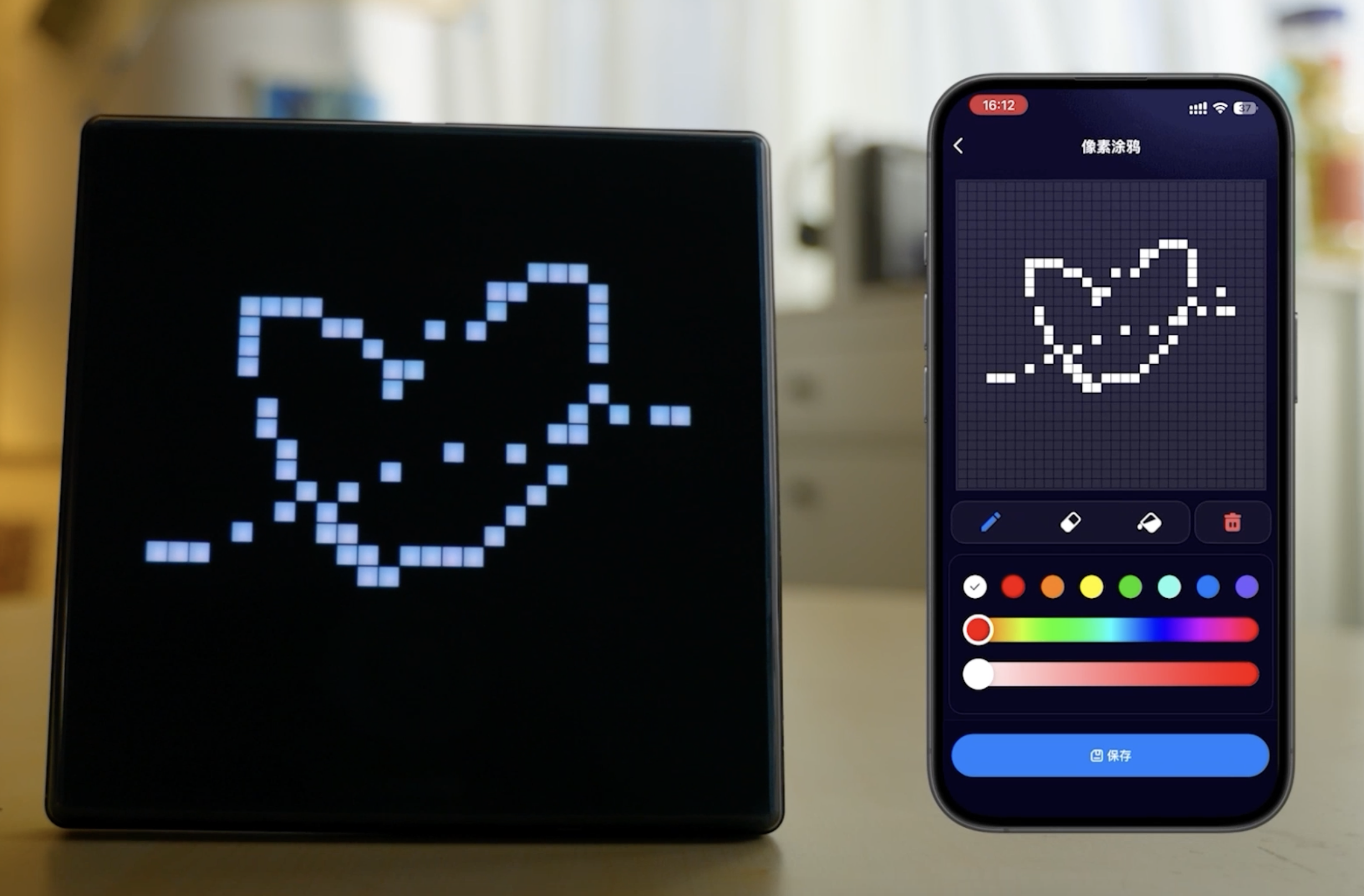
功能说明
- 通过改变操作类型可以切换为, 画笔模式, 橡皮擦模式, 油漆桶模式
- 通过颜色滑条选择, 可以传入不同的画笔颜色
- 将每一笔画笔经过的 x,y 坐标路径数据下发给设备做实时画布显示
- 点击清空按钮进行画布情况
- 画布预览, 将画布生成的图片数据透传给设备显示
- 画布保存, 将画布生成的图片数据添加到收藏列表, 并将图片数据透传给设备显示
代码逻辑
- 根据屏幕分辨率动态计算 canvas 尺寸, 初始化画布, 绘制像素方格
- 监听
touch事件, 填充当前触摸方格的颜色, 并且收集触摸过的方格坐标数据, 在touchend中发送像素涂鸦功能点 - 点击保存获取涂鸦画布数据, 并转为单帧 GIF, 再将 GIF 转换为 base64 数据发送透传给设备
像素涂鸦组件: 物料 -> Graffiti
代码片段
import { GifWriter } from 'omggif';
import { arrayBufferToBase64, quantizeColors } from '@/utils/genImgData';

const pixelRatio = Math.floor(getSystemInfo().pixelRatio) || 1; // 分辨率, 整数

export default Render({
  // 初始化画布
  async initPanel({
      width,
      height,
      mode,
      gridSize,
      pixelSize,
      pixelGap,
      pixelShape,
      pixelColor,
      penColor,
    }) {
      let canvas = await getCanvasById('sourceCanvas');

      // 根据屏幕分辨率动态计算canvas尺寸
      if (mode === 'grid') {
        const gridModeSize = (pixelSize + pixelGap) * gridSize + pixelGap;
        canvas.width = gridModeSize * pixelRatio;
        canvas.height = gridModeSize * pixelRatio;
        canvas.style.width = gridModeSize + 'px';
        canvas.style.height = gridModeSize + 'px';
      } else {
        canvas.width = width * pixelRatio;
        canvas.height = height * pixelRatio;
        canvas.style.width = `${width}px`;
        canvas.style.height = `${height}px`;
      }

      const ctx = canvas.getContext('2d');
      ctx.scale(pixelRatio, pixelRatio);
      this.canvas = canvas;
      this.ctx = ctx;

      this.mode = mode;
      this.gridSize = gridSize;
      this.pixelSize = pixelSize;
      this.pixelGap = pixelGap;
      this.pixelShape = pixelShape;
      this.pixelColor = pixelColor;
      this.penColor = penColor;

    // 初始化画布, 绘制像素点方格
      this.createPixel(pixelColor);

      // 用于存储触摸开始到结束经过的方格坐标数组集合
      const touchedSquaresSet = new Set();
      // 记录触摸是否开始
      let isTouchStarted = false;
      // 监听 touch 相关事件
      const handleTouchstart = e => {
        touchedSquaresSet.clear();
        isTouchStarted = true;
        const touch = e.changedTouches[0];
        const rect = canvas.getBoundingClientRect();
        const x = Math.floor((touch.pageX - rect.left - pixelGap) / (pixelSize + pixelGap));
        const y = Math.floor((touch.pageY - rect.top - pixelGap) / (pixelSize + pixelGap));
        const coordinate = `${x},${y}`;
        if (!touchedSquaresSet.has(coordinate)) {
          // 收集触摸过的方格坐标数据
          touchedSquaresSet.add(coordinate);
          // 填充当前触摸方格颜色
          this.fillPixel(x, y, this.penColor);
        }
      };
      const handleTouchmove = e => {
        e.preventDefault();
        if (isTouchStarted) {
          const touch = e.changedTouches[0];
          const rect = canvas.getBoundingClientRect();
          const x = Math.floor((touch.pageX - rect.left - pixelGap) / (pixelSize + pixelGap));
          const y = Math.floor((touch.pageY - rect.top - pixelGap) / (pixelSize + pixelGap));
          const coordinate = `${x},${y}`;
          if (!touchedSquaresSet.has(coordinate)) {
            // 收集触摸过的方格坐标数据
            touchedSquaresSet.add(coordinate);
            // 填充当前触摸方格颜色
            this.fillPixel(x, y, this.penColor);
          }
        }
      };
      // 处理触摸方格数组集合并下发给设备, 用于在设备上实时显示当前笔画
      const handleTouchend = e => {
        isTouchStarted = false;
        const touchedSquares = [];
        for (const coordinateStr of touchedSquaresSet) {
          const [x, y] = coordinateStr.split(',');
          touchedSquares.push({ x: Number(x), y: Number(y) });
        }
        this.callMethod('touchend', touchedSquares);
      };
      canvas.addEventListener('touchstart', handleTouchstart, false);
      canvas.addEventListener('touchmove', handleTouchmove, false);
      canvas.addEventListener('touchend', handleTouchend, false);

      ctx.imageSmoothingEnabled = true; // 开启抗锯齿
      ctx.imageSmoothingQuality = 'high'; // 高质量抗锯齿
    },
    // 绘制默认的像素方格
    createPixel(pixelColor) {
      const { pixelSize, pixelGap, gridSize } = this;
      let gridSizeX = gridSize;
      let gridSizeY = gridSize;
      if (this.mode !== 'grid') {
        gridSizeX = this.canvas.width / (pixelSize + pixelGap);
        gridSizeY = this.canvas.height / (pixelSize + pixelGap);
      }
      for (let x = 0; x < gridSizeX; x++) {
        for (let y = 0; y < gridSizeY; y++) {
          this.fillPixel(x, y, pixelColor);
        }
      }
    },
    // 填充像素方格
    fillPixel(x, y, color) {
      const { ctx, pixelSize, pixelGap, pixelShape } = this;
      const offsetX = pixelGap + x * (pixelSize + pixelGap);
      const offsetY = pixelGap + y * (pixelSize + pixelGap);
      // 清除原有填充颜色
      ctx.clearRect(offsetX, offsetY, pixelSize, pixelSize);
      ctx.fillStyle = color; // 填充颜色
      if (pixelShape === 'rect') {
        ctx.fillRect(offsetX, offsetY, pixelSize, pixelSize);
      } else {
        const radius = pixelSize / 2;
        // 开始绘制路径
        ctx.beginPath();
        // 使用arc方法绘制圆形,传入圆心x坐标、圆心y坐标、半径、起始角度(弧度制)、结束角度(弧度制)
        ctx.arc(offsetX + radius, offsetY + radius, radius, 0, Math.PI * 2);
        // 关闭路径
        ctx.closePath();

        // 执行填充操作,将圆形内部填充为设定的颜色
        ctx.fill();
      }
    },
    // 改变画笔颜色
    updateColor(color) {
      this.penColor = color;
    },
    // 橡皮擦
    eraser() {
      // 橡皮擦颜色与格子默认色一致
      this.penColor = this.pixelColor;
    },
    // 油漆桶
    changeBg(color) {
      this.penColor = color;
      this.createPixel(color);
    },
    // 清除画布
    clear() {
      this.ctx.clearRect(0, 0, this.canvas.width, this.canvas.height);
      this.createPixel(this.pixelColor);
    },
    async save() {
      // 获取源canvas和目标canvas的上下文
      const sourceCanvas = this.canvas;
      let targetCanvas = this.targetCanvas;
      let targetCtx = this.targetCtx;

      const gridSize = this.gridSize;
      let gridSizeX = gridSize;
      let gridSizeY = gridSize;
      if (this.mode !== 'grid') {
        gridSizeX = this.canvas.width / (pixelSize + pixelGap);
        gridSizeY = this.canvas.height / (pixelSize + pixelGap);
      }

      if (!targetCtx) {
        targetCanvas = await getCanvasById('targetCanvas');
        targetCtx = targetCanvas.getContext('2d');
        this.targetCanvas = targetCanvas;
        this.targetCtx = targetCtx;
        targetCanvas.width = gridSizeX;
        targetCanvas.height = gridSizeY;
        targetCanvas.style.width = `${gridSizeX}px`;
        targetCanvas.style.height = `${gridSizeY}px`;
      }

      targetCtx.clearRect(0, 0, targetCanvas.width, targetCanvas.height);

      // 获取源canvas的宽高
      const sourceWidth = sourceCanvas.width;
      const sourceHeight = sourceCanvas.height;

      // 获取目标canvas的宽高
      const targetWidth = targetCanvas.width;
      const targetHeight = targetCanvas.height;

      targetCtx.fillStyle = '#000000';
      targetCtx.fillRect(0, 0, targetWidth, targetHeight);

      targetCtx.drawImage(
        sourceCanvas,
        0,
        0,
        sourceWidth,
        sourceHeight,
        0,
        0,
        targetWidth,
        targetHeight
      );

      targetCtx.imageSmoothingEnabled = true; // 开启抗锯齿
      targetCtx.imageSmoothingQuality = 'high'; // 高质量抗锯齿

      // 图片转为单帧 gif
      const imageData = targetCtx.getImageData(0, 0, targetWidth, targetHeight);
      // 使用自定义方法把 RGBA 转成索引色
      const { indexedPixels, palette } = quantizeColors(imageData);

      // 计算 buffer 大小
      const buffer = new Uint8Array(targetWidth * targetHeight * 5);
      const gif = new GifWriter(buffer, targetWidth, targetHeight, { loop: 0, palette });
      gif.addFrame(0, 0, targetWidth, targetHeight, indexedPixels, {
        delay: 5,
        palette: palette,
      });

      const gifData = buffer.subarray(0, gif.end());

      // 将 GIF 数据转换为 base64
      const base64String = arrayBufferToBase64(gifData);
      const base64Data = `data:image/gif;base64,${base64String}`;

      this.callMethod('genImageData', {
        base64Data,
      });
    },
});
功能展示
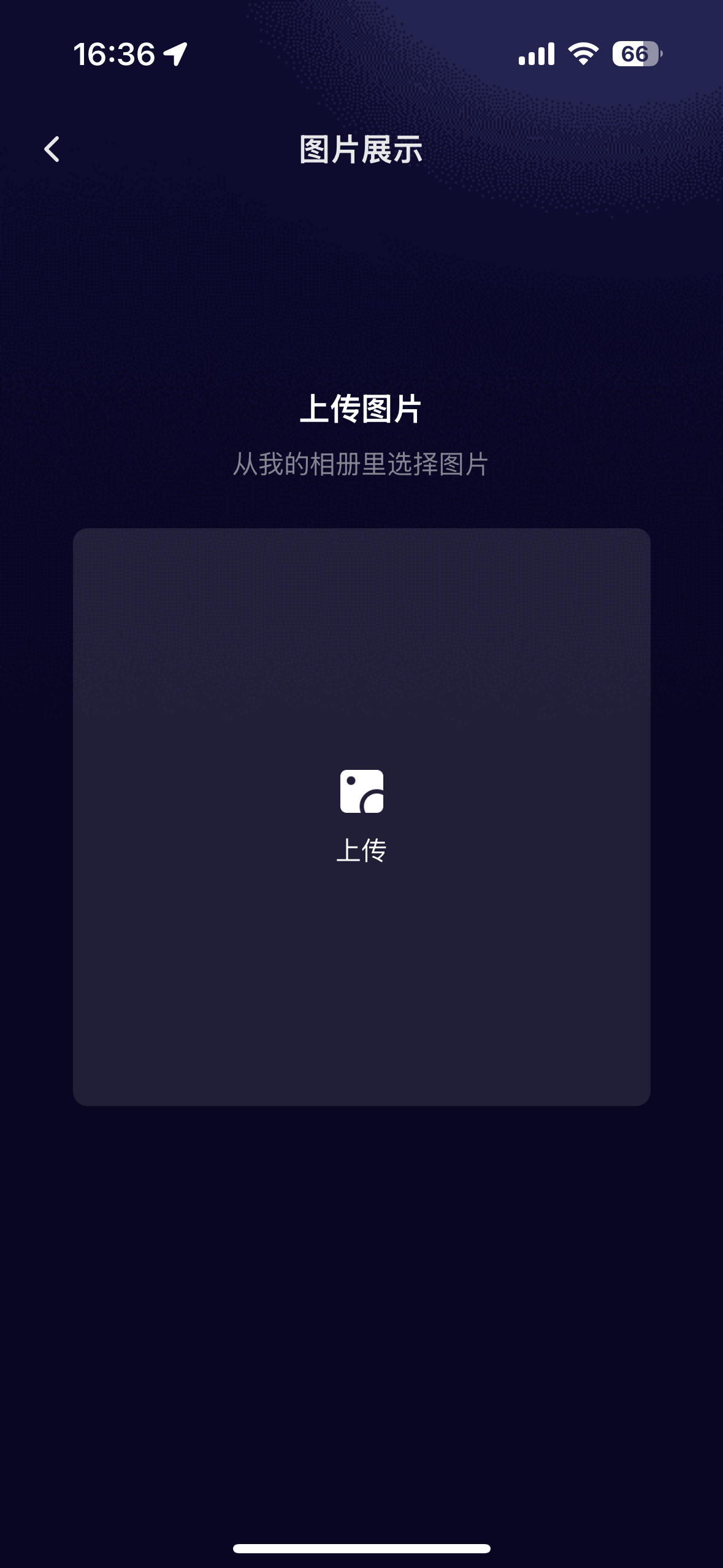
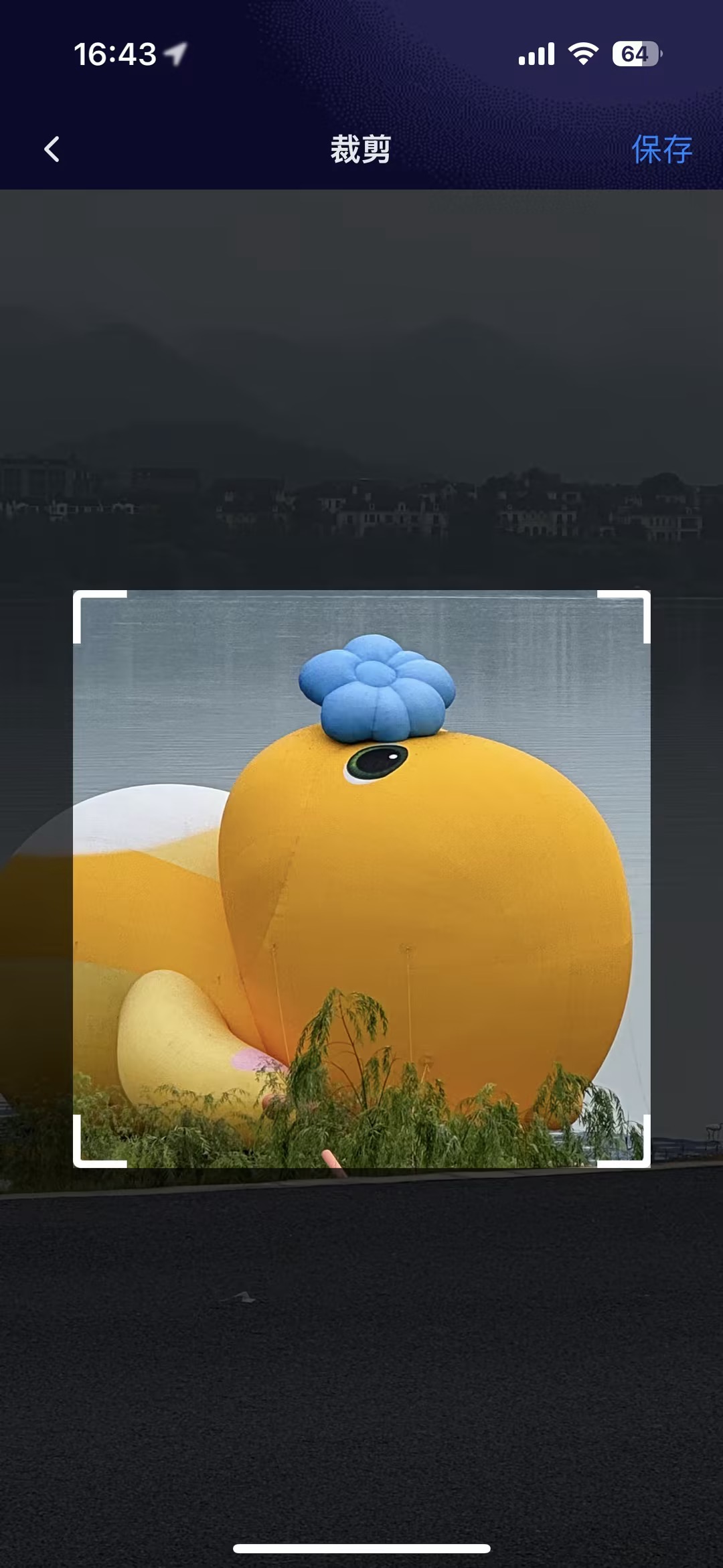
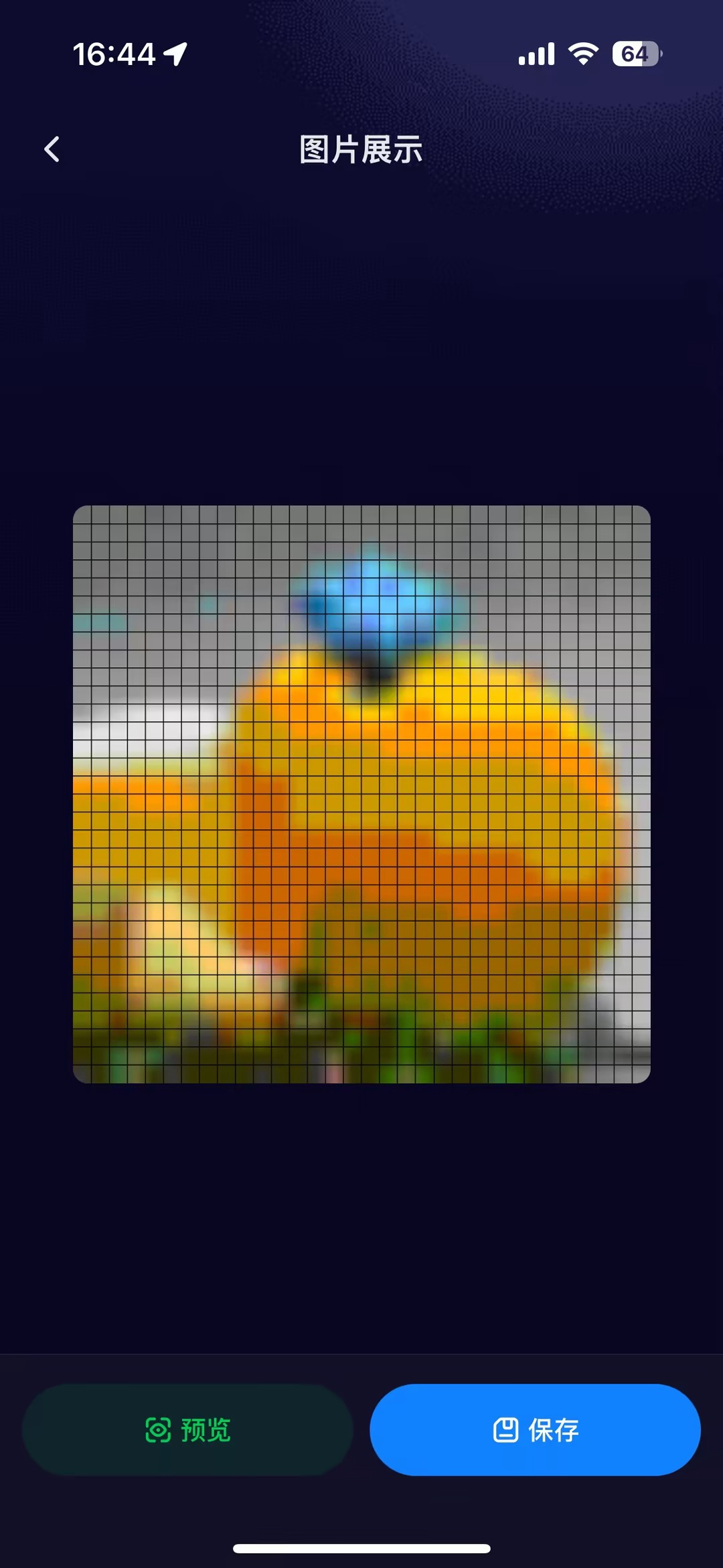
功能说明
- 用户通过选取相册内容或拍照获取图像(支持图片 和 GIF 格式)
- 对选择的图片或GIF进行图像剪裁
- 对上传的图像进行像素化处理
- 画布预览, 将画布生成的图片数据透传给设备显示
- 画布保存, 将画布生成的图片数据添加到收藏列表, 并将图片数据透传给设备显示
代码逻辑
- 判断相册权限, 进入相册选择图片或调用相机拍照获取本地图片路径信息
tempFiles - 通过拖动图片选取需要剪裁的区域, 调用 cropImages 进行图像剪裁
- 剪裁后的图片进行像素化后转为单帧 GIF 格式, 并读取 GIF 的 base64 数据
- 保存或预览下发透传数据给设备
图片框选组件: 物料 -> ImageAreaPicker
代码片段
- 图片/GIF 上传, 并添加到相册列表
  const handleClick = () => {
    const lave = IMAGE_NUM - photos.length;
    const count = lave > MAX_CHOOSE_IMAGE_NUM ? MAX_CHOOSE_IMAGE_NUM : lave;
    // 权限请求, 写入相册权限
    authorizeAsync({ scope: 'scope.writePhotosAlbum' })
      .then(() => {
        return chooseImageAsync({
          count,
          sizeType: ['original'],
        });
      })
      .then(res => {
        globalLoading.show(Strings.getLang('loading'));
        const newPhotos = (res.tempFiles || []).map(item => {
          return {
            ...item,
            id: 60,
            md5: md5(item.path),
          };
        });
        // 筛选出 newPhotos 与 photos 相同的照片
        const _newPhotos = newPhotos.filter(item => !photos.find(old => old.md5 === item.md5));

        if (_newPhotos.length < newPhotos.length) {
          globalToast.success(
            Strings.getLang('theAlreadySelectedImageHasBeenChosenAndItHasBeenFiltered')
          );
        }

        if (_newPhotos.length > 0) {
          dispatch(addPhotosAsync(_newPhotos));
        }
        globalLoading.hide();
      })
      .catch(err => {
        globalLoading.hide();
      });
  };
- 获取剪裁区域,调用 cropImages 进行图像剪裁
// 图片框选后, 通过 getCropSize 获取剪裁坐标, 再调用
const save = () => {
  const data = getCropSize(imgInfo);
  const cropParams = {
    cropFileList: [data],
  };
  handleCrop(cropParams).then(cropRes => {
    const { fileList: cropedFileList } = cropRes;
    // 保存到相册 本地调试使用
    const tempFilePath = cropedFileList[0];
    const base64Data = readFileBase64(tempFilePath);
    const base64DataStr = imgInfo.path.endsWith('.gif')
      ? `data:image/gif;base64,${base64Data}`
      : `data:image/png;base64,${base64Data}`;
    dispatch(updateCropedFile(base64DataStr));
    router.push('/img-pixelation');
  });
};

// 调用 cropImages 进行图像剪裁
const handleCrop = useCallback((params: { cropFileList: CropImageList }) => {
  return cropImageAsync(params as any)
    .then(res => {
      return res;
    })
    .catch(err => {
      console.warn('🚀 ~ handleCrop ~ err', err);
    });
}, []);
功能展示
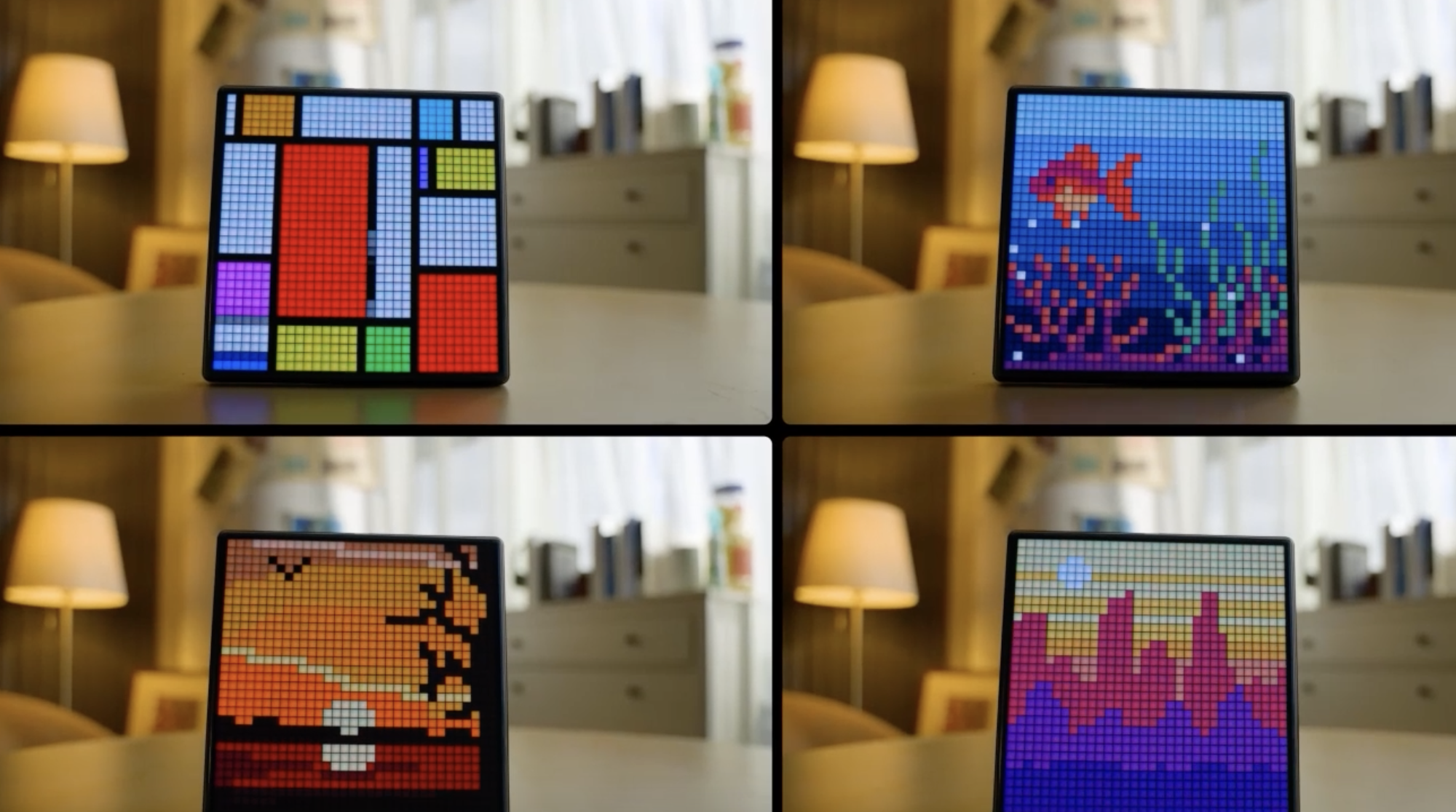
功能说明
- 支持将面板的图像下发给设备进行显示。
代码逻辑
- 将图像的 base64 数据转为十六进制后进行分片。
- 通过 publishBLETransparentData 将分片数据透传给设备显示。
蓝牙数据传输工具: 物料 -> 蓝牙数据传输工具
代码片段
- 蓝牙大数据透传方法
export const sendPackets = async ({
  data,
  publishFn = packet =>
    publishTransparentData({
      data: packet.map(byte => byte.toString(16).padStart(2, '0')).join(''),
    }),
  parseConfirmationFn = parseConfirmation,
  timeout = 500, // 设置超时时间为 500ms
  onProgress = progress => {},
  dpCode,
  params,
  sendDp,
}) => {
  // 判断设备是否与当前面板连接成功
  const devInfo = getDevInfo();
  const res = await getDeviceOnlineType({
    deviceId: devInfo?.devId,
  });
  const isBleOnline = [1, 5, 3].includes(+res?.onlineType)
    ? false
    : ![0].includes(+res?.onlineType);
  if (!isBleOnline) {
    globalToast.fail(Strings.getLang('un_online'));
    return false;
  }

  globalLoading.show(Strings.getLang('sending'));
  let dpSuccess = false;
  // 获取dpId, dpValue
  const schema = devices.common.getDpSchema();
  const dpId = schema[dpCode].id;
  const dpValue = protocolUtils[dpCode].formatter(params);
  // dp数据变化回调
  const dpChangeCallBack = res => {
    const result = Object.entries(res.dps).some(
      ([key, value]) => Number(key) === dpId && value === dpValue
    );
    dpSuccess = result;
  };

  const packets = createPackets(data); // 创建分包

  const packetStatus = packets.map(() => ({
    confirmed: false, // 是否已确认
    retries: 0, // 重试次数
  }));

  let receivedPacketIndex = -1; // 当前接收的包号
  // BLE(thing)设备数据透传通道上报通知回调
  const bleCallback = res => {
    receivedPacketIndex = parseConfirmationFn(res); // 解析包号
    packetStatus[receivedPacketIndex].confirmed = true;
  };

  try {
    // 监听dp数据变化
    onDpDataChange(dpChangeCallBack);
    // 发送dp数据
    sendDp();
    // 等待dp发送成功后, 再发送透传数据
    const waitDpSuccess = (): Promise<boolean> => {
      return new Promise<boolean>(resolve => {
        const dpStartTime = Date.now();

        const interval = setInterval(() => {
          if (dpSuccess) {
            clearInterval(interval);
            resolve(true); // 收到确认
          }

          if (Date.now() - dpStartTime > 60000) {
            clearInterval(interval);
            resolve(false); // 超时
          }
        }, 10); // 每 10 毫秒检查一次
      });
    };

    const isDpSuccess = await waitDpSuccess();

    offDpDataChange(dpChangeCallBack);

    if (!isDpSuccess) {
      throw new Error(`onDpDataChange timeout`);
    }
    const startTimeAll = Date.now();
    // 等待设备上报确认接收到分片数据
    const waitForConfirmation = (expectedIndex: number): Promise<boolean> => {
      return new Promise<boolean>(resolve => {
        const startTime = Date.now();

        const interval = setInterval(() => {
          if (receivedPacketIndex === expectedIndex) {
            clearInterval(interval);
            resolve(true); // 收到确认
          }

          if (Date.now() - startTime > timeout) {
            clearInterval(interval);
            resolve(false); // 超时
          }
        }, 10); // 每 10 毫秒检查一次
      });
    };

    // 监听BLE(thing)设备数据透传通道上报通知
    onBLETransparentDataReport(bleCallback);
    console.log(`Starting to send ${packets.length} packets.`);

    // 先发送前 4 包,不管超时或确认,只按 10ms 间隔发送
    for (let index = 0; index < 4 && index < packets.length; index++) {
      const sendTime = Date.now() - startTimeAll;
      console.log(`Sending packet ${index + 1}/${packets.length}, , send time: ${sendTime}`);
      publishFn(packets[index]);
      onProgress({ index: index + 1, total: packets.length }); // 进度回调

      if (index < 3) {
        // 延时 10ms 发送下一个包
        await new Promise(resolve => setTimeout(resolve, 10));
      }
    }

    await waitForConfirmation(3);

    // 从第 5 包开始,不管超时或者是否收到确认,都继续发送
    for (let index = 4; index < packets.length; index++) {
      const sendTime = Date.now() - startTimeAll;
      console.log(`Sending packet ${index + 1}/${packets.length}, send time: ${sendTime}`);
      publishFn(packets[index]);

      // 等待确认,但不管超时是否收到确认,都继续发送下一个包
      await waitForConfirmation(index);

      // 更新包确认状态
      onProgress({ index: index + 1, total: packets.length }); // 进度回调
    }

    // 检查包是否有失败的,如果有则进行重试
    let retries = 0;
    while (retries < 5) {
      const failedPackets = packetStatus
        .map((status, index) => ({ index, confirmed: status.confirmed }))
        .filter(packet => !packet.confirmed); // 找到没有确认的包

      if (failedPackets.length === 0) {
        break; // 所有包已确认,结束重试
      }

      console.log(`Retrying failed packets (attempt ${retries + 1})`);

      for (const { index } of failedPackets) {
        console.log(`Retrying packet ${index + 1}/${packets.length}, attempt ${retries + 1}`);
        publishFn(packets[index]);
        await waitForConfirmation(index);
      }

      retries++;
    }

    const endTimeAll = Date.now();
    const duration = endTimeAll - startTimeAll;
    console.log(
      'All packets sent successfully.',
      `${packets.length} 个分包, 发送时间 ${duration} ms`
    );
    globalLoading.hide();
    // 取消监听BLE(thing)设备数据透传通道上报通知
    offBLETransparentDataReport(bleCallback);

    if (packetStatus.some(status => !status.confirmed)) {
      console.error('Some packets failed', packetStatus);
      globalToast.fail(Strings.getLang('failedToSend'));
      return false;
    }
    return true;
  } catch (error) {
    globalLoading.hide();
    globalToast.fail(Strings.getLang('failedToSend'));
    offDpDataChange(dpChangeCallBack);
    offBLETransparentDataReport(bleCallback);
    console.error('Error while sending packets:', error);
    throw error;
  }
};
- 生成透传的分片数据
// 生成分片数据包
function createPackets(hexString, maxPacketSize = 1006) {
  const data = hexStringToByteArray(hexString); // 转换为字节数组
  const dataLength = data.length; // 总数据长度
  const totalPackets = Math.ceil(dataLength / maxPacketSize); // 总包数
  const packets = [];

  for (let i = 0; i < totalPackets; i++) {
    // 当前包的数据起始和结束位置
    const start = i * maxPacketSize;
    const end = Math.min(start + maxPacketSize, dataLength);

    // 当前分包的数据部分
    const payload = data.slice(start, end);
    // const payloadLength = payload.length;
    const payloadLength = maxPacketSize;

    // 包头
    const packetHeader = [
      0x00,
      0x01, // 节目数据标识
      // eslint-disable-next-line no-bitwise
      (6 + payloadLength) >> 8,
      // eslint-disable-next-line no-bitwise
      (6 + payloadLength) & 0xff, // 数据长度
      // eslint-disable-next-line no-bitwise
      totalPackets >> 8,
      // eslint-disable-next-line no-bitwise
      totalPackets & 0xff, // 数据总包数
      // eslint-disable-next-line no-bitwise
      i >> 8,
      // eslint-disable-next-line no-bitwise
      i & 0xff, // 当前包号
      // eslint-disable-next-line no-bitwise
      payloadLength >> 8,
      // eslint-disable-next-line no-bitwise
      payloadLength & 0xff, // 分包长度
    ];

    // 合并包头和数据部分
    const packet = [...packetHeader, ...payload];
    packets.push(packet);
  }

  return packets;
}

// 将连续的十六进制字符串转为字节数组
function hexStringToByteArray(hexString) {
  const byteArray = [];
  for (let i = 0; i < hexString.length; i += 2) {
    byteArray.push(parseInt(hexString.substr(i, 2), 16)); // 每 2 个字符解析为 1 个字节
  }
  return byteArray;
}
- 蓝牙透传方法
// 调用蓝牙透传 api 下发数据
const publishTransparentData = ({ data }) => {
  return new Promise((resolve, reject) => {
    const { devId } = getDevInfo();
    publishBLETransparentDataAsync({
      deviceId: devId,
      data,
    })
      .then(res => {
        resolve(res);
      })
      .catch(err => {
        reject(err);
      });
  });
};

const publishBLETransparentDataAsync = nativeFnWrap(
  ty.device.publishBLETransparentData,
  'device.publishBLETransparentData'
);
设备介绍
在进行蓝牙像素屏调试前, 先要对蓝牙像素屏设备有所了解, 如下图就是要调试的蓝牙像素屏设备:
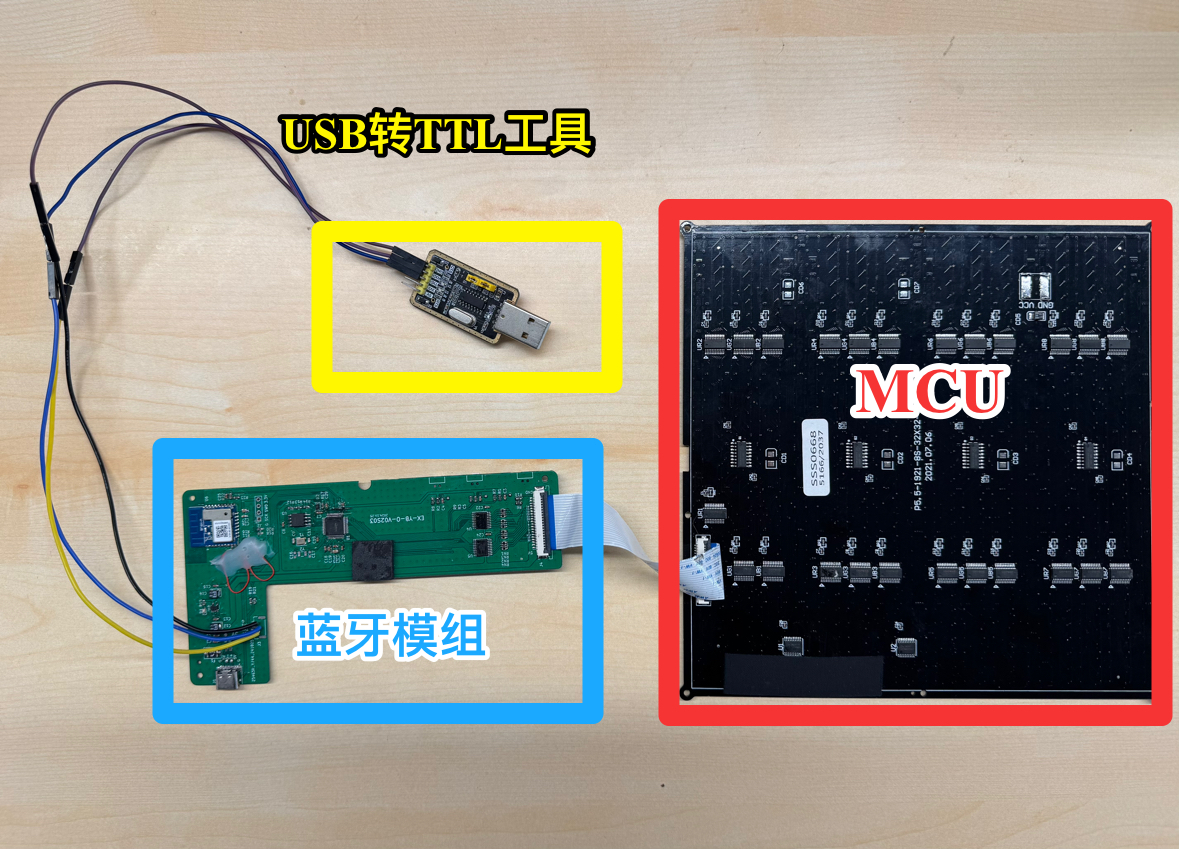
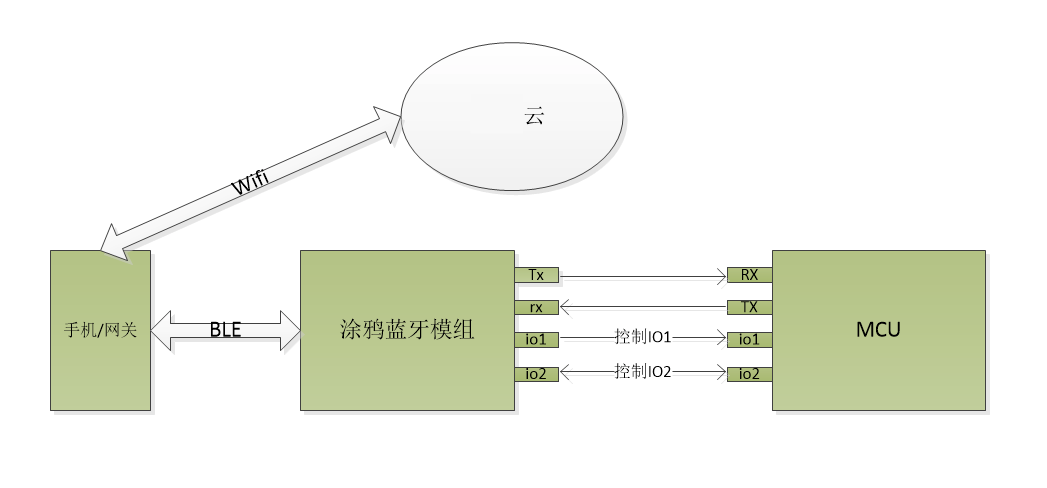
蓝牙像素屏, 主要包括 MCU + 蓝牙模组。
- 像素屏 MCU 主要用来实现像素屏屏幕的控制显示逻辑。
- 像素屏蓝牙模组是用于与涂鸦 App 进行连接通信和用于 MCU 与涂鸦 App 进行数据传输的桥接。
- MCU 与蓝牙模组之间通过有线串口通信。
- 蓝牙模组与手机 App 通过无线蓝牙通信。
设备调试
MCU 与电脑串口连接
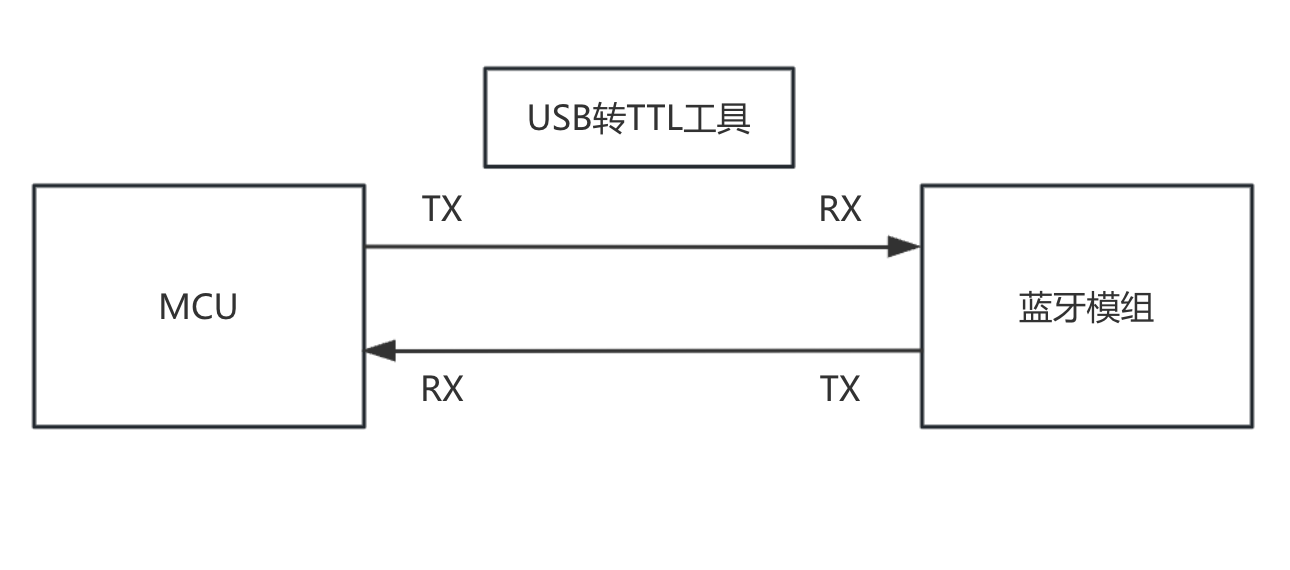
在 MCU 支持日志输出情况下, 将 MCU 输出的日志发送到电脑上, 需要在中间接一个 USB 转 TTL 的转接工具插入电脑。将 MCU 输出的 TTL 电平串口数据给到这个转接工具, 转接工具会转成 USB 数据,再给到电脑显示。数据下发也是一样, MCU 的串口既可以接收,也可以发送,接收是通过 RX, 发送是通过 TX。
使用 USB 转 TTL 工具,连接 MCU 串口和电脑的串口,示意图如下:
日志查看
- SecureCRT
使用 Windows 系统电脑连接串口之后, 需要使用 SecureCRT 来查看日志。那么, SecureCRT 是什么?
SecureCRT 是一个安全终端客户端,用于远程连接 Linux/Unix 服务器、网络设备、串口设备等。它支持 SSH1/SSH2、Telnet、Serial(串口)、RLogin、TAPI 等协。SecureCRT 提供完整的 Serial(串口)连接能力,可以连接各种设备。
- 串口调试
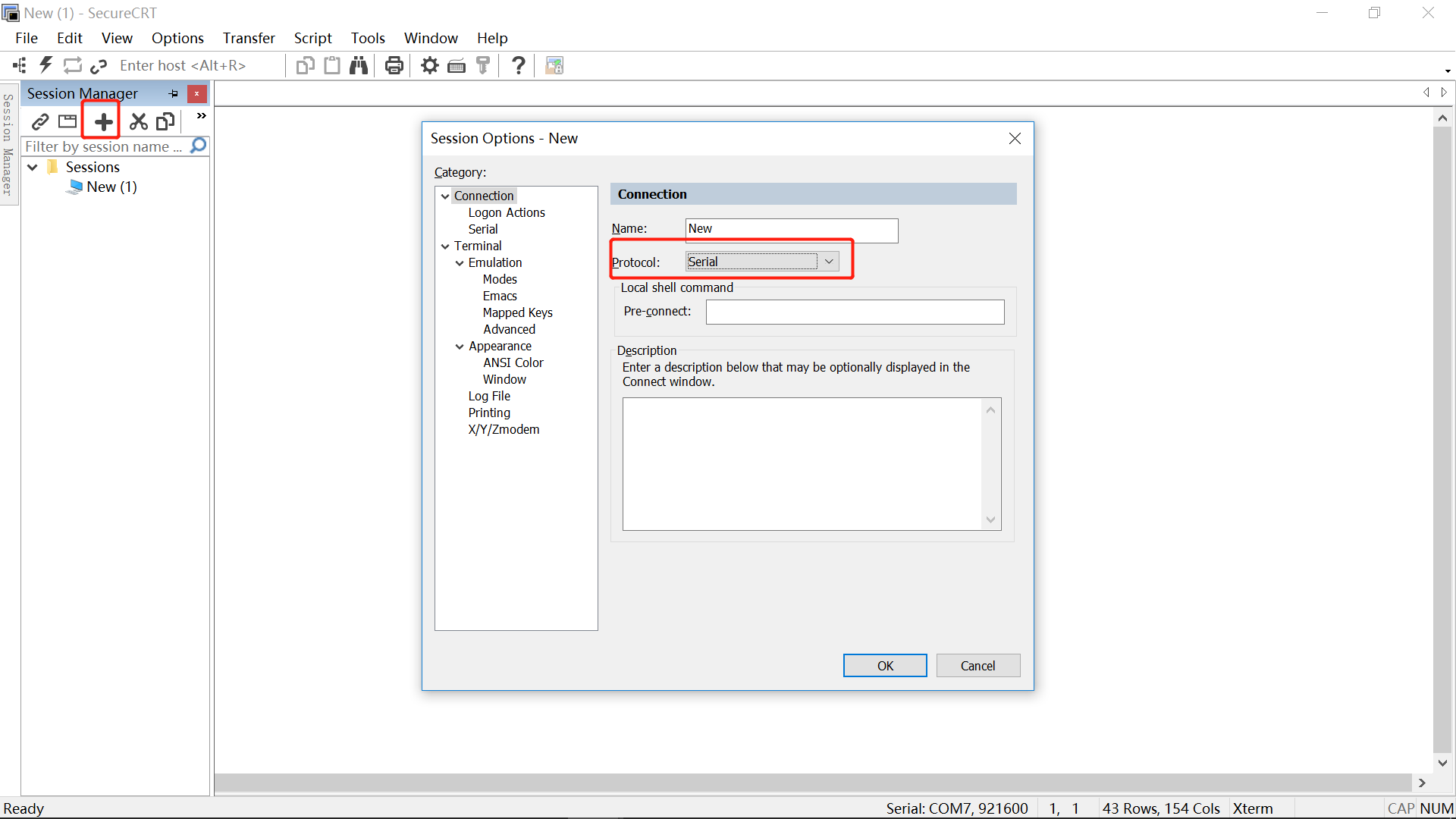
- 新建 Session
File → New Session(新建会话)或 File → Quick Connect(快速连接)
- 选择协议
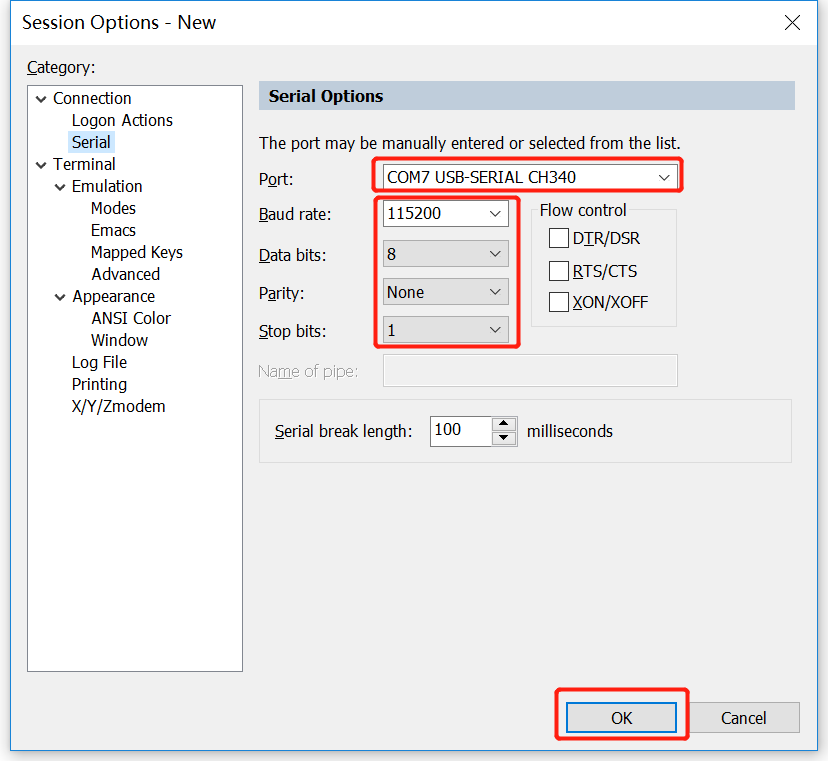
选择:Serial, 如下图:
- 填写串口参数
基本串口参数:
参数 | 推荐值 | 说明 |
Port(串口号) | 根据系统(COM3 / ttyUSB0 等) | USB 转串口会自动分配 |
Baud rate(波特率) | 115200 | 绝大多数嵌入式设备默认值 |
Data bits | 8 | 标准配置 |
Parity | None | 无校验 |
Stop bits | 1 | 标准配置 |
Flow control(流控) | None | 不要开,否则可能无输出 |
- 点击 Connect 查看日志
连接成功后, 即可看到设备的日志打印输出。如下图:
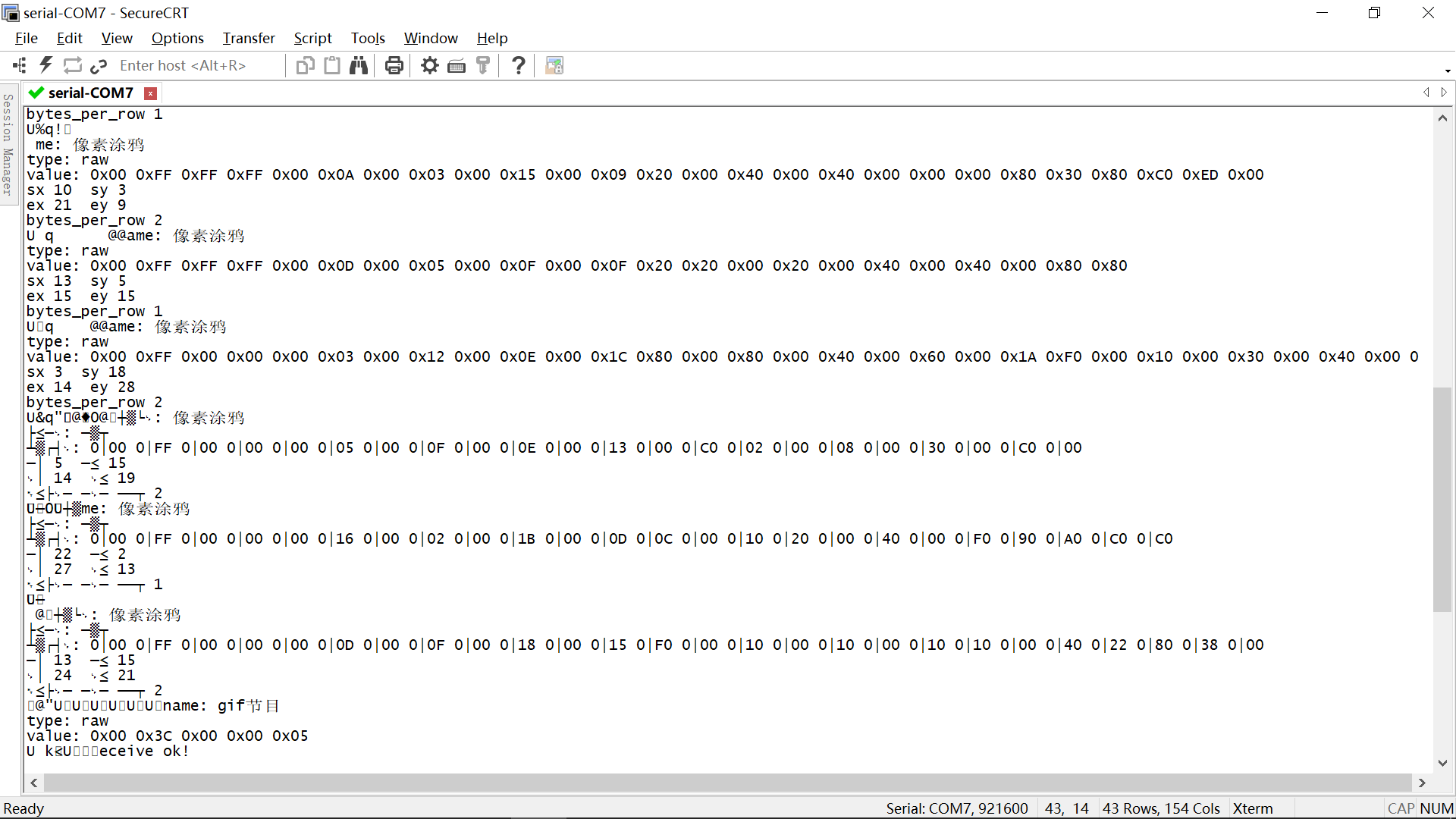
蓝牙像素屏图像数据下发, 需要通过蓝牙大数据分片透传方式将图像数据下发给设备。那么面板数据是否透传给了设备, 设备是否有上报数据给面板, 就需要通过查看上面的日志输出来判断。
这有助于面板开发过程中问题的排查, 开发同学可以通过查看输出日志快速定位并解决问题, 以提高开发效率。
- 恭喜你 🎉 完成了本教程的学习!
- 有任何问题可以联系涂鸦智能小程序团队