Highlights Video AI Editing On-App AI
Function Introduction
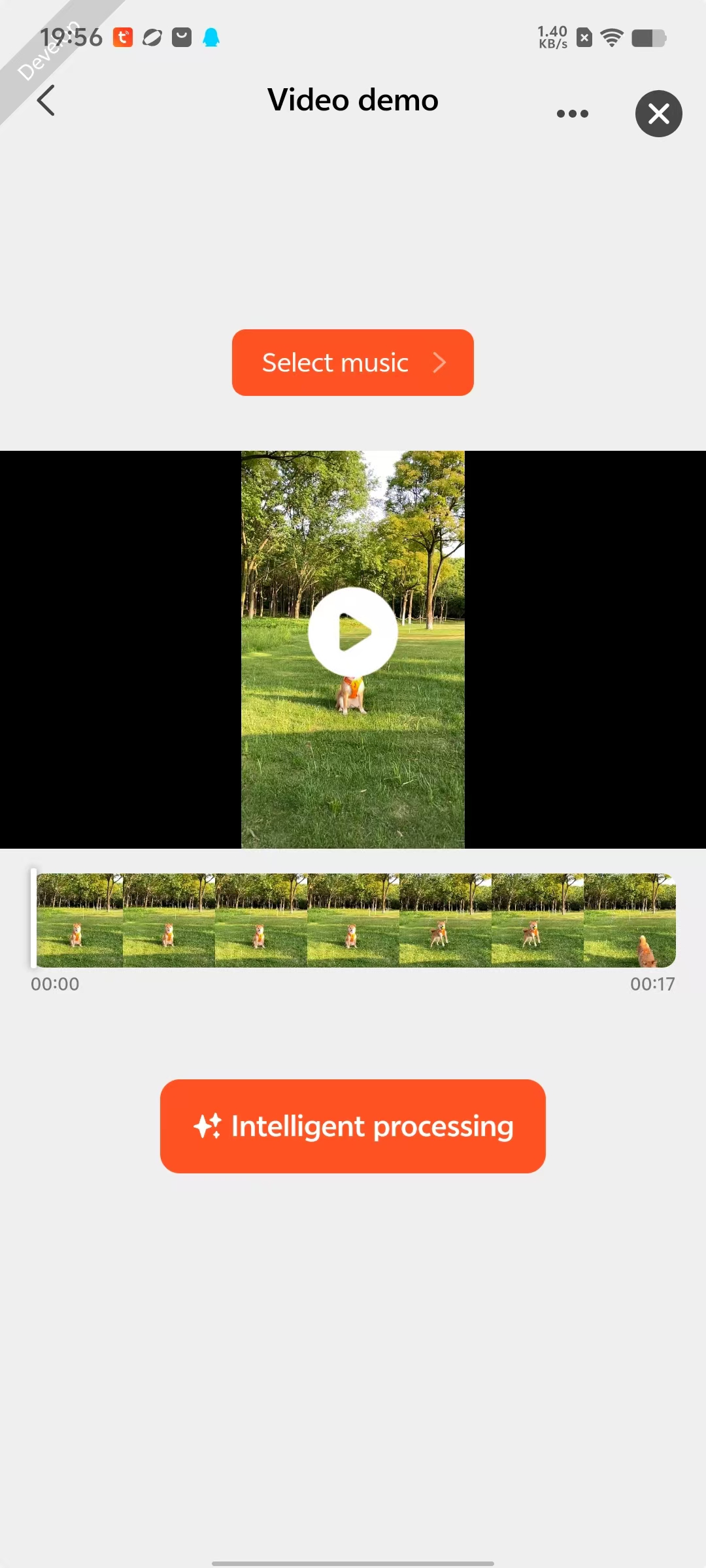
- The Highlights Video AI Editing mainly includes:
- Downloading videos from cloud to local;
- AI editing to highlight the main subject of videos;
- AI editing for video privacy protection;
- Customizable video background music.
- The Highlights Video AI Editing relies mainly on the following key capabilities:
-
Download Cloud Video
Developers can use the startDownloadMessageVideoForComposition API to download cloud videos that need editing to local storage. -
Get Highlights Service Configuration Information
Developers can use the objectDetectForVideo API to perform AI editing to highlight the main subject of the video. -
Get Highlights Service Configuration Information
Developers can use the privacyProtectDetectForVideo API to perform AI editing for privacy protection on the video.
Interaction Flow
sequenceDiagram
    participant User
    participant Panel
    participant Cloud
    participant AI_Service

    rect rgb(227, 242, 253)
        User ->> Panel: 1. Batch select video files
        Panel ->> Cloud: 2. startDownloadMessageVideoForComposition-api
        Cloud -->> Panel: 3. Return composed video address
        Panel ->> User: 4. Navigate to AI editing page
    end

    rect rgb(255, 243, 224)
        User ->> Panel: 5. Select AI service + background music
        alt Highlight main subject
            Panel ->> AI_Service: 6. objectDetectForVideo-api
        else Privacy protection
            Panel ->> AI_Service: 6. privacyProtectDetectForVideo-api
        end

        par Parallel processing
            AI_Service ->> AI_Service: 7. Video processing
            AI_Service ->> Panel: 8. Progress notification (every second)
            Panel ->> User: 9. Update progress bar
        and Interruption listening
            User ->> Panel: 10. Click cancel button
            Panel ->> AI_Service: 11. Immediately terminate request
            AI_Service -->> AI_Service: 12. Clean temporary resources
            AI_Service -->> Panel: 13. Confirm termination (no data return)
            Panel ->> User: 14. Display "Operation Canceled"
        end

        alt Completed normally
            AI_Service -->> Panel: 15. Return final video
            Panel ->> User: 16. Display preview interface
        end
    end

    rect rgb(230, 245, 230)
        User ->> Panel: 17. Click save
        Panel ->> Cloud: 18. Upload to album
        Cloud -->> Panel: 19. Confirm successful save
        Panel ->> User: 20. Display save result
    end