

Request Tuya Cloud API Key
This topic describes how to obtain the following information:
TUYA_ACCESS_ID: The access ID.TUYA_ACCESS_SECRET: The access secret.TUYA_UID: The user ID.
Create a cloud project
-
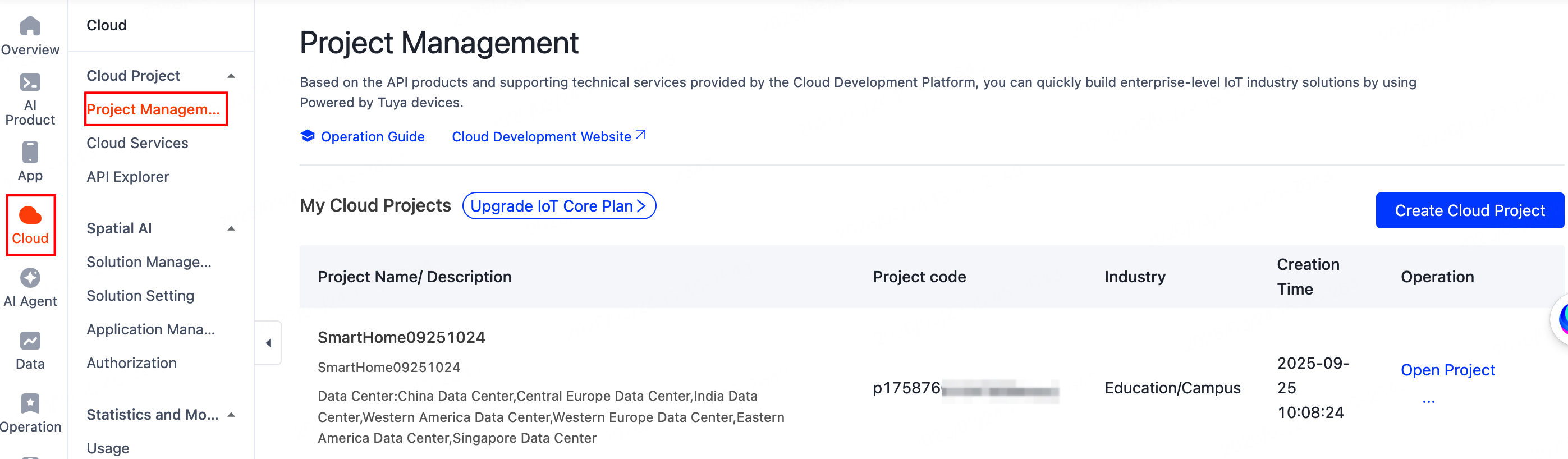
Log in to the Tuya Developer Platform. In the left-side navigation bar, choose Cloud > Cloud Project > Project Management to access the Project Management page.
-
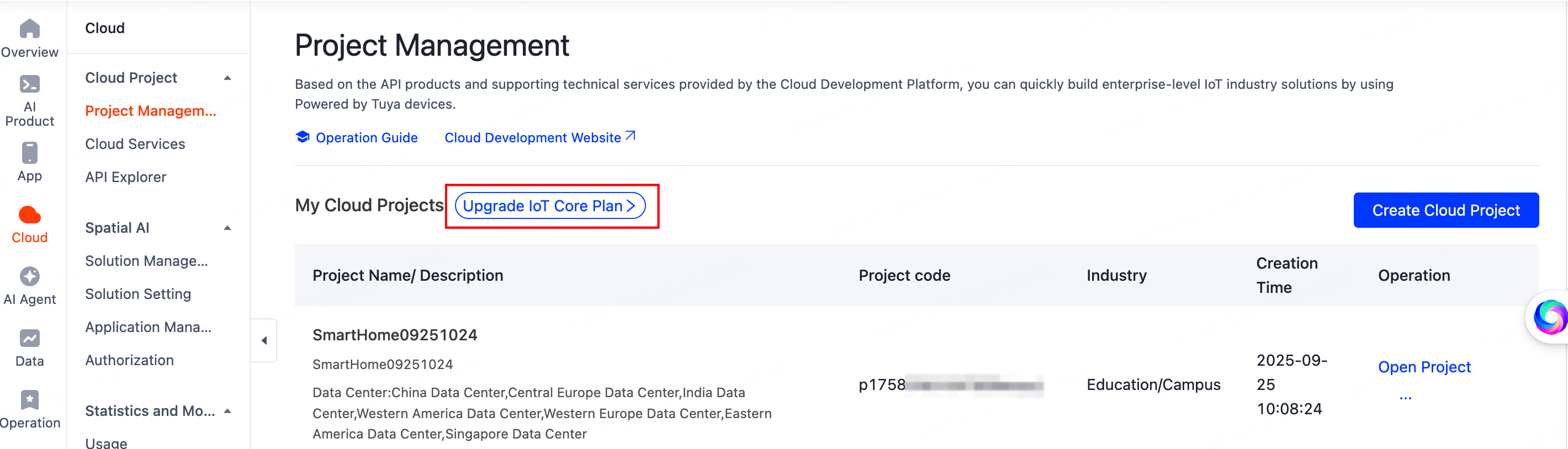
Click Upgrade IoT Core Plan to subscribe to the IoT Core services and ensure it is available.
-
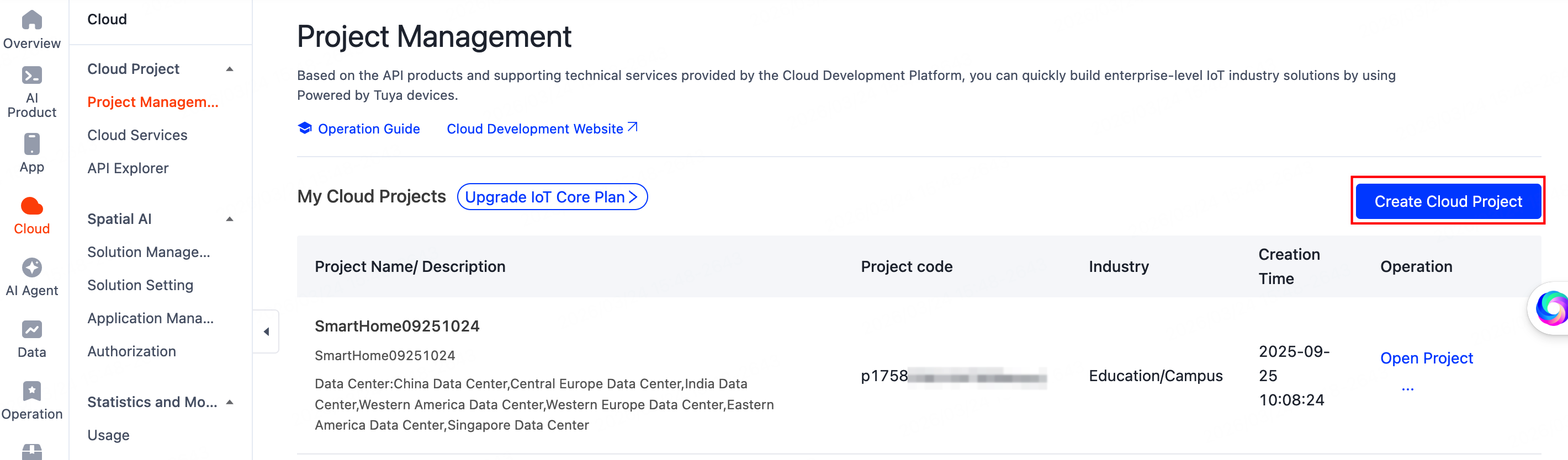
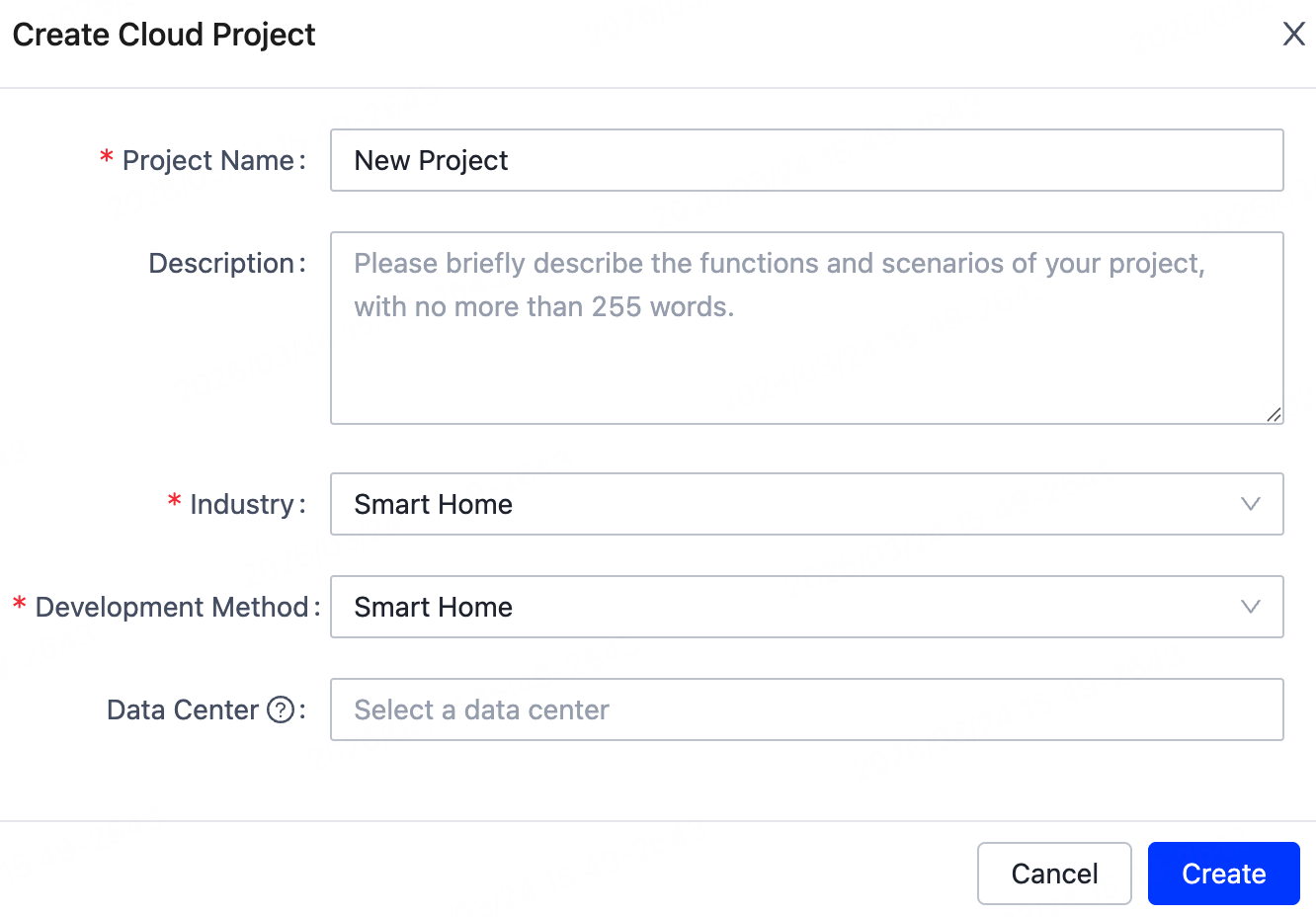
Click Create Cloud Project and enter the required information, such as the project name. Note that the Development Method must be set to Smart Home.
-
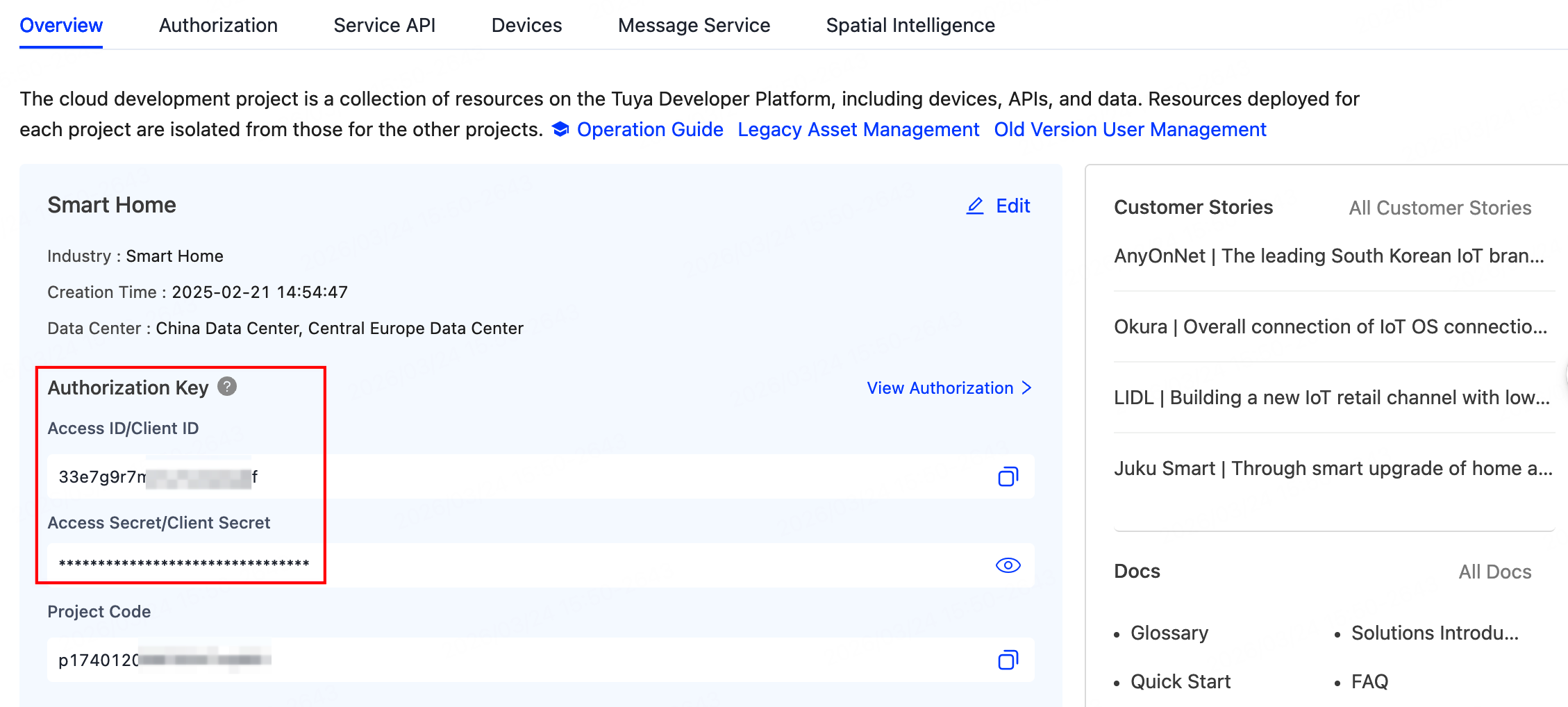
After creation, you can view your Client ID and Client Secret in the Authorization Key section.
Subscribe to required cloud services
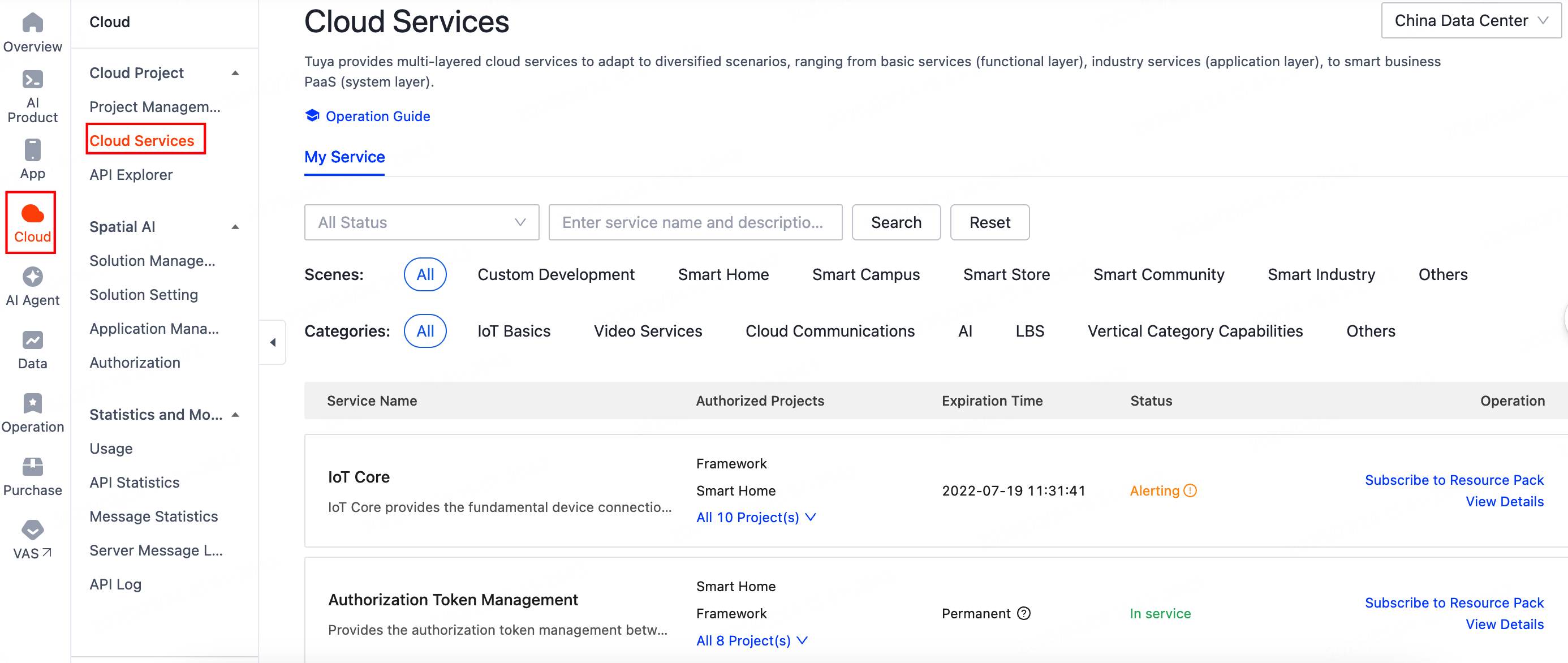
In Cloud > Cloud Project > Cloud Services, you can select the desired services and authorize them to your cloud project.
Verify that you have subscribed to the following services:
- Country and City Info
- Smart Home Basic Service
- IoT Core
- [Deprecate] Smart Home Scene Linkage
Authorize your cloud project to access devices under your account
-
On the Project Management page, click Open Project in the Operation column.
-
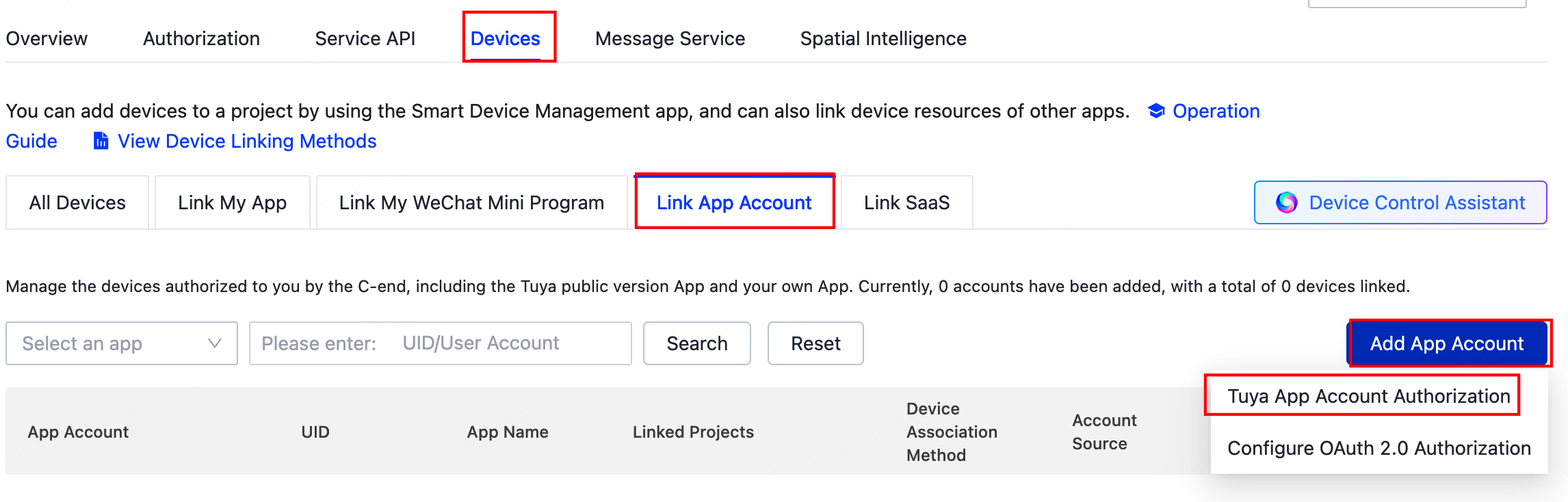
On the project details page, navigate to Devices > Link App Account, click Add App Account, and then select Tuya App Account Authorization.
-
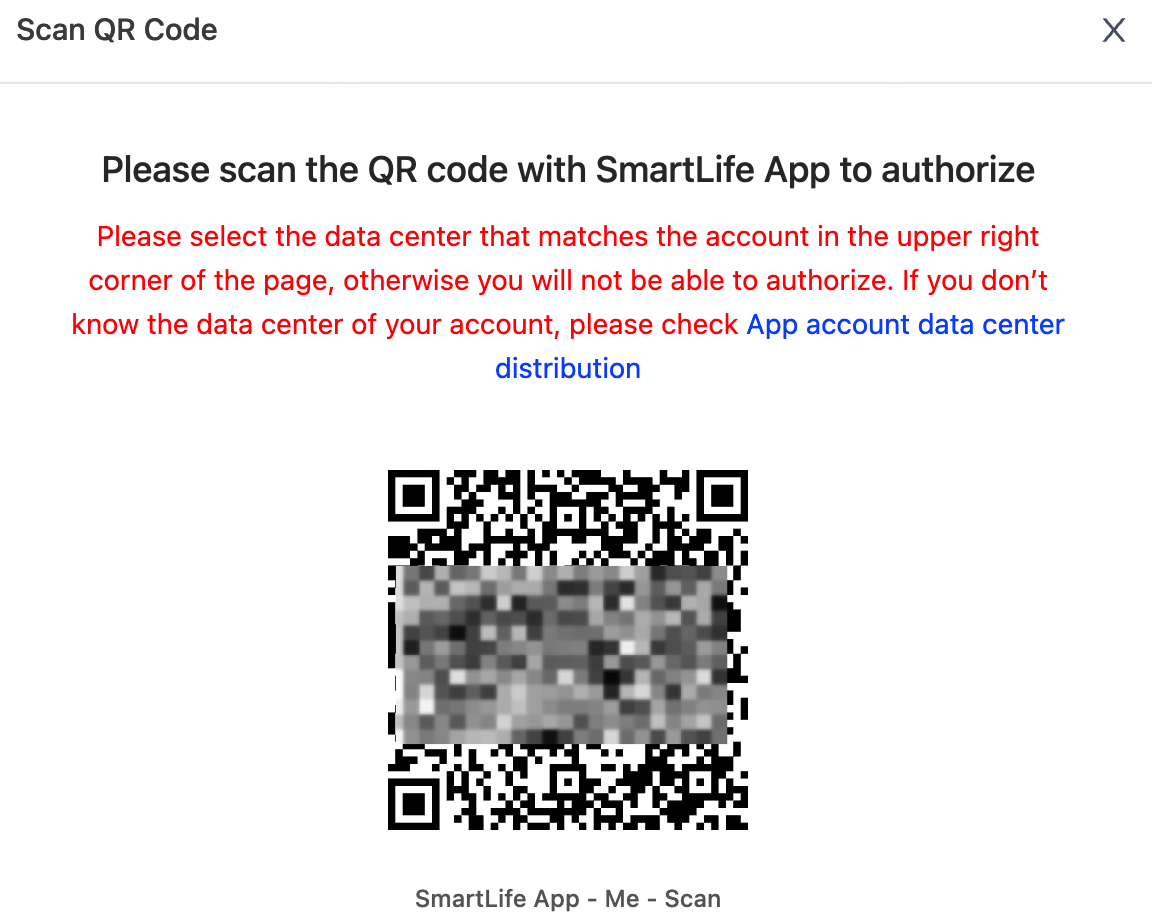
Open the Tuya or SmartLife app and scan the QR code to complete the authorization.
-
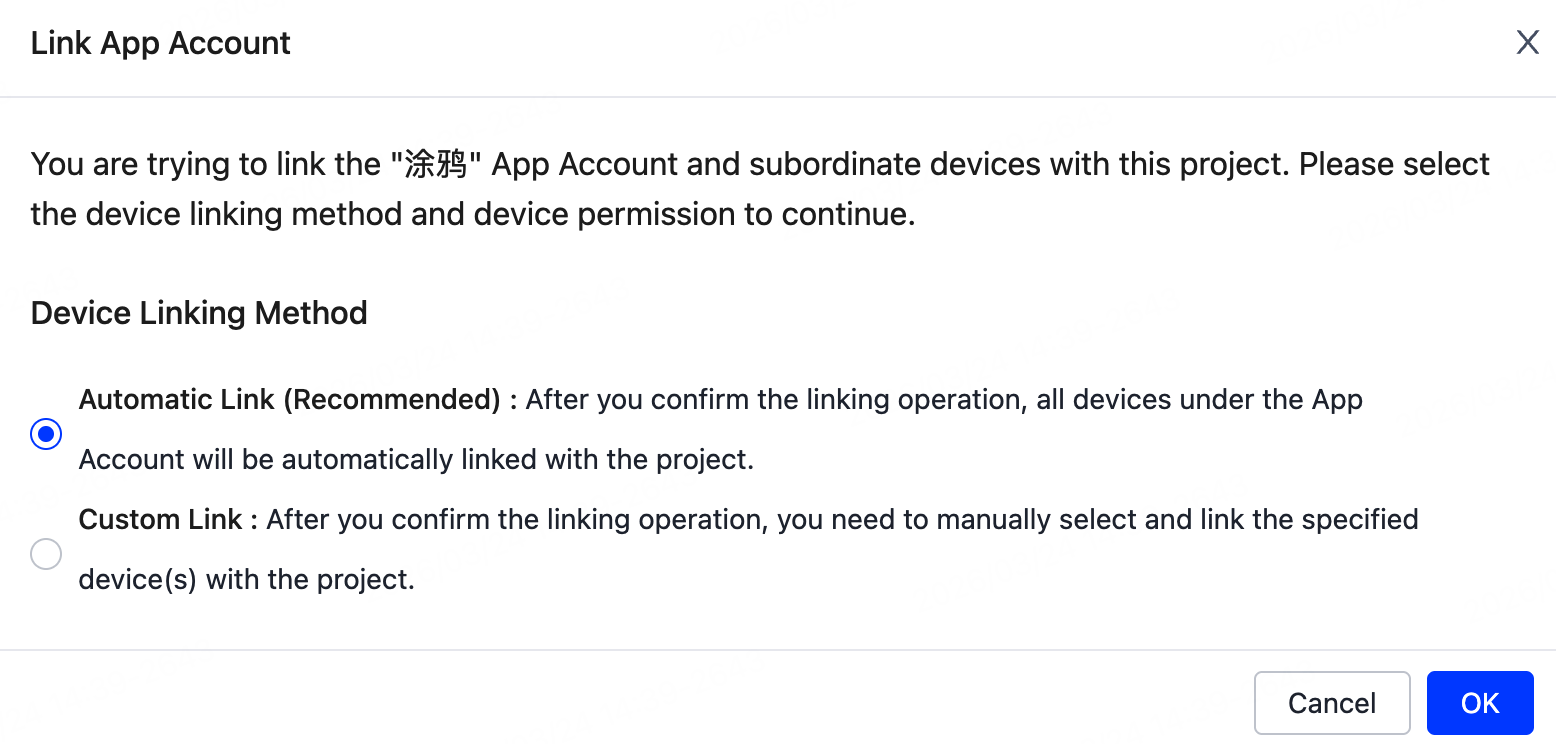
After successful authorization, you need to link the app account. The Automatic Link method is selected by default.
-
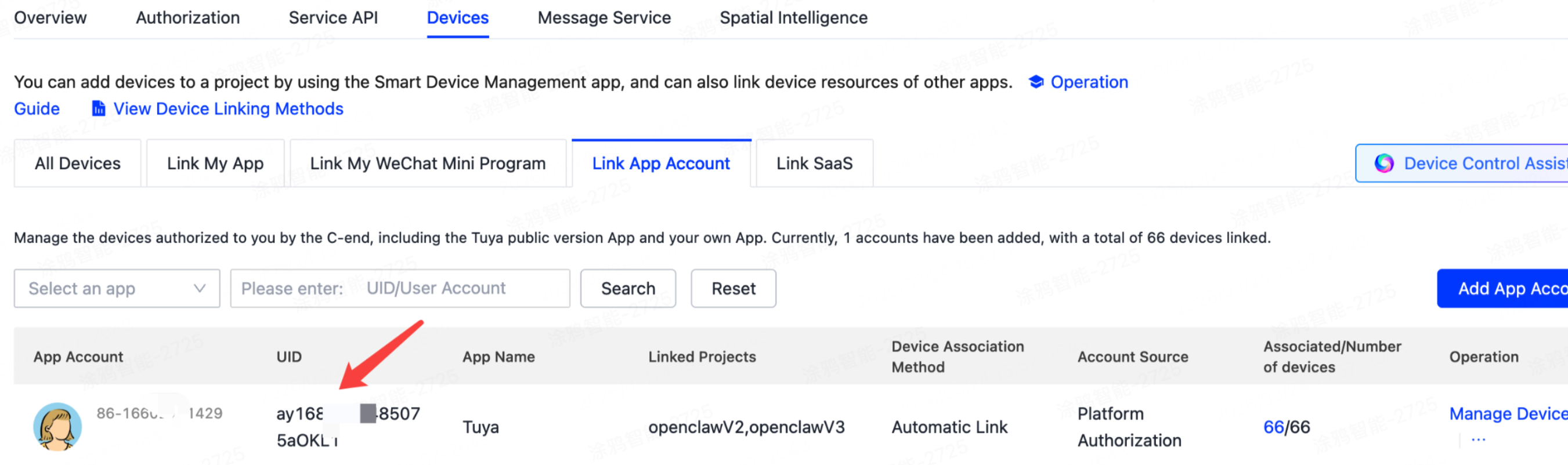
After the account is linked successfully, you can view the account information in the list. Please record this UID.
-
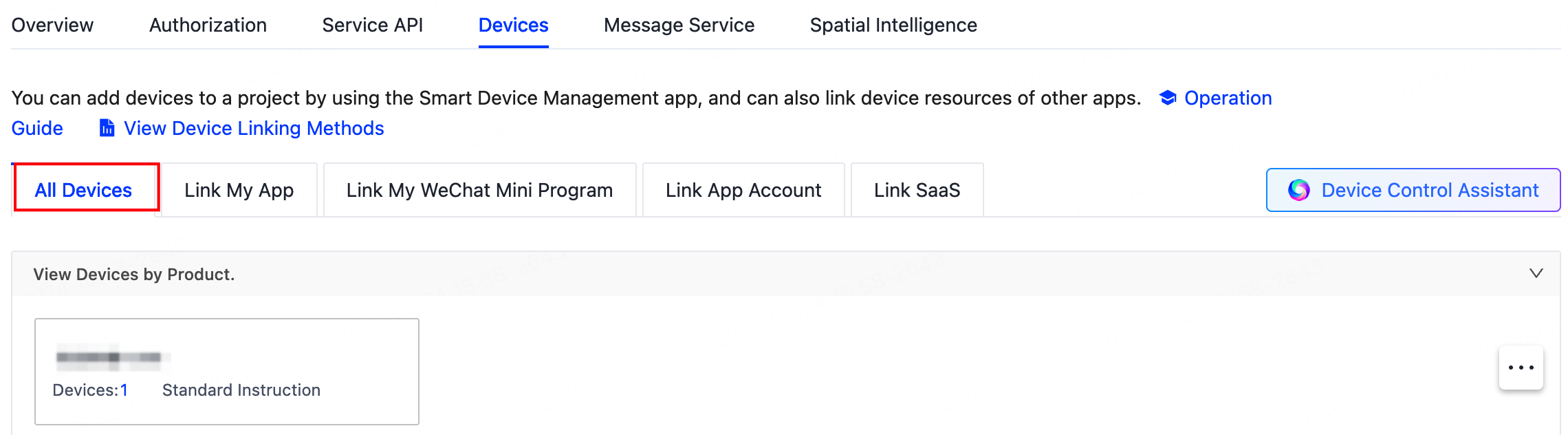
Then, switch to the All Devices tab to view device information.
Is this page helpful?
YesFeedbackIs this page helpful?
YesFeedback




