

Configure Tuya Assistant Skill
Request Tuya Cloud API
First, refer to Request Tuya Cloud API Key to get the relevant API information, specifically:
TUYA_ACCESS_ID: The access ID.TUYA_ACCESS_SECRET: The access secret.TUYA_UID: The user ID.
Get Tuya Assistant Skill
Click to download the Tuya Assistant Skill, then unzip the package to get the latest version.
Configure in OpenClaw
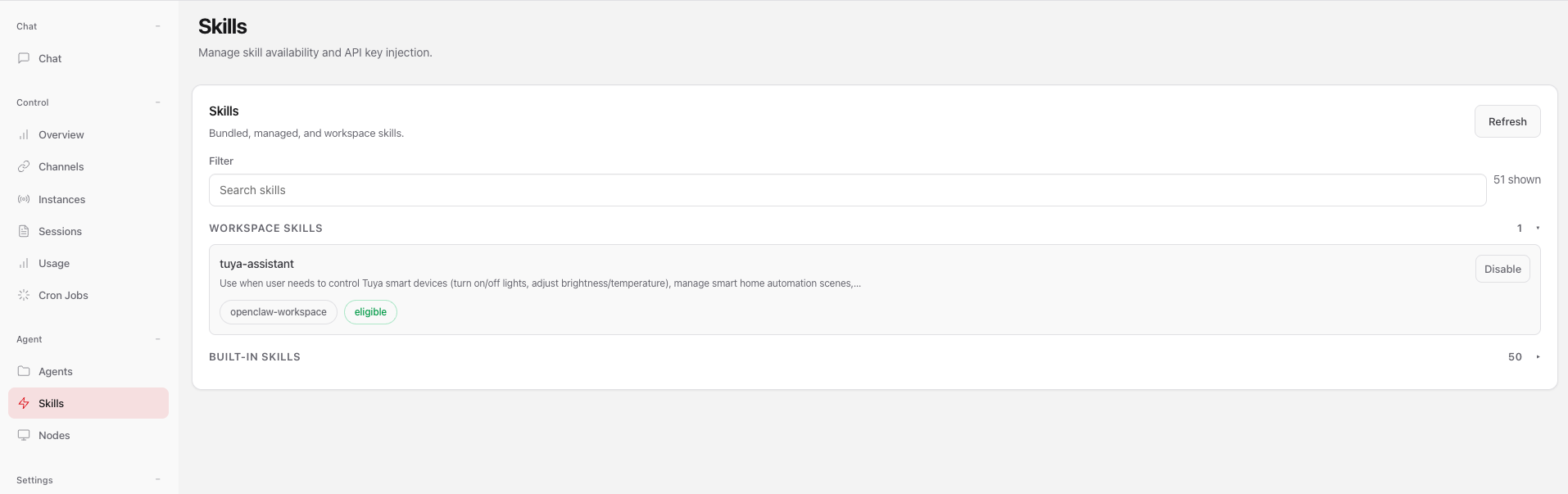
Configure the tuya-assistant skill into OpenClaw by placing it in the .opencalw/workspace/skills directory, as shown in the image.

In the Skills > WORKSPACE SKILLS section of the OpenClaw Web page, you can see the recognized tuya-assistant skill.
Control devices with OpenClaw
-
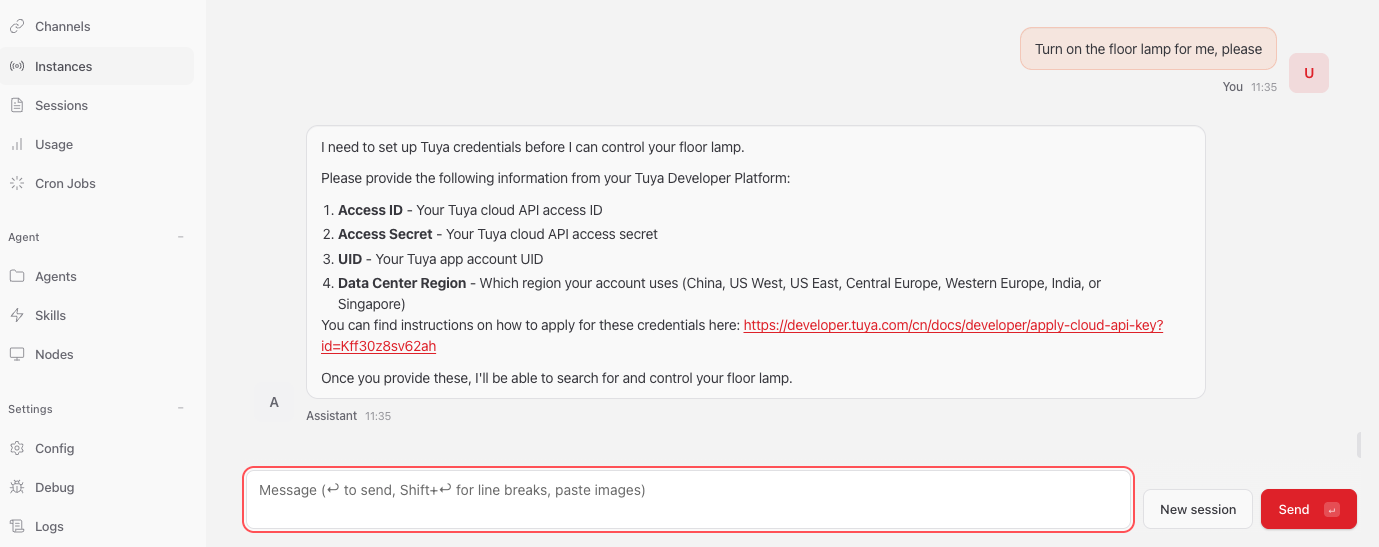
Provide access credentials. During the initial configuration, OpenClaw will prompt the user to provide access credentials based on the skill’s description.
For example, when configuring the tuya-assistant skill for the first time, after entering Turn on my floor lamp, you will be prompted to provide the following credentials:
TUYA_ACCESS_ID: The access ID for the Tuya Developer Platform.TUYA_ACCESS_SECRET: The access secret.TUYA_UID: Your Tuya or SmartLife app account UID.TUYA_ENDPOINT: The data center. For example, China, Western America, and Europe.
-
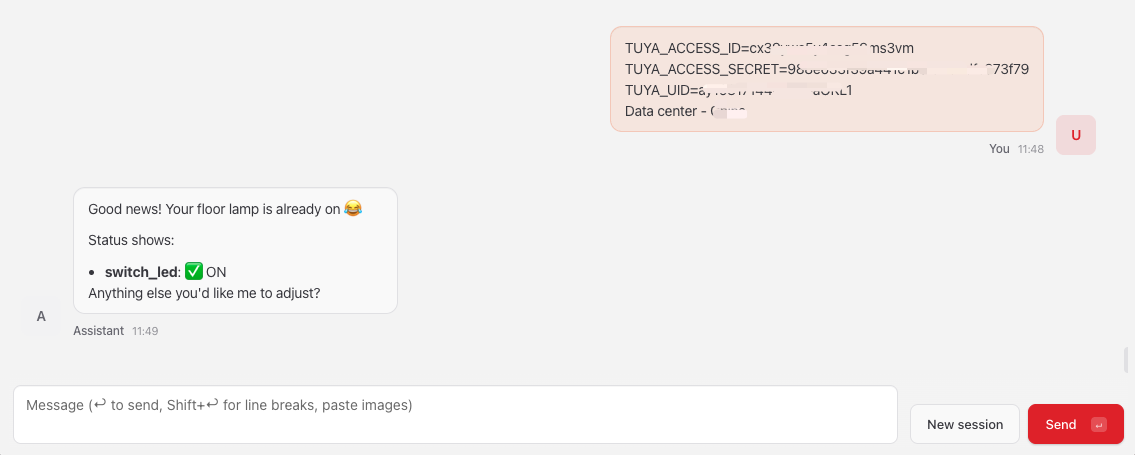
Configure the data center. After completing the above steps and obtaining the configuration information, you also need to configure the data center.
Taking the example where your authorized account belongs to the China data center:
> TUYA_ACCESS_ID=xxxx TUYA_ACCESS_SECRET=xxxx TUYA_UID=xxxx Data Center = China -
OpenClaw will automatically configure the keys and continue executing the Turn on my floor lamp command.
Showcase
The tuya-assistant skill supports device control and automation (devices, schedules, and weather).
Device control
Supports fuzzy semantics and multi-commands. Examples:
- "Turn on the light": AI will query all light-related devices under the user’s account and ask whether all should be turned on.
- Multi-command control: "Turn on the floor lamp, adjust the mode to color light, and set the color to blue".
Use cases:
- "Help me turn on all the lights."
- "Help me turn on the floor lamp, adjust the mode to color light, set the color to green, and then close the curtains."
Automation
- "When the floor lamp turns on, I need to close the curtains."
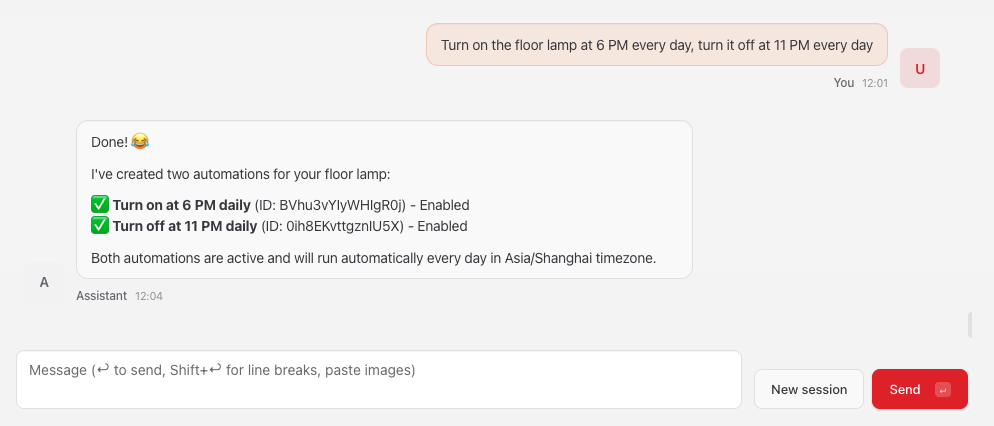
- "Turn on the floor lamp at 6:00 PM every day, and turn off the floor lamp at 11:00 PM every day."
- "When the air quality is excellent, I need to open the windows and doors."
Effect demonstration
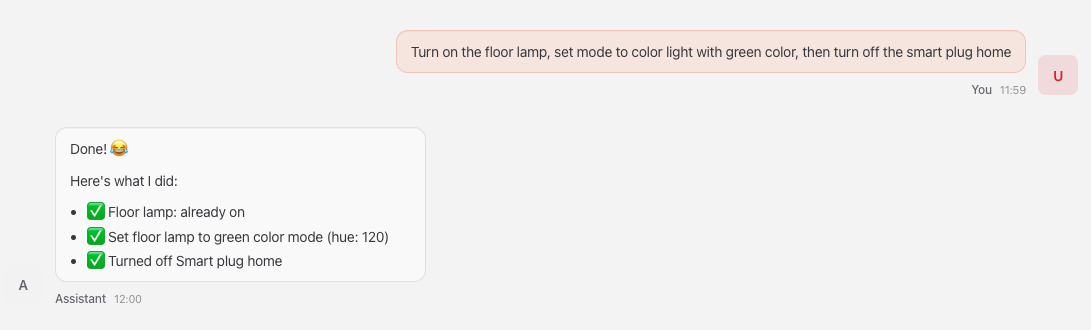
Demo 1
Turn on the floor lamp, adjust the mode to color light, set the color to green, and then turn off the smart plug.
Demo 2
Turn on the floor lamp at 6:00 PM every day, and turn off the floor lamp at 11:00 PM every day.
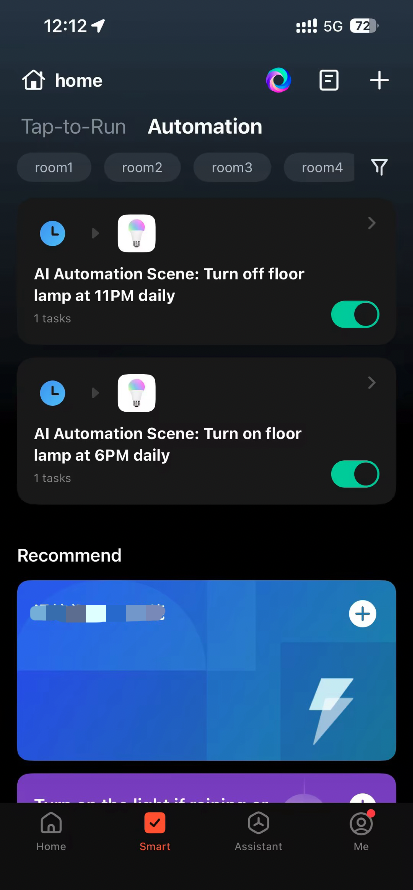
View automations created by OpenClaw in the app (automations created via the skill will have an AI Automation prefix).
Is this page helpful?
YesFeedbackIs this page helpful?
YesFeedback




