

Fast Integration with SmartLife App SDK for HarmonyOS
This topic describes how to quickly integrate the Tuya SmartLife App SDK for HarmonyOS into your development environment, such as DevEco-Studio. It also sheds light on the initialization method and how to enable the debugging mode with a few simple steps. This allows you to run the demo app and get started with your SmartLife app development by using the App SDK.
Prerequisites
-
Before you start, make sure that you have performed the steps in Preparation.
-
If you have not installed DevEco Studio, visit the HarmonyOS official website to download DevEco Studio.
-
SmartLife App SDK is classified into the development edition and the official edition. For more information, see Pricing.
Integrate with the SDK
Step 1: Create a HarmonyOS project
Create a project in DevEco Studio.
Step 2: Download the SDK
-
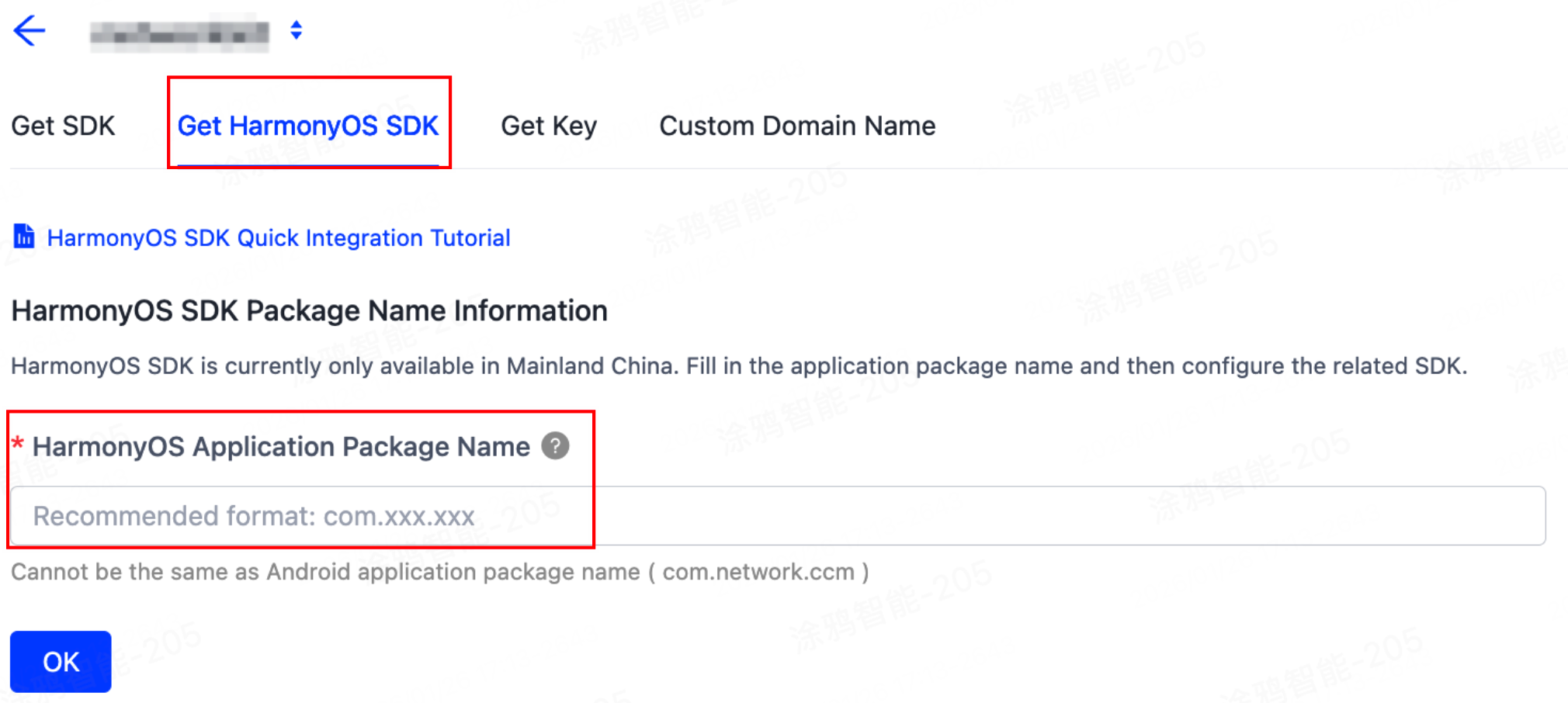
Log in to the Tuya Developer Platform and navigate to the SDK Development page. Click Create App in the top right corner to create a SmartLife App SDK. Then, under the Get HarmonyOS SDK tab, fill in the application package name as the unique identifier for publishing to the app store and click OK.
-
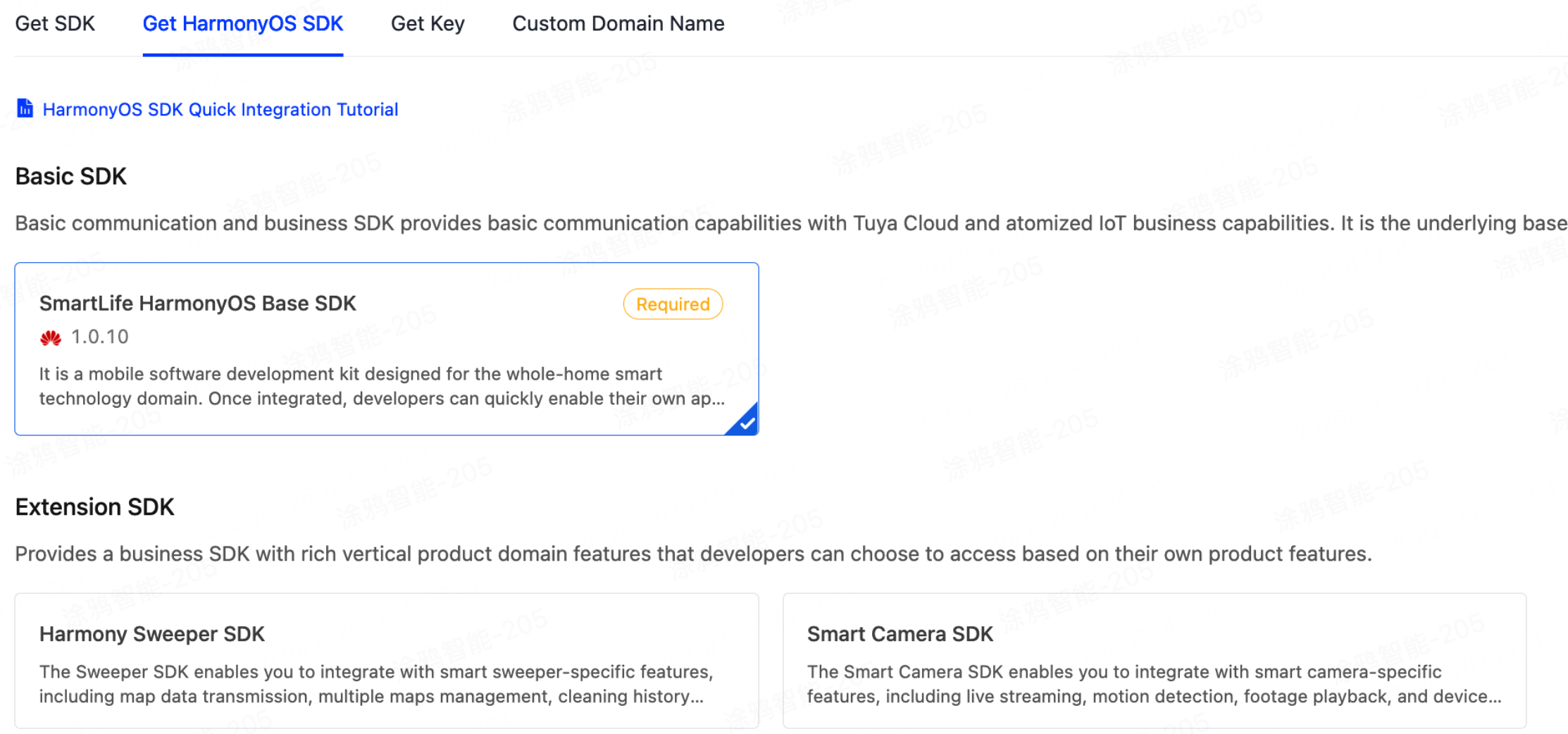
Go to the Get HarmonyOS SDK tab, select one or more required SDKs or BizBundles, and then download the App SDK.
Step 3: Set key information
The SDK contains the following files:
t_s.bmp: Exclusive security image for the HarmonyOS SDK.TSmartSecurity.har: Exclusive library file for the HarmonyOS SDK.
How to integrate
-
Add the security image. Add the
t_s.bmpfile to the/entry/src/main/resources/rawfile/directory of your HarmonyOS project. -
Configure dependencies. In the project’s root directory
oh-package.json5file, declare the integration ofTSmartSecurity.harin theoverridesfield.{ "modelVersion": "5.0.2", "description": "Please describe the basic information.", "dependencies": { }, "devDependencies": { }, "overrides": { // Using a relative path within the project directory, you can move the downloaded file into the project and modify/confirm the path accordingly. "@thingsmart/security": "./sdk_TSmartSecurity.har" }, "dynamicDependencies": {} }Adjust the relative path after
file:according to the actual project directory structure.Copy the component versions specified in the
dependencies.txtto the Dependencies section of theoh-package.json5file in the corresponding project module that requires those specific functionalities. -
Configure the Tuya ohpm environment. In the terminal, set up the Tuya environment for ohpm.
ohpm config set @thingsmart:registry https://ohpm-repo.tuya.com/repos/ohpm ohpm config set @rnoh:registry https://ohpm-repo.tuya.com/repos/ohpm ohpm config set @tuya-oh:registry https://ohpm-repo.tuya.com/repos/ohpm ohpm config set //ohpm-repo.tuya.com/repos/ohpm/:_read_auth NTllMTBlMmIzOGE4NDljOWEyYjE3ZWU2MmEyNDdhNDk= -
Configure the application package name. Verify that the app’s package name matches the one registered with the SDK. If it does not, modify the package name as follows: Navigate to the
/AppScope/app.json5file and modify thebundleNamefield accordingly.After the package name is modified, the IDE might have caching issues. It is recommended to clear the project cache and rebuild to ensure the running package name matches the newly modified, correct one.
-
Initialize the SDK. Obtain the AppKey and AppSecret from the Tuya Developer Platform. Then, integrate the Tuya HarmonyOS App SDK and complete the initialization.
import { TSmartSDK } from "@thingsmart/channel"

let applicationContext = this.context.getApplicationContext();
TSmartSDK.startWithAppKey(AppKey, AppSecret, applicationContext, 'Your HarmonyOS app package name')
Replace the placeholders AppKey, AppSecret, and your HarmonyOS app package name in the code with your actual values.
Step 4: Run the demo app
- After the SDK is integrated into your project, you can get the values of AppKey and AppSecret. Make sure the AppKey and AppSecret are consistent with those used on the Tuya Developer Platform. Any mismatch will cause the SDK development to be failed.
- The demo app that is created in the sample project of SmartLife App SDK is used for reference only. Do not use the demo app for commercial purposes. For more information, see Tuya Developing Service Agreement.
In the following example, a demo app is used to describe the process of app development with the App SDK and indicate the SDK capabilities that you can integrate to implement smart life scenarios. Before the development of your app, we recommend that you run the demo app.
Feature overview
The demo app supports the following features:
-
User management: Register and log in to the app account by mobile phone number or email address.
-
Home and device management:
- Create a home and switch between homes.
- Display a list of devices in the home and control data points (DPs) of the devices.
- Rename and remove devices.
-
Pair devices: Multiple pairing methods are supported, including EZ mode, AP mode, wired gateway pairing, gateway sub-device pairing, Bluetooth pairing, and Bluetooth mesh sub-device pairing.
For more information, see the tuya-home-harmony-sdk-sample project on GitHub.
Run the demo
- Complete the setting of the AppKey, AppSecret, and security image, and the SDK initialization.
- Click Run to run the demo app.
Is this page helpful?
YesFeedbackIs this page helpful?
YesFeedback




