

Share and Discover Stores
After your store is approved, you can share its QR code or configure the discovery mechanism within the app to allow your users to quickly find your store.
Entry to Tuya Choice
By default, the app provides multiple built‑in entry points that make it easy to guide users to the shopping miniapp or to a specific product details page.
App assistant page
By default, users can tap the Assistant tab at the bottom of the app to enter the Shop miniapp, and then search for your store.
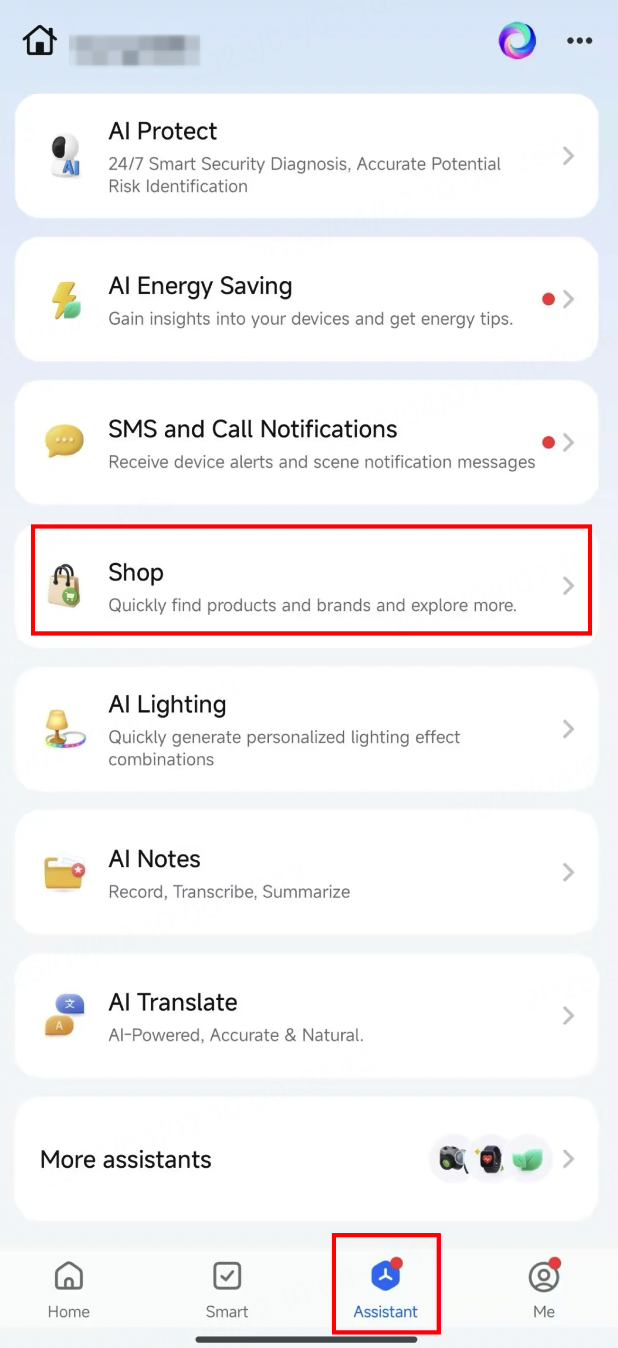
Vertical agent
- The app currently covers various scenarios such as security, energy saving, health, and entertainment. Each scenario features a dedicated vertical agent.
- Each agent recommends products from relevant categories based on its own strategy.
Seller‑initiated entry
You can recommend your store entry to users through the following methods:
- Scan with the app
- Auto‑follow the store after successful pairing
- Recommend following the store after successful pairing
Scan with the app
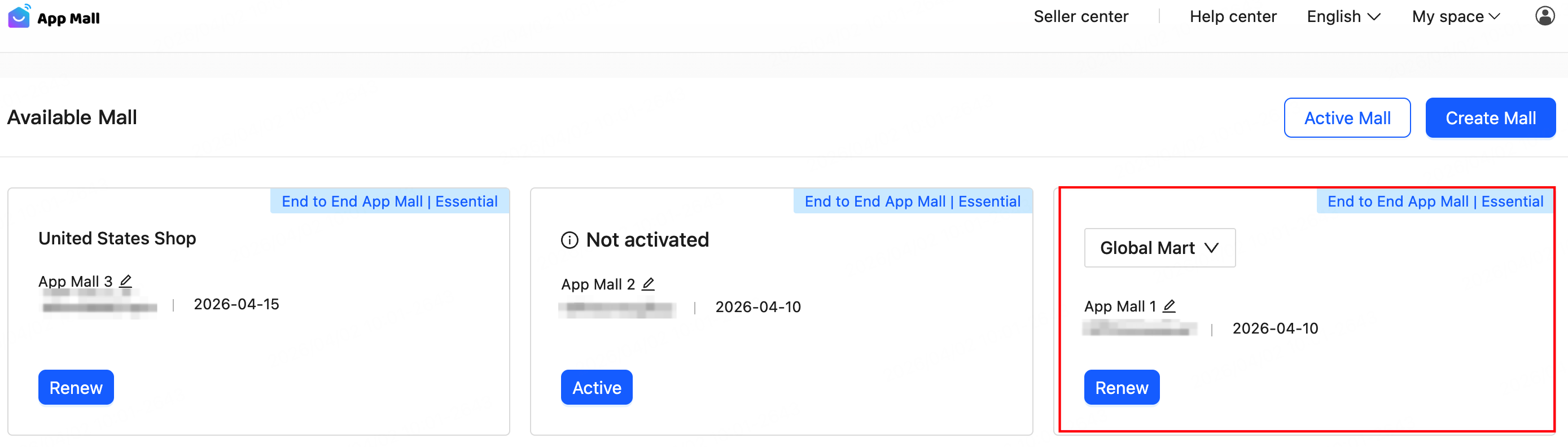
In the App Mall, select the store you have activated from the mall list and go to its details page.
-
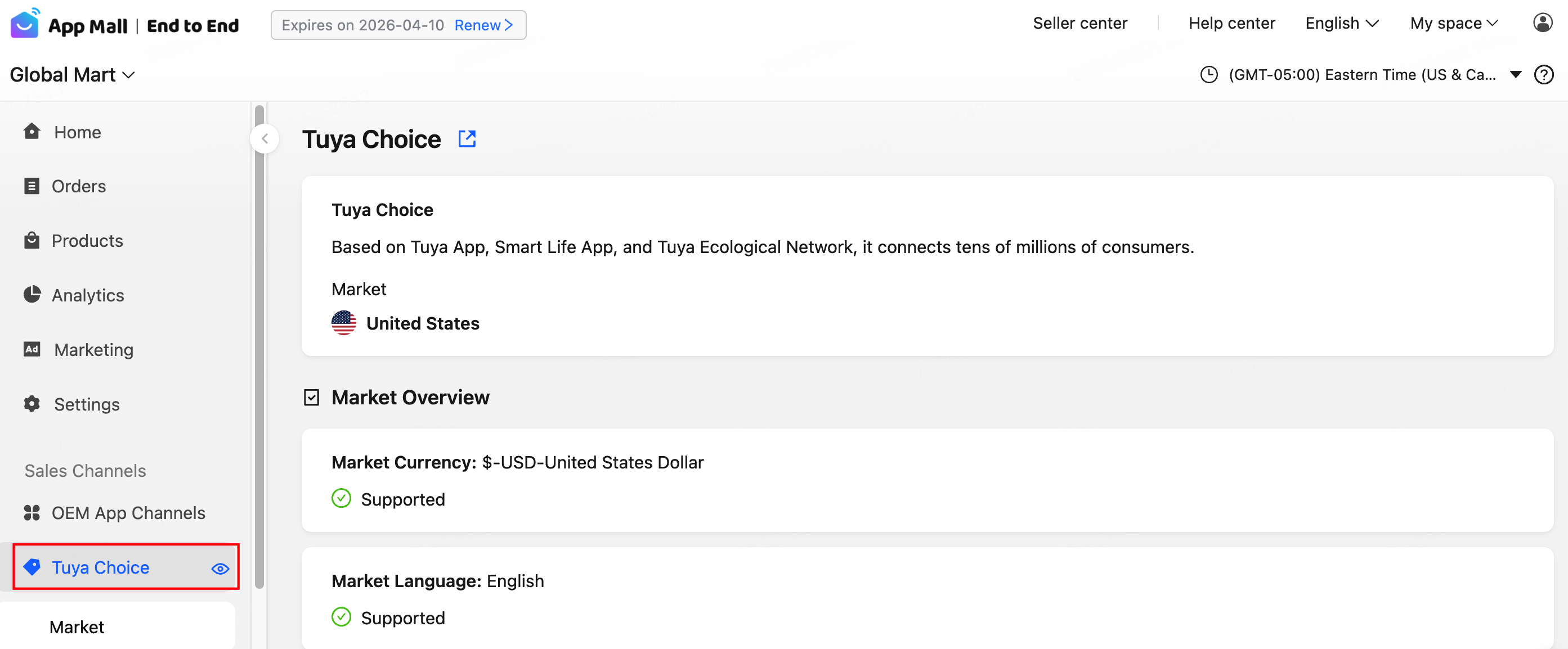
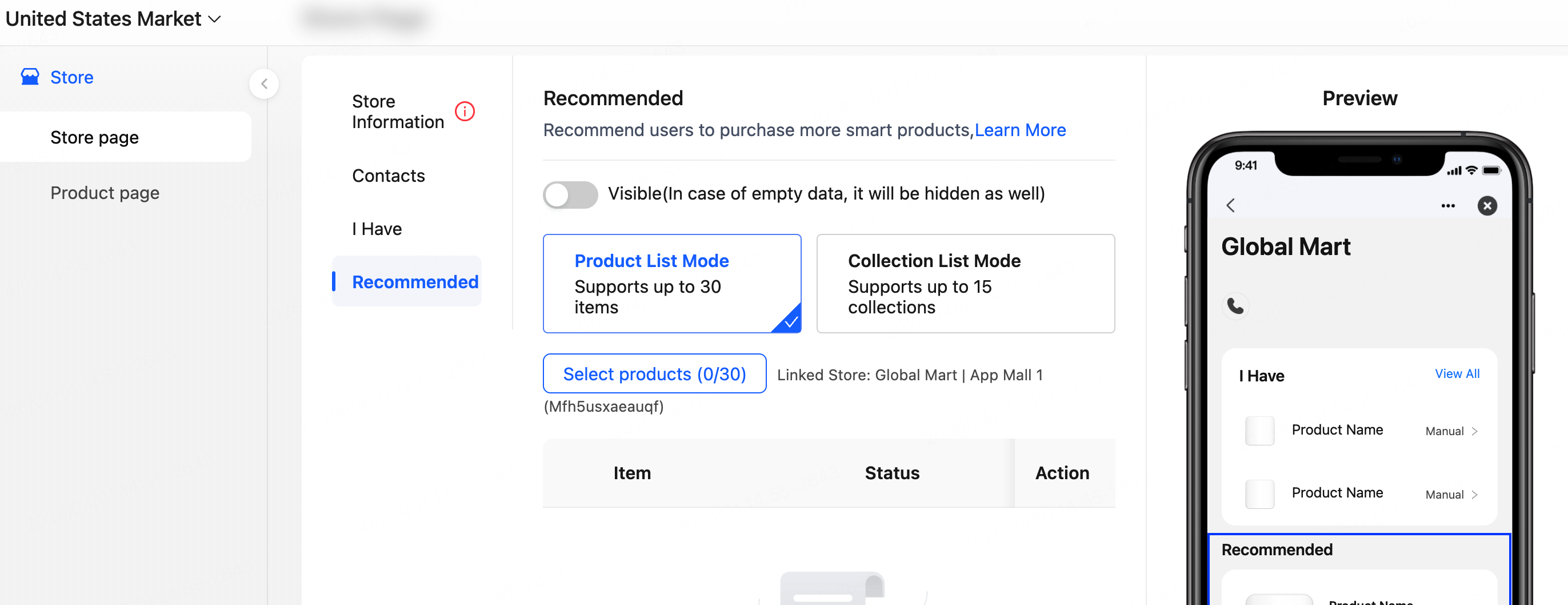
Tuya Choice: If your store has been approved, click Tuya Choice in the left-side navigation menu. The interface will appear as shown in the figure below.
-
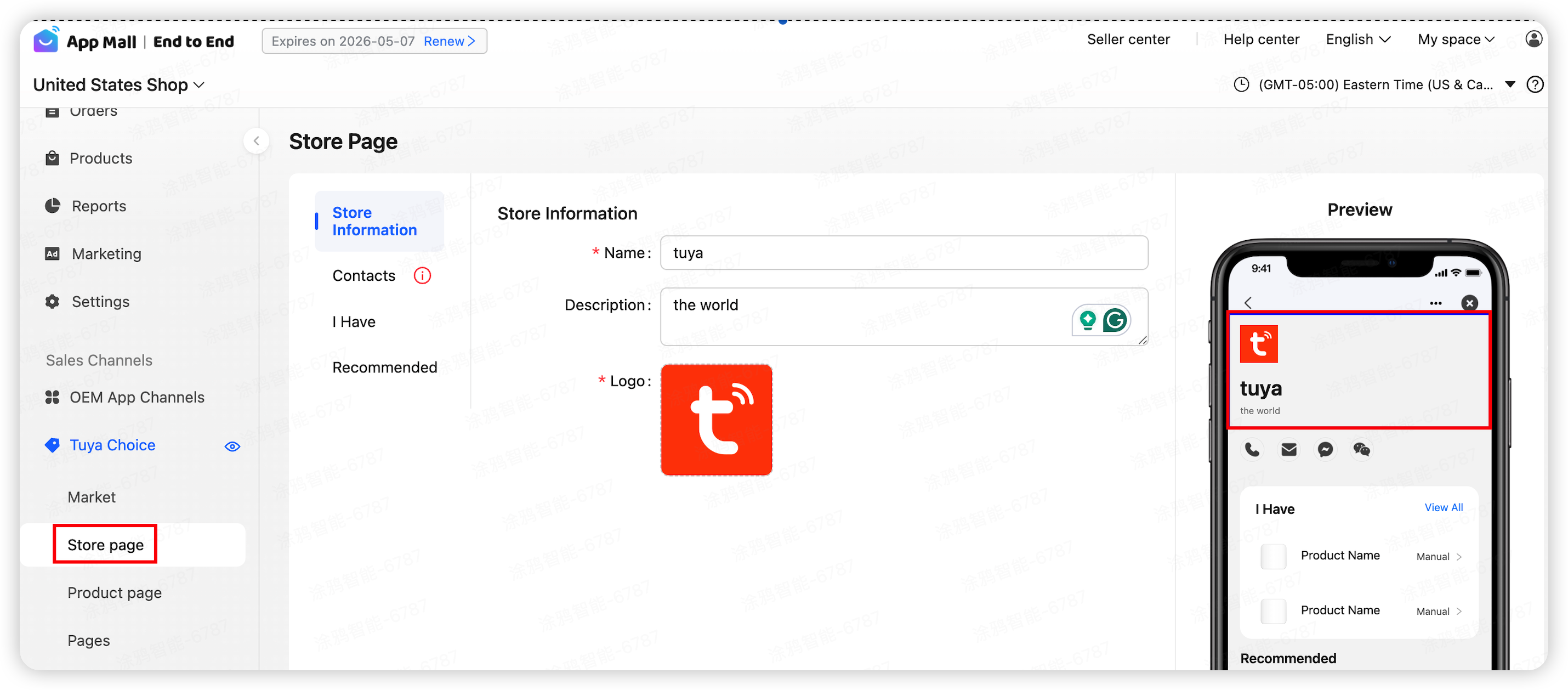
Manage your store: To manage your store, choose Tuya Choice > Store page.
-
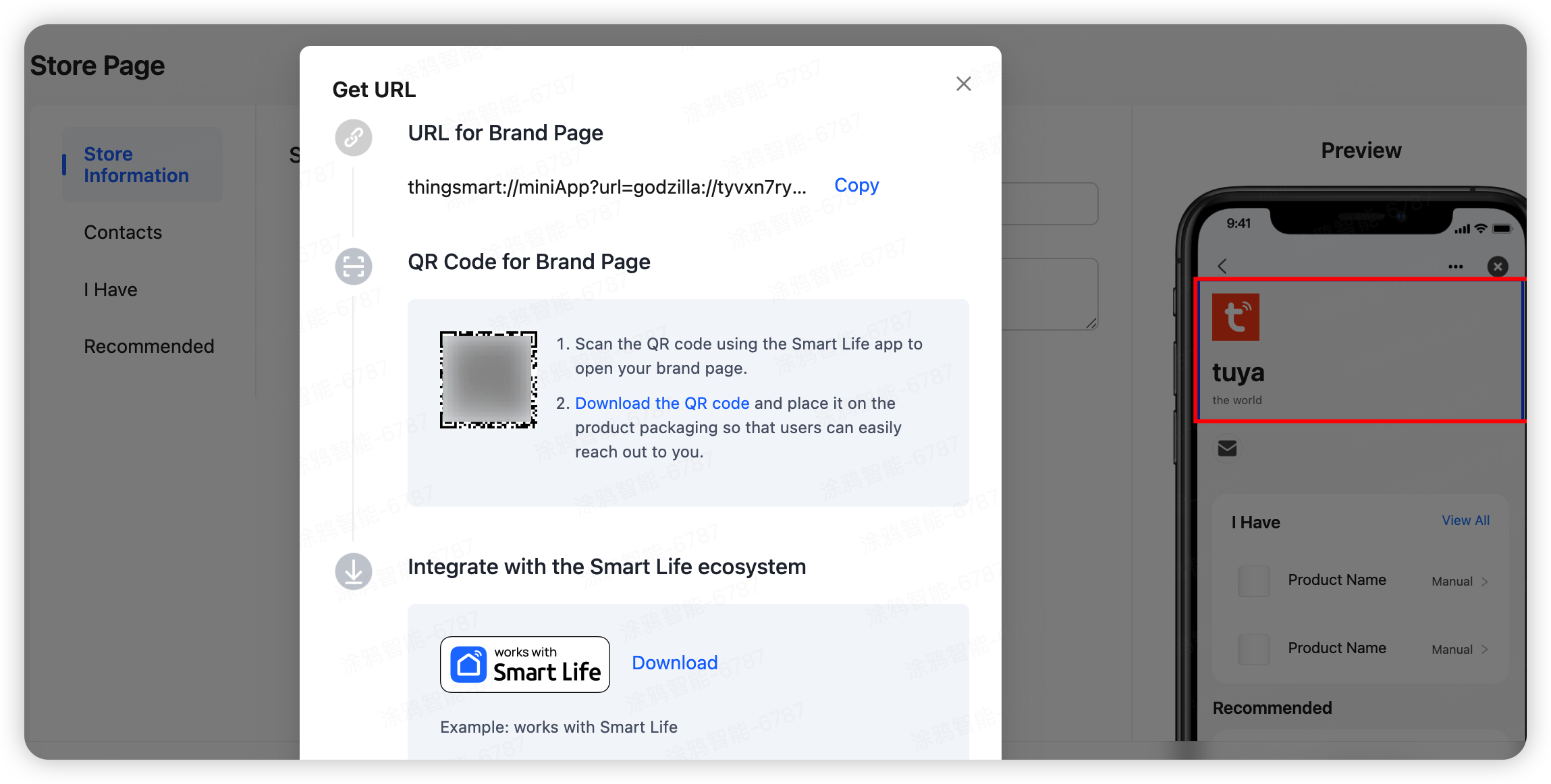
Get URL: After your store page is approved, click Get URL at the bottom of the Store Page to get the QR code and URL for your store.
After you get the QR code or URL for your store, you can place the QR code on the product packaging. Then, users can open the Tuya or SmartLife app, and tap + > Scan in the top right corner of the homepage to access your store page.
Auto‑follow the store after successful pairing
For smart app users, binding and activating a device is often the first step in using the app. By completing the following configuration, users will automatically follow your store upon device activation.
-
Log in to the Tuya Developer Platform, choose Operation > Tuya’s Apps > My Brands in the left-side navigation menu to go to the My Brands page. Then, click Apply for New Brand on the right side of the page.
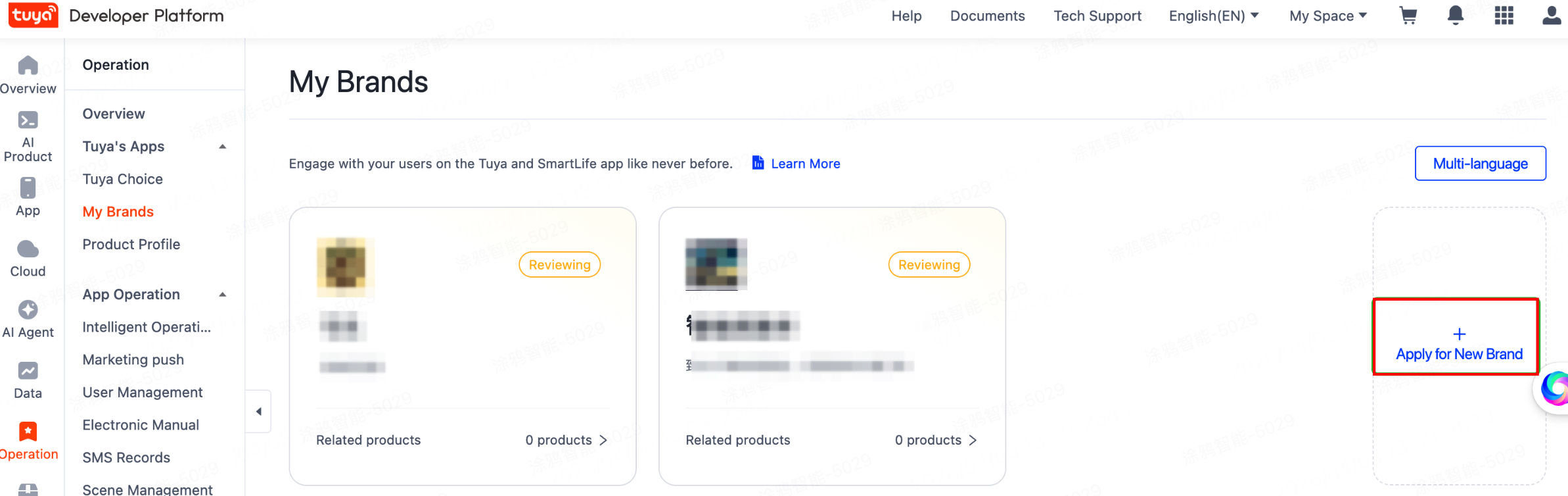
Brand registration requires business credentials and is subject to Tuya review. For more information, see My Brands.
-
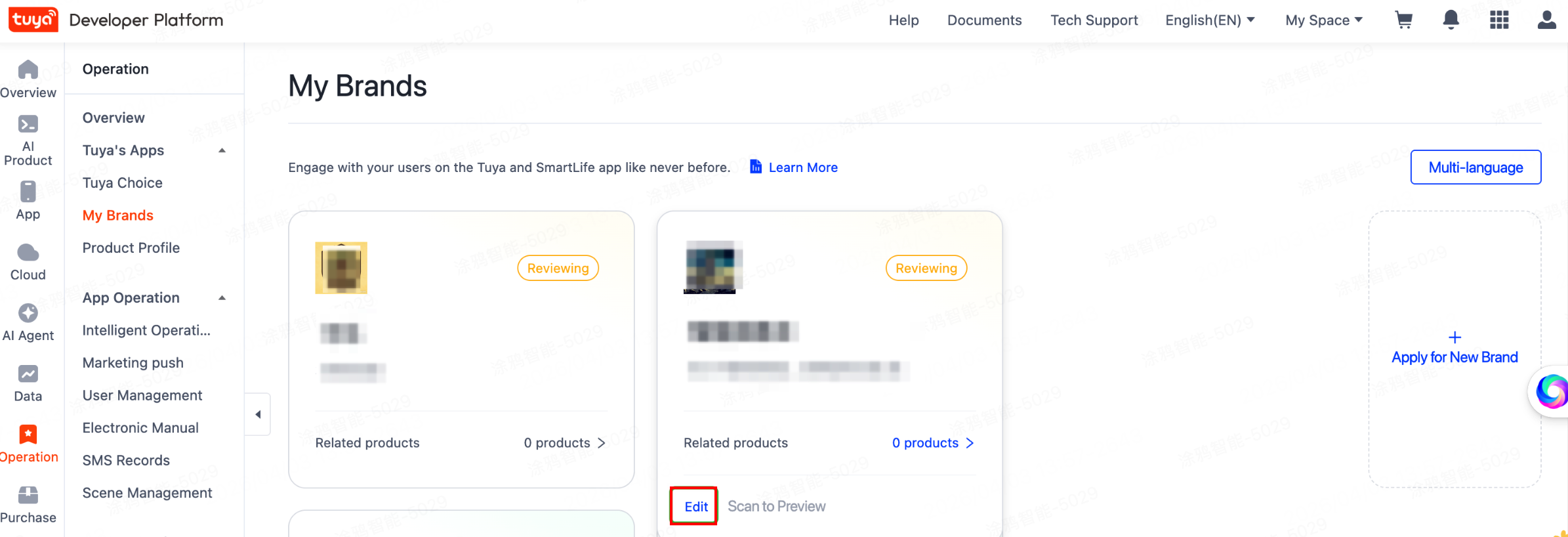
In the left-side navigation menu, choose Operation > Tuya’s Apps > Product Profile to go to the Product Profile page, select the desired product, and click Edit.
-
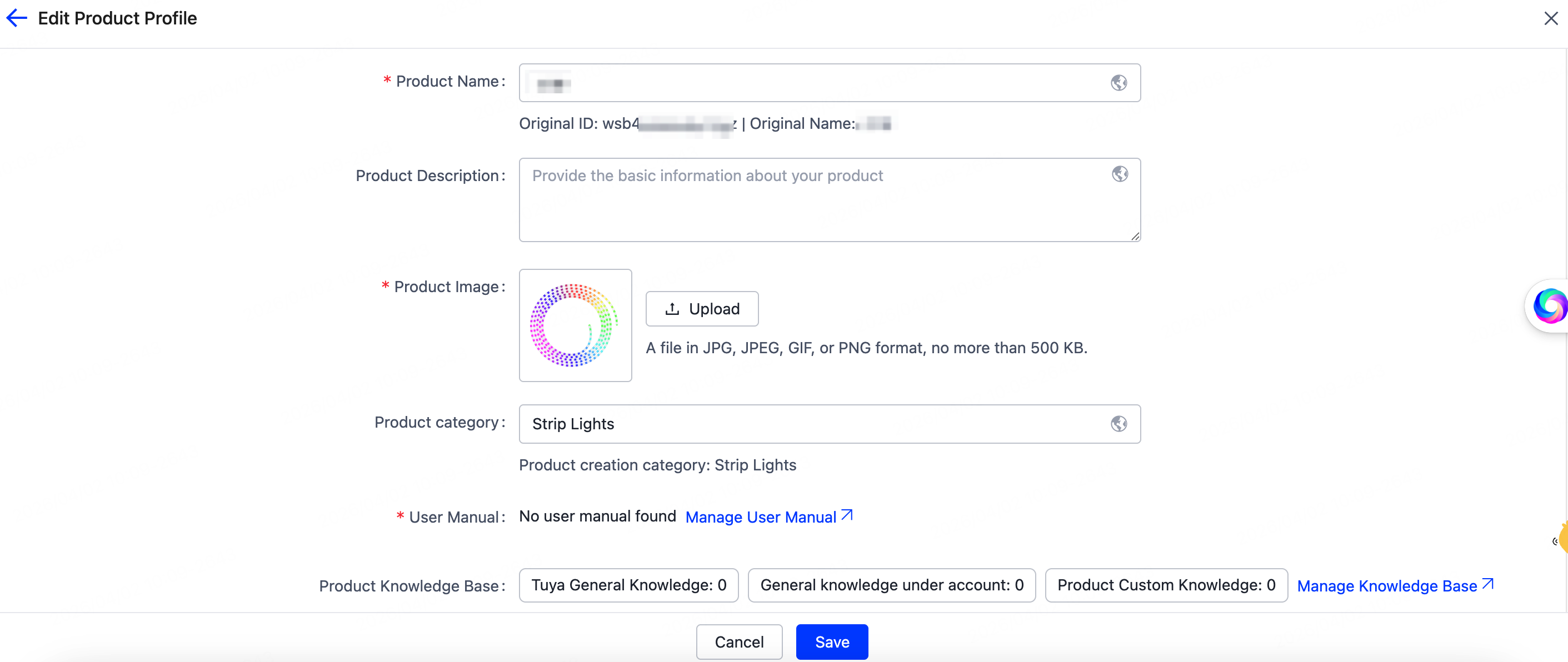
Edit and publish a product profile: On the edit page, configure basic information such as brand name and product manual. After completion, click Save to publish the product profile.
-
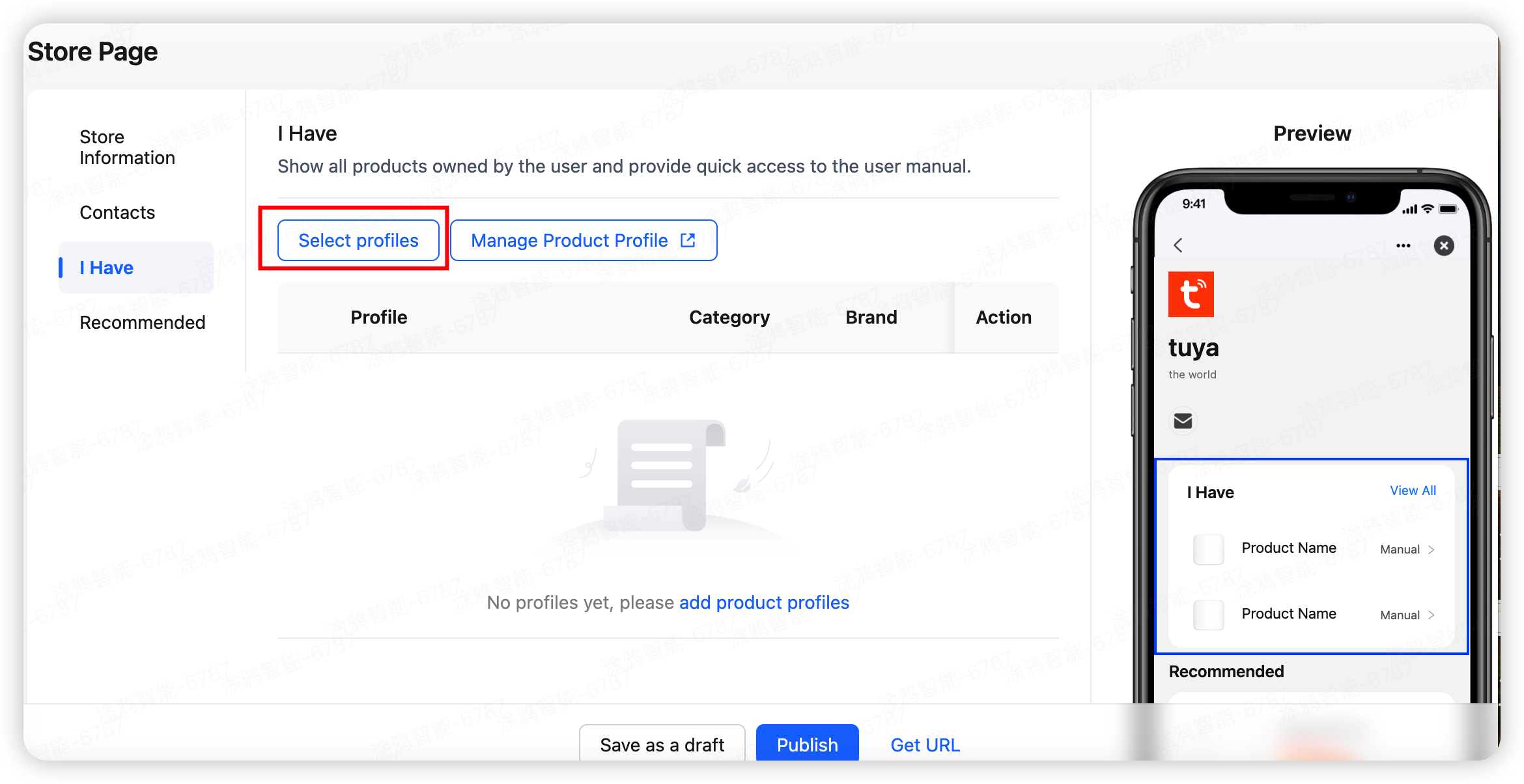
Select a product profile: In the Tuya Choice management backend, click Store Page > I Have > Select profiles to add the maintained product profile, then click Publish at the bottom to update the store page.
When an app user successfully pairs a device, the system automatically matches the product profile and store information based on the device PID and completes the auto-follow action.
Recommend following the store after successful pairing
By completing the following configuration, you can add a store entry on the device pairing success page to recommend users to follow your store.
-
Log in to the Tuya Developer Platform, choose AI Product > Product > Development to go to the Product Development page.
-
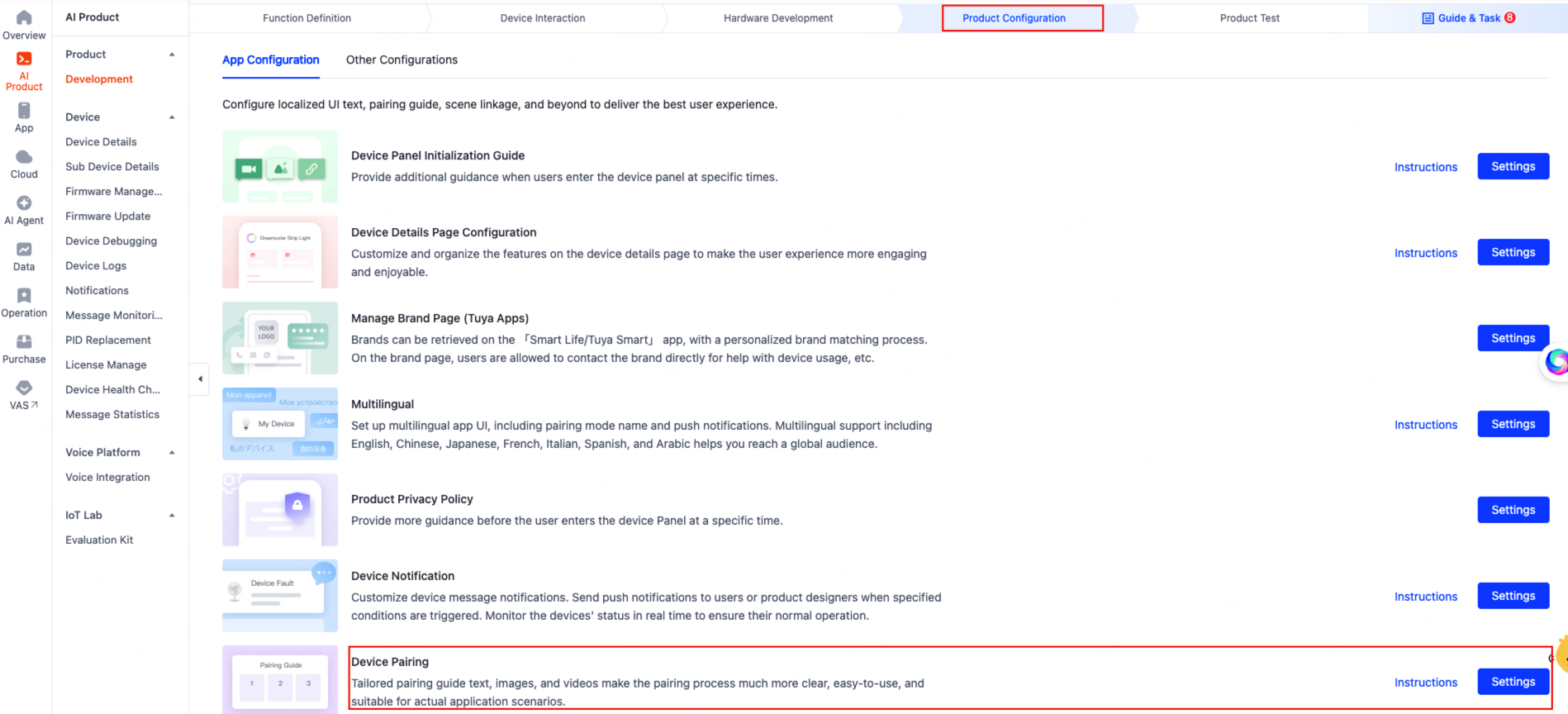
Select the product you wish to add, click Develop in the Operation column, navigate to the Product Configuration page, locate Device Pairing, and then click Settings.
-
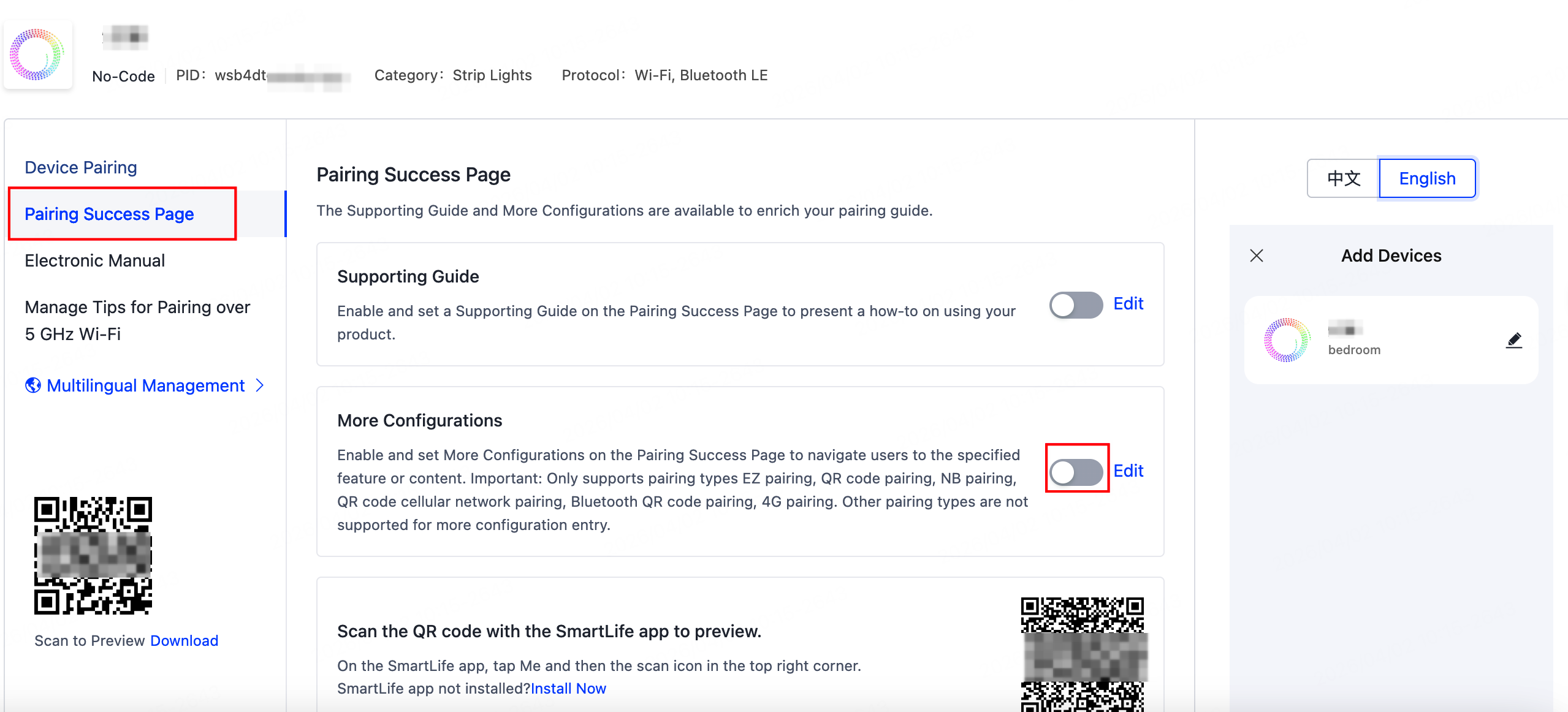
On the Pairing Guide page, click Pairing Success Page. In the section of More Configurations, toggle the switch on the right to enter the More Configurations page.
-
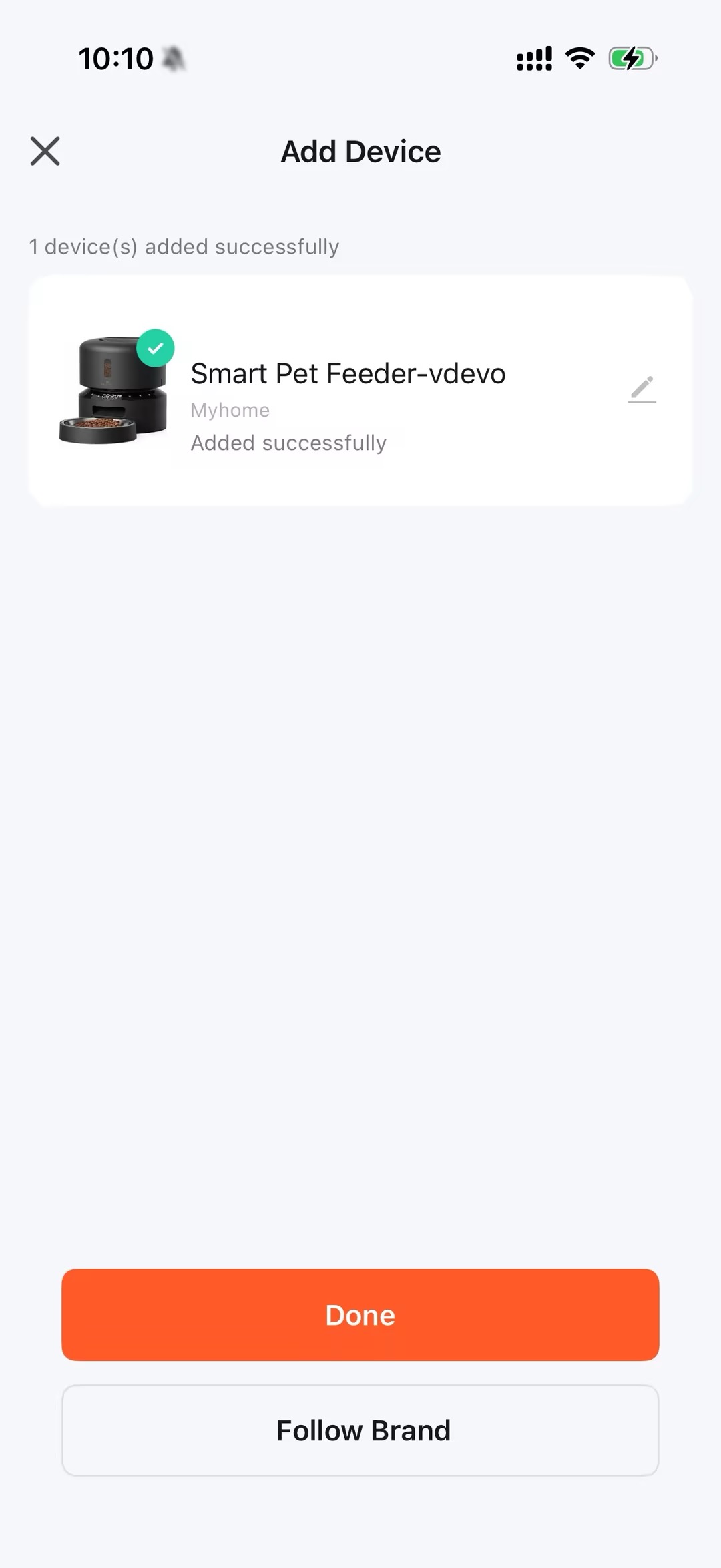
On the More Configurations page, enter the guidance text and store page URL in sequence, then click OK. After configurations are completed, the page in the app is displayed as follows.
Device details page
-
Log in to the Tuya Developer Platform, choose AI Product > Product > Development to go to the Product Development page.
-
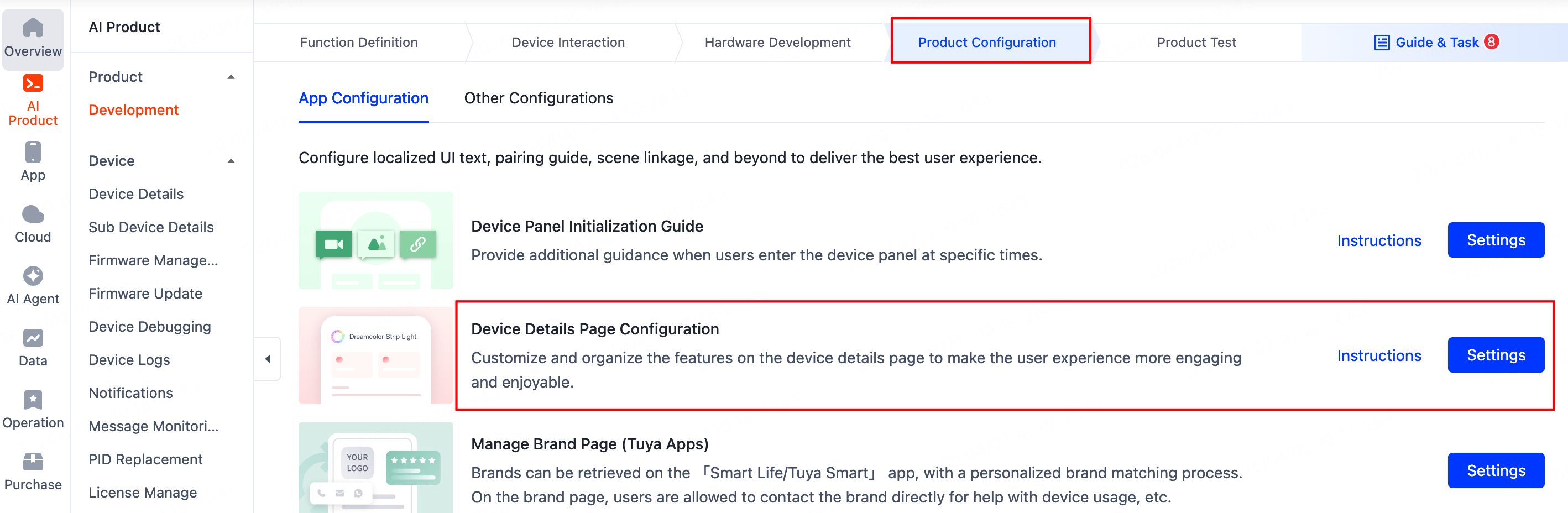
Select the product you wish to add, click Develop in the Operation column, navigate to the Product Configuration page, locate Device Details Page Configuration, and then click Settings.
-
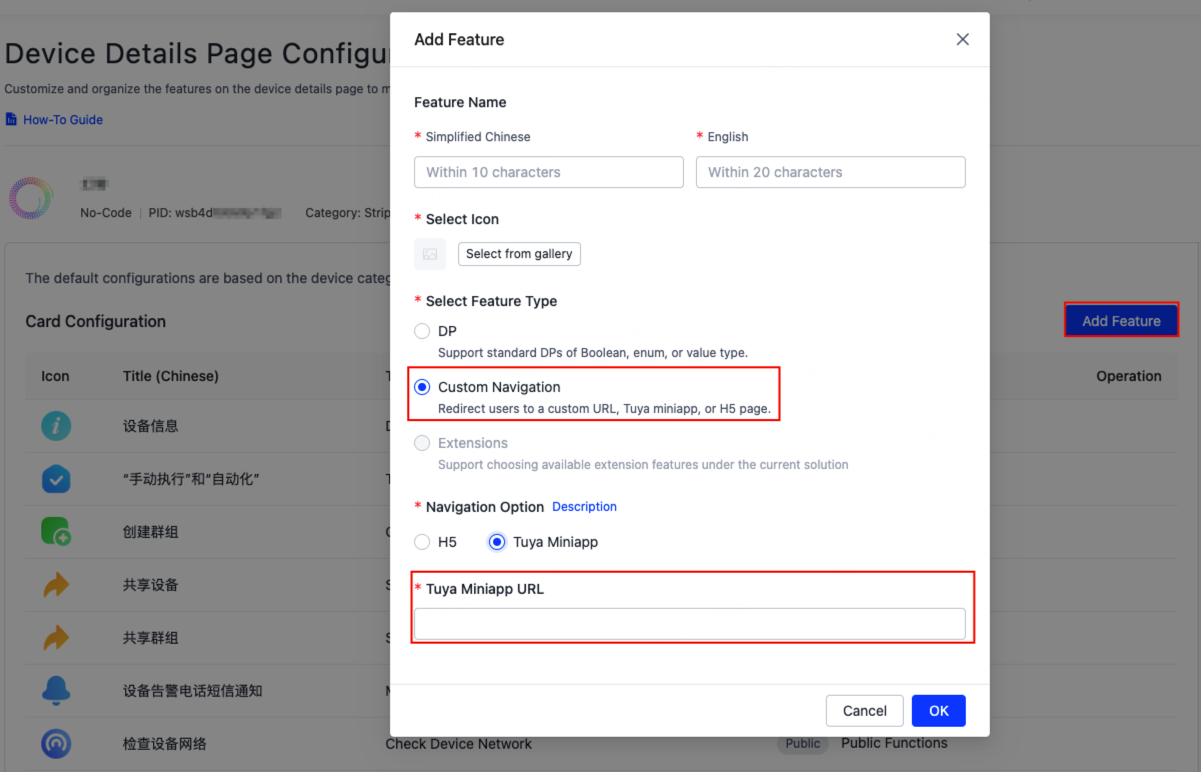
On the Device Details Page Configuration page, click Add Feature. In the dialog that appears, configure the Feature Name, select an icon, and select Custom Navigation for the feature type. Then, copy the URL of your store page and paste it into the Tuya Miniapp URL in the Navigation Option section.
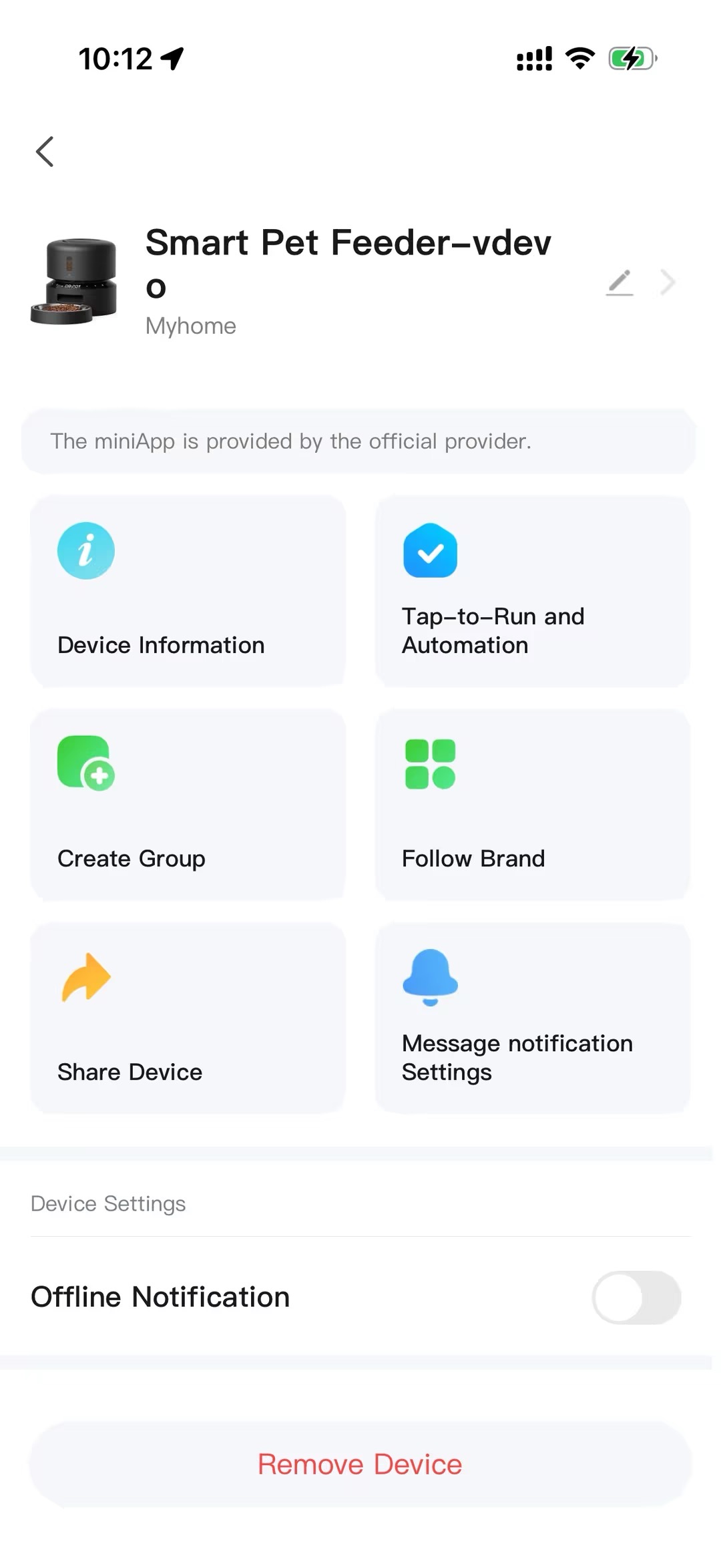
After configurations are completed, the device details page in the app is displayed as follows.
Is this page helpful?
YesFeedbackIs this page helpful?
YesFeedback




