

Scene Automation
Overview
In the Scene mobile application, you can configure automation scenes or tap-to-run scenes. By setting conditions and actions, you enable interoperability between different devices.
Users can add trigger conditions such as weather changes, timed, or device status within an automation scene. Corresponding actions can be set to control devices, set delays, or trigger tap-to-run scenes. Furthermore, to verify additional conditions before execution, add an effective scope under Automation > Effective Scope.
Example:
- Without an effective status: When A is triggered, B runs immediately.
- With an effective status: When A is triggered, the system proactively checks if C meets the specified status. If satisfied, B is run.
Features
Add automation
-
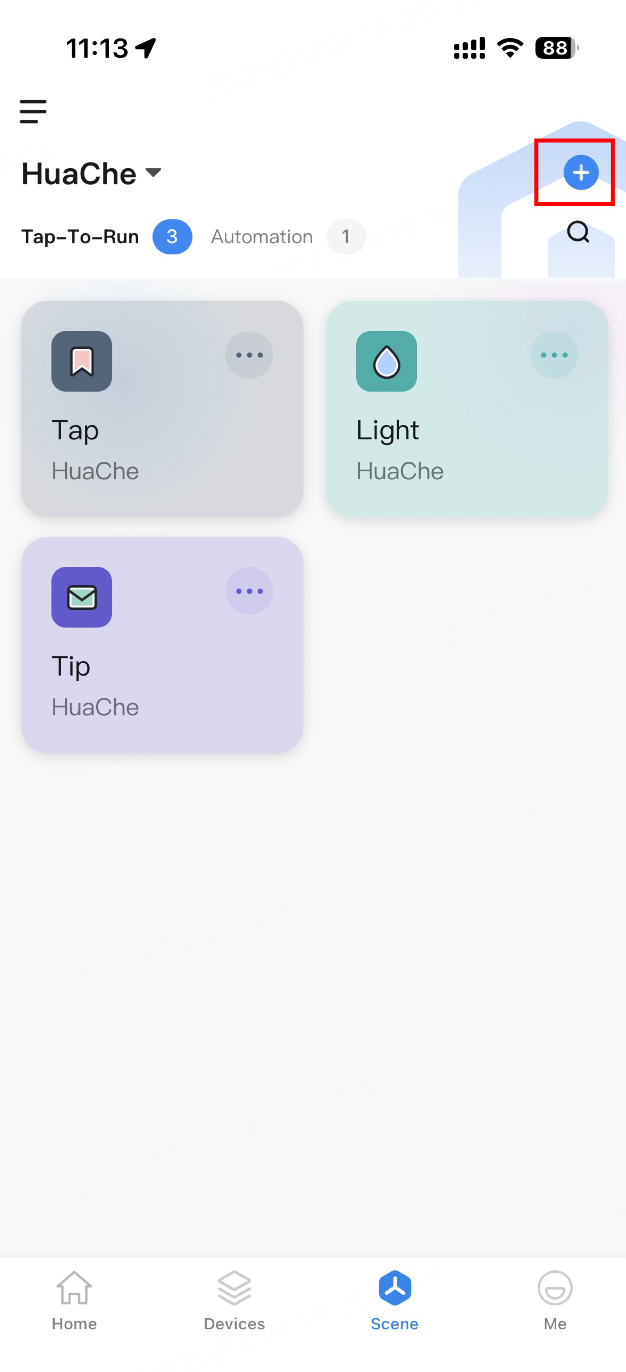
Go to the Scene application and tap the + icon in the top right corner to configure scene rules.
-
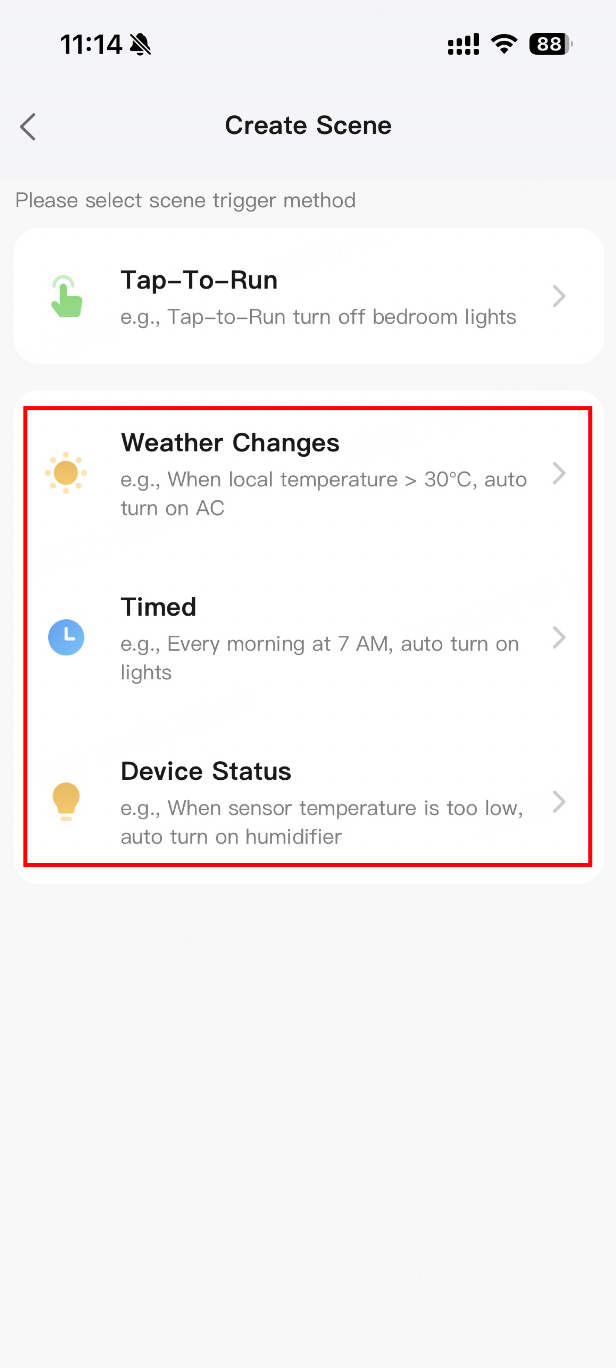
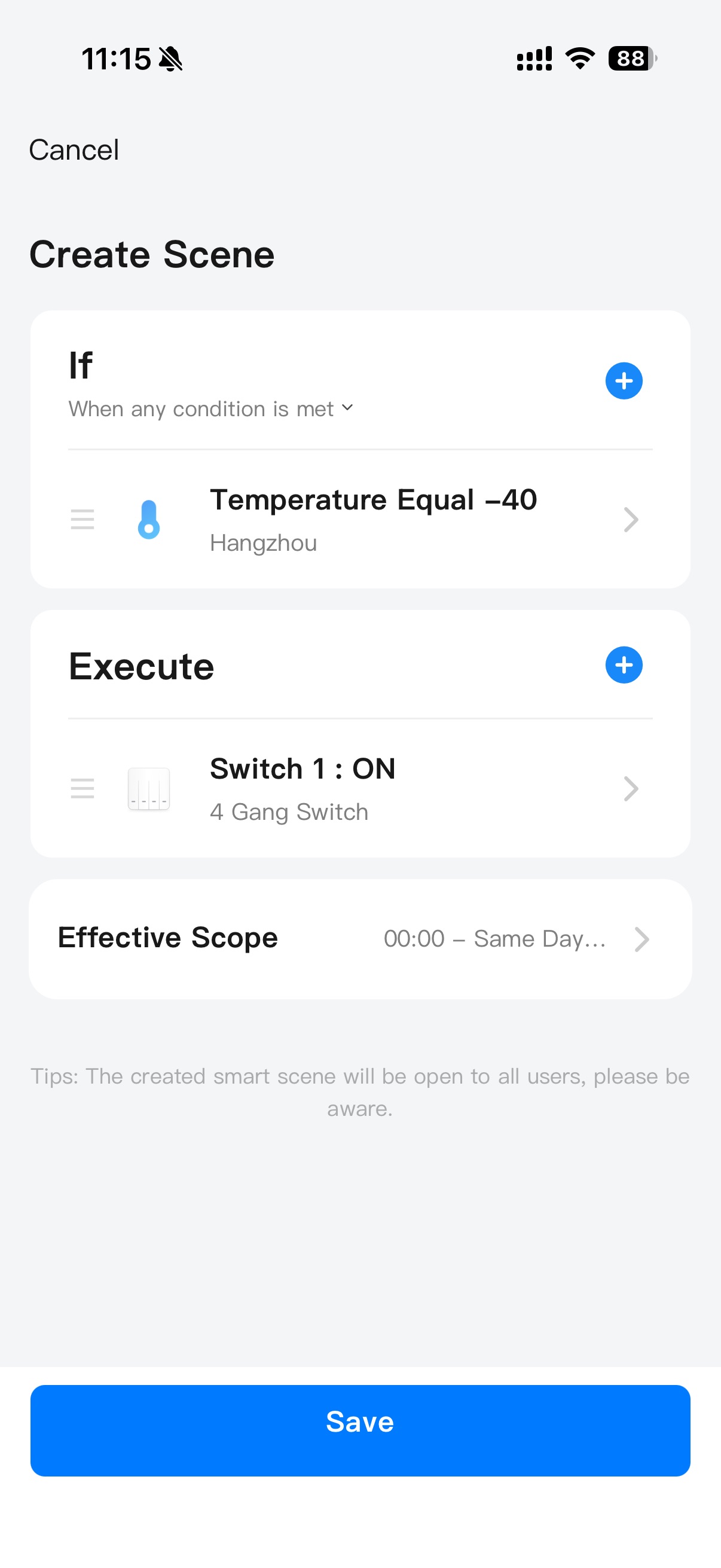
On the Create Scene page, add a trigger method for the scene. You can set conditions based on Weather Changes, Timed, or Device Status.
-
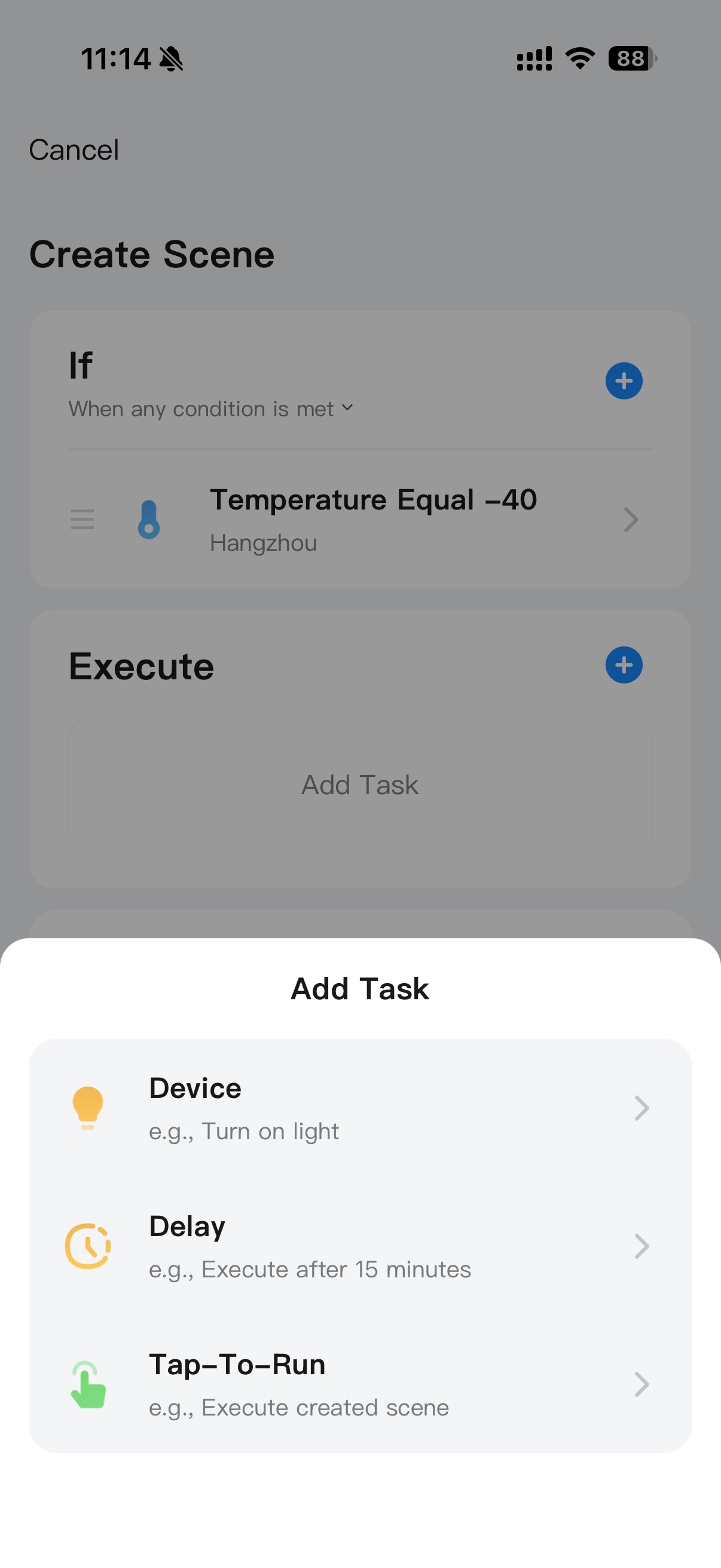
Add actions. Tap + to open the Add Task window. Add a task to control a device, set a delay, or trigger a tap-to-run task.
-
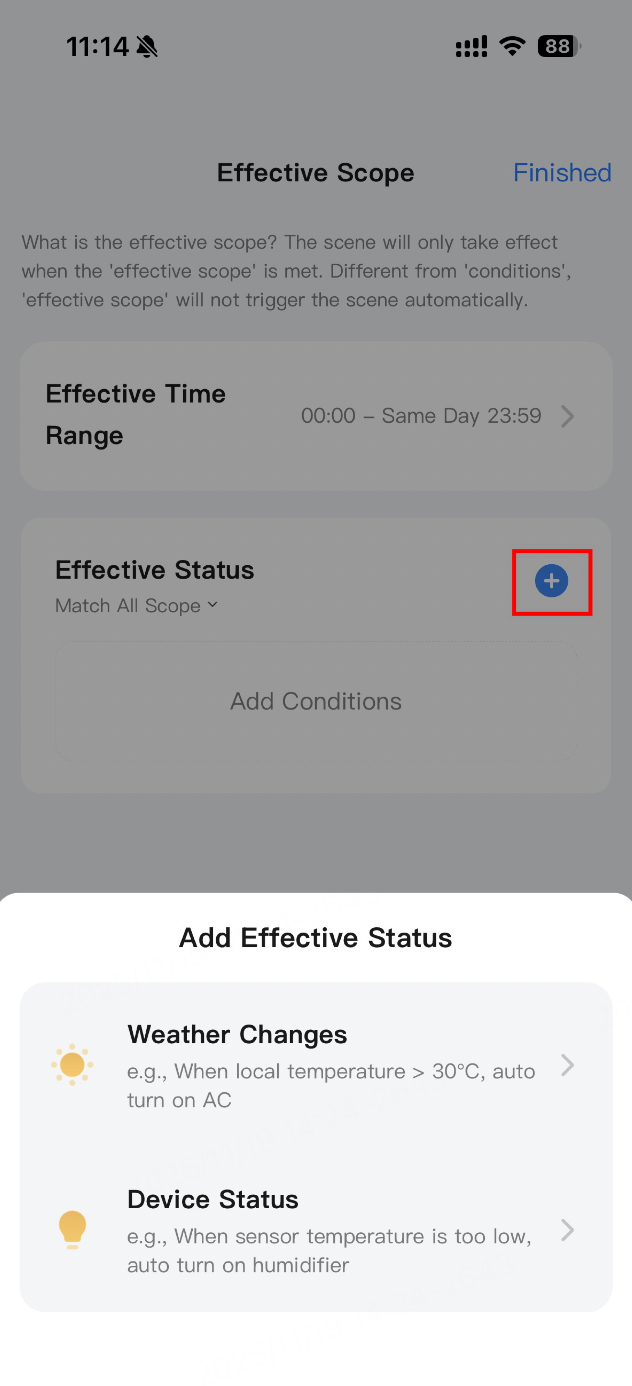
(Optional) Add the effective status. Tap + to open the Add Effective Status window and add weather changes or device status.
-
After confirming the automation configuration, click Save and enter a scene name to complete the creation.
Create tap-to-run scenes
-
Go to the Scene application and tap the + icon in the top right corner to configure scene rules.
-
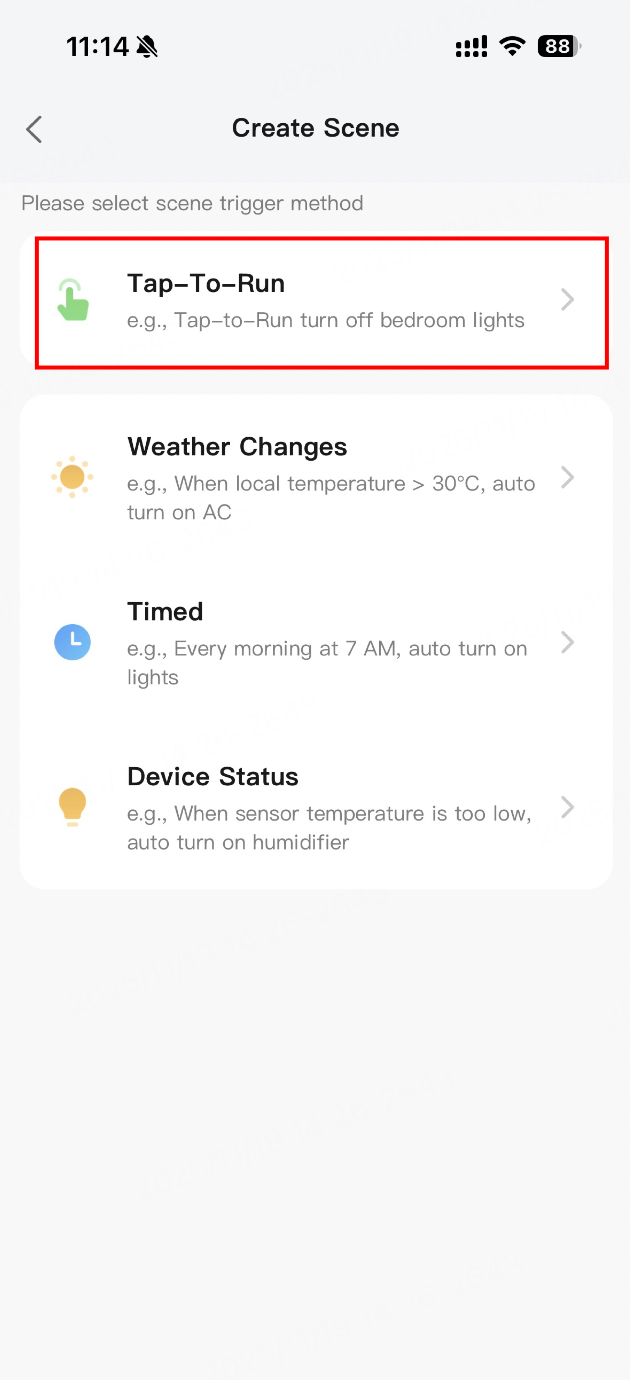
On the Create Scene page, tap Tap-to-Run.
-
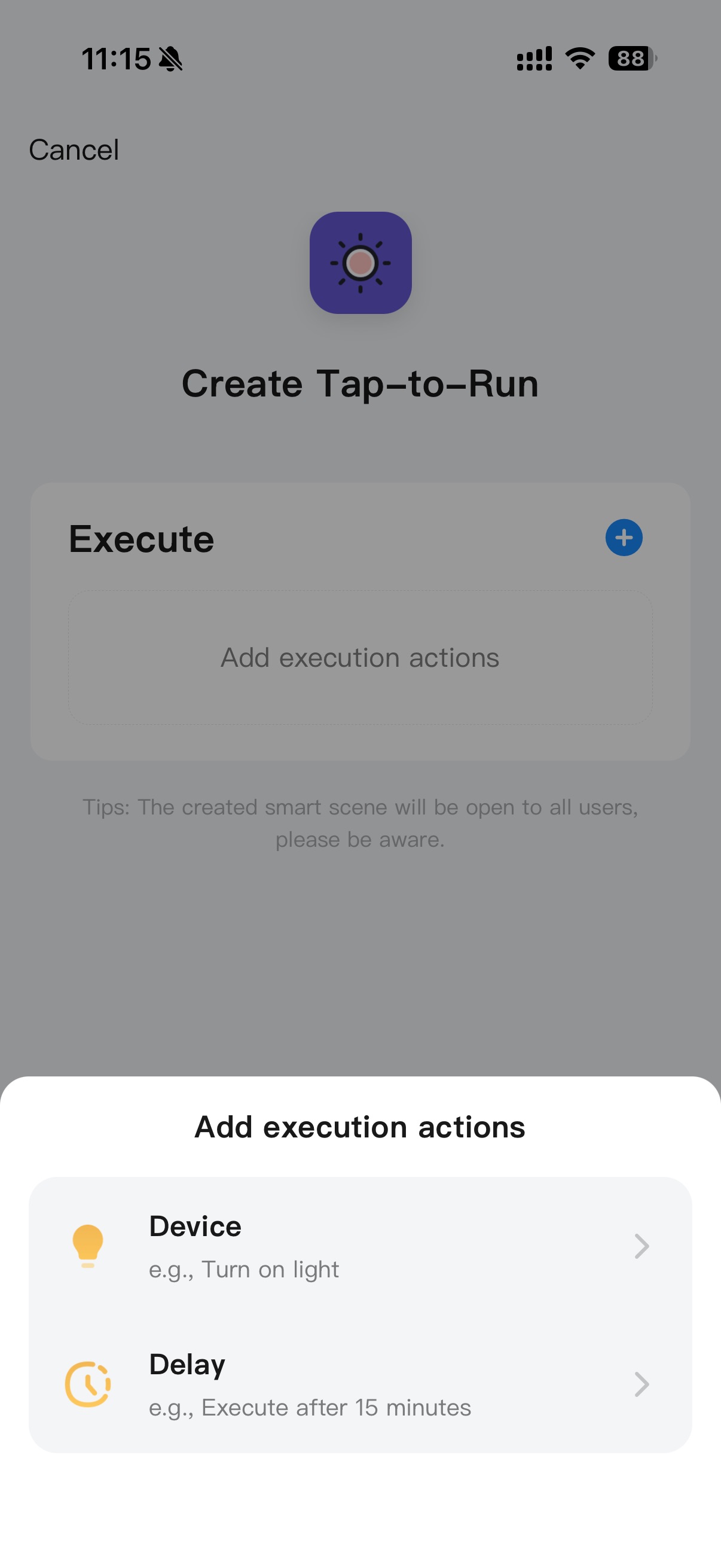
Add actions. Tap + to open the Add execution actions window. Add a task to control a device or set a delay.
-
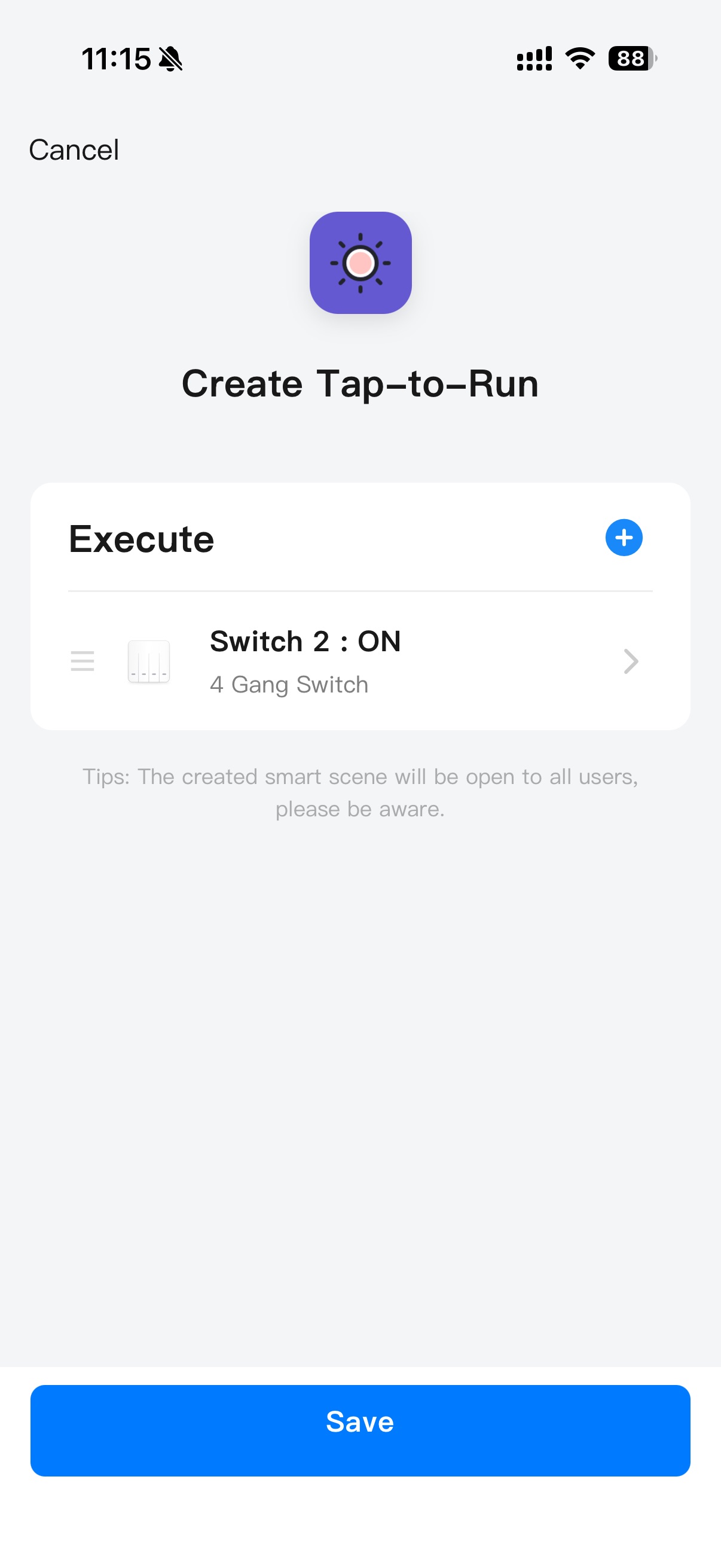
After confirming the tap-to-run configuration, click Save and enter a scene name to complete the creation.
Delete automation or tap-to-run scenes
-
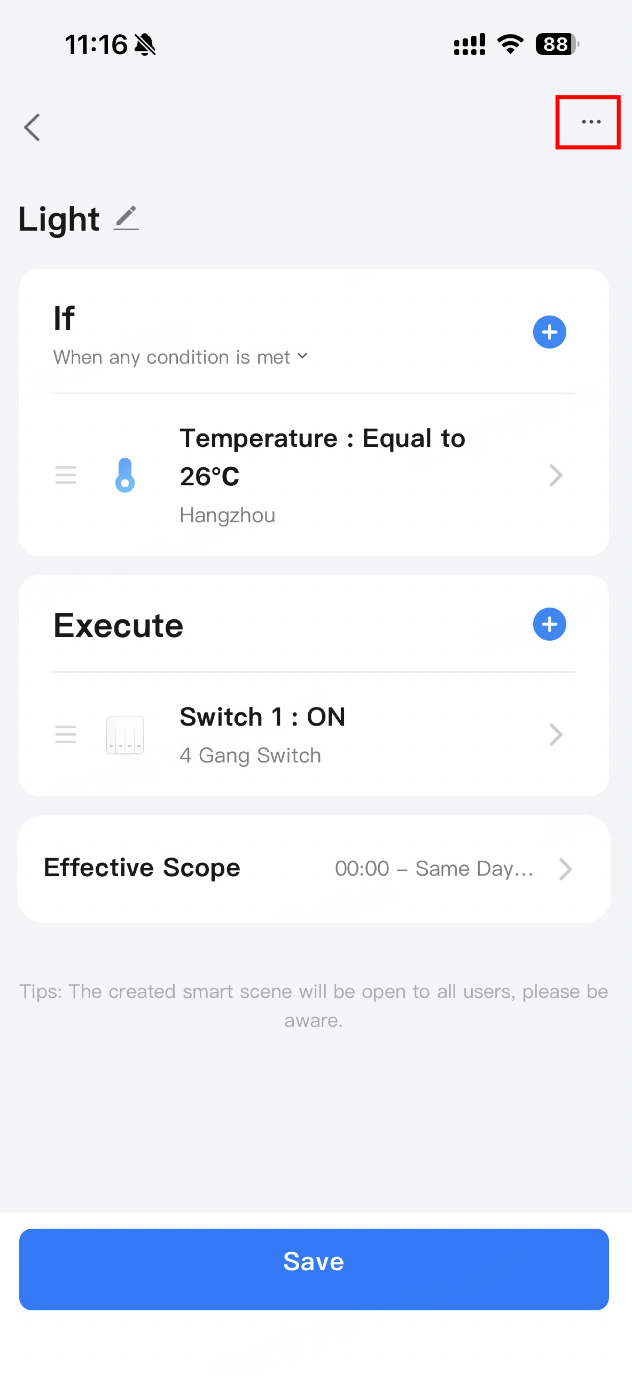
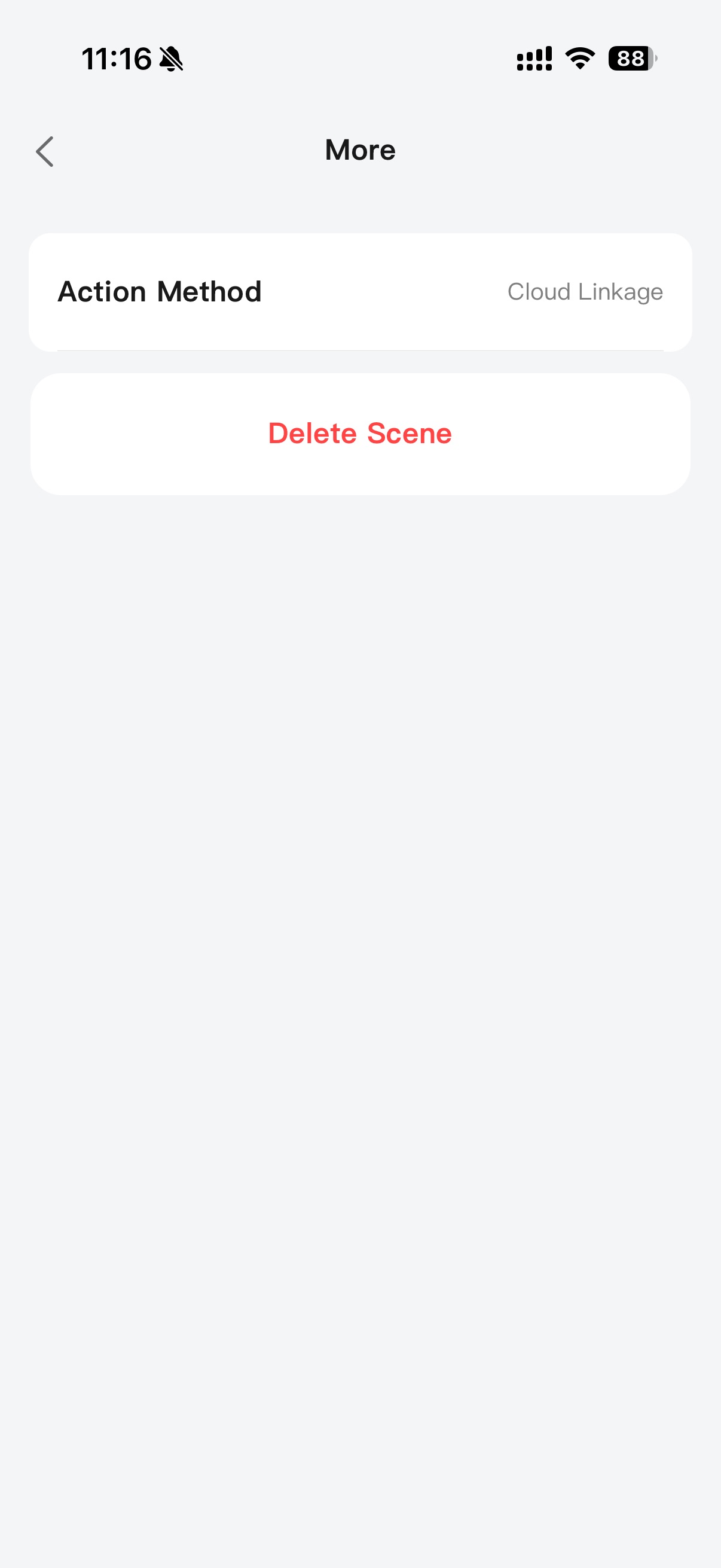
Delete an automation scene: Go to the details page of the created automation card, tap the … icon in the top right corner of the page to enter the More page, and then tap Delete Scene and confirm.
-
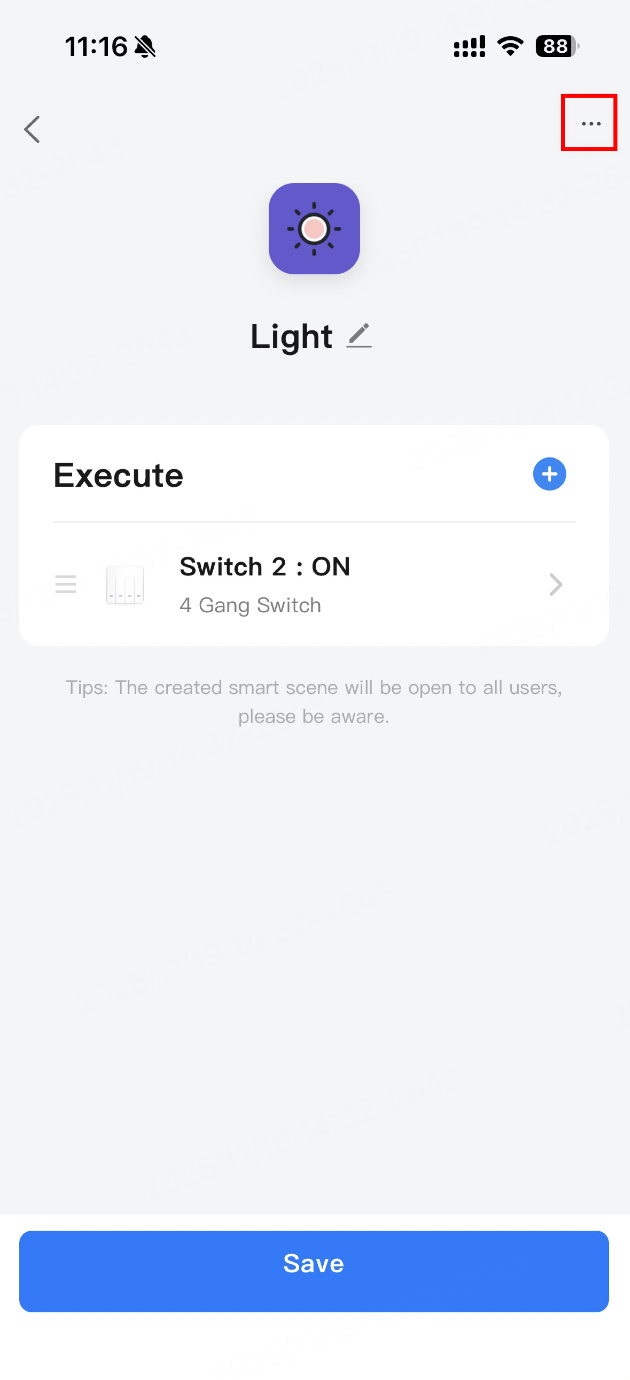
Delete a tap-to-run scene: Go to the details page of the created tap-to-run card, tap the … icon in the top right corner of the page to enter the More page, and then tap Delete Scene and confirm.
Edit automation or tap-to-run scenes
-
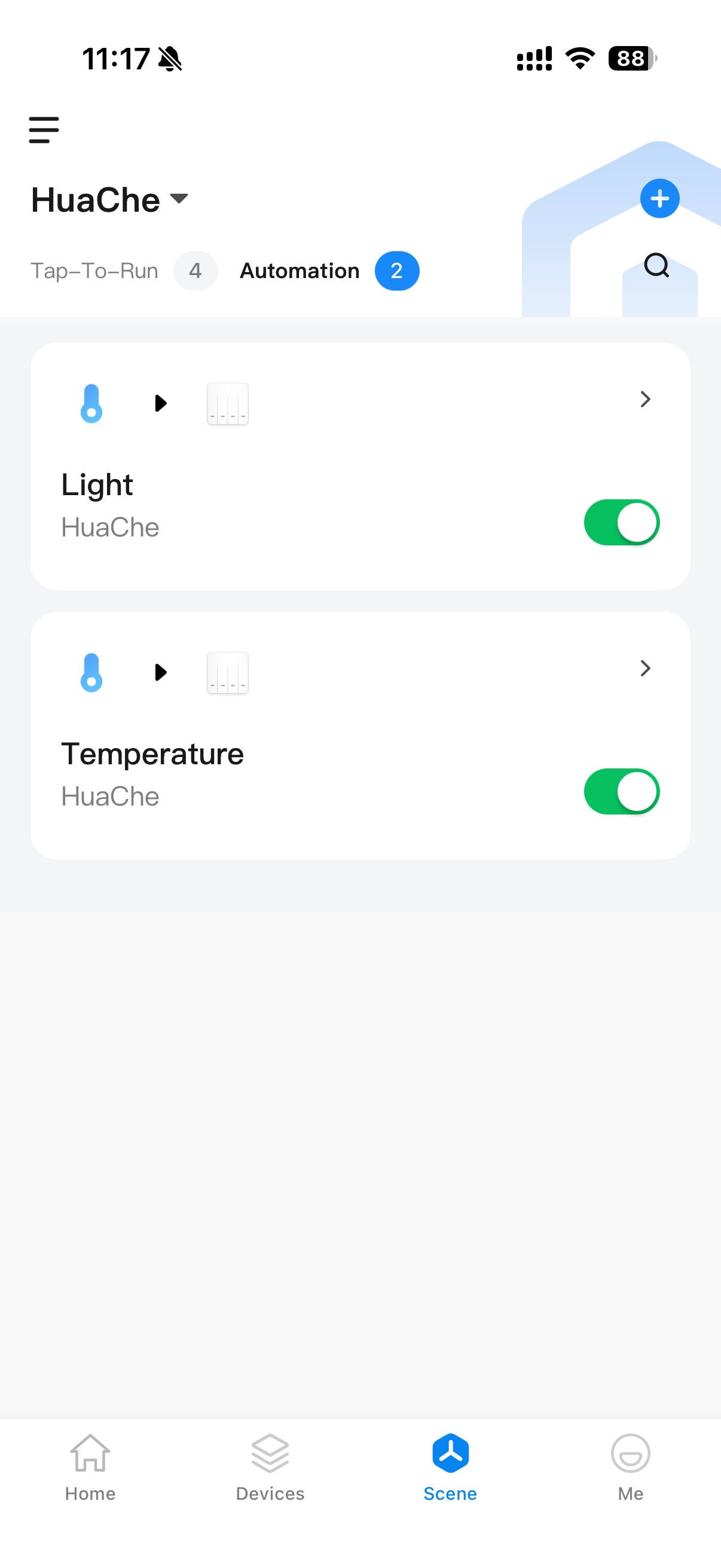
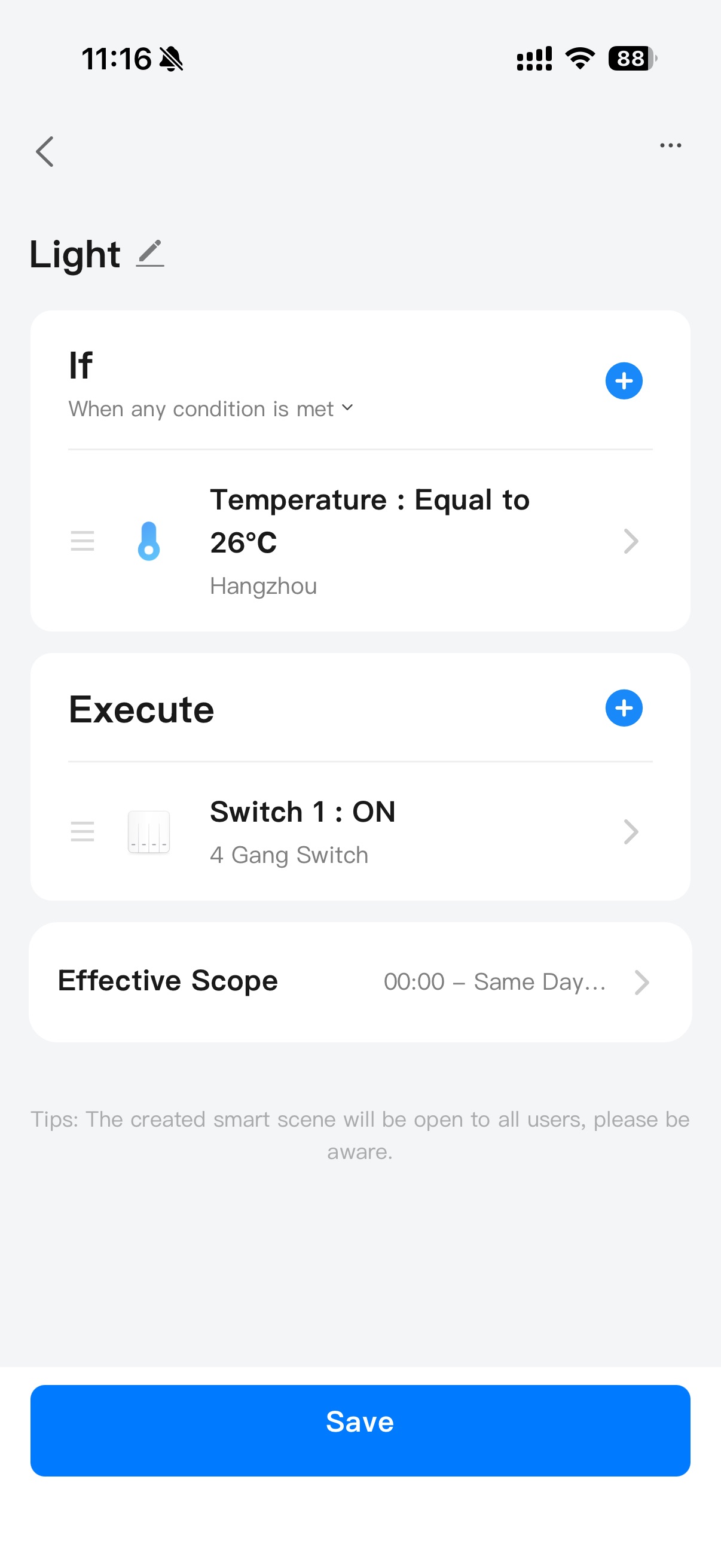
Edit automation scenes: Tap the automation card to enter its details page, change the configuration information as needed, and then tap Save.
-
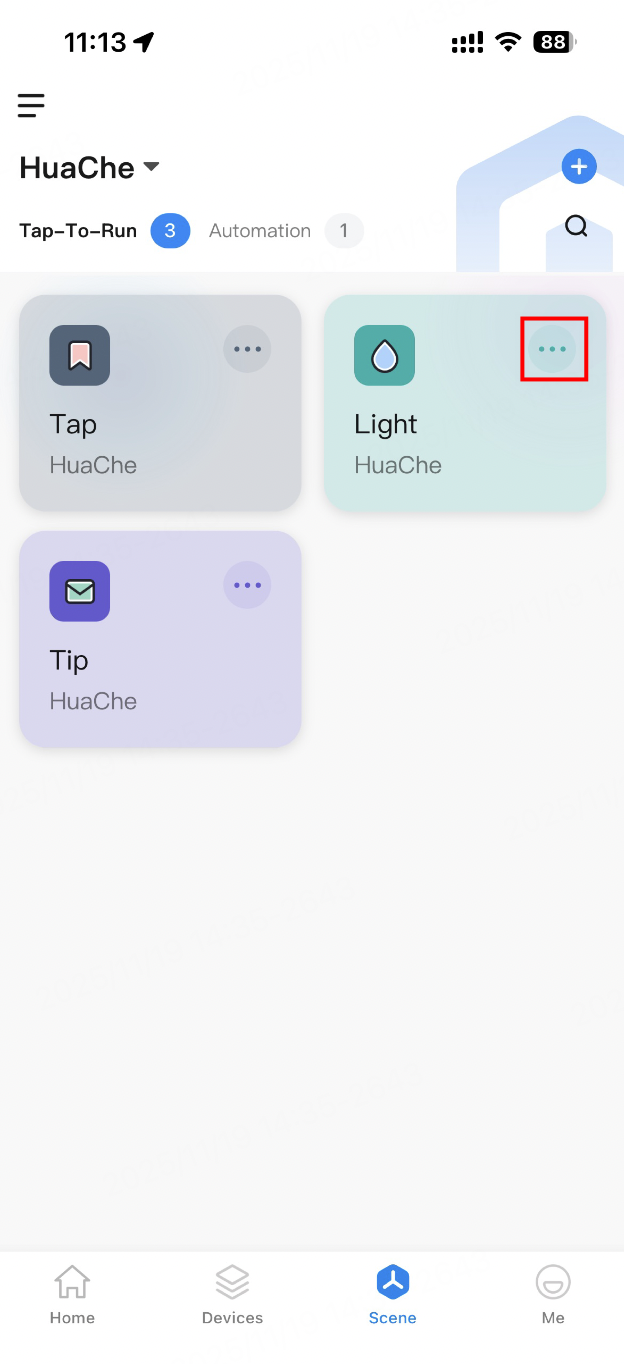
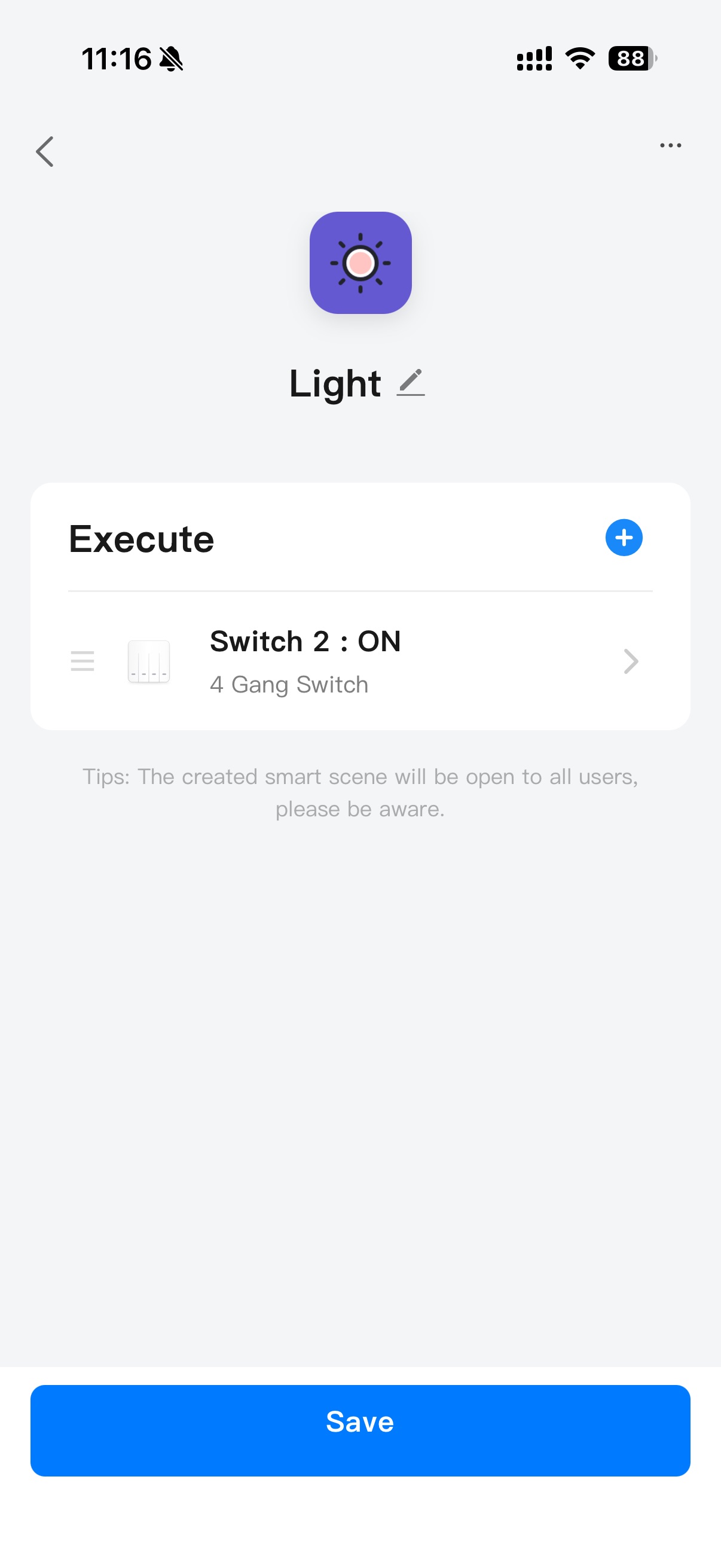
Edit tap-to-run scenes: Tap … in the top right corner of the tap-to-run card to enter its details page, change the configuration information as needed, and then tap Save.
Enable/disable automation scenes
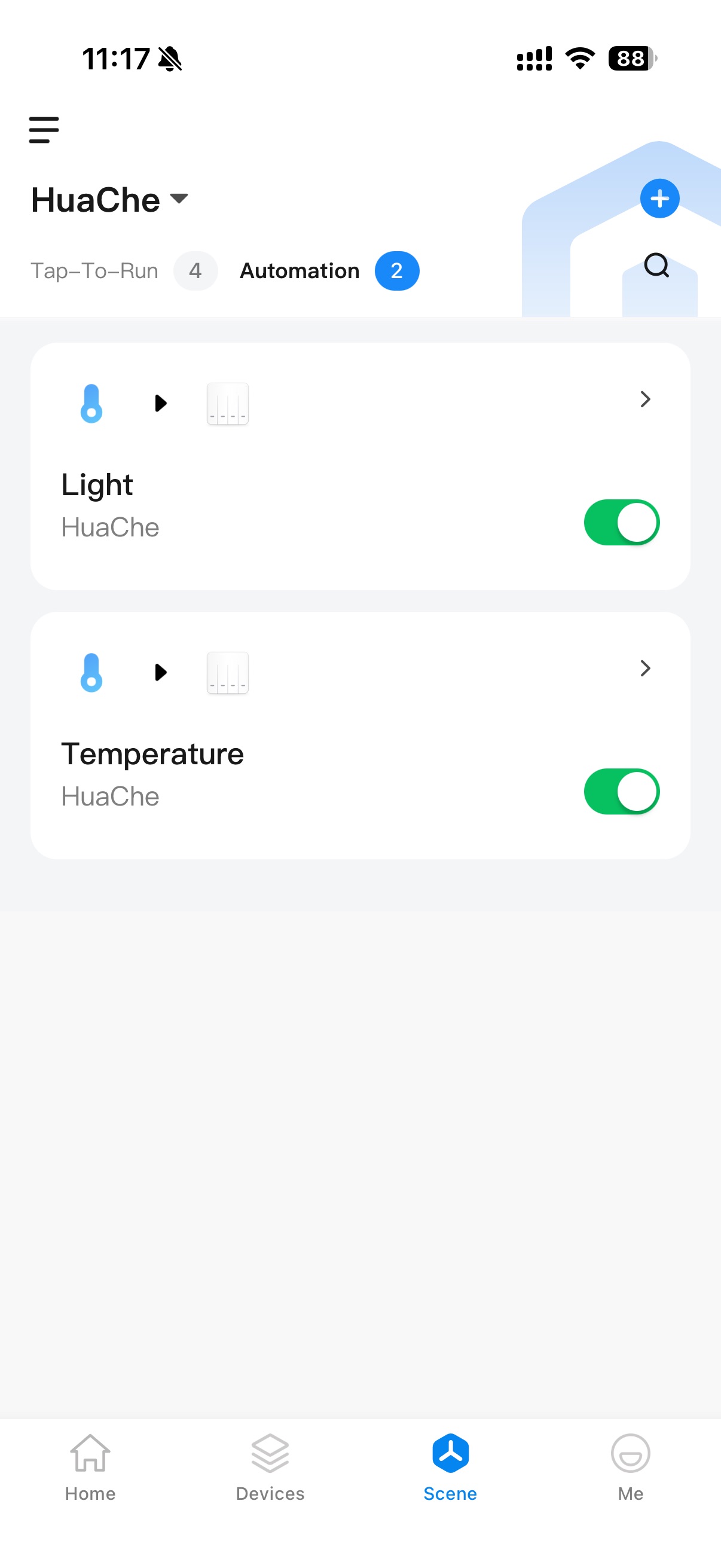
You can enable or disable an automation scene using the toggle switch on the automation card. Turn the switch ON to enable the automation, or OFF to disable it.
Is this page helpful?
YesFeedbackIs this page helpful?
YesFeedback




