

Configure Solutions
Overview
Tuya provides a one-stop service for building and managing industry solutions. Based on specific industry scenarios and applications, you can easily build an industry solution by following Tuya’s unique three-step process. This topic describes how to modify and manage solution content on the Spatial AI > Solution Setting page.
Configure a solution
Log in to the Tuya Developer Platform. In the left-side navigation bar, choose Cloud > Spatial AI > Solution Setting to go to the Solution Setting page.
You can click Switch Solution to select the solution you want to configure, switch data centers in the top right corner, or view basic information such as the solution ID, domain name, and status. You can also modify and configure the solution.
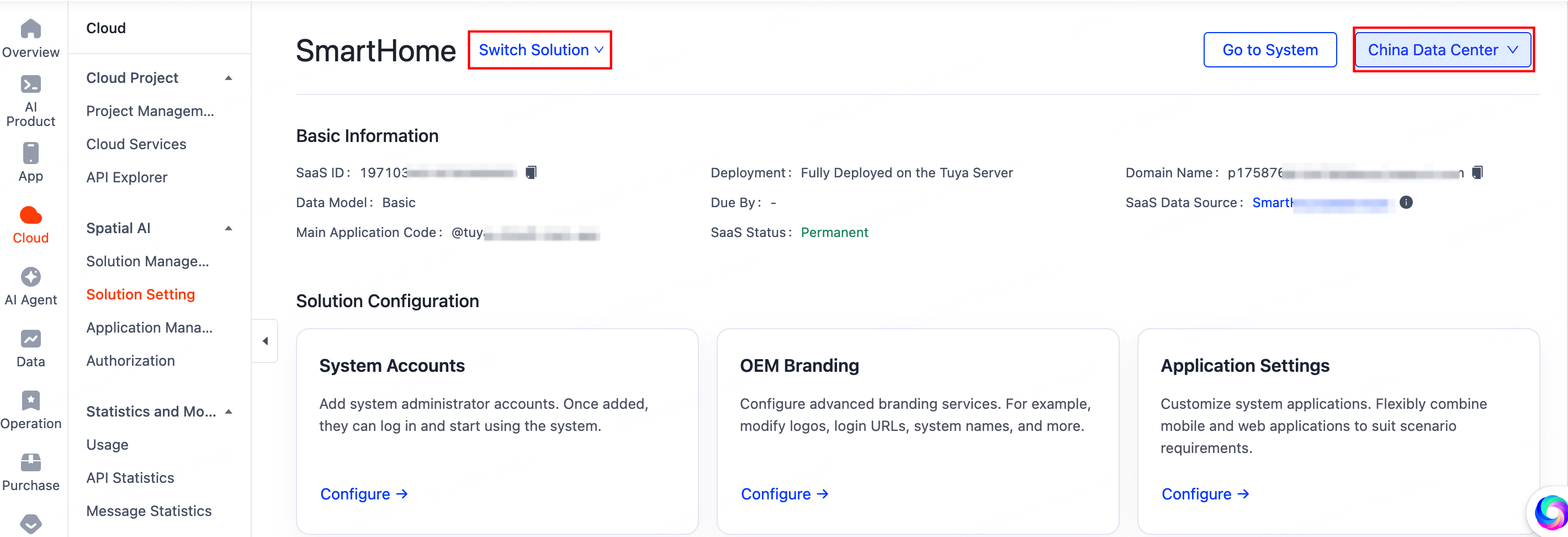
In the Solution Configuration section, you can select the configuration items to set information as needed, such as menus, accounts, and multilingual settings. Click Configure to modify the relevant information.
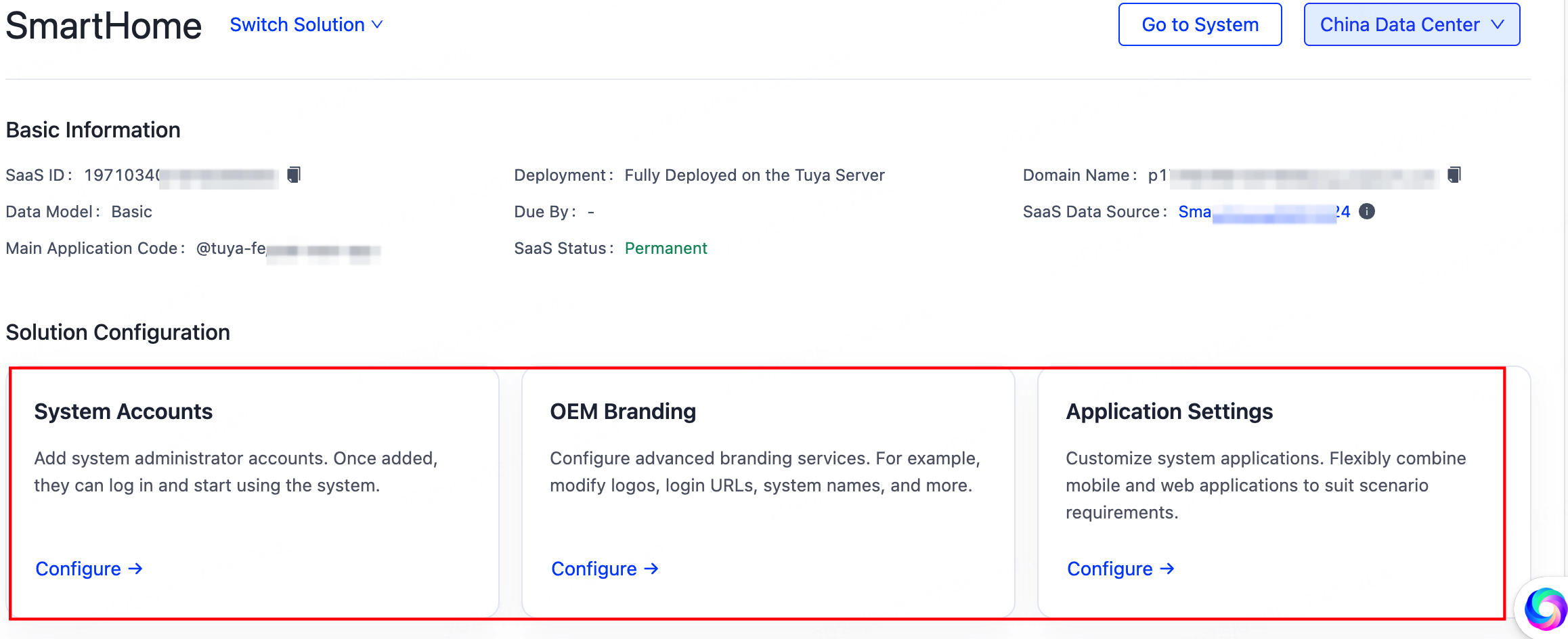
System accounts
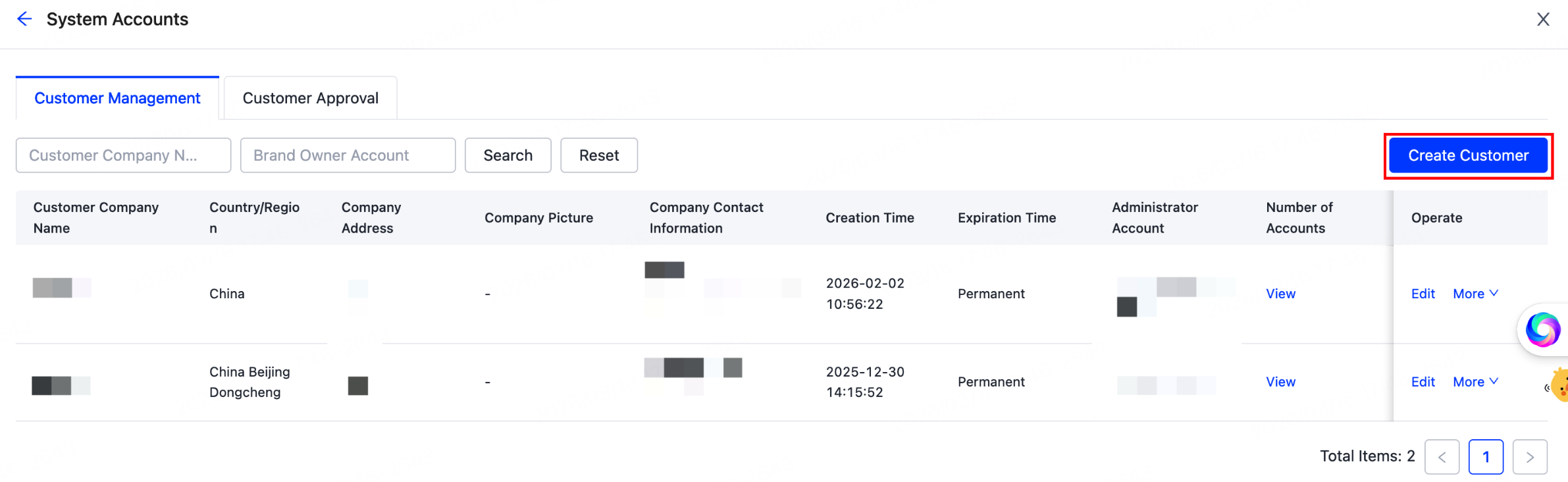
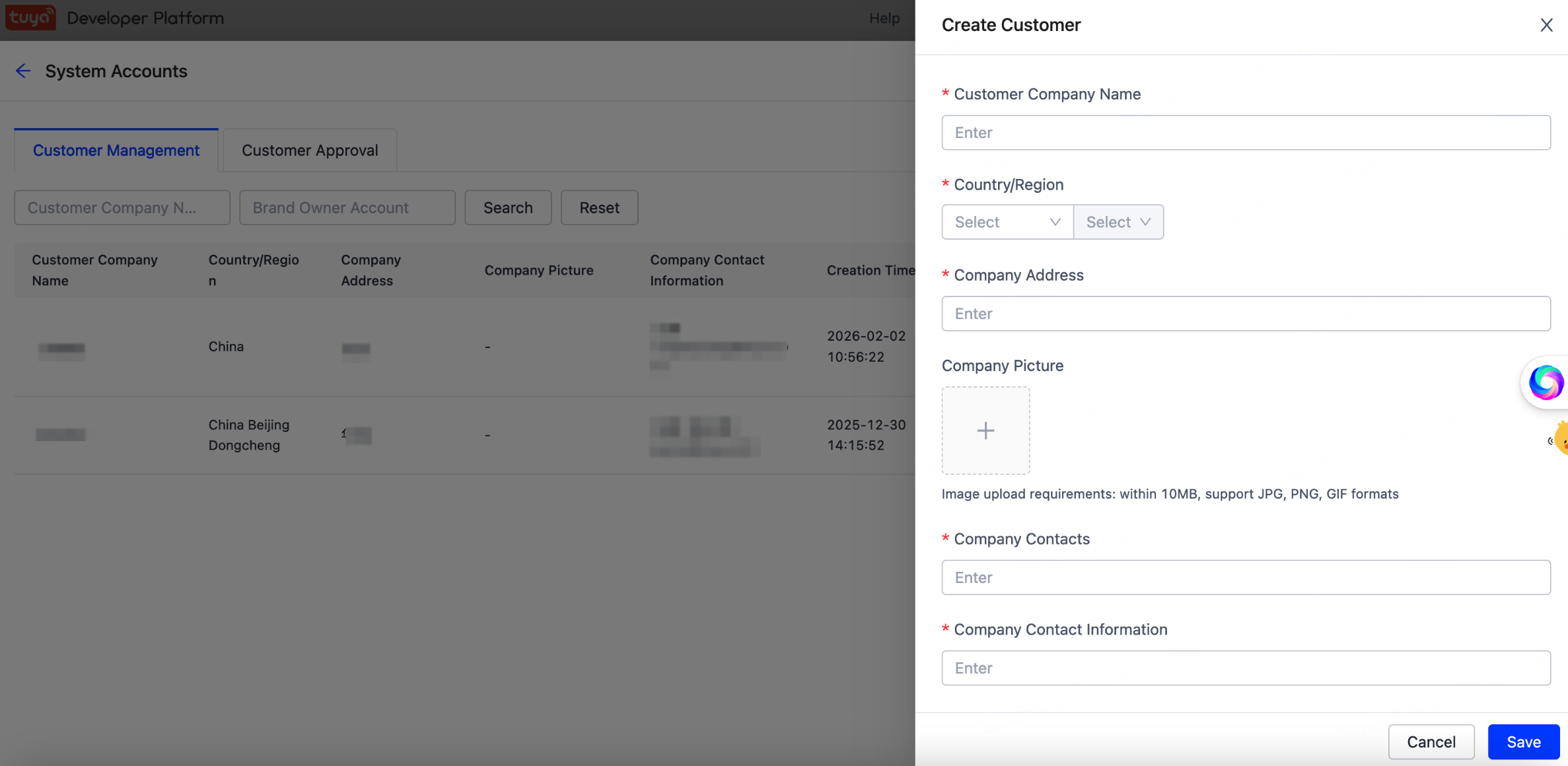
Click Configure in the section of System Accounts. On the page that appears, click Create Customer to add an administrator. After configuring the information, click Save. After the account is added, you can log in and begin using the system. For more information, see System Accounts.
OEM branding
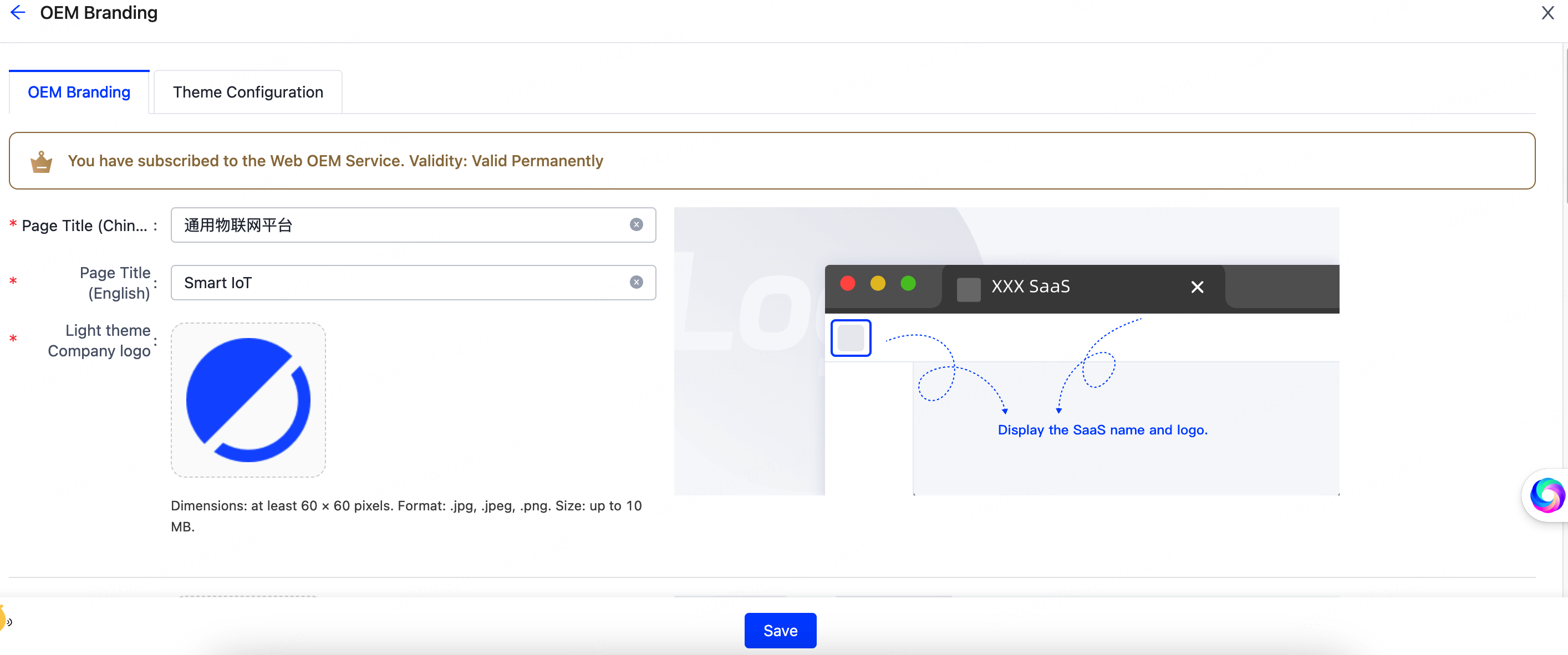
Configure advanced branding services. For example, modify logos, login URLs, system names, and more. For more information, see OEM Branding.
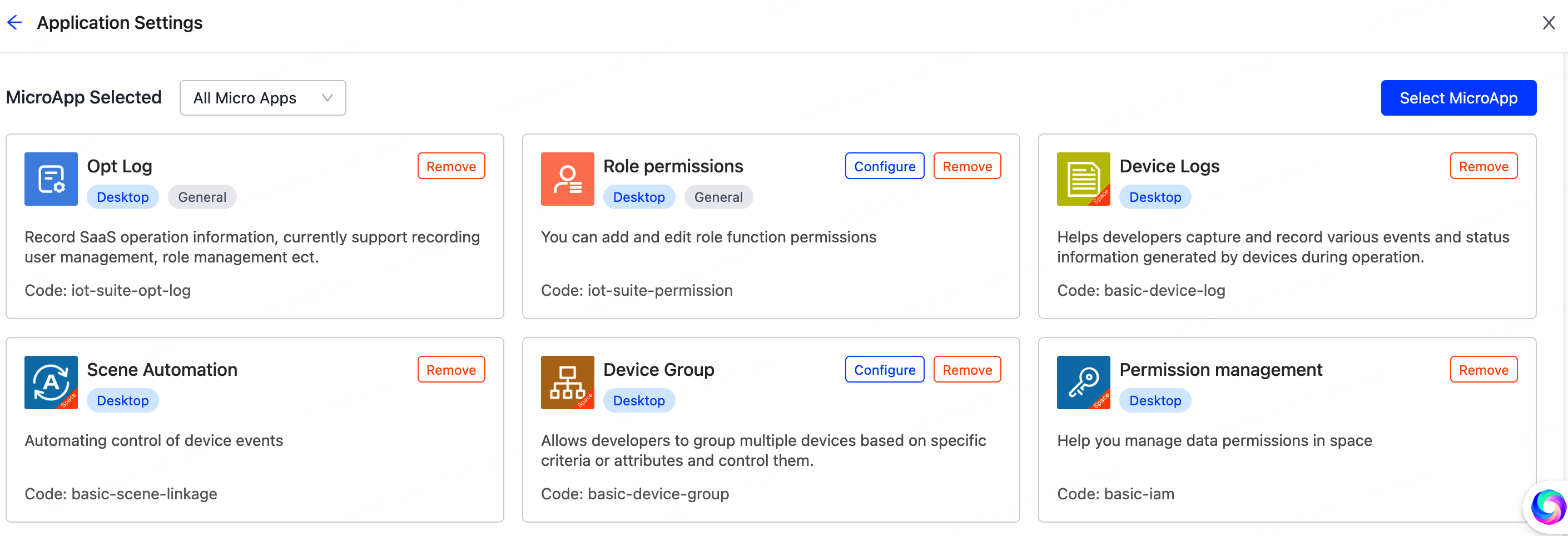
Application settings
Customize system applications. Flexibly combine mobile and web applications to suit scenario requirements. For more information, see Application Settings.
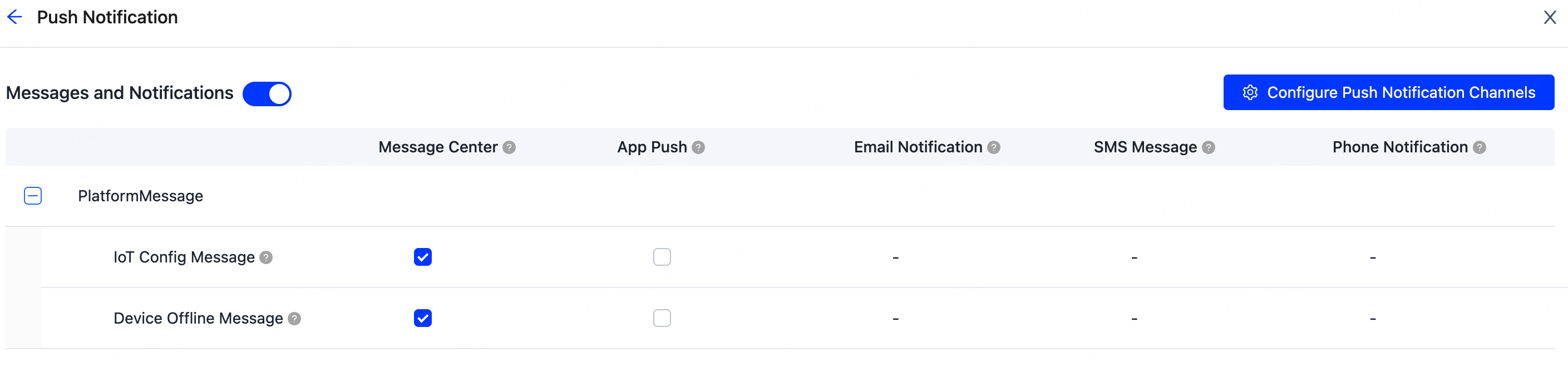
Push notification
Customize device message notifications. Receive alerts upon triggers, monitor product status in real-time, and ensure healthy product operation. For more information, see Push Notification.
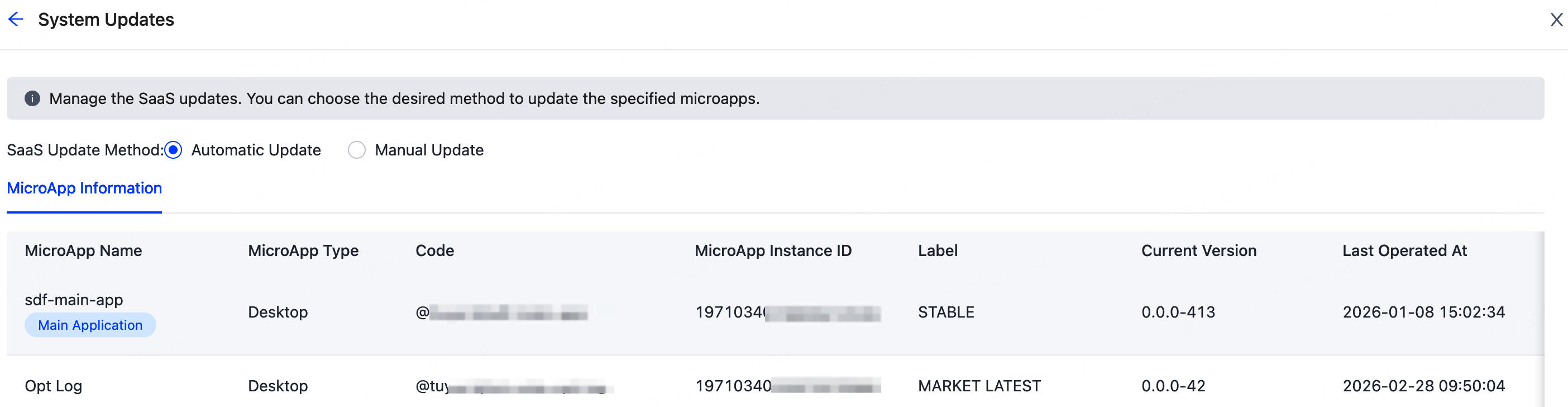
System updates
Manage system updates with greater autonomy. Flexibly set update methods and receive timely, appropriate update strategies. For more information, see System Updates.
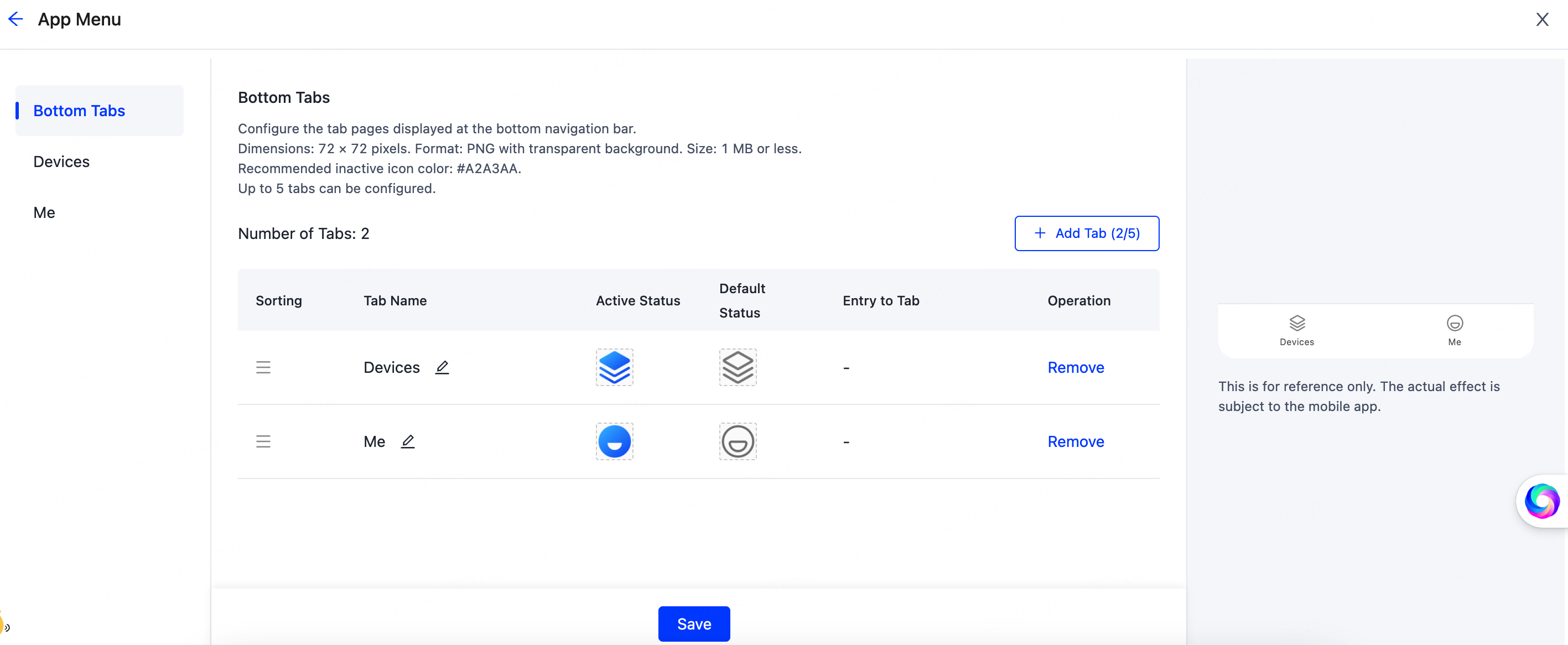
Menu management
Configure the desired system menu name, style, display order, and entry. For more information, see Menu Management.
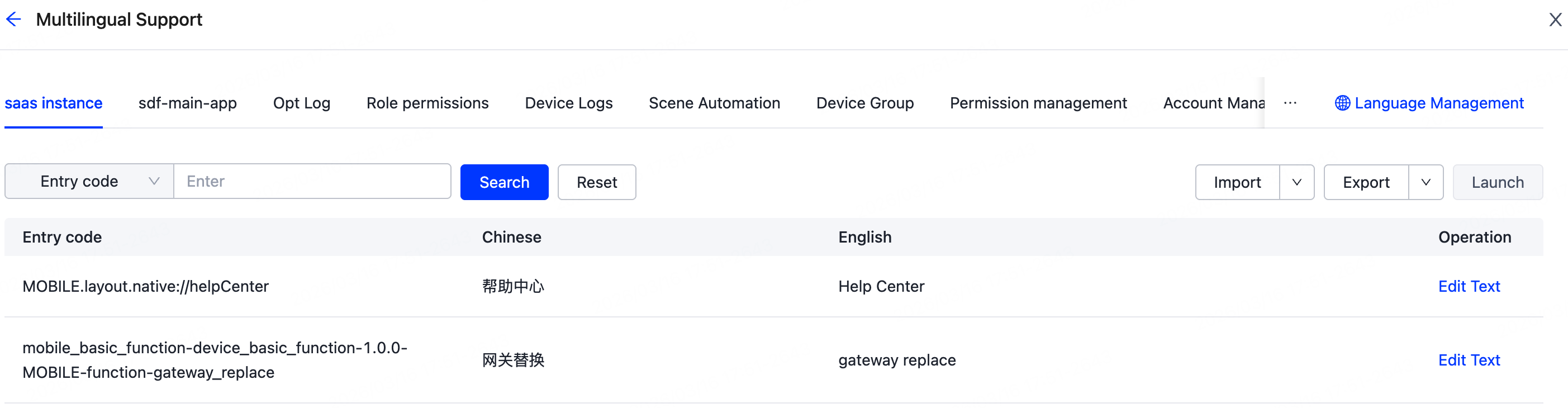
Multilingual support
Set up multilingual web UI, including system menus and prompts. Multilingual support, including English, Simplified Chinese, Traditional Chinese, Japanese, French, Italian, Spanish, and Arabic, helps you reach a global audience. For more information, see Multilingual Support.
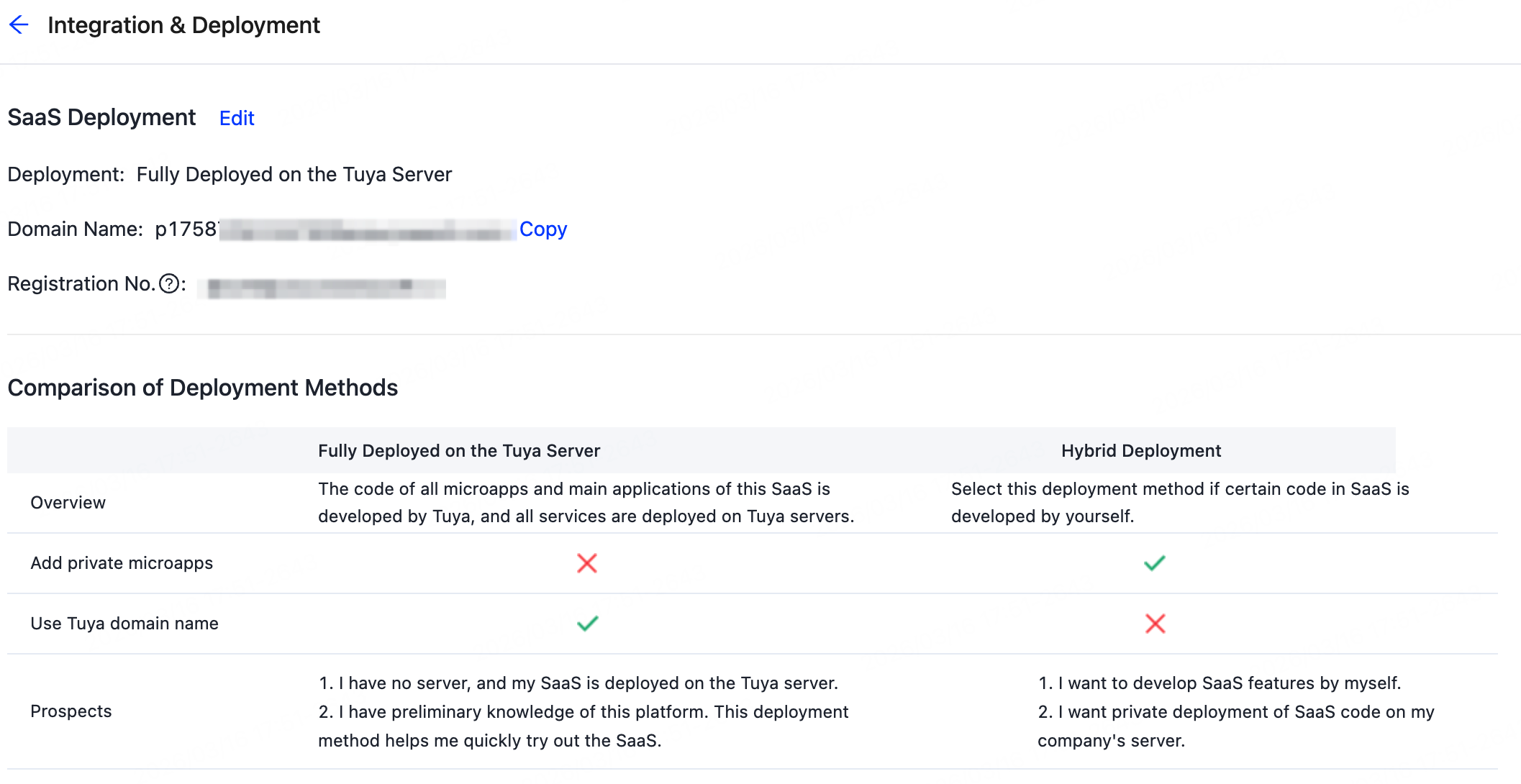
Integration & deployment
Configure the deployment plan and method. The default is a full deployment to a Tuya server. If custom development is required, switch to a hybrid deployment plan. For more information, see Integration & Deployment.
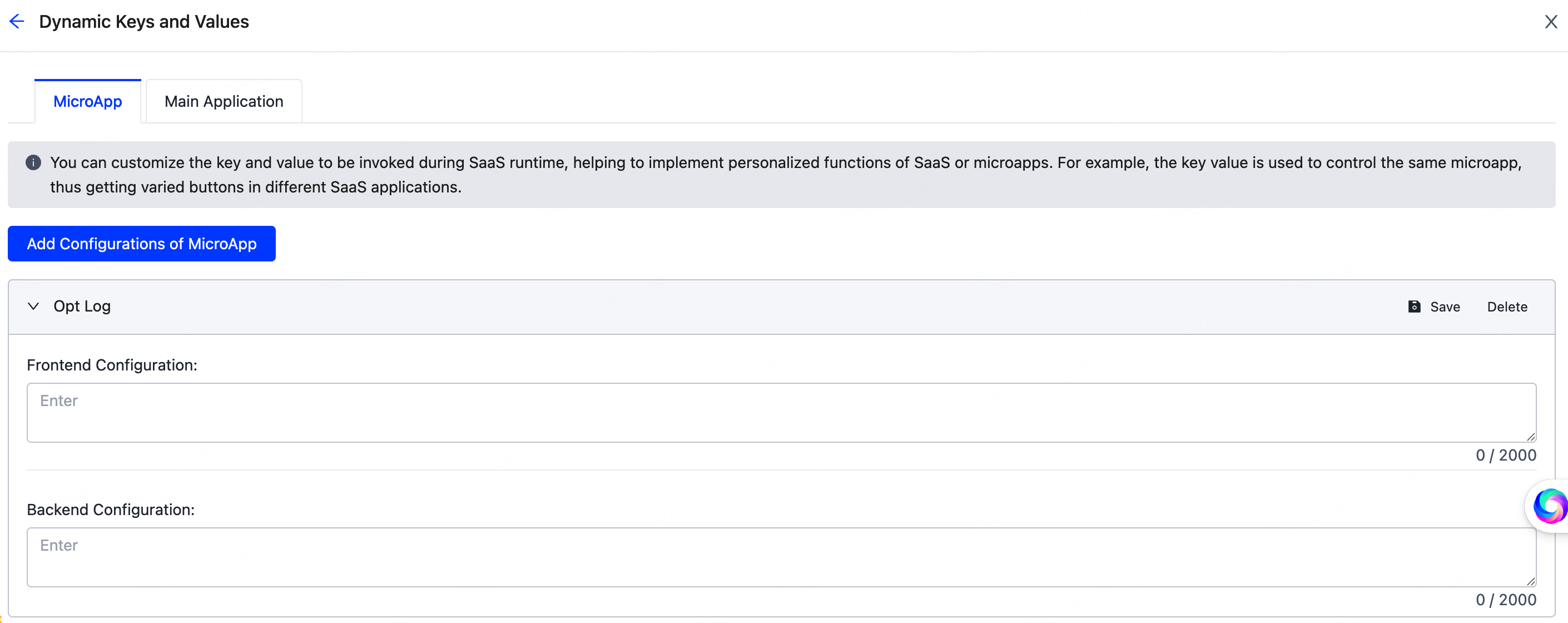
Dynamic keys and values
Allows users to define custom keys and values, which can be called at runtime to implement personalized scenarios.
Is this page helpful?
YesFeedbackIs this page helpful?
YesFeedback




