

Reset SecretKey
Overview
To enhance customer account security and operational flexibility, the Tuya Developer Platform has launched a Cloud Project SecretKey Reset feature. This helps you securely generate a new SecretKey in the event of loss, leakage, or scheduled rotation. The feature also supports a transition period mechanism during which both old and new keys remain valid, ensuring seamless service continuity.
This version does not yet support SecretKey reset for cloud projects that have integrated the Spatial Intelligence SaaS Development Framework.
Application scenarios
- SecretKey is accidentally exposed or suspected of compromise.
- Regular security policy requires key rotation.
- Team member changes necessitate revoking old key permissions.
- Operational audits mandate periodic key updates.
Features
Support for project–level SecretKey reset
- The ClientID remains unchanged, while only the SecretKey is updated.
- The reset operation is initiated by a main account holder of the Tuya Developer Platform. Sub-accounts and accounts with menu permissions do not have this authority.
Secure transition period mechanism
- After a new SecretKey is generated, both the old and new keys are simultaneously valid.
- Default transition period: 7 days.
- You can customize the transition period, up to a maximum of 30 days.
- After the transition period ends, the old SecretKey automatically becomes invalid, and only the new key remains valid.
Strict operational controls
- Each cloud project can request a SecretKey reset up to 2 times per day.
- The reset process is irreversible.
- While a SecretKey is being reset (for example, within the transition period), no additional reset requests are allowed.
Immediate expiration option (requires double verification)
- If code/configuration updates are already completed, you can click Expire Now.
- The system will immediately deactivate the old SecretKey.
- Before activation, you must re-verify your identity, for example, via SMS or email verification code.
Traceable historical records
- Support viewing all SecretKey reset records, including time, operator, and status of old/new keys.
- Records are visible only to a main account holder of the Tuya Developer Platform.
Limitations
| Item | Description |
|---|---|
| Account permissions | Only the main account holders of the Tuya Developer Platform can initiate resets and view logs. |
| SaaS project | If a Spatial Intelligence SaaS instance has been created under the cloud project, SecretKey reset is NOT supported. Clicking the Reset Key button will display the message: Your current cloud project has created a Spatial Intelligence SaaS instance and does not support key reset. |
| Frequency | Support a maximum of 2 reset requests per calendar day. |
| Irreversible process | Once a reset request is submitted, it cannot be canceled or rolled back. |
Procedure
-
Log in to the Tuya Developer Platform.
-
In the left-side navigation bar, choose Cloud > Cloud Project > Project Management to go to the Project Management page, and then click Open Project in the Operation column of your desired project.
-
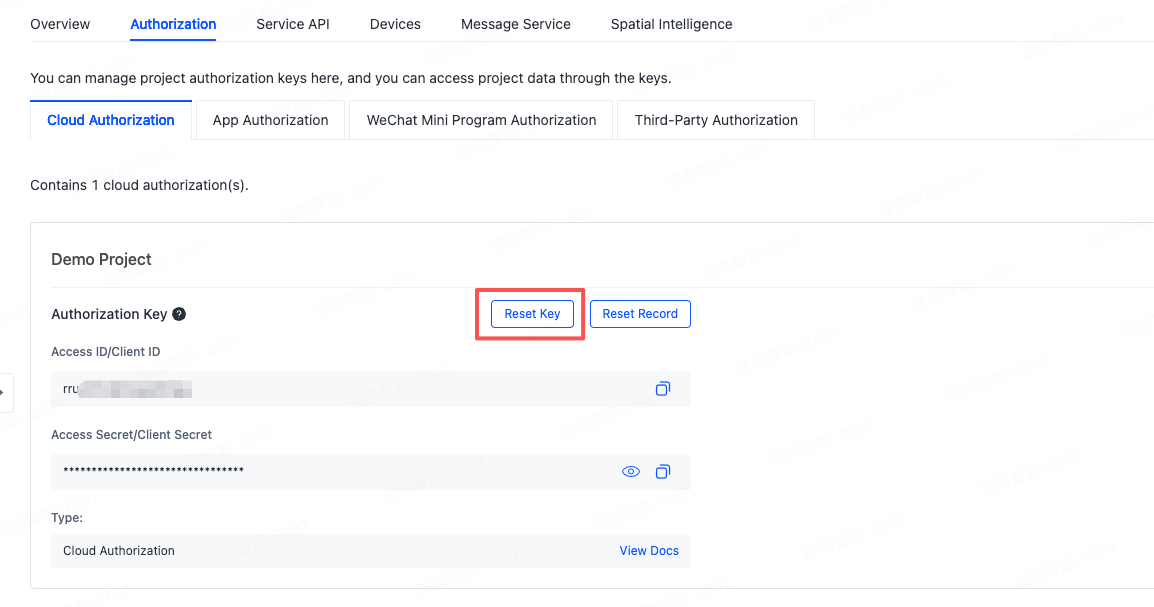
Choose Authorization > Cloud Authorization, and then click Reset Key.
-
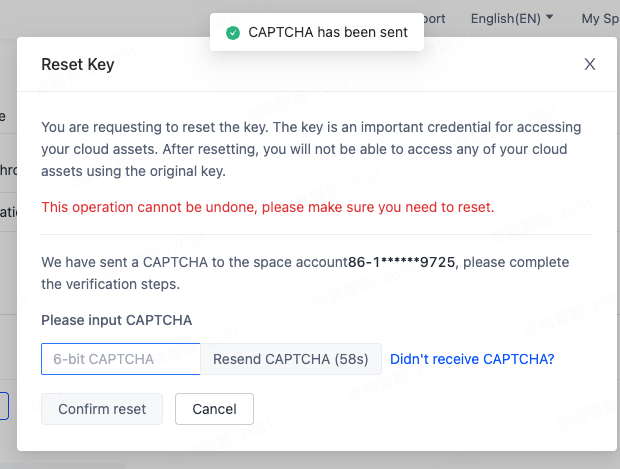
Obtain and enter the SMS/email verification code.
-
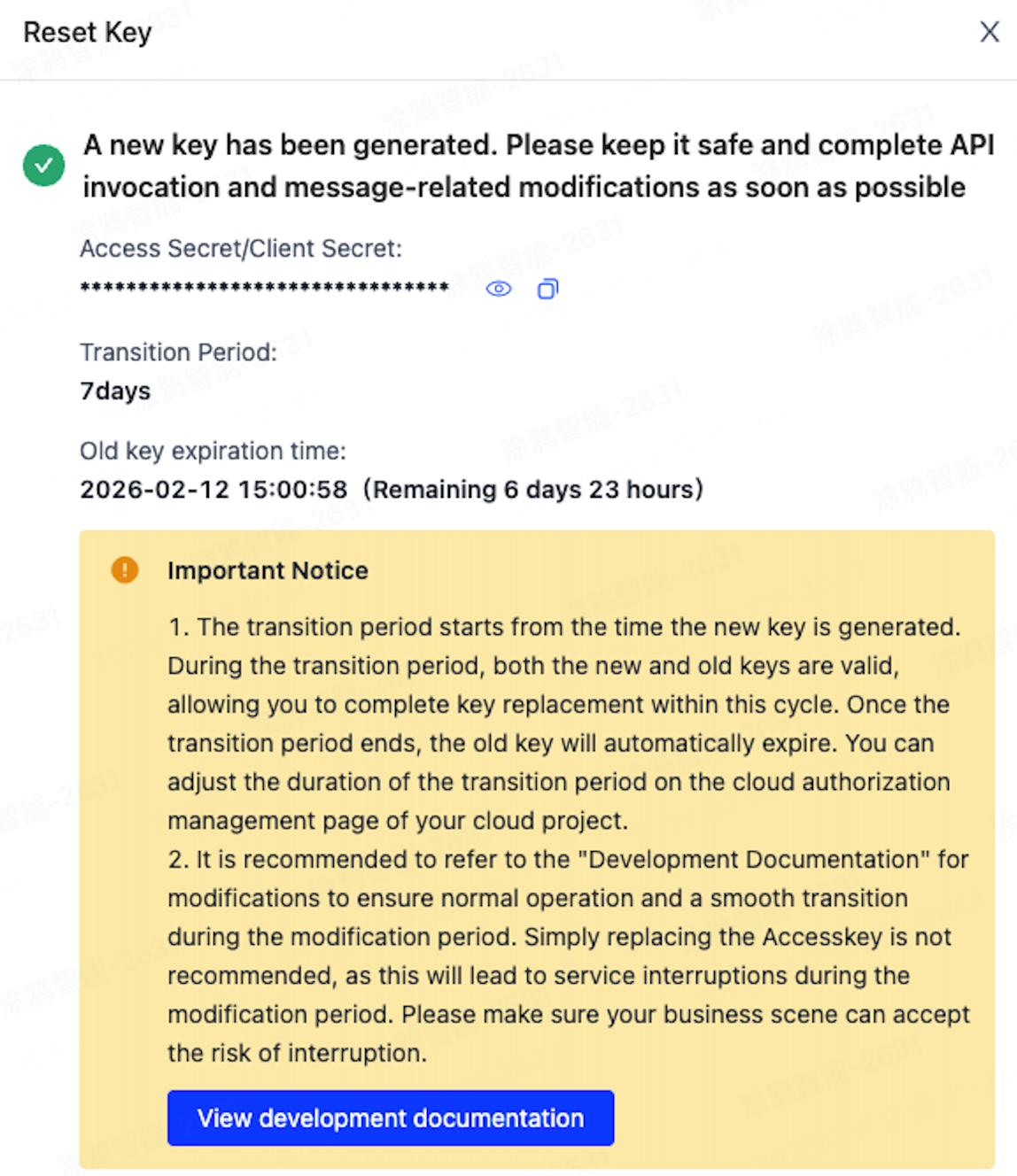
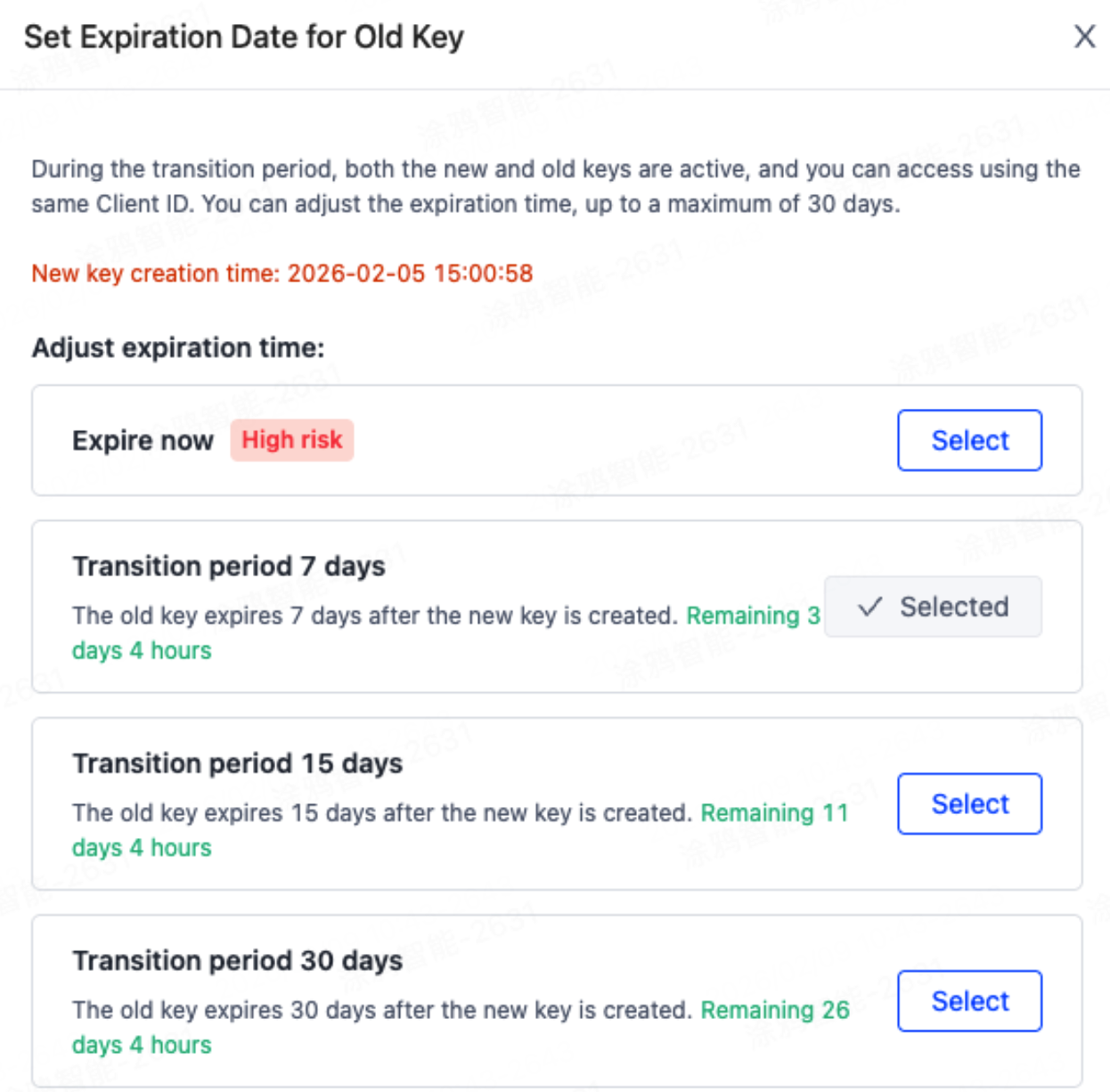
After confirmation, a new SecretKey will be generated, and the status will change to Resetting, with a default transition period of 7 days.
-
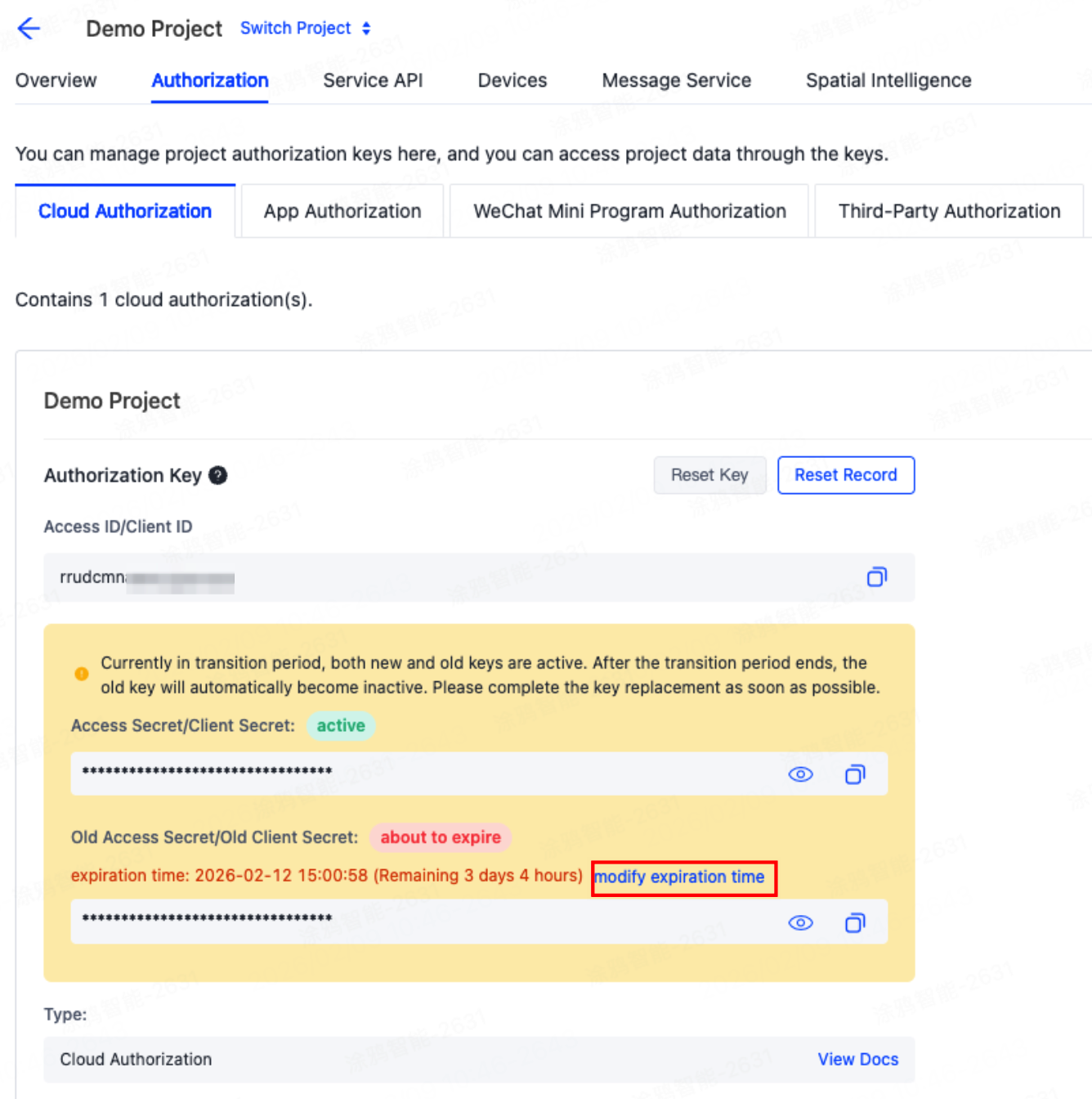
You can click Modify Expiration Time to set the transition period duration. During this transition period, both the old and new keys will be valid simultaneously, for a maximum of 30 days.
-
Complete code/service configuration updates within the transition period.
-
(Optional) If you have enabled message subscription, you must also update your message decryption logic. For more information, see Handle message subscription during transition.
-
(Optional) After updates are completed, click Expire Now and complete identity verification.
Handle message subscription during transition
To ensure a smooth transition for message subscriptions, during the SecretKey reset transition period, messages sent by the message queue will continue to be encrypted using the old key. The new key will be used for encryption only after the old key becomes invalid. Therefore, your code must include compatible decryption logic.
Example in Java:
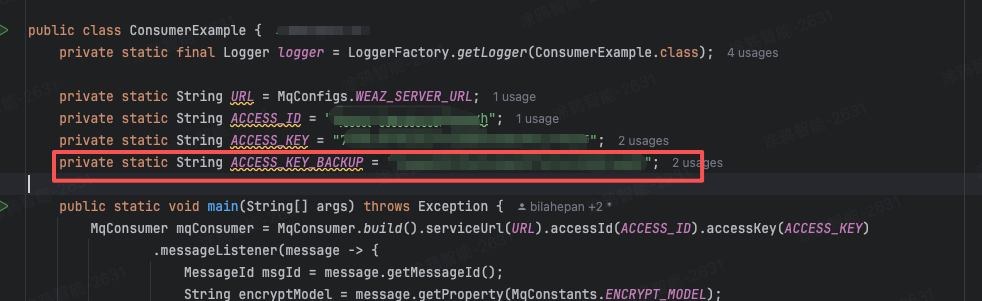
Add a backupAccessKey parameter and configure it with the old key that is scheduled to expire.
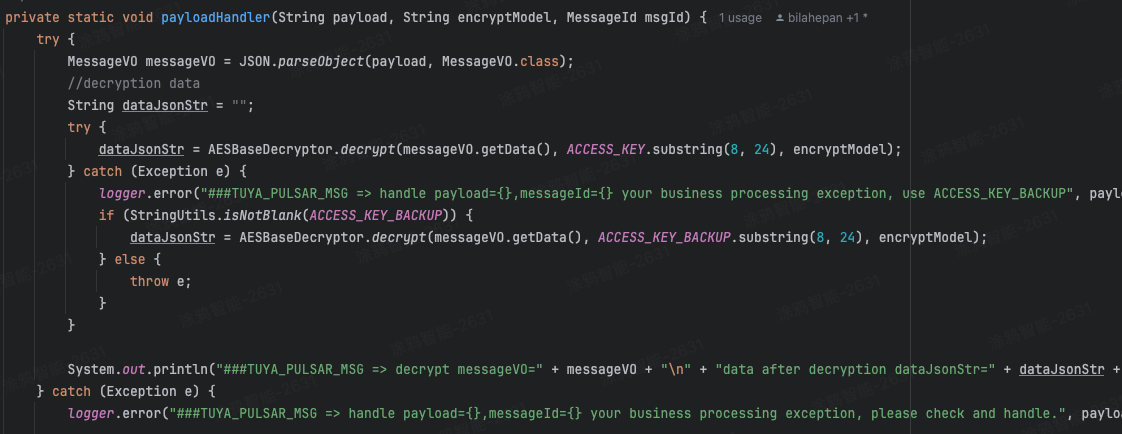
In the message decryption code, try decrypting with the new key first. If that fails, then fall back to the old key.
public class ConsumerExample {
    private static final Logger logger = LoggerFactory.getLogger(ConsumerExample.class);

    private static String URL = MqConfigs.WEAZ_SERVER_URL;
    private static String ACCESS_ID = "8scxn*******adyh";
    private static String ACCESS_KEY = "7758*******7b6f";
    private static String ACCESS_KEY_BACKUP = "faaa******6a8b";

    public static void main(String[] args) throws Exception {
        MqConsumer mqConsumer = MqConsumer.build().serviceUrl(URL).accessId(ACCESS_ID).accessKey(ACCESS_KEY)
                .messageListener(message -> {
                    MessageId msgId = message.getMessageId();
                    String encryptModel = message.getProperty(MqConstants.ENCRYPT_MODEL);
                    String payload = new String(message.getData());
                    payloadHandler(payload, encryptModel, msgId);
                });
        mqConsumer.start();
    }

    /**
     * This method is used to process your message business
     */
    private static void payloadHandler(String payload, String encryptModel, MessageId msgId) {
        try {
            MessageVO messageVO = JSON.parseObject(payload, MessageVO.class);
            //decryption data
            String dataJsonStr = "";
            try {
                dataJsonStr = AESBaseDecryptor.decrypt(messageVO.getData(), ACCESS_KEY.substring(8, 24), encryptModel);
            } catch (Exception e) {
                logger.error("###TUYA_PULSAR_MSG => handle payload={},messageId={} your business processing exception, use ACCESS_KEY_BACKUP", payload, msgId);
                if (StringUtils.isNotBlank(ACCESS_KEY_BACKUP)) {
                    dataJsonStr = AESBaseDecryptor.decrypt(messageVO.getData(), ACCESS_KEY_BACKUP.substring(8, 24), encryptModel);
                } else {
                    throw e;
                }
            }

            System.out.println("###TUYA_PULSAR_MSG => decrypt messageVO=" + messageVO + "\n" + "data after decryption dataJsonStr=" + dataJsonStr + " messageId=" + msgId);
        } catch (Exception e) {
            logger.error("###TUYA_PULSAR_MSG => handle payload={},messageId={} your business processing exception, please check and handle.", payload, msgId, e);
        }
    }
}
Is this page helpful?
YesFeedbackIs this page helpful?
YesFeedback




