

File Library
This topic describes File Library, a private content management and search service on the Tuya Developer Platform. File Library is designed for business developers who need to host private content resources.
For private content hosting, the platform provides unified file storage, custom key-value (KV) tag management, file tagging, and vector search. By invoking the File Library’s capabilities, you can realize application scenarios such as hosting files, searching files, and obtaining file URLs.
Features
-
General file storage: Upload and manage audio files. The system automatically extracts format, bitrate, duration, size, and other metadata after upload, so you do not need to maintain this manually. The platform will support more multimodal file types later.
-
Global data center support: Upload a file once. The platform automatically synchronizes it across global data centers. This meets deployment requirements across regions and supports customers in global markets.
-
Flexible KV tag system: Customize KV tags to achieve flexible, personalized content classification, management, and application. This applies to broader business scenarios, such as music playback, album maintenance, and resource classification. The system supports business domain isolation, so the same key can maintain independent value sets in different business domains.
-
Semantic vector search: Perform vector search based on KV tags. The platform automatically vectorizes KV tags and supports semantic fuzzy search. Users can input natural language to match files without exact keywords.
-
Fast and flexible integration: The platform provides standardized File Library APIs. You can call these APIs to build proprietary services, keep full control of business logic, and support plug-and-play extensions.
Terms
| Term | Definition |
|---|---|
File Library |
A private file storage space provided by the Tuya Developer Platform. It supports file management and vector search based on KV tags. |
| KV tag | A file tag in KV format. Both key and value are custom strings. KV tags classify files, isolate content logic, and support vector search. For example, key:value = style:lyrical and key:value = mood:happy. |
| Key description | A natural language description added to the key field of a KV tag. It helps the large language model (LLM) understand the tag and extract the corresponding value from user input during file search. |
| Business domain | An isolation dimension of KV tags. The system presets business domains by file format. For example, .mp3 and .mp4 are identified as the music domain, and .jpg and .png are identified as the image domain. The same key can maintain independent value sets in different business domains. The platform currently supports only the music business domain. |
Practical implementation
Tuya provides best practices for playing private music through Tuya devices. These practices allow the LLM to extend beyond a conversation tool and become an intelligent assistant that can invoke private content.
Architecture
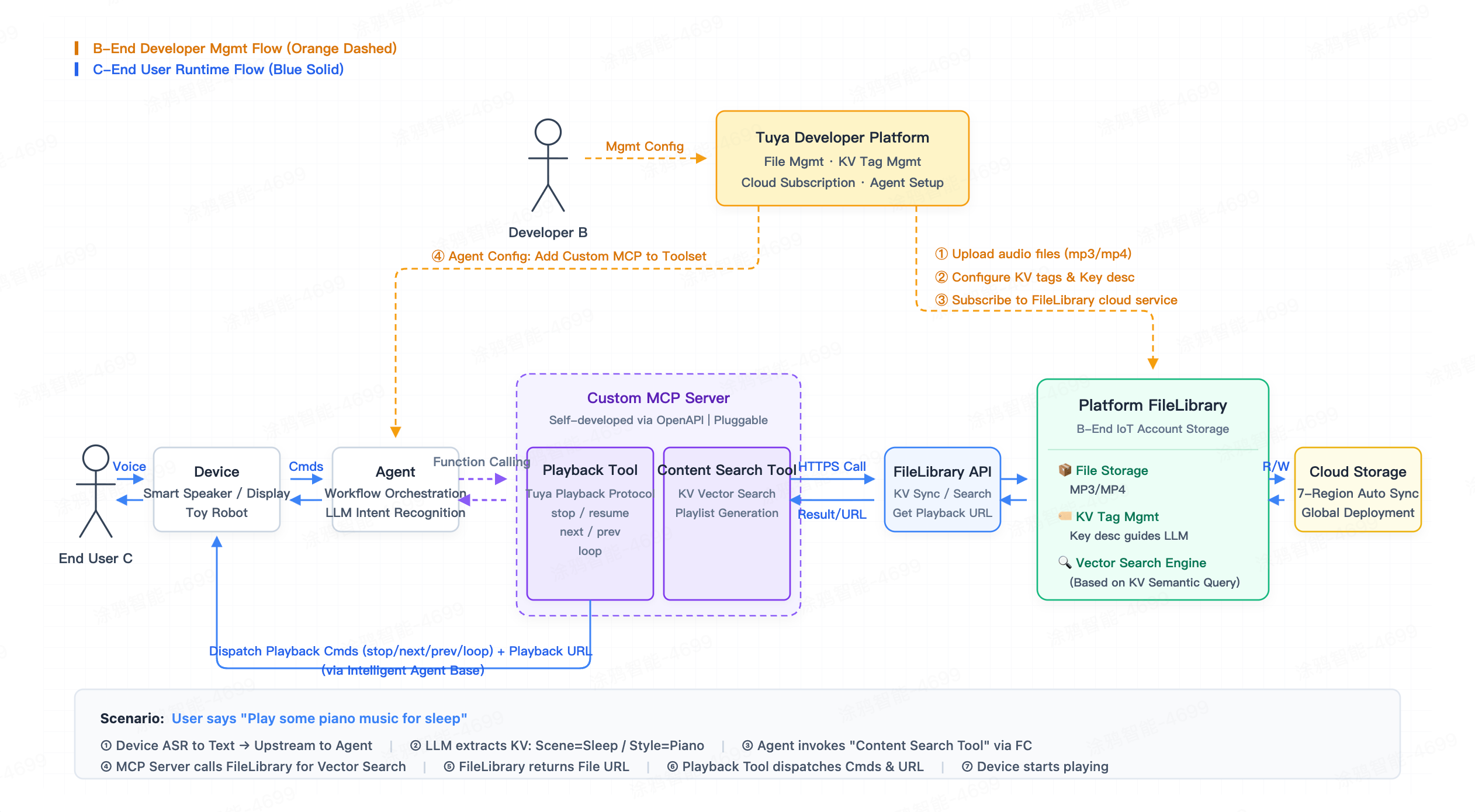
The layered architecture of "platform universal storage + custom MCP server + AI agent" enables the File Library to provide convenient content access for MCP. You can implement specific business logic, such as music playback and content recommendation. Agent tool calls then play private content through natural language.
Quick start guide
Step 1: Go to File Library
Go to the Tuya Developer Platform > AI Agent > Content Management > File Library page.
Step 2: Upload files and configure KV tags
- Upload audio files on the file management page. The File Library supports MP3 and MP4 files with size ≤ 5 MB and bitrate ≤ 128 kbps.
- After upload completes, add KV tags to each file and add a description to each key. This helps the LLM understand the tag meaning.
Step 3: Subscribe to the File Library API cloud service
Go to Cloud > Cloud Services, find the File Library API. Subscribe to the API, authorize it for your target cloud project, and obtain the access credentials.
Step 4: Develop a custom MCP server
Develop an MCP server based on File Library APIs and encapsulate business logic.
Tuya has released an open-source MCP playback control service. Visit GitHub to get it.
Step 5: Deploy and register the custom MCP server
Deploy your own MCP server, and then register it with the Tuya Developer Platform.
- For WebSocket, apply for endpoint access.
- For server-sent events (SSE) or Streamable HTTP, contact Tuya for configuration.
For information on connecting a custom MCP service to the Tuya Developer Platform, see Custom MCP Services.
Step 6: Add the MCP tool in AI agent orchestration
On the My Agent page, select the AI agent for which you want to enable private music playback. Click Develop, and add the registered custom MCP tool under Skills Configuration > Plugin.
Step 7: Assign the AI agent to the target product ID (PID)
Publish the configured AI agent and assign it to the target PID. The target device can then play your private audio files through natural language conversations.
File Library
Upload files
-
Go to the Tuya Developer Platform > AI Agent > Content Management > File Library. On first access, subscribe to the File Library storage value-added service. The File Library storage service is currently free. For fee details, see Pricing.
The File Library currently supports only audio files. The following table describes the audio file requirements.
SpecificationRequirements File format MP3/MP4/WAV File size ≤ 5 MB Bitrate ≤ 128 kbps -
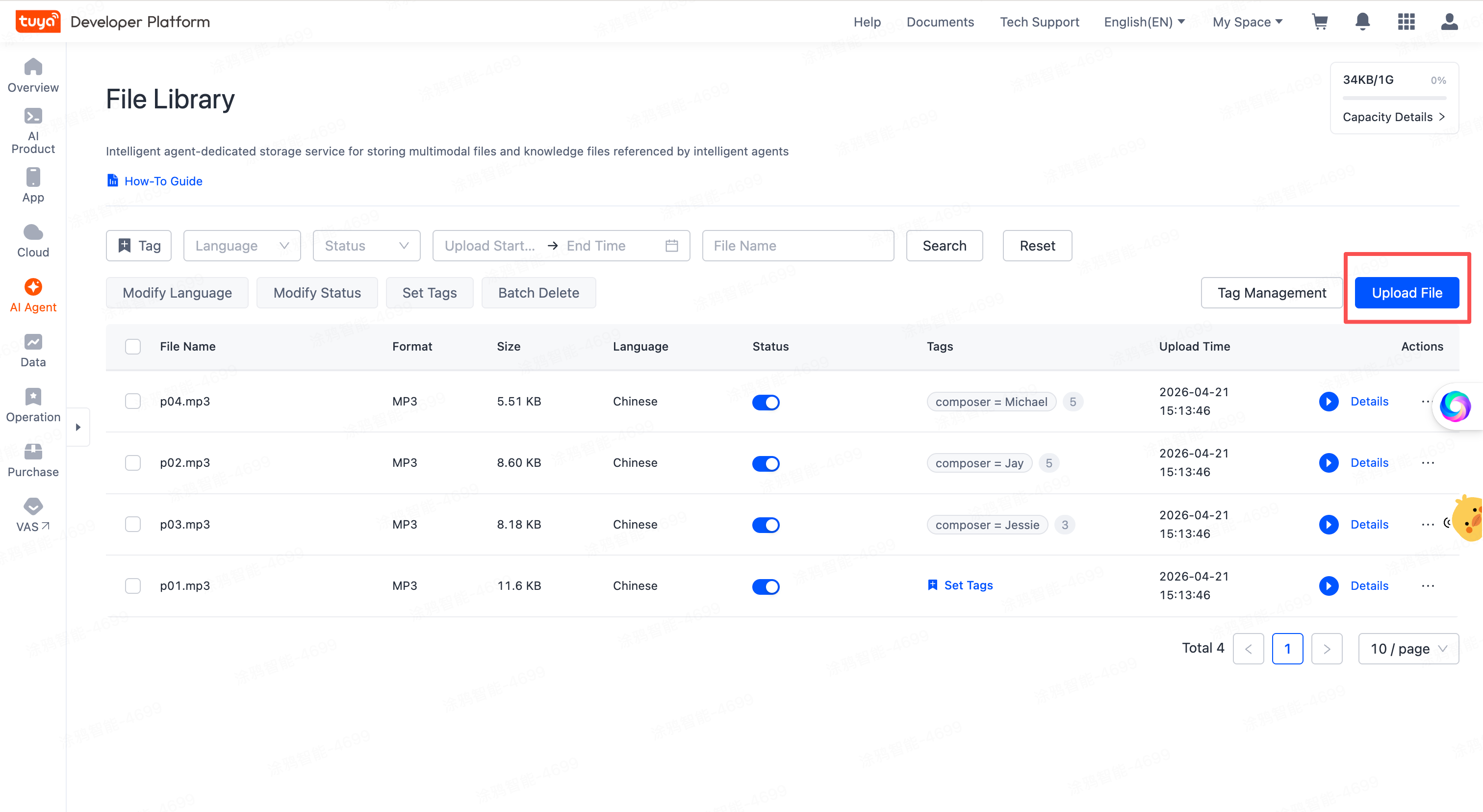
Click Upload File to go to the file upload page. File Library supports single-file and batch uploads.
-
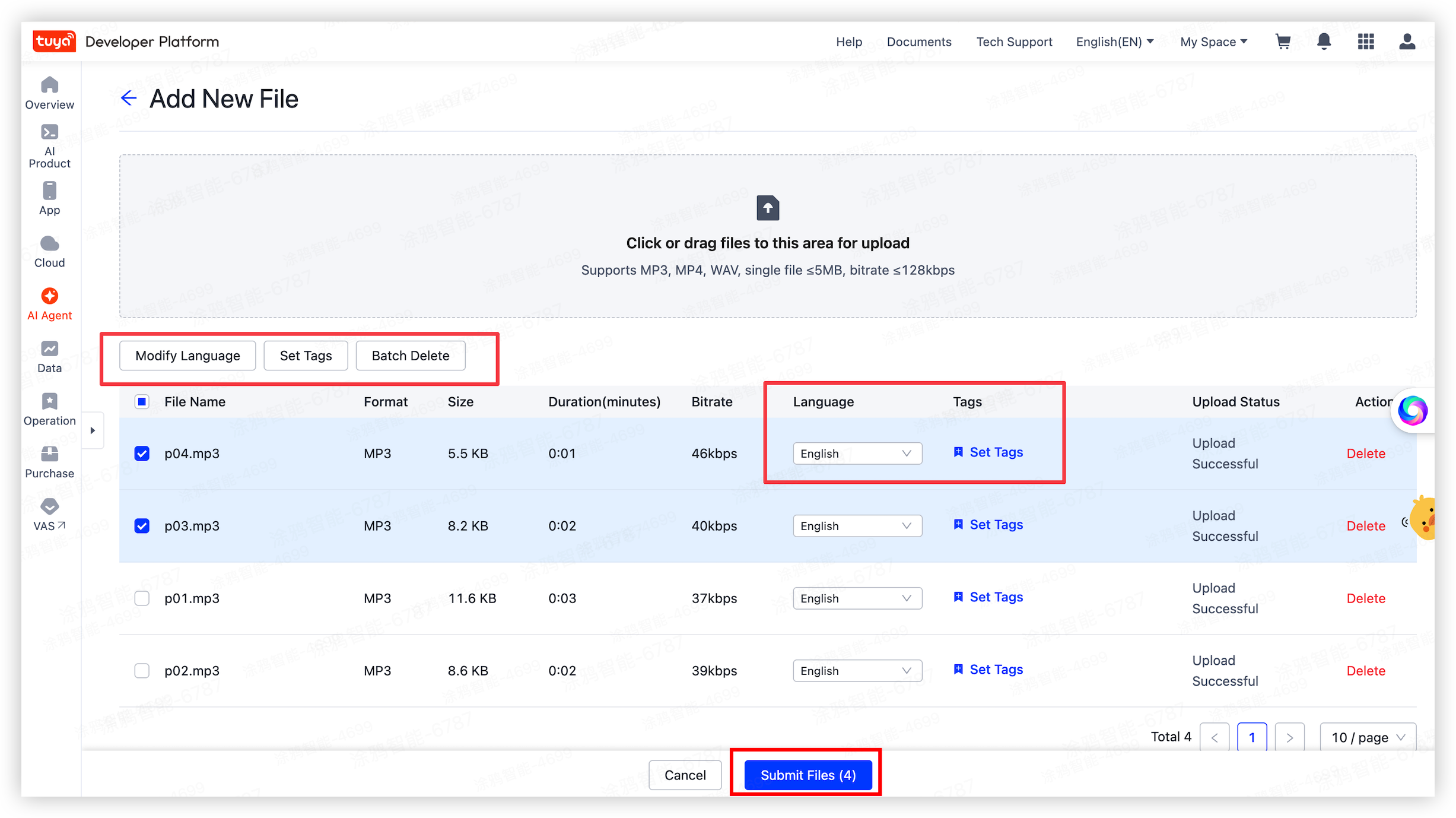
On the file upload page, upload up to 50 files each time. After the upload, set the language and tags for a single file or for multiple files in batch.
Click Submit Files to save. If an upload error occurs, the system saves only valid files.
Manage files
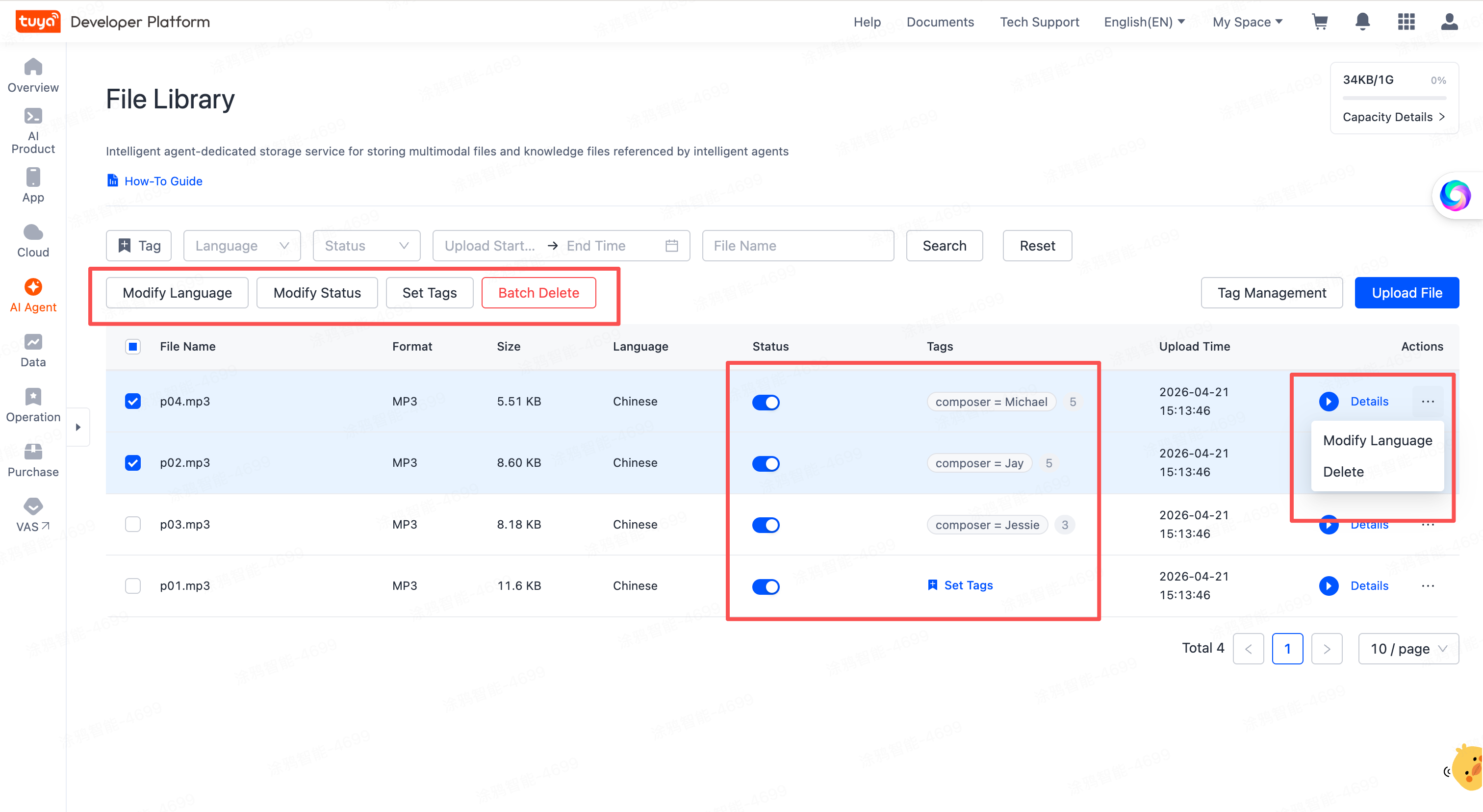
After you upload files, the platform enables them by default. You can manually disable them. When you call File Library for vector search, the search excludes chunks from disabled files.
Disabling a file is not the same as deleting it. Search results exclude disabled files, but they still count toward the storage quota. To release the storage quota, delete the file.
The file list page supports viewing file metadata details and file previews. For audio files, you can listen to a preview. You can also modify languages, set tags, enable or disable files, and delete saved files in batch.
For information about how to set tags, see KV tag management.
KV tag management
KV tags are metadata identifiers that mark file attributes and support flexible custom settings. You can classify and search files in a personalized way based on file tags.
KV tag management is an independent global service that supports file-level tags. The Tuya Developer Platform scopes KV storage to each account. All files under the same account share tag keys.
Tag rules
Rule item |
Description |
|---|---|
| Key length | String type, ≤ 128 characters |
| Value length | String type, ≤ 256 characters |
| Tag limit per file | A file can bind up to 50 KV tags. |
| KV relationship | In a single file, one key can map to only one value. At the Tuya Developer Platform account level, one key can map to multiple values. |
| Case sensitivity | Keys and values are case-insensitive. |
| Multilingual support | Key and value are language-agnostic. |
Set tags
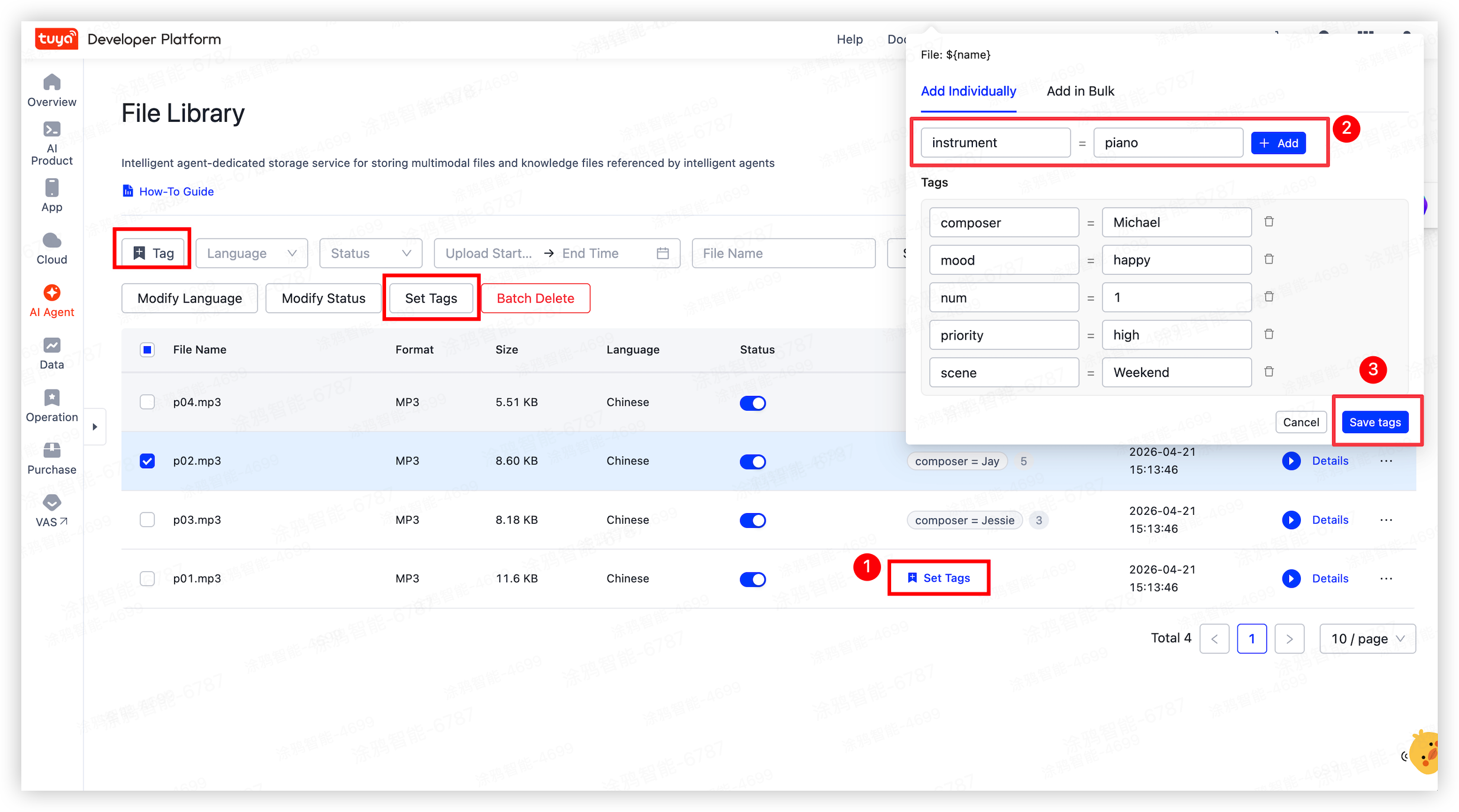
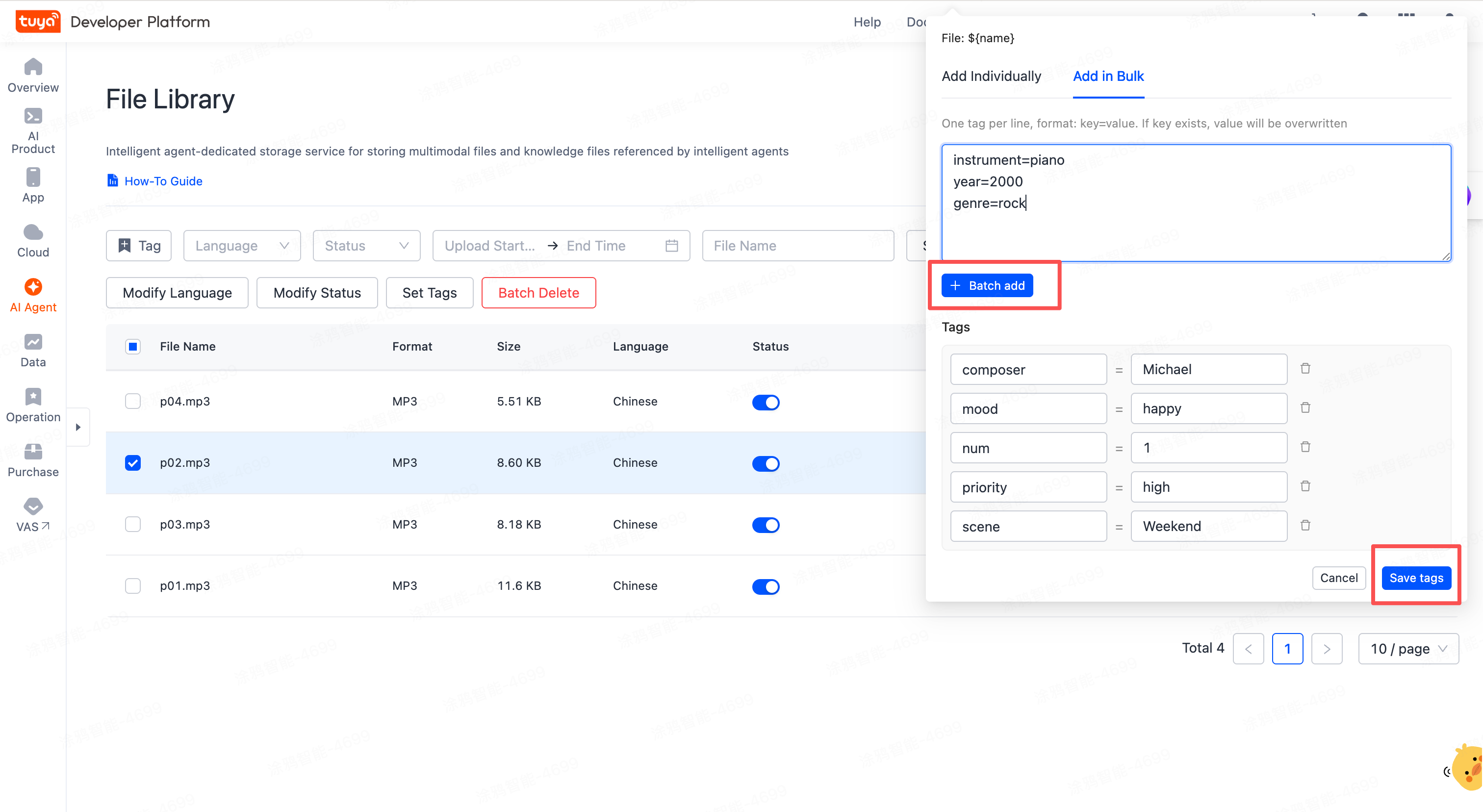
The platform supports tags for one file or multiple files. You can manually enter each KV tag or add multiple KV tags in a standard text format.
- Click Tag or Set Tags.
- Add or delete tags individually, or switch to Batch add to add multiple tags at once based on the input rules. If you select multiple files to edit, follow the same steps to manually add tags or add them in batch for each file. After you finish, click Save tags.
Manage tags
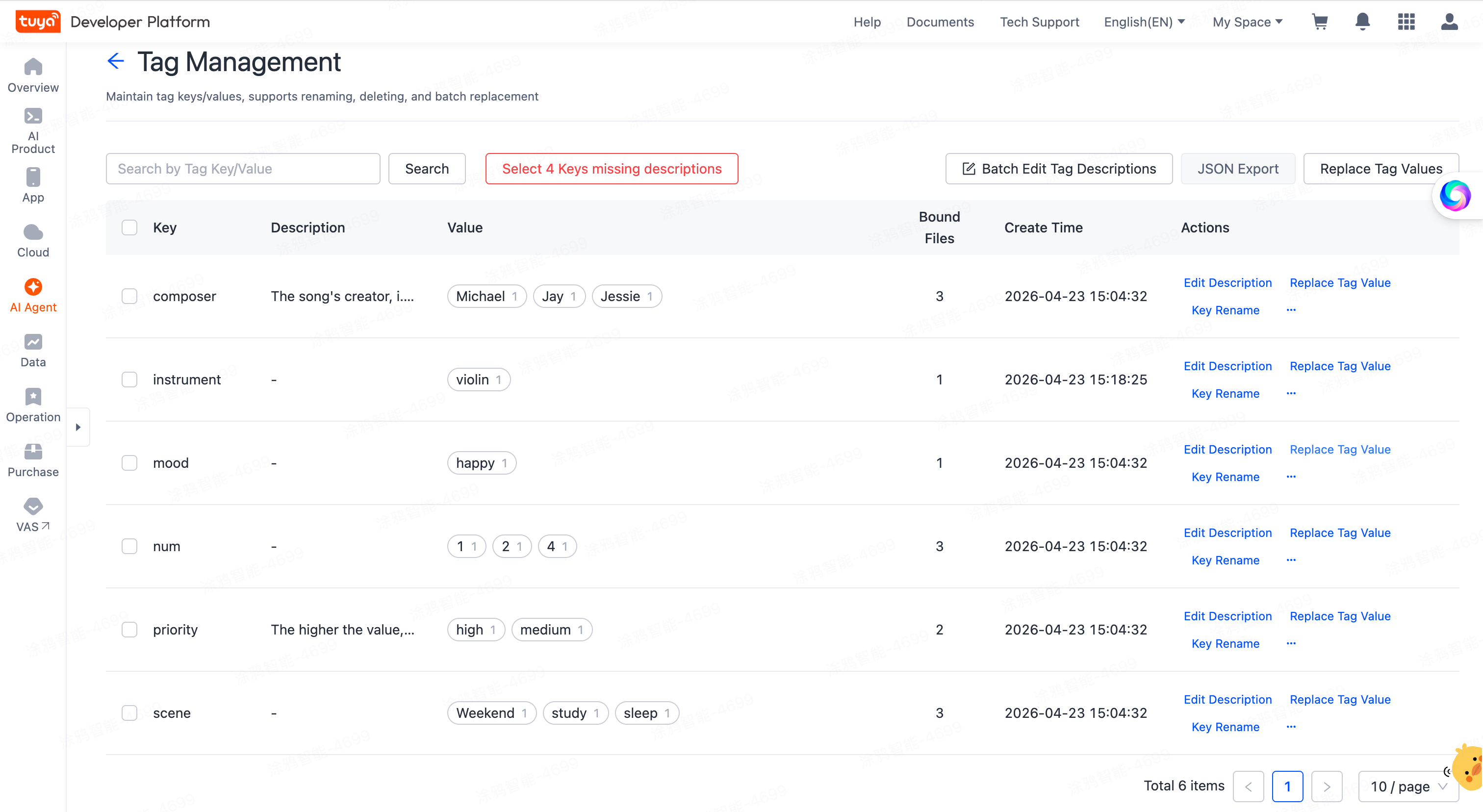
On the file list page, click Tag Management to go to the management page. The list shows all entered KV tags. The platform lists tags by keys and shows corresponding values and the number of tagged files.
Modify tag keys and values
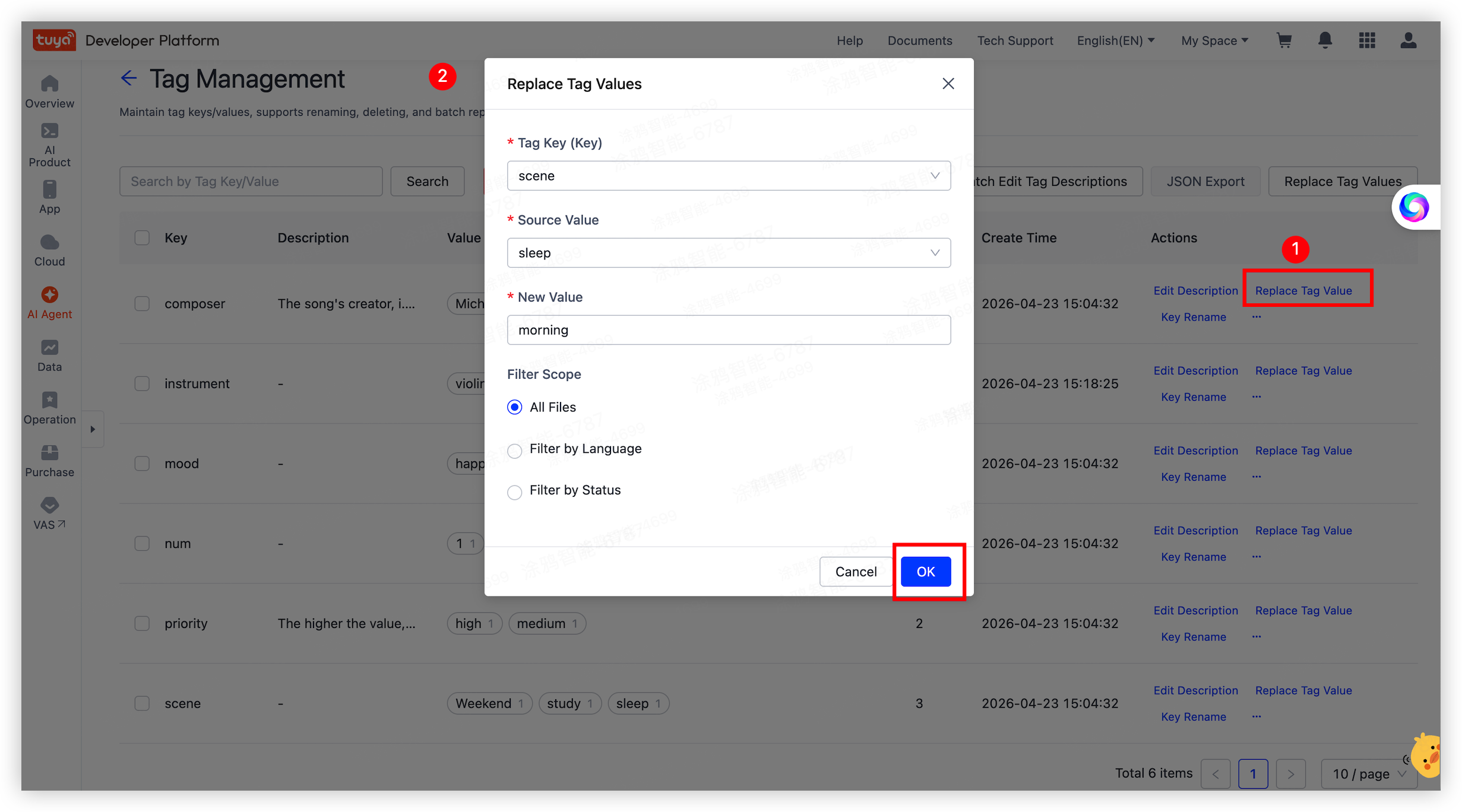
The platform supports key renaming and batch value modification.
Click Replace Tag Value in the top right corner of the list. Enter the value to replace and click OK. For example, change the original value sleep to morning. After you submit the change, the platform displays this value as morning globally.
Add key descriptions
What is a key description?
Key descriptions guide the LLM to extract the corresponding value from user input. They are critical configurations for semantic recall.
The description field must include the exact meaning of the key, common synonyms, and the value format, such as "four-digit number" or "enum value". Example:
{
  "key": "artist",
  "tagKeyDesc": "The singer or performer of a song. The value can be a singer or a band name. For example, Jay Chou, JJ Lin, and Mayday. Users might say "artist", "who sings this song", or "The singer is..."."
}
{
  "key": "release_year",
 "tagKeyDesc": "The release year of a song. The value is a four-digit year. For example, 2020, 2022, and 2023. Users might say "release year", "songs from which year", or "songs after xxxx"."
}
Edit key descriptions
The platform supports manual key description entries and batch maintenance in JSON format.
-
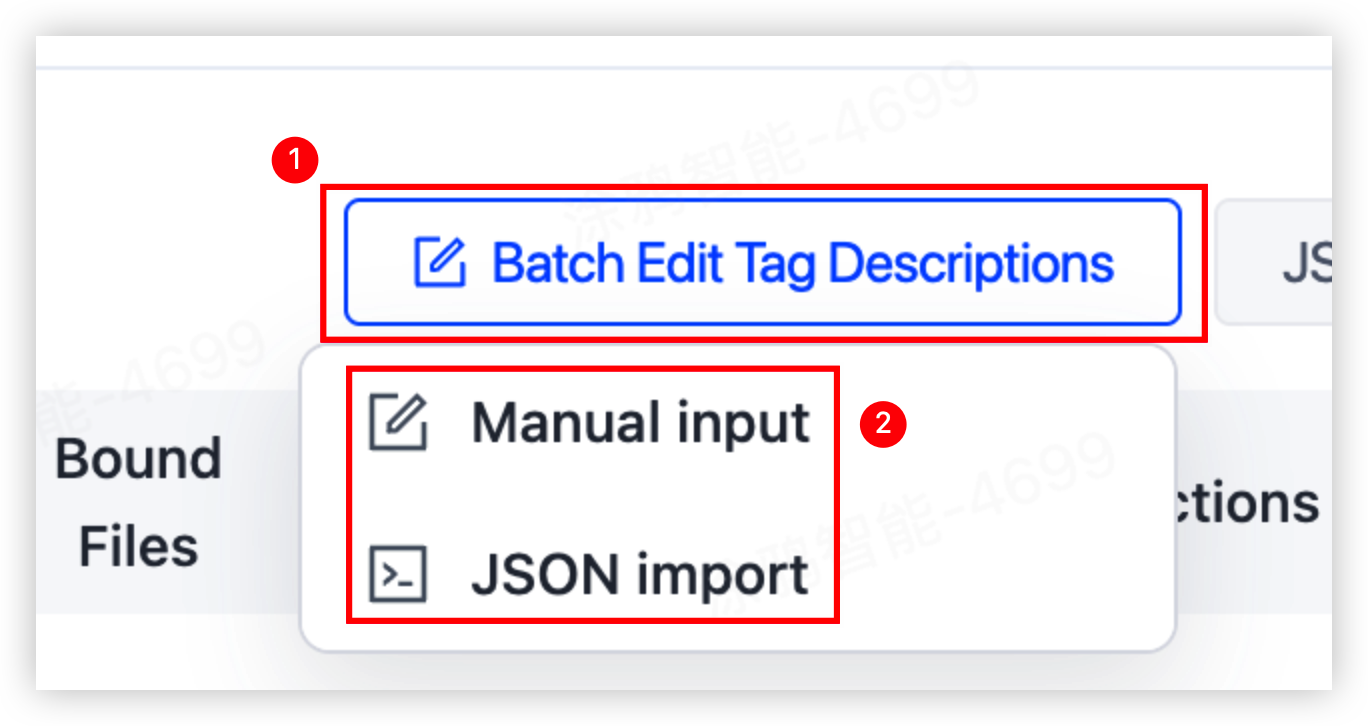
Go to the Tuya Developer Platform > AI Agent > Content Management > File Library > Tag Management page, select the key to modify in the tag list, and click Batch Edit Tag Descriptions at the top right corner of the list. Select Manual input or use JSON import.
-
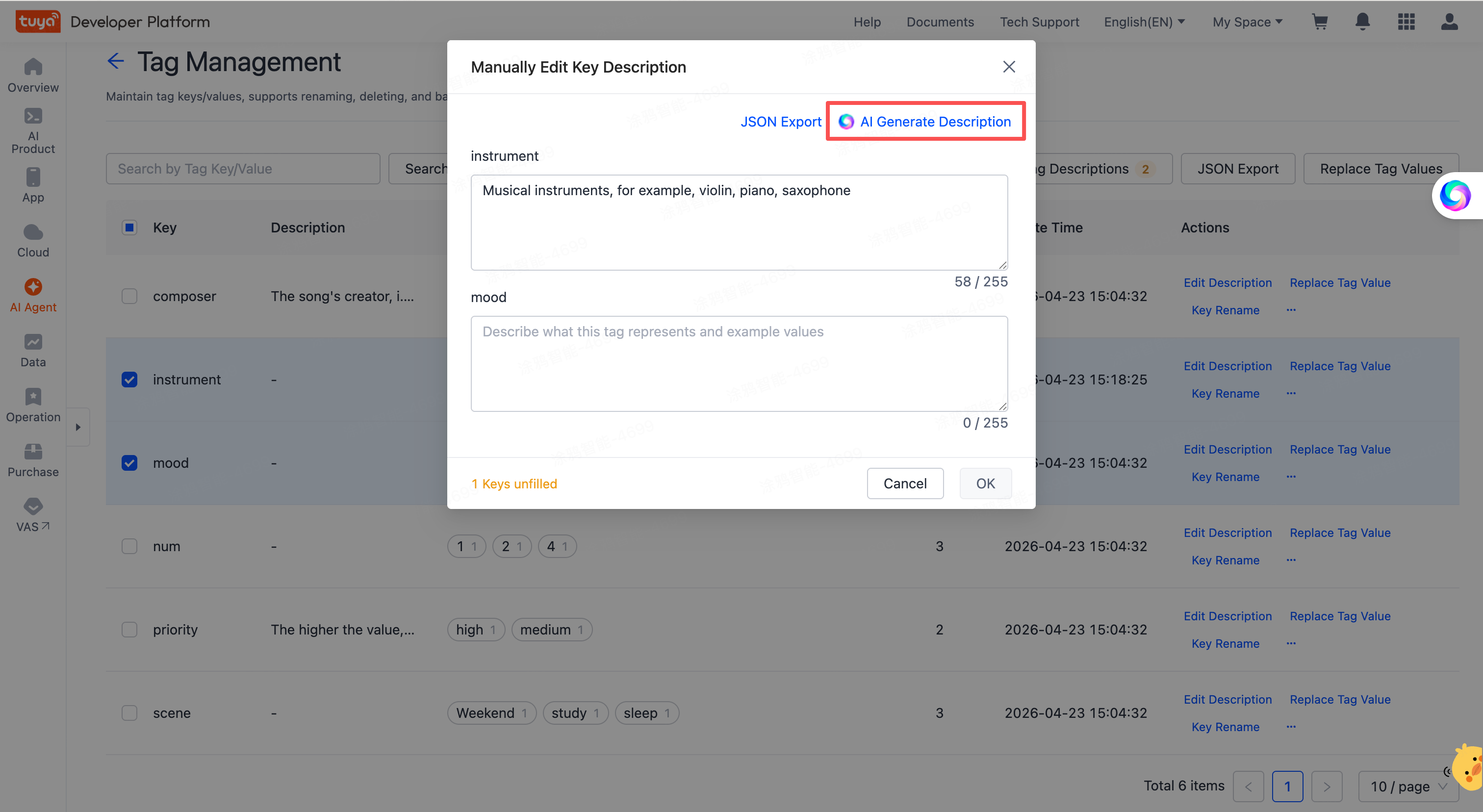
If you select Manual input, enter the description in the recommended standard format. You can also enter a brief semantic description and click AI Generate Description to let AI optimize and generate a suggestion.
-
If you select JSON import in batch, click JSON import. Paste the edited JSON code into the text box. Click Parse JSON to preview the parsed result, then click OK to submit the descriptions in batch. To generate descriptions with AI, enter a brief semantic description in the "xxx" part of the
tagKeyDescfield, and then click AI Generate Description.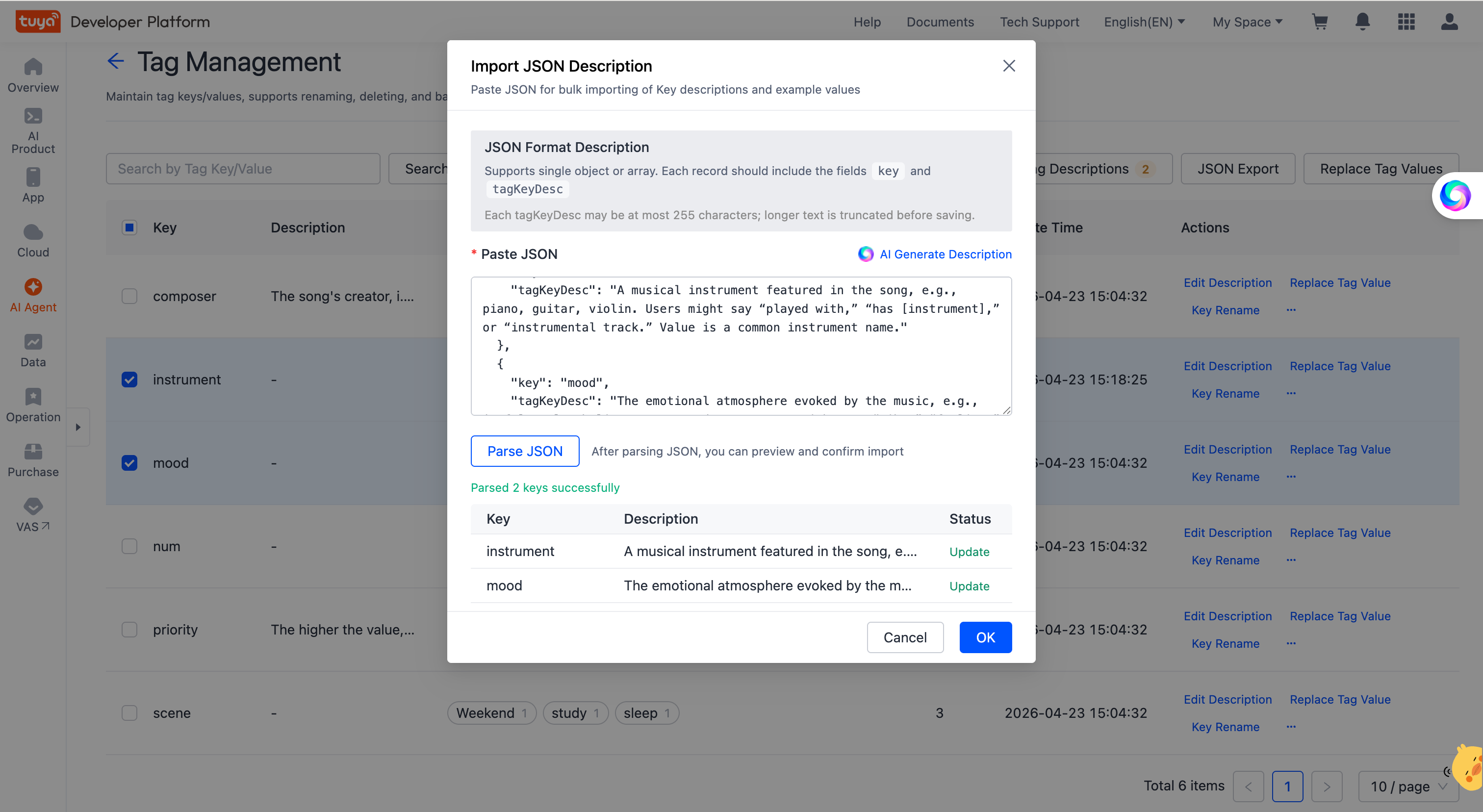
-
Click JSON Export to export the JSON file for the selected key descriptions. You can edit the file offline, import it in batch through JSON import, or use it in other business scenarios.
KV tag design guidelines
- Use keys and values with clear meanings. For example, key=artist, value=Jessie; key=style, value=peace; key=instrument, value=piano. This makes management easier for operators and also makes it easier for the LLM to understand and reference.
- Set key description fields according to the standard specification. Key descriptions directly affect LLM recall quality. Include the exact meaning of the key, common synonyms, and the value format, such as "four-digit number" or "enum value".
- Do not store sensitive information in KV tag keys or values, such as passwords, ID numbers, or phone numbers. This reduces security and compliance risks.
- Plan the target business domain and business tag library before use. This avoids large-scale modifications and migrations later, and helps maintain tag quality.
- The platform does not include built-in logical isolation for content libraries. Implement isolation through KV tags in your own service. Define content access boundaries for each business during the design stage.
Vectorization and file search
After you upload files and set tags, the system automatically vectorizes tags. When you integrate File Library capabilities, the platform uses these vectors to perform semantic file search. Currently, the platform supports only file metadata search. It does not search file content.
File semantic search is only supported through OpenAPI integration calls. The Tuya Developer Platform console does not provide this feature. For more information, see File Library API integration.
File Library API integration
The File Library API is an open cloud service on the Tuya Developer Platform. After you subscribe to the cloud service, your own service can call the File Library capabilities through OpenAPI. You can perform semantic search based on KV tags and obtain file URLs.
For API reference, see File Library API.
Pricing
Tuya file hosting is a paid service. Each uploaded file consumes storage quota. The platform currently provides a free 1 GB plan with access across global data centers. Subscribe to the AI Content Storage value-added service to use this capability.
After you exceed the storage capacity, you cannot upload new files. Uploaded files remain usable. To expand capacity, contact customer support.
Is this page helpful?
YesFeedbackIs this page helpful?
YesFeedback




