

Account Management
Overview
As a system setting application, Account Management enables you to create and maintain user accounts, and set account permissions and validity periods
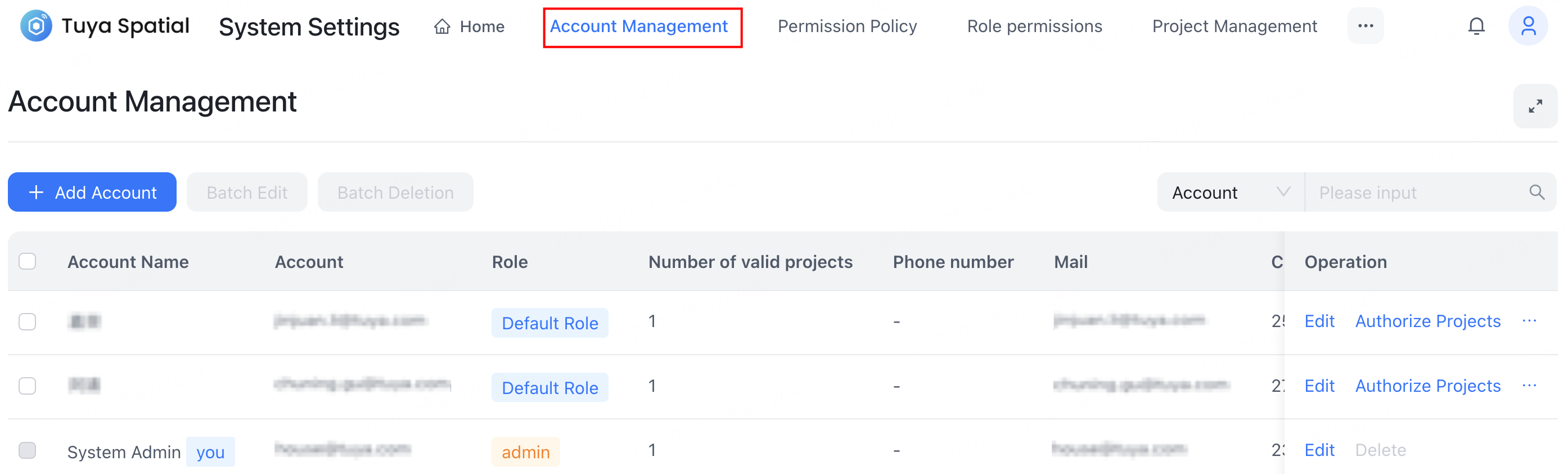
Features
Set up permissions
Before using the account management feature, make sure your account has been granted access permissions to the Account Management application.
To grant permissions to accounts with different roles, click the avatar in the top right corner of the system. In the dropdown menu, click System Settings and navigate to the Role management application. Then, enable the Account Management permission for the target role and select the specific operational permissions it should possess.


Entry to the feature
Click the avatar in the top right corner of the system. In the dropdown menu, click System Settings and select the Account Management application.

Add account
To add a new account, click Add Account in the top left corner of the page. Configure the account information in the dialog and save it.
- You can select multiple account roles.
- Once the account expires, it will be unable to log in to the system.

Edit account
Find the account you wish to edit in the account list. In the Operation column, click Edit. Then, modify the account information in the Edit Account dialog.

Delete account
Find the account you wish to delete in the account list. In the Operation column, click … > Delete, then confirm the deletion.
A deleted account cannot log in. If an account exists in multiple enterprises, deleting it from one enterprise will not affect its access to others.


Batch edit/deletion
To edit or delete accounts in bulk, select multiple accounts simultaneously, then click Batch Edit or Batch Deletion and proceed with the operation.
Changes made during batch editing will apply to all selected accounts.

Authorize projects
To grant project access to an account, in the target account’s Operation column, click Authorize Projects. In the dialog that appears, select the desired project(s) and click Authorization in its Operation column. Once authorized, the account will have access to the project(s).

Is this page helpful?
YesFeedbackIs this page helpful?
YesFeedback




