

Group Management
Overview
As a universal application, Group Management allows you to quickly combine multiple devices into custom groups and control all devices within a group through unified operations, significantly improving operational efficiency. The group management feature is widely used in commercial scenarios requiring bulk device control, such as one-touch master control of lighting systems in office buildings.
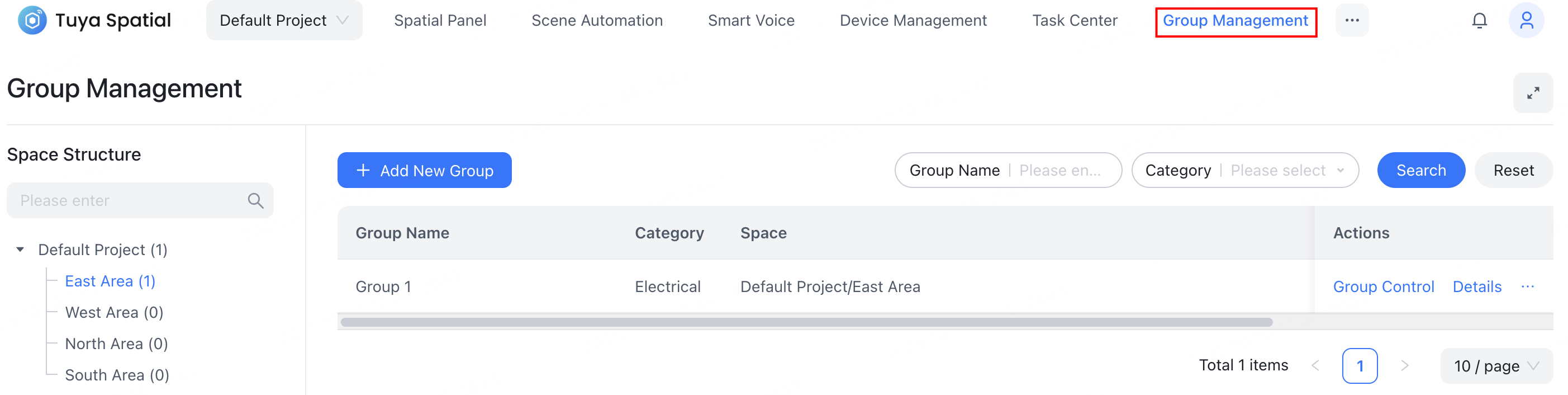
Application structure
Group management includes the following core functional modules:
- Create a group: Create groups for different product categories, each containing up to 1,000 devices.
- Edit a group: Delete devices from or add devices to a group.
- Control a group: Use the group control panel to operate all devices within the group simultaneously.
Features
Create a group
-
Navigate to Group Management and click Add New Group.

-
In the Basic Information step, select the space and device category. Groups must be created based on a specific space, and each group can only contain devices of a single category.

-
In the Device Selection step, choose one or multiple devices and click Submit.
- You can select lighting devices across different PIDs. For non-lighting devices, you can select devices under any PID within the same level-2 category.
- You cannot select offline devices.

-
In the Add New Group dialog, enter the group name and click OK.

Each group creation operation generates an asynchronous task. To ensure successful creation, you can check the group creation progress on the Task Center > Detail page.


Edit a group
To edit a specific group, locate the target group and click Details in its Actions column.

On the Group Details page, you can perform the following actions:
-
Click the edit button next to the group name to modify the group name.

-
Manage devices. Adding or removing devices generates an asynchronous task.
-
Click Add New Device to include new devices in the group.
-
Select target devices and click Batch Remove, or click Remove in a specific device’s Actions column to remove it from the group.

-
Control a group
Click Group Control in the Actions column of the target group. In the Group Control tab, you can operate the data points common to all devices within the group. In the Group Devices tab, you can view all devices belonging to the group.


By utilizing Group Management in conjunction with the Task Center, you can bulk control and manage devices, thereby significantly improving operational efficiency.
Is this page helpful?
YesFeedbackIs this page helpful?
YesFeedback




