

Spatial Panel
Overview
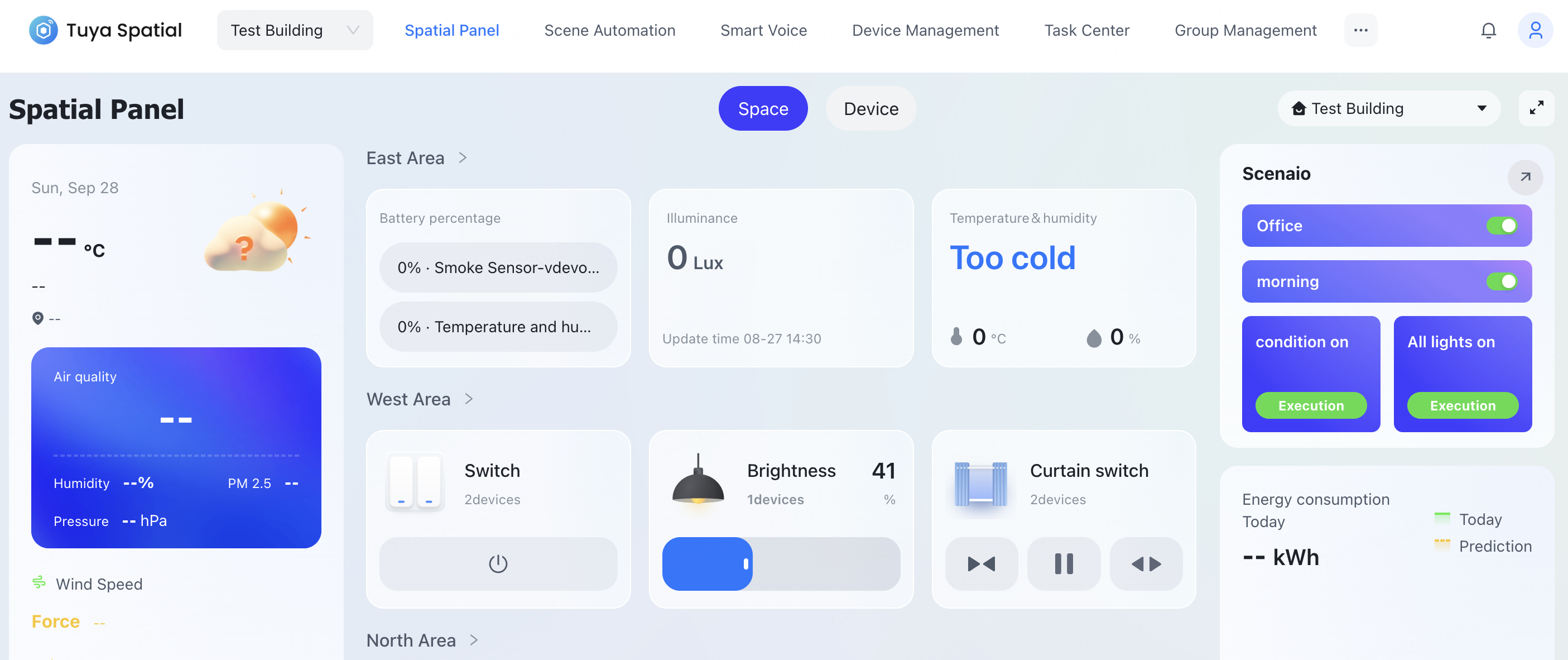
Spatial Panel is a versatile application built on spatial capabilities, specifically designed to empower users in efficiently managing diverse spaces, such as offices, homes, and commercial environments. By visually presenting spatial data, this panel simplifies the management and control of devices and environmental factors within a space, enabling intuitive perception and intelligent control of spatial status.
Utilizing the Spatial Panel facilitates the intelligent and efficient management of spaces, contributing to an enhanced experience for smarter living and working environments. This topic describes the main features of Spatial Panel.
Application structure
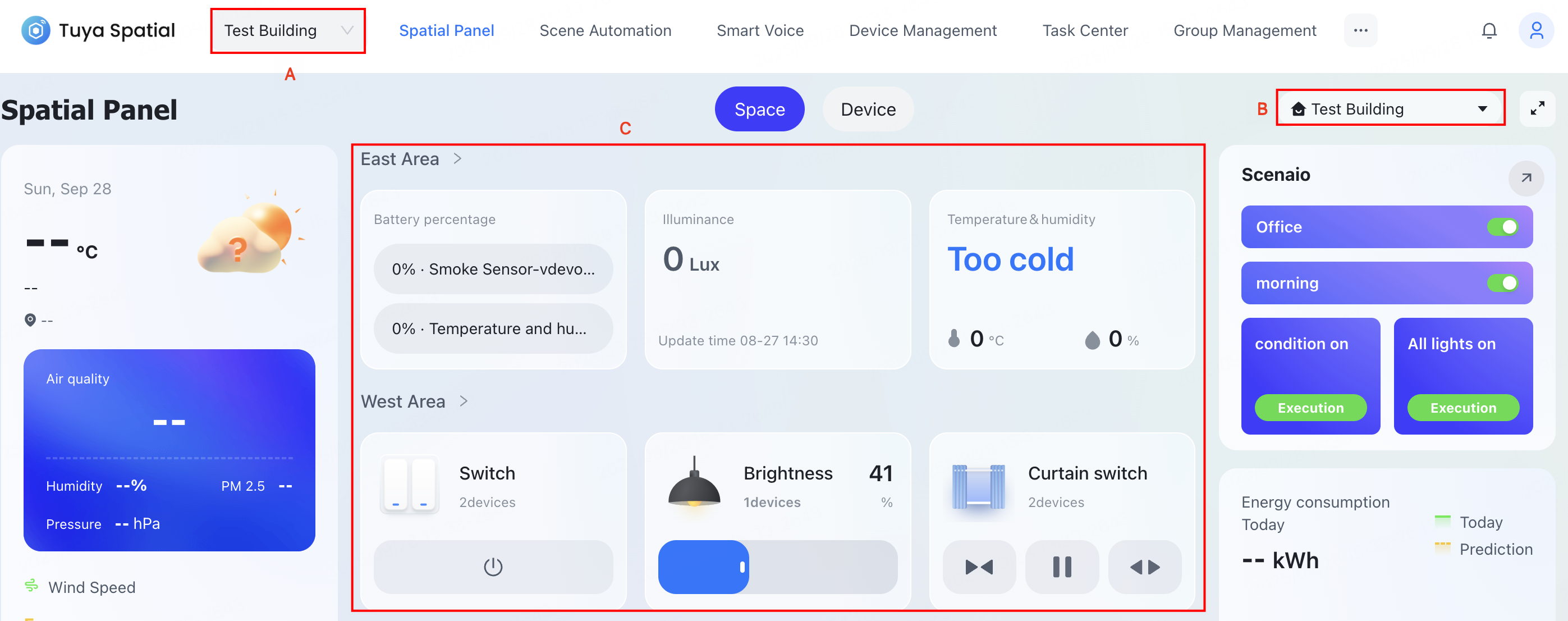
Spatial Panel primarily consists of the following key functional modules:
- Project switching: Allow switching between different management projects, helping manage multiple spaces or locations easily. It is located in the top left corner of the page, as shown in Area A of the figure.
- Space switching: Select any level of space within the current project to flexibly manage devices and statuses across different spaces. It is located in the top right corner of the panel, as shown in Area B of the figure.
- Space cards: Display various data for each space, such as temperature, humidity, and illumination. You can directly operate the cards. They are located in the center of the panel, as shown in Area C of the figure.
Features
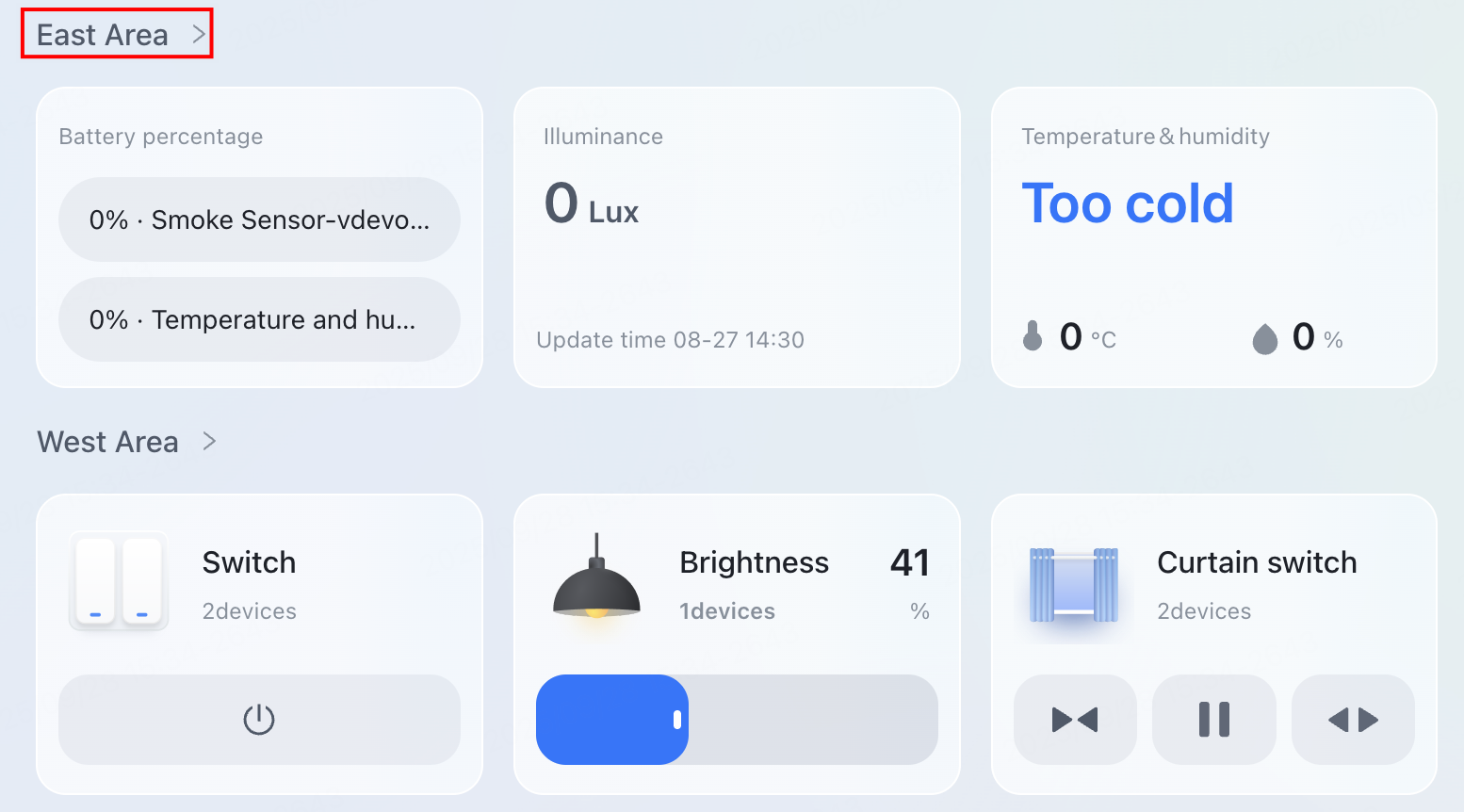
View spatial details
You can click the name on a space card to access its details page and view comprehensive spatial information.

Add a spatial card
-
You can add a spatial card using either of the following two methods:
-
Method 1: At the bottom of the Spatial Panel application, click the Add (+) button.

-
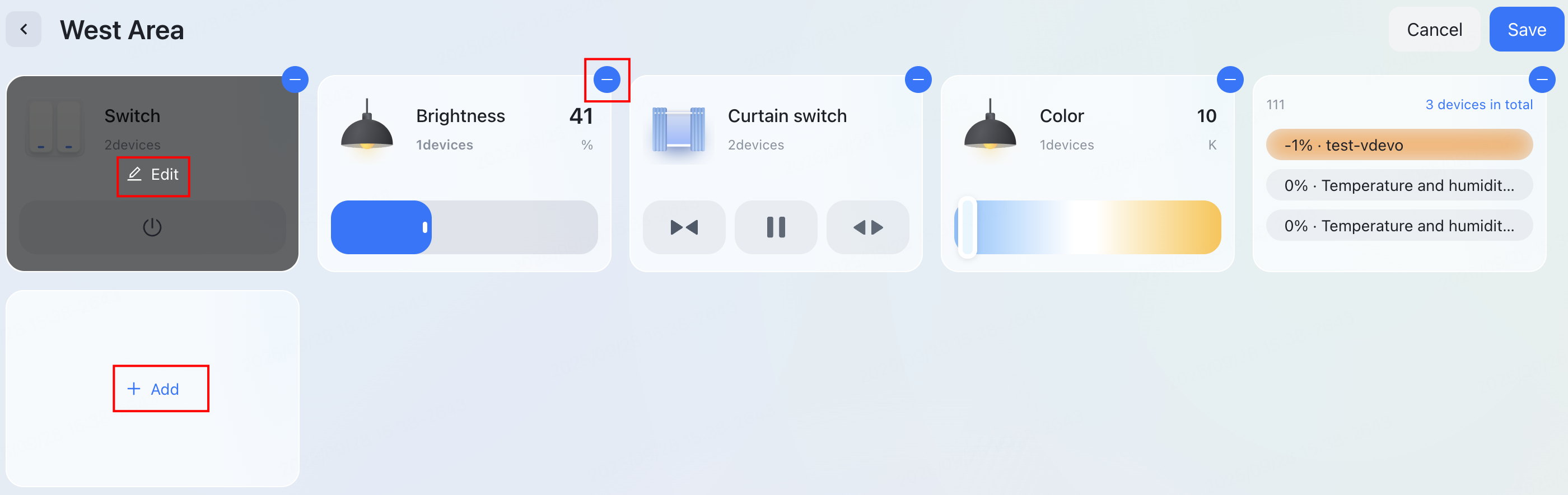
Method 2: Click the specific space name to go to the details page, click Edit, and then click Add on the edit page.


-
-
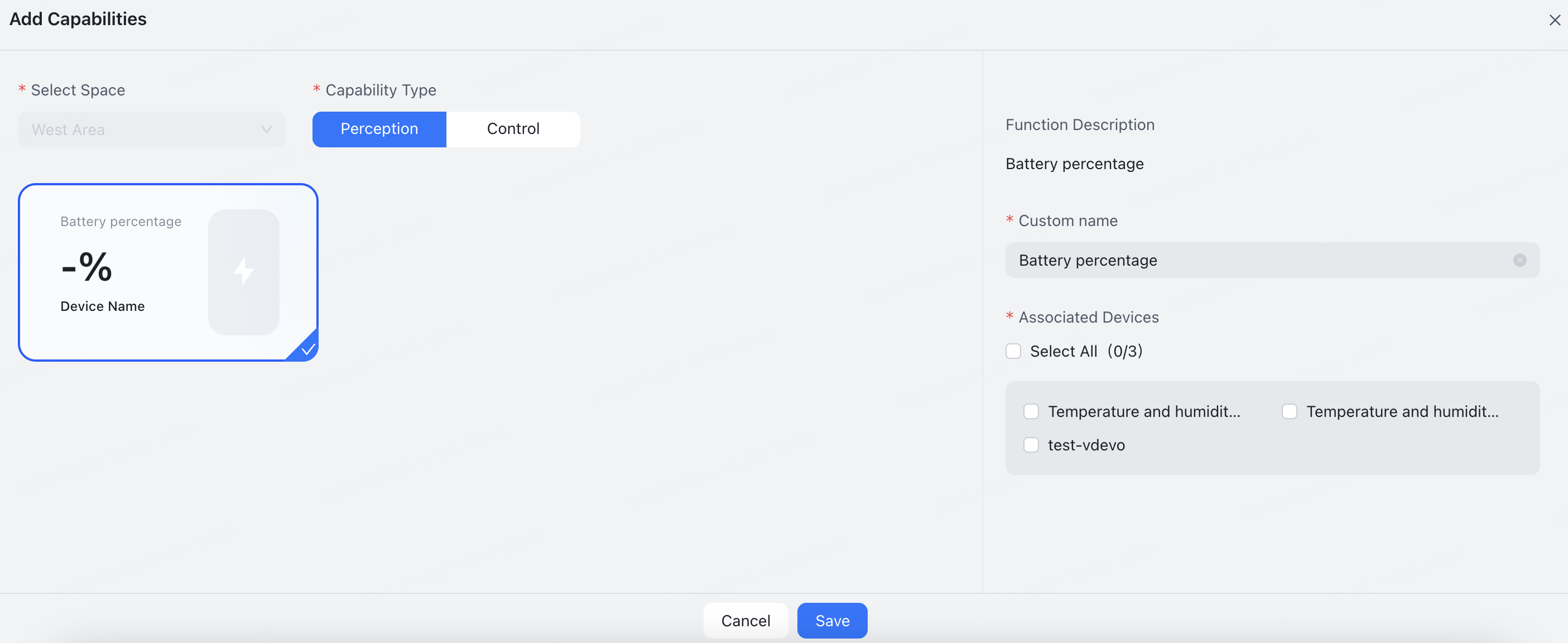
On the Add Capabilities page that appears, select the desired card capability type, complete the relevant configuration, and then click Save.
The cards are categorized into two types: Perception and Control. When adding a new card, the system will suggest corresponding cards based on the spatial capabilities currently matched within the space. Cards whose capabilities do not match will not be displayed.
- Spatial perception cards: Automatically generate various perceptual data, such as temperature, humidity, air quality, and illuminance, helping you monitor the spatial environment in real-time.
- Spatial control cards: Provide control options for devices within the space. For example, turn lights on/off, adjust curtains, and set the air conditioner.
Edit panel
If you have edit permissions for the Spatial Panel, you can go to the space’s details page, click Edit, and perform personalized configurations on the cards. Specific operations include:
- Sort cards: Drag and drop to adjust the display order of cards on the panel, facilitating prioritized viewing of important information.
- Add cards: Add new functional cards as needed, such as environmental comfort or device status monitoring.
- Remove cards: Click the delete button in the top right corner of a card to remove it.
- Edit cards: Hover over a card and click Edit to enter its editing page.

Is this page helpful?
YesFeedbackIs this page helpful?
YesFeedback




