

Role Permissions
Overview
As a system setting application, Role Permissions enables you to create system roles with varying application permissions, effectively differentiating the functional scope accessible to different accounts.
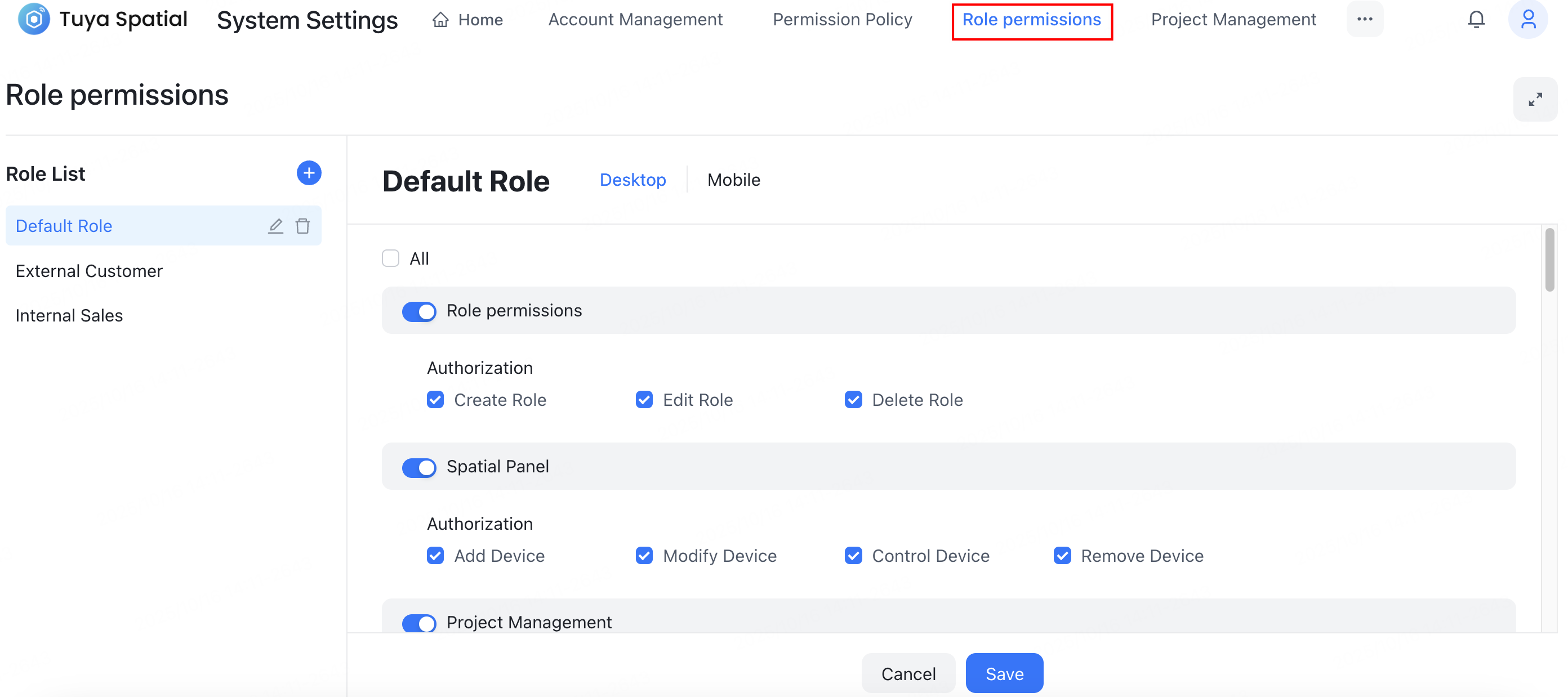
Features
Entry to the feature
Click the avatar in the top right corner of the system. In the dropdown menu, click System Settings and select the Role Permissions application.

Create role
To create a role, navigate to the Role permissions page, click the Add (+) button on the right side of the role list, then enter the role name and select the permissions to copy from an existing role.

Edit role
-
Modify a role name. In the role list, select the role you wish to edit, click the Edit button, and then modify the role name.

-
Modify role permissions. In the role list, select the role you wish to edit. On the permissions page on the right, modify the scope of permissions granted to this role and save the changes. Also, in the Mobile tab, you can edit the role’s scope of permissions on the app.

Delete role
In the role list, select the role you wish to delete, click the Delete button, and then confirm the action.

Manage permissions
To grant application permissions to a role, first enable the application permission for the role. Take Account Management as an example. Then, select the specific operational permissions the role should possess.

Is this page helpful?
YesFeedbackIs this page helpful?
YesFeedback




