

Space Management
Overview
Space is used to record the physical location relationships of paired devices. The Space Management application is primarily used for maintaining spatial master data.

Features
Set up permissions
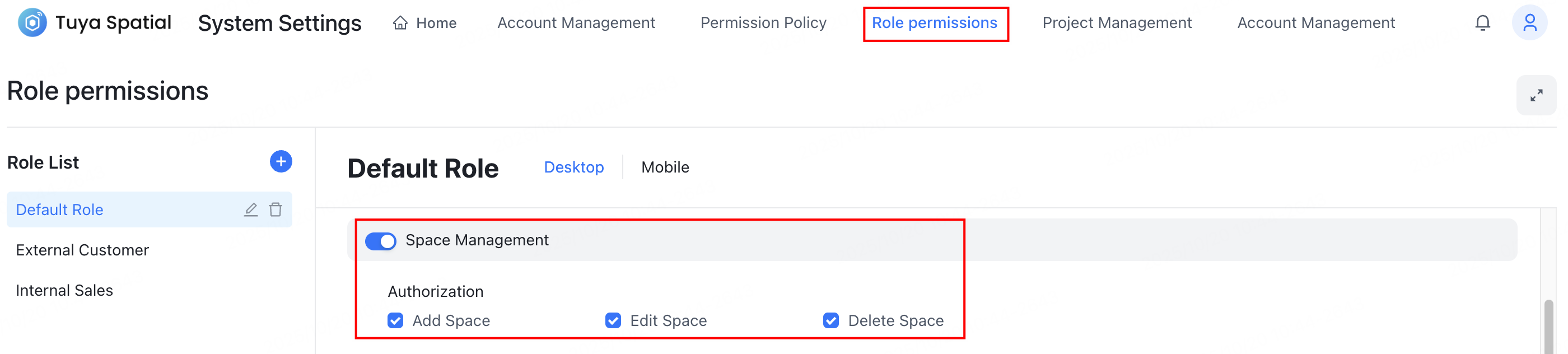
Before using the space management feature, make sure your account has been granted access permissions to the Space Management application.
To grant permissions to accounts with different roles, click the avatar in the top right corner of the system. In the dropdown menu, click System Settings and navigate to the Role permissions application. Then, enable the Space Management permission for the target role and select the specific operational permissions it should possess.

Add space
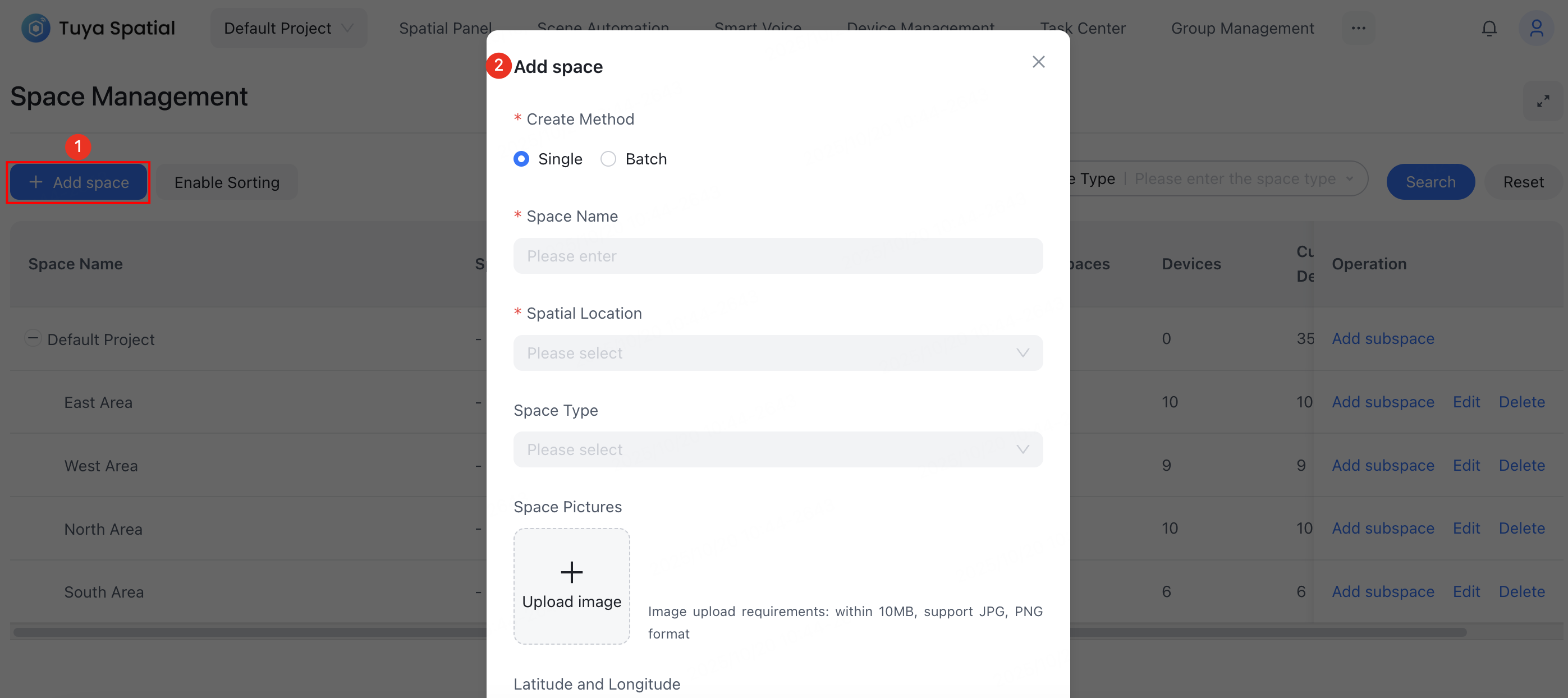
To create a new space, navigate to the Space Management page and click Add space in the top left corner.
Then, in the Add space dialog, choose the method: Single or Batch. Configure the space name, type, and other relevant information. Click OK to complete the creation.
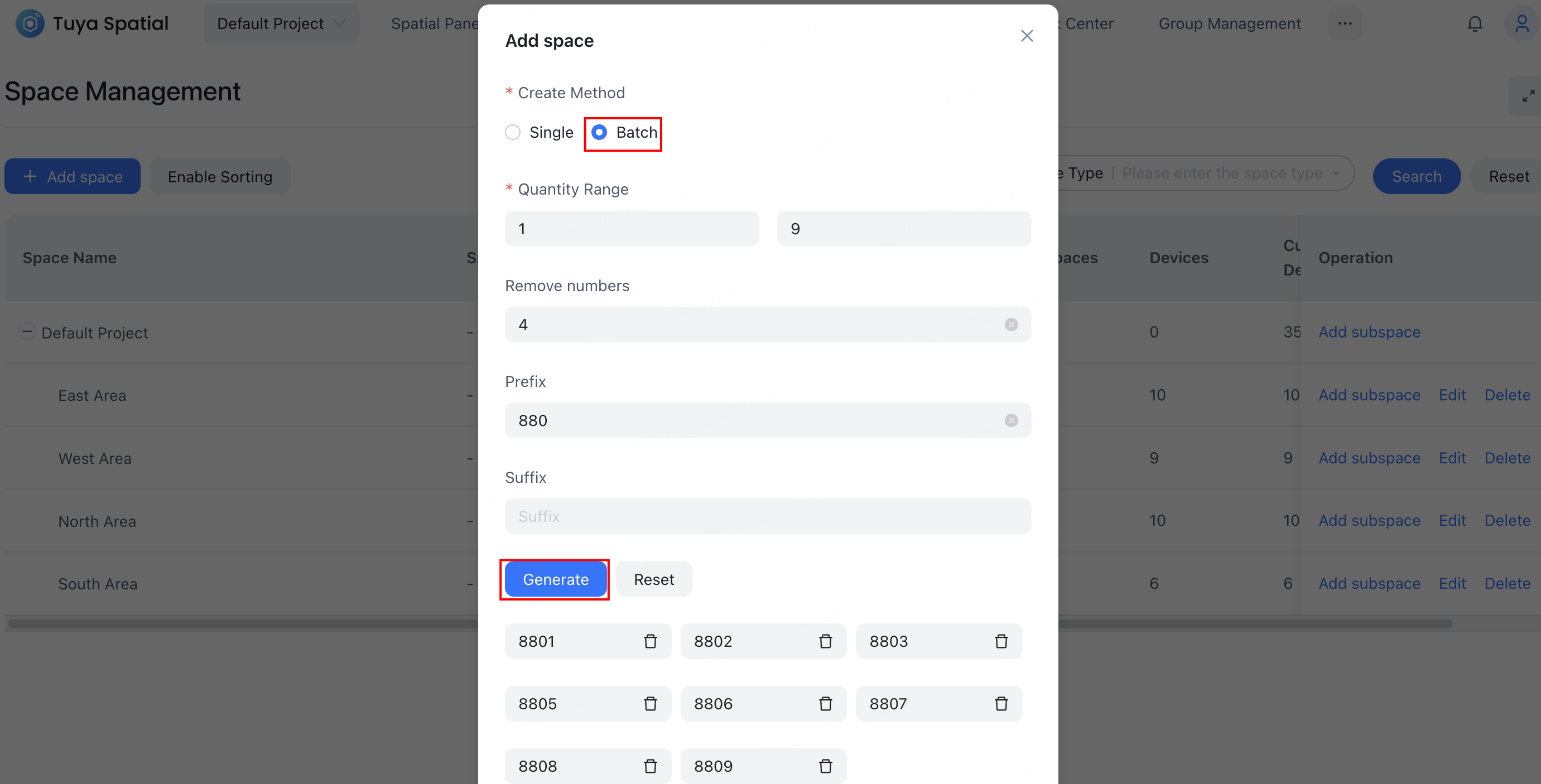
When selecting the batch create method, you must specify the quantity range for the space names. For example, to create guest rooms 8801 to 8809 while excluding the number 4, configure the settings as shown in the figure below.
Add subspace
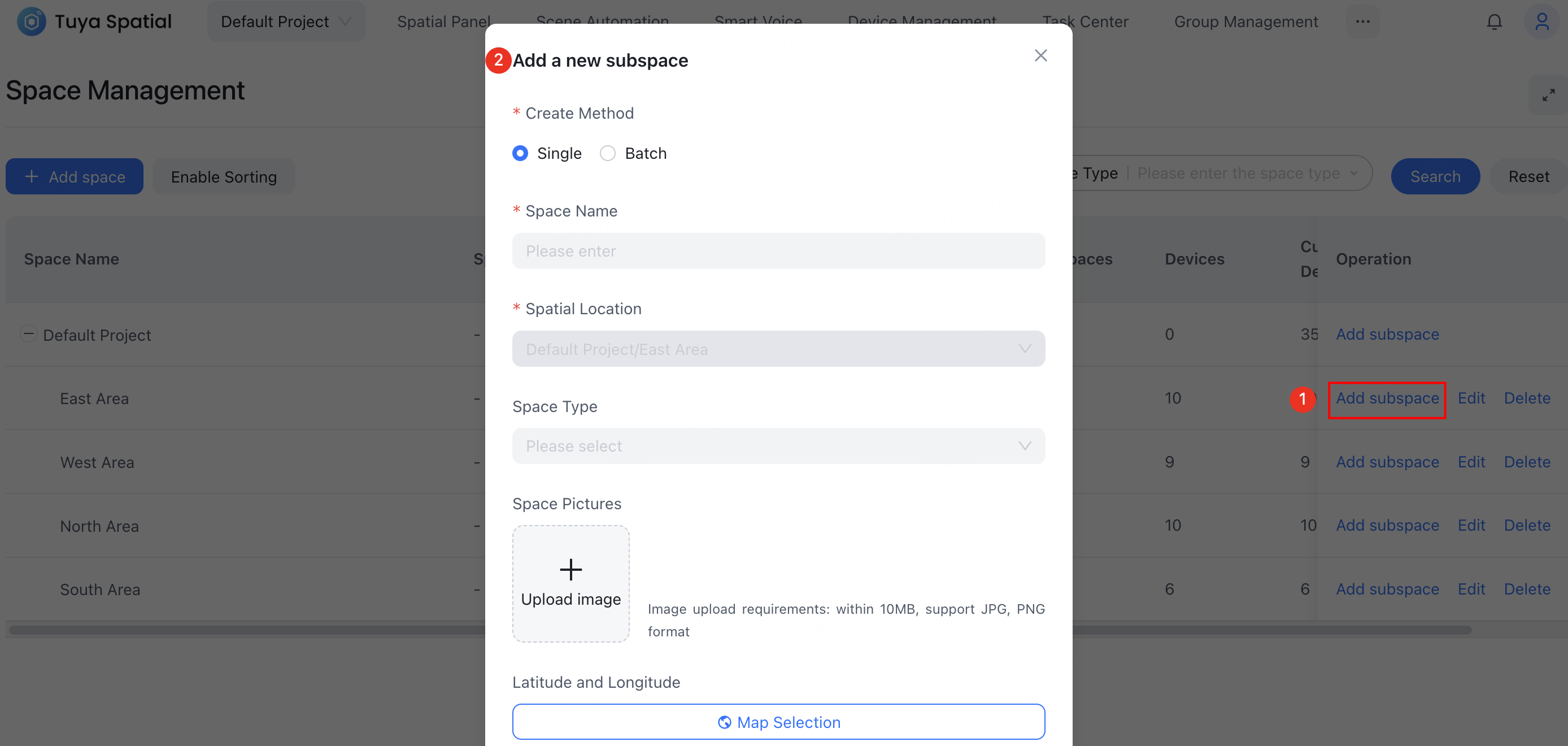
To create a subspace under a specific space node, find the target space, click Add subspace in its Operation column, and then configure the relevant space information.
Edit space
To edit a space’s information, find the target space, click Edit in its Operation column, and then modify the relevant details.

Delete space
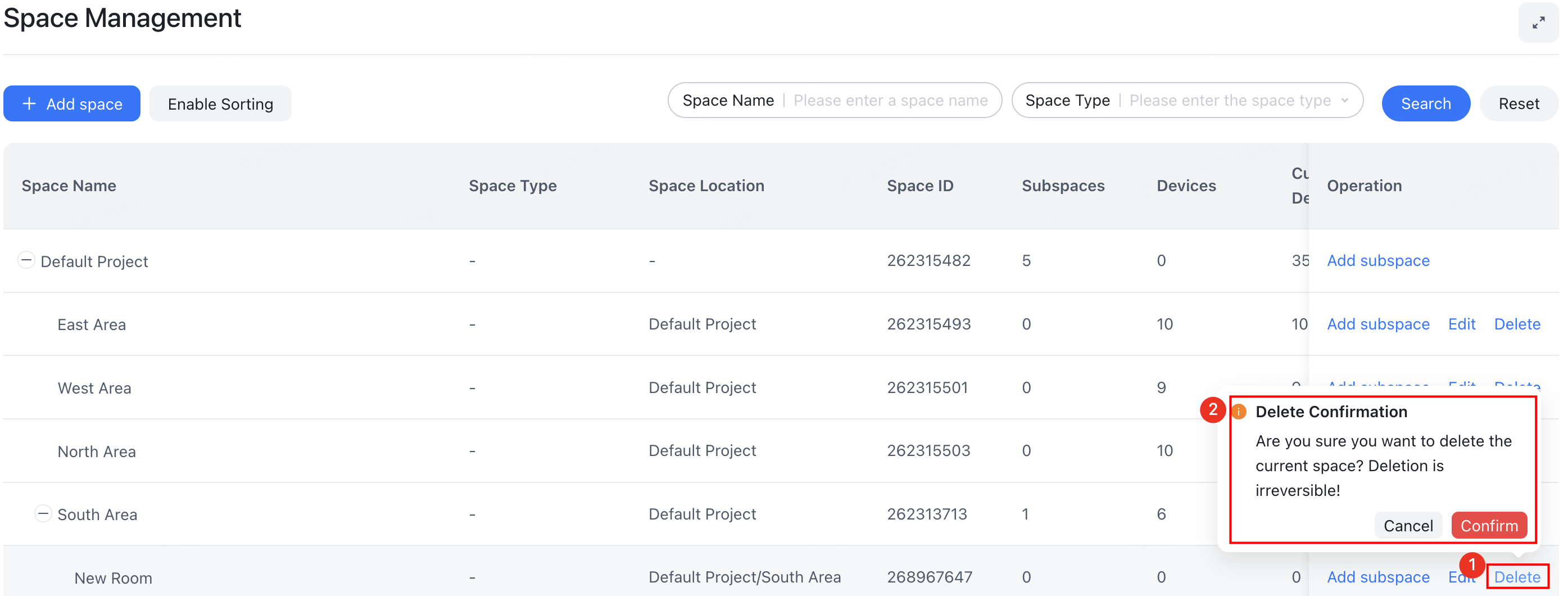
To delete a space, find the target space and click Delete in its Operation column.
You must ensure the space contains no devices and that all its subspaces have been deleted beforehand. A space containing subspaces cannot be deleted.
Sort spaces
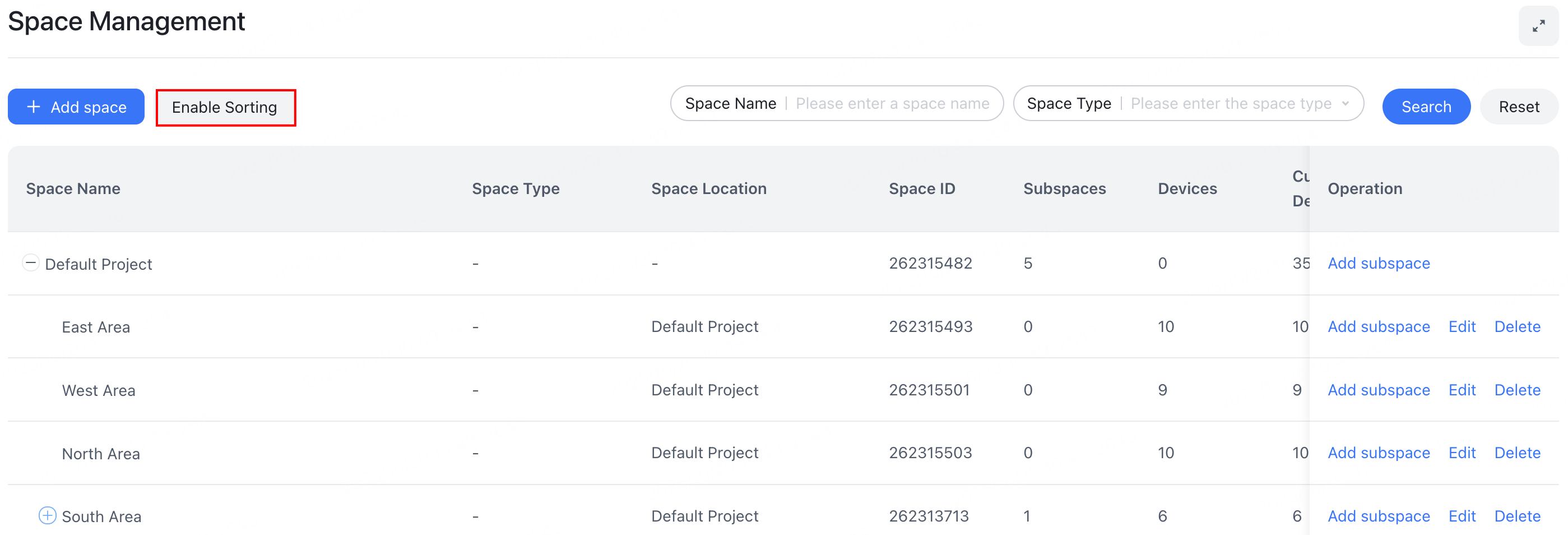
To adjust the order of spaces, click Enable Sorting in the top left corner of the page. Then, hold down your mouse to drag and drop the spaces into the desired order.

Is this page helpful?
YesFeedbackIs this page helpful?
YesFeedback




