

Voice Control
Overview
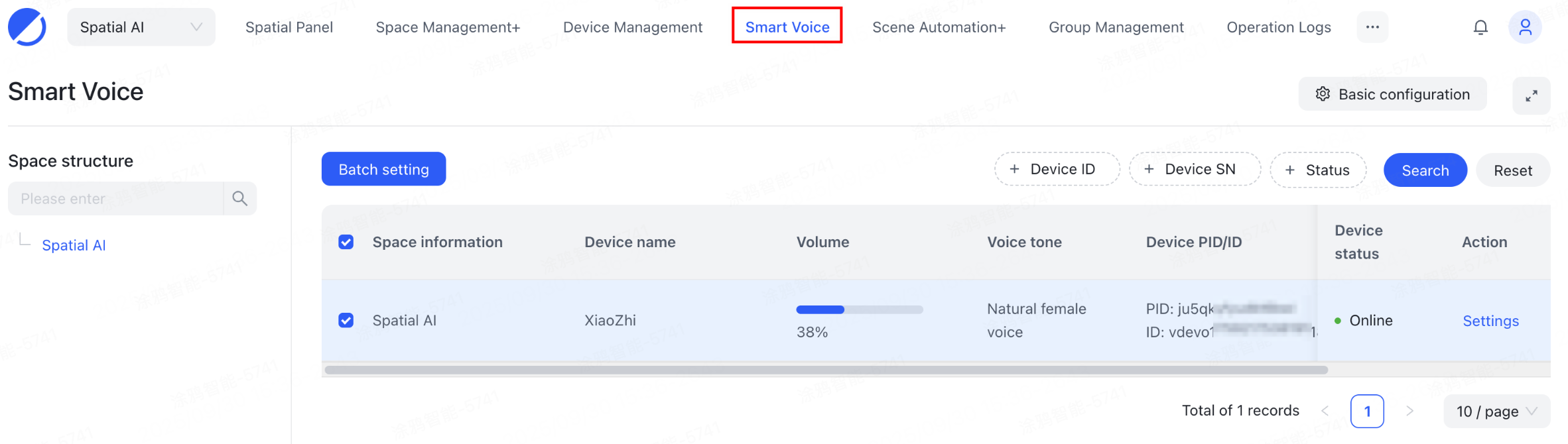
The Smart Voice application allows users to configure and manage smart voice devices. By sending voice commands, users can control smart devices within the same space or trigger tap-to-run actions.
Features
Connect to smart voice devices
Download the Tuya Spatial app, activate the smart voice device, and make sure it is located in the same space as the devices to be controlled.
Manage/configure smart voice devices
Currently, users can only manage and configure Xiaozhi Speaker (Pro). Configurable items include the speaker’s nickname, auto screen-off timer, auto-reset timer, night mode settings, voice switchover, and volume adjustment.

Control devices with voice commands
After initial activation or after updating devices, users can send the voice command "Tuya Smart, discover devices". The speaker can get the latest information about controllable devices.
Once devices are discovered, control devices, such as lights, curtains/blinds, and air conditioners, using voice commands. Examples include:
- "Tuya Smart, turn on/off [device name]"
- "Tuya Smart, turn on/off all [device name]"
- "Tuya Smart, set [device name] to [target value]"
- "Tuya Smart, set [device name] to [target percentage]%"
Trigger scene control with voice commands
After devices are discovered, control tap-to-run scenes by issuing the following voice command:"Tuya Smart, [Good Morning Mode/Sleep Mode/Bright Mode/Movie Mode/Guest Mode/Leisure Mode] or [tap-to-run scene name]".
For instructions on how to configure a tap-to-run scene, refer to Add tap-to-run.
Is this page helpful?
YesFeedbackIs this page helpful?
YesFeedback




