

Tuya Ride Development Guide
This guide helps hardware, embedded, app, and after-sales debugging developers troubleshoot common issues during the development and launch of Tuya mobility products, including electric bicycles, electric motorcycles, and scooters. It covers data point (DP) reporting, debugging tools, Human Interface Device (HID) proximity unlock, vehicle inspection, trip records and navigation, map selection, notification push, pairing and connection troubleshooting. The capabilities are available on the Tuya Developer Platform and the public app Tuya Ride (涂鸦出行).
Notes
- In this guide,
dpXXindicates the DP ID of a device. The feature name and identifier depend on the DP list configured on the platform. - Bluetooth vehicle means Bluetooth LE only. 4G vehicle means cellular (Cat.1 or NB) only. BLE+X means a dual-mode architecture in which Bluetooth LE is the system hub, and the cellular module is managed by the Bluetooth LE module.
- If you cannot locate an issue on the platform backend, or if the DP list or tool entry mentioned in this guide does not appear on your product configuration page, contact your Tuya project contact or submit a service ticket.
- For the reference documents, search by title in the Tuya Developer Documentation Center.
DP reporting rules
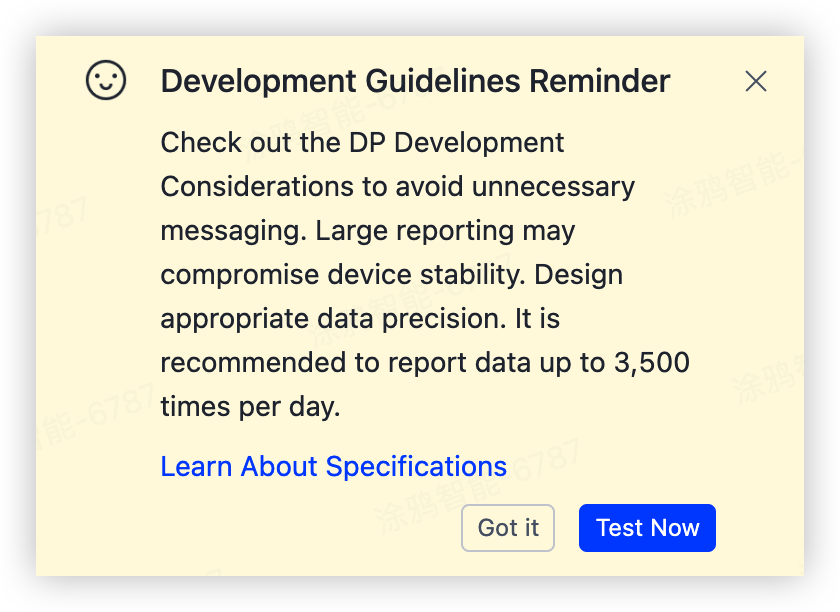
Recommended reporting rules:
-
Sync all DPs during pairing and reconnection queries: Ensure the cloud gets a full snapshot on the first sync.
-
Pack DPs reported in periodic loops: The cloud bills by DP report count. Packed reporting greatly reduces report count and cellular data traffic.
-
Report on changes in other scenarios: Do not report a DP again when its value does not change.
-
Do not report DPs that do not need cloud records: Examples include riding time and vehicle speed, which only need local display.
-
Pack and report trip-related DPs on BLE+X devices: Tuya recommends reporting every 5 to 10 seconds to avoid a single-point report storm.
Reporting frequency and DP packing directly affect daily cloud bills. Follow these rules from the start of a new design to avoid rework after mass production.
Debugging tools
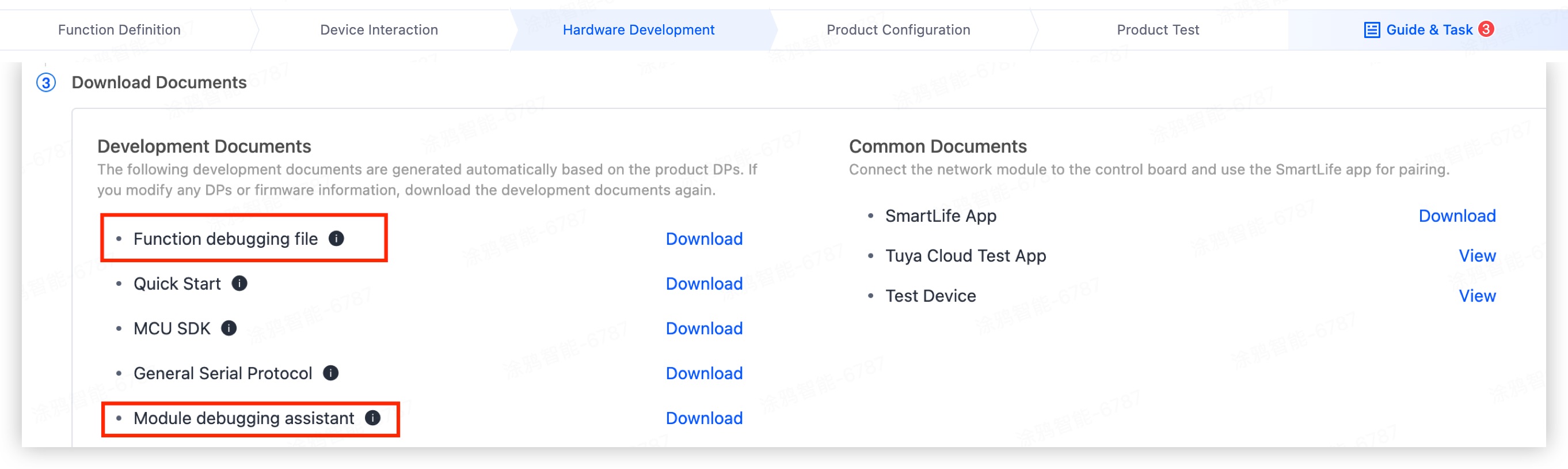
Module Debugging Assistant
The Module Debugging Assistant from Tuya enables a PC to communicate with a Bluetooth or 4G module via a serial port. It is the first tool to use during the embedded integration phase. The tool provides two modes:
-
Module simulation: The PC acts as the module to verify how the MCU code behaves after it receives protocol frames (suitable for the MCU general integration solution).
-
MCU simulation: The PC acts as the MCU to verify the module firmware behavior over the serial port and the pairing flow (suitable for module firmware or TuyaOS joint debugging).
Download
Go to the Tuya Developer Platform. Go to Product Development > Hardware Development > Download Documents, and download the PC debugging tool package. The usage instructions are bundled in the package.
Usage
After you open the debugging assistant, follow these steps:
-
Click Switch Protocol to switch between MCU Simulation and Module Simulation, and then complete the corresponding configuration.
-
Under Settings, complete the following configuration:
- Serial port configuration: Select Serial Port Name and Baud Rate.
- DP file: Import the DP debugging file.
- Select the working mode:
Solution Working mode General integration module (MCU SDK) MCU and module cooperate TuyaOS solution (the module runs the application logic directly) Module self-processing
-
Under Operations, send serial commands by protocol field to verify the module response to DP and pairing commands.
Multilingual configuration
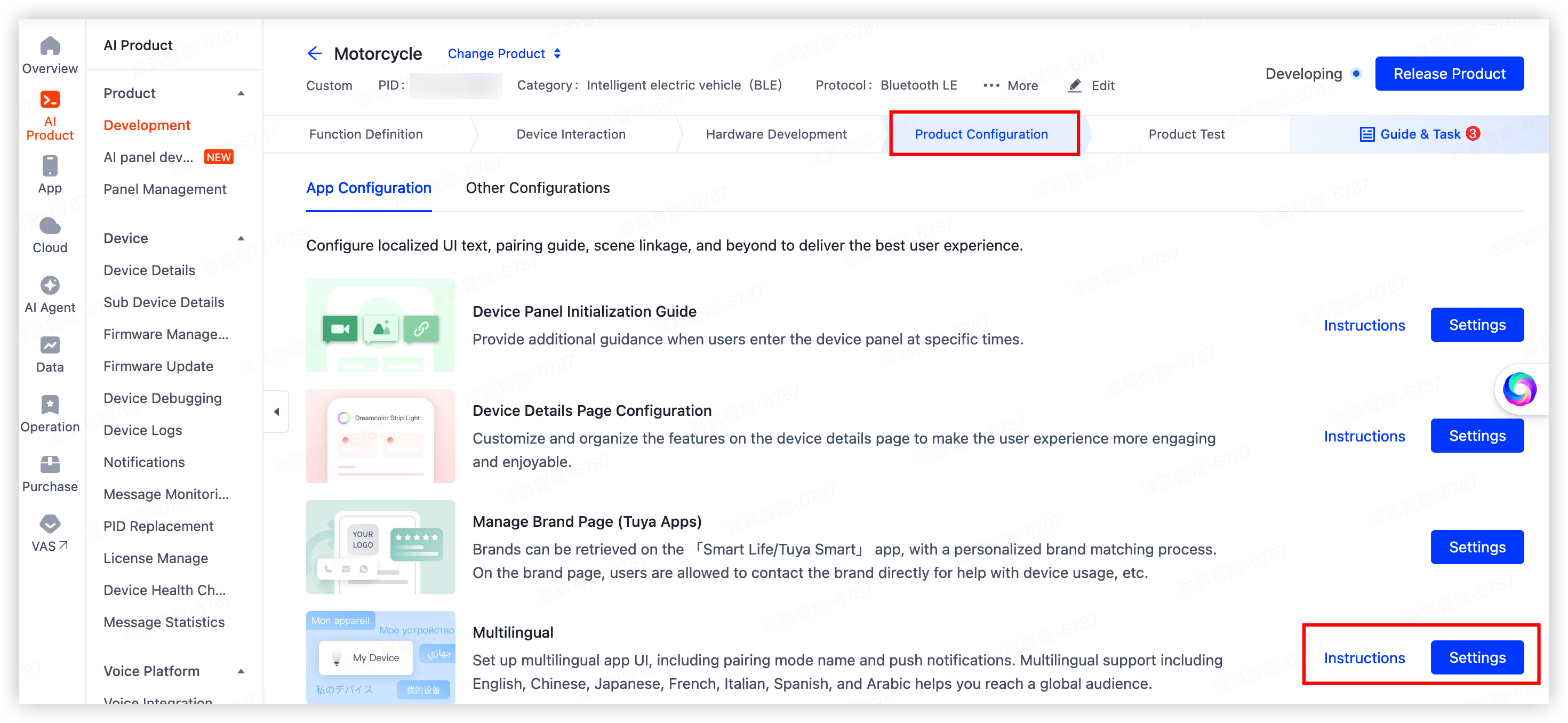
The app text, panel prompts, and fault alerts for Tuya mobility products come from the platform multilingual configuration. If you do not configure multilingual entries, the app shows blank text or raw keys. Follow the figures below to complete the configuration. For more information, see Multi-Language Management.
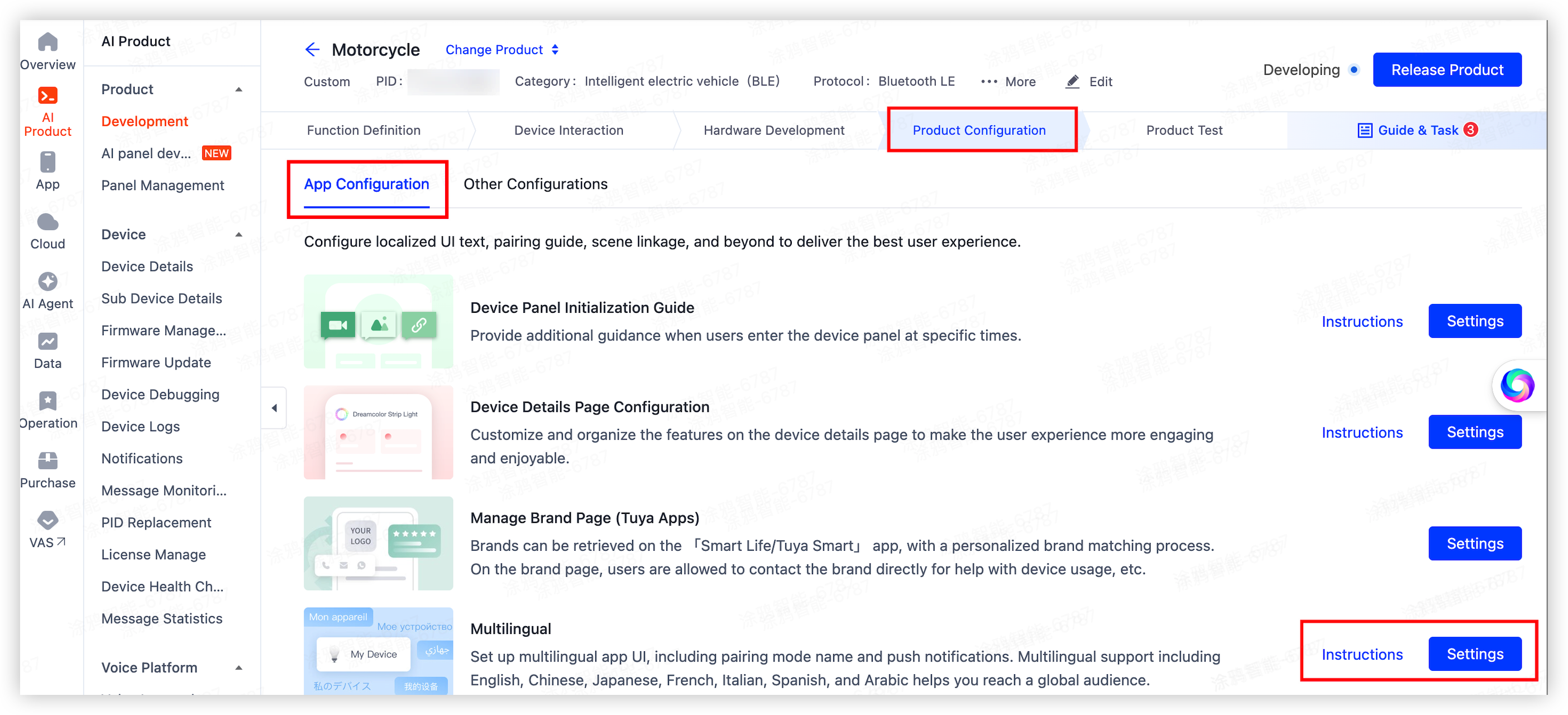
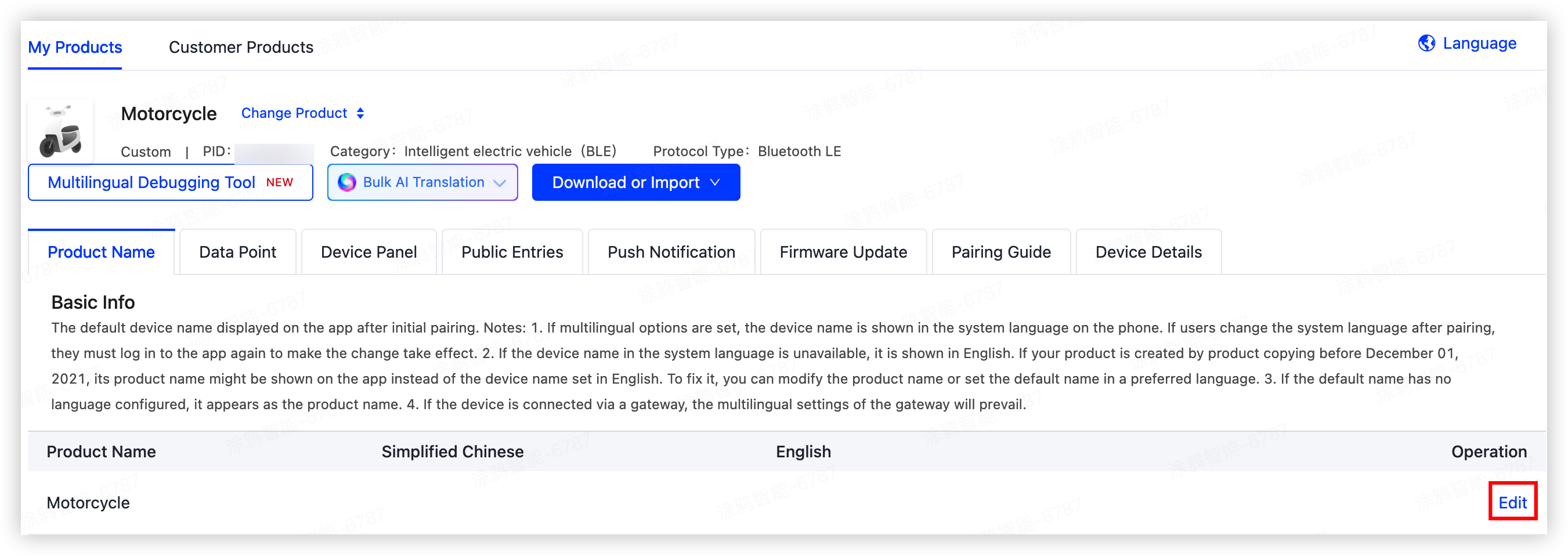
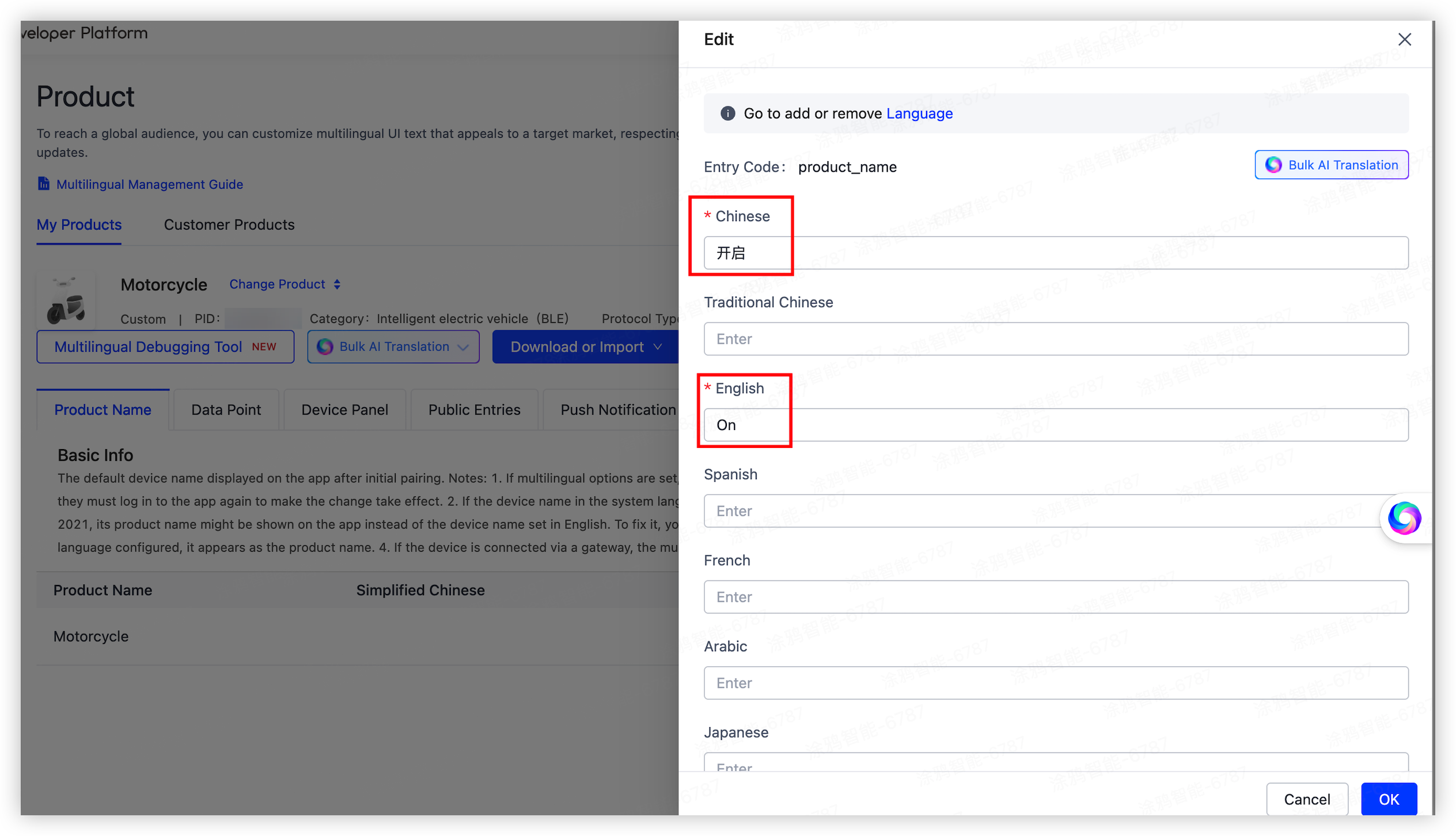
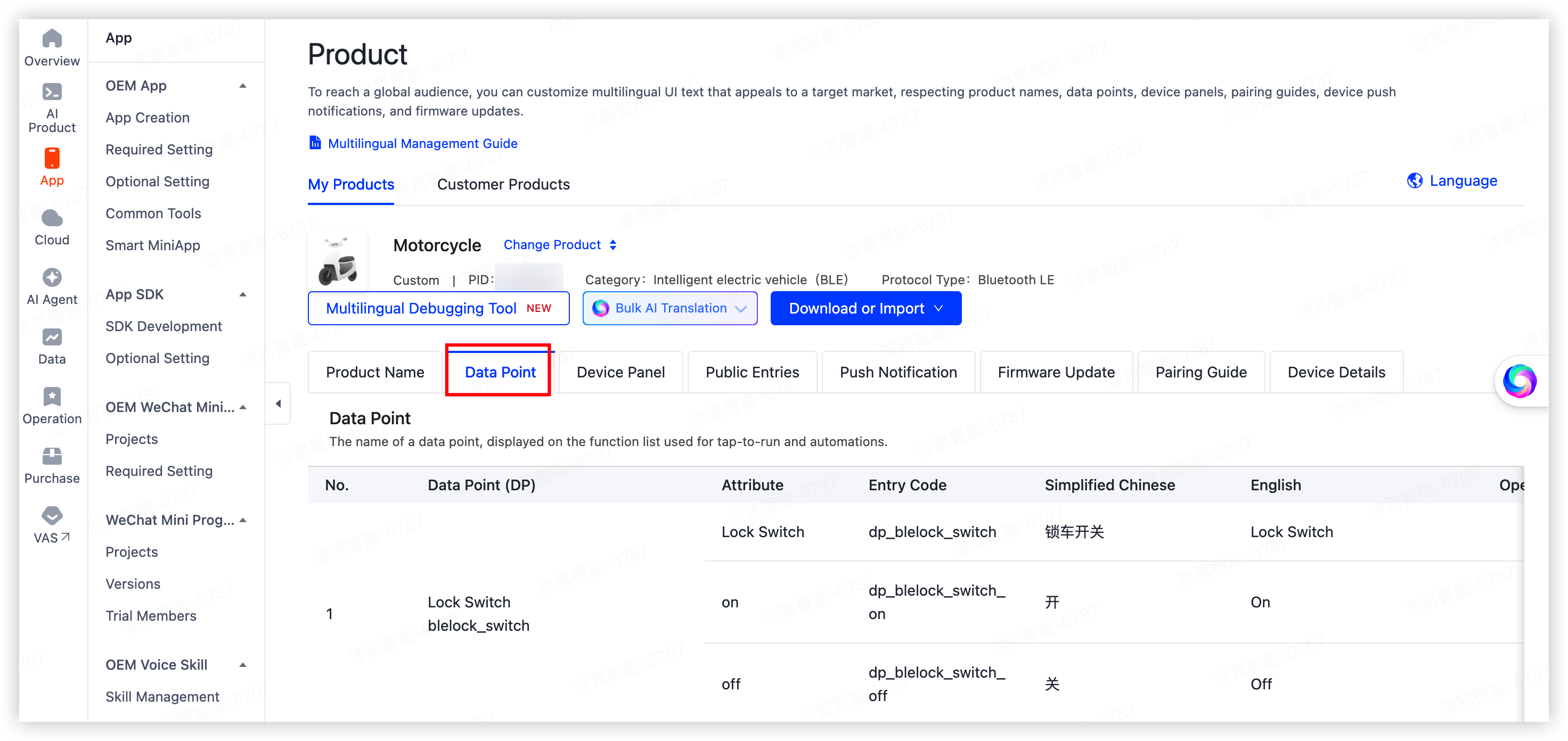
Enter descriptions for each language. You must configure Simplified Chinese and English. Configure other languages as needed.
Before you launch custom DPs or custom fault values, complete the corresponding multilingual entries. Missing entries appear as keys or empty strings in the app and often cause after-sales complaints.
Battery information
Battery data is critical for mobility products. Tuya recommends that you organize battery DPs from pack summary and cell details.
DP design recommendations
| Dimension | Recommended DP type | Typical fields | Description |
|---|---|---|---|
| Pack summary | Standard DP (Value/Enum/Bitmap) | State of charge (SOC), total voltage, total current, battery temperature, charging status, cycle count, and estimated range. | Displayed directly on the public app panel and home page. Report on changes. |
| Battery Management System (BMS) fault | Fault/Bitmap | BMS communication fault, overcharge, overdischarge, overtemperature, and cell voltage delta alert. | Used for vehicle inspection and alert push. See Vehicle inspection. |
| Cell details | Raw DP | Cell voltage in mV, temperature in °C, internal resistance, and balancing status. | Displayed on secondary pages or tool pages. Use Raw pass-through for private BMS protocol fields. |
The actual DP IDs and identifiers follow the standard DPs you select Product Configuration > Function Definition. Configure multilingual entries for all custom DPs. For more information, see Multilingual configuration.
Reporting and protocol key points
-
Filter SOC jitter: Raw SOC from the BMS might jump by 1 to 2%. Smooth on-device (moving average or hysteresis), then report on change.
-
Report charging status changes: Report transitions from not charging to charging or fully charged, and then to unplugged. Otherwise, the app cannot switch to the charging animation in time.
-
Define units and byte order in the protocol document: Common voltage units include
0.01 VandmV. Common current units include0.01 AandmA. Clearly define units, byte order, and signedness in the protocol document to prevent app panel rework. -
Pass through the BMS protocol with Raw: For common private BMS protocols, encapsulate the protocol as a Raw DP for pass-through. The app or cloud parses the payload per the BMS vendor protocol.
-
BLE+X devices: Pack high-frequency DPs, such as battery level, voltage, and faults, during riding. For more information, see DP reporting rules.
NFC and password management
Electric vehicle apps usually provide NFC cards and power-on passwords as local unlock methods. Use them as fallbacks when the phone is dead, the network is down, or HID is unavailable.
DP configuration
| DP ID | DP name | DP code | Data transfer type | Data type | Description |
|---|---|---|---|---|---|
| 81 | Add NFC card | nfc_id_input |
Send and report (read-write) | String | See Add NFC card |
| 82 | Delete NFC card | nfc_id_delete |
Send and report (read-write) | String | See Delete NFC card |
| 83 | NFC card sync | nfc_id_sync |
Report only (read-only) | String | Reporting format: [{"nfc_id":"ID"},{"nfc_id": "ID"}]. The number of {} objects indicates the number of card slots supported by the app or device. |
| 84 | NFC card reset | nfc_id_reset |
Send and report (read-write) | String | See Reset NFC card |
| 87 | Create password | password_creat |
Send and report (read-write) | Raw | See Create password |
| 88 | Delete password | password_delete |
Send and report (read-write) | Raw | See Delete password |
| 89 | Sync password | password_sync |
Report only (read-only) | Raw | Reporting format: [{"pass_id":"ID","pass":"password"},...]. The number of {} objects indicates the number of password slots. |
dp81: Add NFC card (nfc_id_input)
- Send:
- Add an NFC card:
{"publish":"1"} - Cancel adding:
{"publish":"0"}
- Add an NFC card:
- Report:
- Added successfully:
{"upload":"1"} - Cancellation from the app:
{"upload":"2"} - Local cancellation:
{"upload":"4"} - Unauthenticated card:
{"upload":"5"} - Quantity limit exceeded:
{"upload":"6"}
- Added successfully:
dp82: Delete NFC card (nfc_id_delete)
- Send:
{"nfc_id":"ID"} - Report:
- Deleted successfully:
{"upload":"1"} - Failed to delete:
{"upload":"0"}
- Deleted successfully:
dp84: Reset NFC card (nfc_id_reset)
- Send:
{"publish":"1"} - Report:
- Reset successfully:
{"upload":"1"} - Failed to reset:
{"upload":"0"}
- Reset successfully:
dp87: Create password (password_creat)
- Send:
{"pass_id":"ID","pass":"Password"}. Send only one group at a time. - Report:
- Created successfully:
{"upload":"1"} - Failed to create:
{"upload":"0"} - Quantity limit exceeded:
{"upload":"2"}
- Created successfully:
dp88: Delete password (password_delete)
- Send:
{"pass_id":"ID"} - Report:
- Deleted successfully:
{"upload":"1"} - Failed to delete:
{"upload":"0"}
- Deleted successfully:
Sync, add, and delete NFC cards
- Sync after power-on or network connection: The device reports
nfc_id_sync. For example, if the device supports up to three cards, report[{"nfc_id":""},{"nfc_id":""},{"nfc_id":""}]. When the slots are full, the app disables the Add button. - Add: The app sends dp81
{"publish":"1"}and displays a 30 s countdown. After the card is read successfully, the device reports{"upload":"1"}and refreshesnfc_id_sync, for example[{"nfc_id":"1234"},{"nfc_id":"4321"},{"nfc_id":""}]. When the user cancels, the app sends{"publish":"0"}, and the device reports{"upload":"2"}. No further list sync is required. - Delete: The app sends dp82
{"nfc_id":"ID"}. On success, the device reports{"upload":"1"}and syncs the list. On failure, the device reports{"upload":"0"}and does not sync. - Reset (clear all): The app sends dp84
{"publish":"1"}. On success, the device reports{"upload":"1"}and syncs a list of empty slots. On failure, the device reports{"upload":"0"}.
For extended reporting values, configure the multilingual field ty_outdoor_dp_nfc_id_input_id in the app.
Sync, add, and delete power-on passwords
Sync after power-on or network connection: The device reports password_sync. For example, if the device supports up to two password groups, report [{"pass_id":"","pass":""},{"pass_id":"","pass":""}]. When the slots are full, the app disables adding.
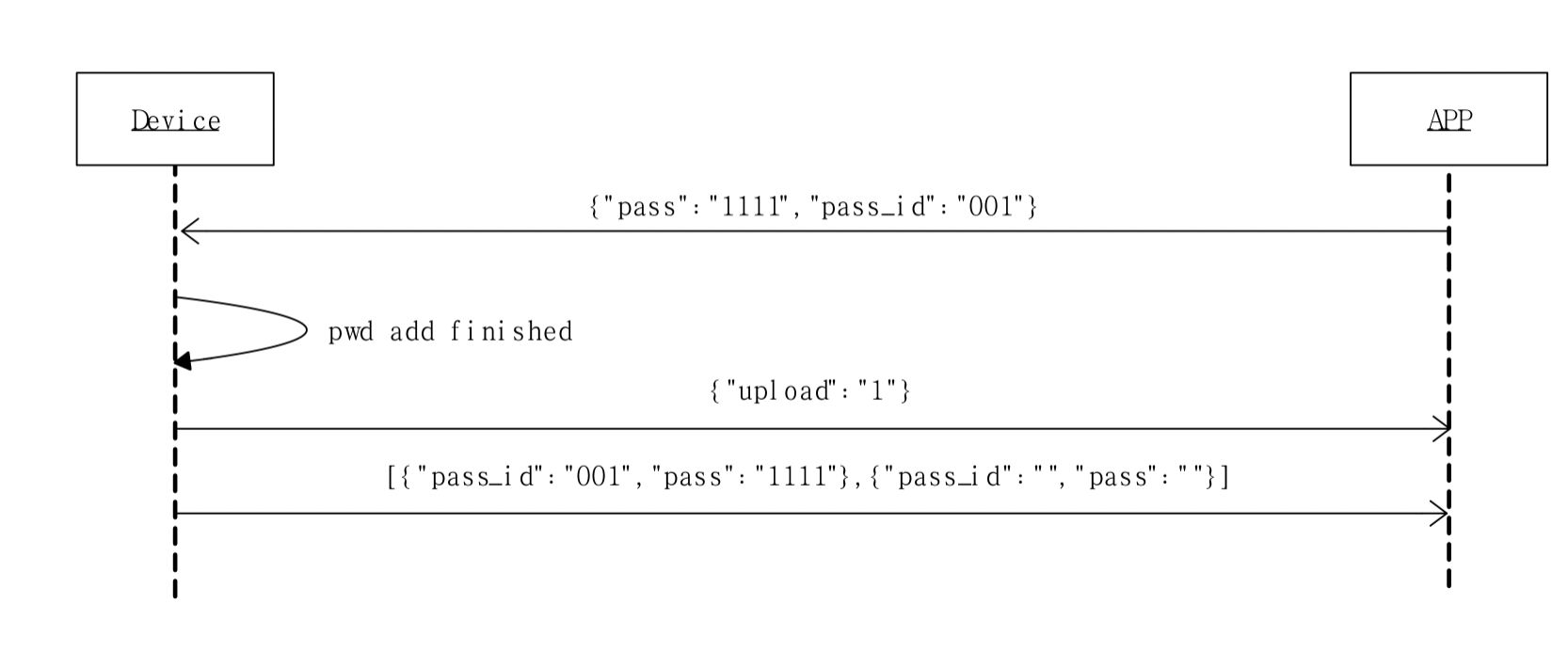
Add password
After the user enters a four-digit PIN in the app dialog, the app sends dp87 (password_creat) such as {"pass_id":"001","pass":"1234"}. On success, the device reports {"upload":"1"} and performs a full password_sync.
Delete password
The app sends dp88 (password_delete) {"pass_id":"001"}. On success, the device reports {"upload":"1"} and syncs the list. On failure, the device reports {"upload":"0"} and does not sync.
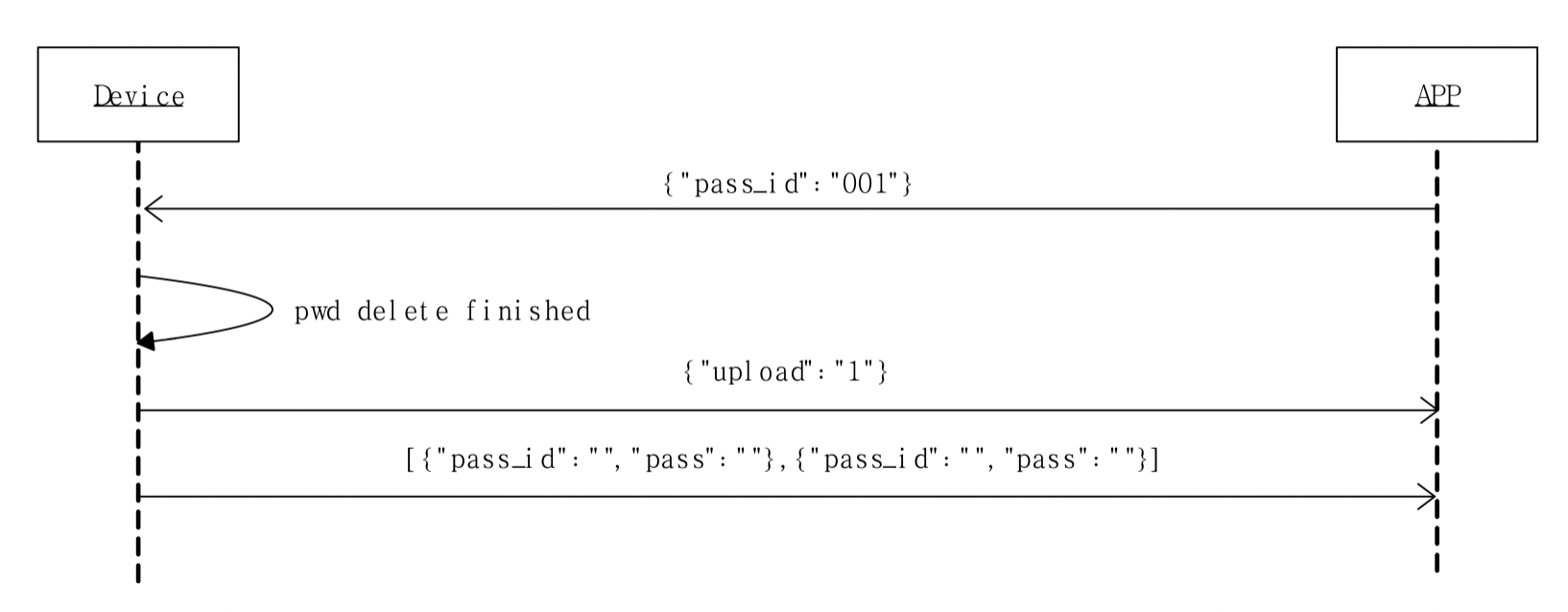
For extended reporting values, configure the multilingual field ty_outdoor_dp_password_creat_id.
Password DPs, including dp87 to dp89, use Raw type. The cloud does not store these DPs. After the device connects to the network, the device must initiate password_sync reporting before the app can display the local password list.
Product and security requirements
- The app provides add, name, delete, and enable or disable NFC cards. The device unlocks by local UID matching without network access. The unlock source is reported through a DP for trip records and auditing.
- The app sets a 4- to 6-digit PIN (the public interaction uses 4 digits). The MCU verifies it and stores it locally. Do not log the password in plain text or upload it to the cloud.
- Tuya recommends that you support lockout, delay, or alert reporting after N wrong inputs. Write the strategy into DPs and the protocol document.
- On unbind, clear the NFC whitelist and power-on password. Force a reset when the primary user changes.
- The NFC whitelist and the power-on password are sensitive data once written to the device. Tuya recommends that you encrypt the storage data.
- Do not print the PIN or card UID as plain text in the serial log. Disable related debug output in mass production firmware.
- Do not hard-code a default password (such as
0000or123456) as the factory fallback to avoid batch attacks.
Firmware update and OTA
Why does the app still prompt an update after you remove firmware?
Symptom: After a developer removes a firmware version, the app still prompts users to update to a new version.
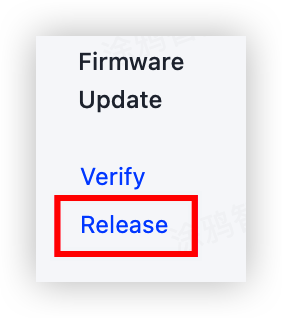
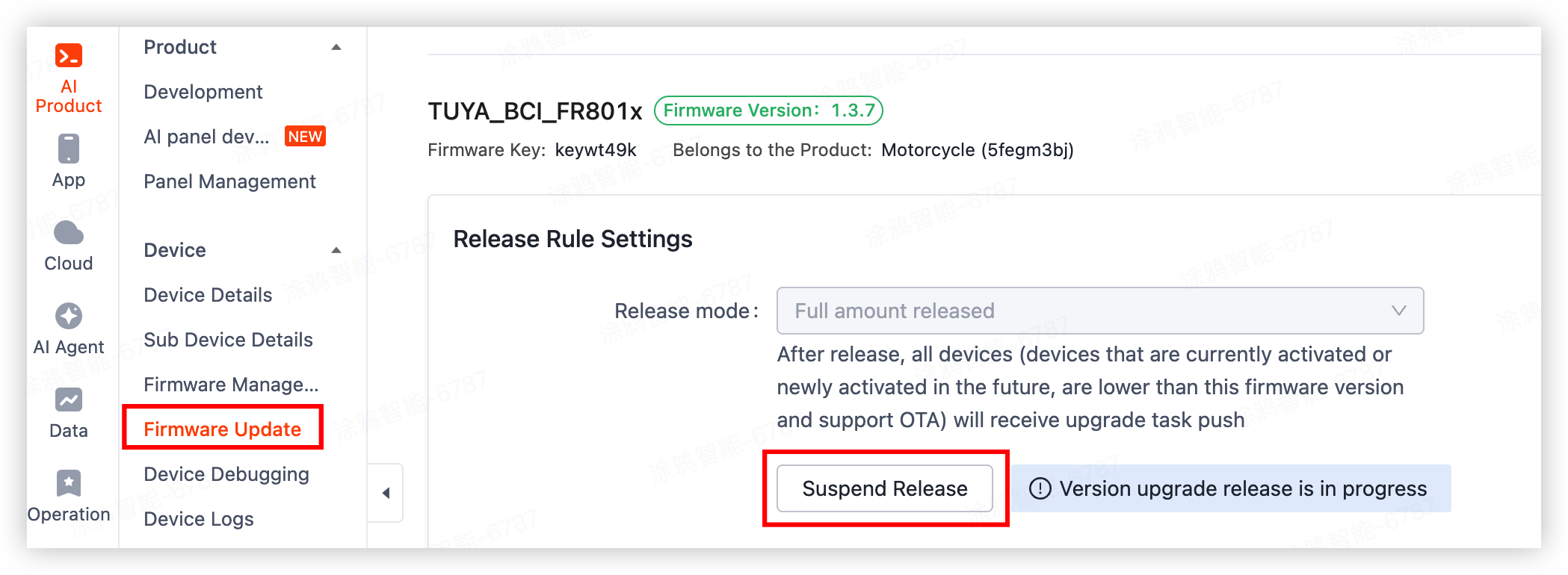
Solution: First release the target firmware version in the cloud, and then pause or revoke the release on the firmware update page. The app cache expires automatically. Direct removal causes an incomplete version tree, and the app still follows the cached update guide.
Telink TuyaOS (TLSR) OTA update fails
Root cause: The old SDK applies a hard limit on the firmware size and does not support upgrades for firmware larger than 124 KB.
Solution: Upgrade the TuyaOS SDK version. The new version removes this limit. As an emergency workaround only, reduce the firmware size to 124 KB or less.

HID proximity unlock
How it works
The solution uses BLE HID + SecurityManager to unlock by proximity without opening the app.
-
When Bluetooth is enabled on the phone, the phone reconnects automatically to a paired HID device nearby.
-
The device determines distance by Bluetooth Received Signal Strength Indicator (RSSI) and triggers lock or unlock.
-
A traditional Bluetooth LE device connects only while the app is open and disconnects when the app closes. An HID device stays paired in the system Bluetooth list. The app checks the system connection and then reads the scan response packet or uses the standard connection path.
Key differences from a traditional Tuya Bluetooth LE device:
| Stage | Traditional Bluetooth LE device | HID device |
|---|---|---|
| Connection and binding | Connect when the app opens and disconnect when the app exits | If the system is already paired, the app reads the connected device. If not paired, the device initiates a pairing request. |
| Unbinding while online | Send a Tuya Bluetooth LE command to clear binding | Send a command to clear binding and delete the phone system Bluetooth pairing information. |
| Unbinding while offline | Any phone or gateway sends an abnormal unbinding command | Offline unbinding is not supported |
- Electric vehicles are safety-critical. Offline unbinding enables anyone to open the app outdoors and pair the vehicle, which creates a malicious pairing risk.
- After offline unbinding, if the app does not notify the device and delete the pairing information in phone system settings, the new user can still unlock by proximity. For example, if the seller only disables network and Bluetooth, the buyer might ride away with the vehicle.
DP quick reference
| DP ID | Identifier | Feature | Description |
|---|---|---|---|
| dp92 | auto_unlock |
Auto unlock | Sent by the iOS app. The device initiates a pairing request on receipt. |
| dp93 | auto_unlock_pair |
Auto unlock pairing | Sent by the Android app. The app initiates a pairing request. |
| dp94 | fortify_distance_record |
Arm distance record | After auto unlock is enabled, auto lock is enabled automatically. |
| dp95 | disarm_distance_record |
Disarm distance record | FR8018 HID 2.0 ignores this DP |
| dp96 | hid_bind |
HID binding | — |
The app currently checks for dp93 in the DP list to identify the HID version. HID 1.0 does not have dp93. Later app versions support version negotiation.
Troubleshoot iOS and Android inconsistencies
Android works but iOS does not
-
Confirm the DP list includes both dp92 and dp93.
-
Confirm the device processes dp92. In the iOS path, the device must initiate the pairing request.
iOS works but Android does not
-
Confirm the DP list includes both dp92 and dp93.
-
Review the device logic branches for dp92 and dp93.
-
Review the app HID version. The HID 1.0 Android app does not initiate pairing requests.
Phone still reconnects automatically after local unbinding
-
Confirm HID is enabled. With HID on, local unbinding must also remove the device from phone system Bluetooth settings. Otherwise, the system automatically reconnects.
-
Confirm local unbinding also clears the persistent binding information on the device.
Vehicle inspection
You can modify or customize fault DPs and values as needed. Each app UI slot is independent. The app supports up to 10 fault DPs.
DP configuration
In Product Development > Function Definition, select or configure fault DPs based on the standard mobility panel. Typical items are as follows. The actual DP IDs depend on your product.
| DP name | DP code | Data transfer type | Data type | Description |
|---|---|---|---|---|
| Fault detection | fault_detection |
Send and report (read-write) | Boolean | User-triggered inspection entry. The app sends 1 to trigger inspection. |
| Power system | power_system |
Report only (read-only) | Fault | Fault values:
|
| Smart system | smart_system |
Report only (read-only) | Fault | Fault values:
|
| Lithium battery system | lithium_battery |
Report only (read-only) | Fault | Fault values:
|
| Electronic system | electronic_system |
Report only (read-only) | Fault | Customize fault bits based on the solution. Configure display text for each bit in multilingual settings. |
Configuration notes:
-
You can modify or customize fault DPs and fault values as needed. The app distinguishes each fault DP in the UI and supports up to 10 fault DPs.
-
Configure display text for fault values in multilingual settings. Otherwise, the app fault dialog shows blank entries.
Data definition
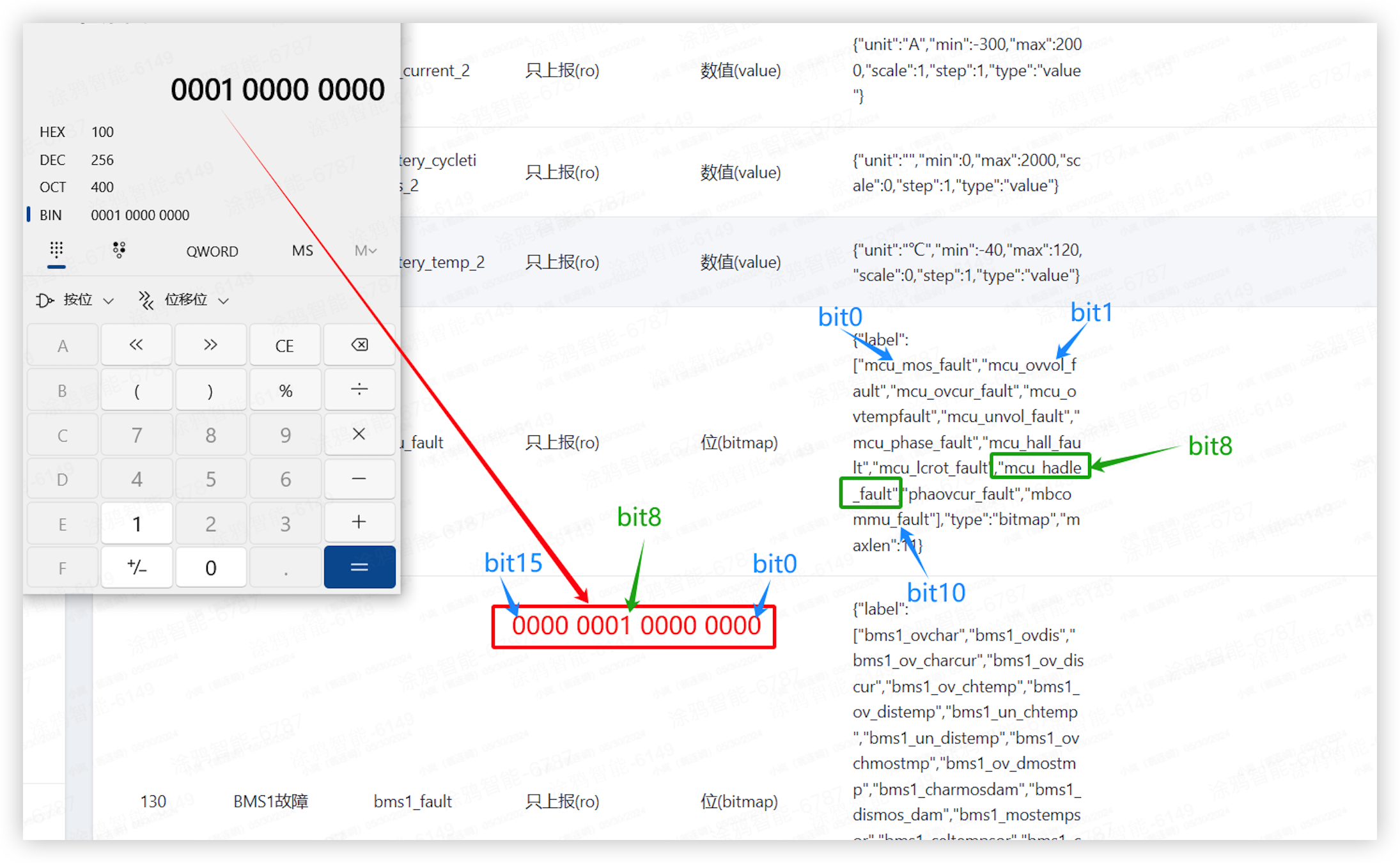
A fault DP has a length of 1, 2, or 4 bytes. Each bit represents whether a specific test item is abnormal. Bits beyond the defined ones are padded with 0. Setting an out-of-range bit to 1 triggers the exception branch.
Example: Power system with eight fault values
current_fault, voltage_fault, line_fault, power_tube_fault,
hall_sensor_fault, temp_sensor_fault, com_bus_fault, drive_fault
| Reported value | Meaning |
|---|---|
0x00 |
No fault in all eight items |
0x03 |
bit0 and bit1 have faults (current_fault, voltage_fault). All other items are normal. |
The following serial port packet corresponds to 0x03 for the power system:
55 AA 00 07 00 05 1C 05 00 01 03 30
Multilingual settings
Go to Product Configuration > Multilingual > Data Point. Find the fault DP and complete the multilingual text for each fault value. Configure multilingual entries for all custom fault DPs and custom fault values. Otherwise, raw key strings appear in the app.
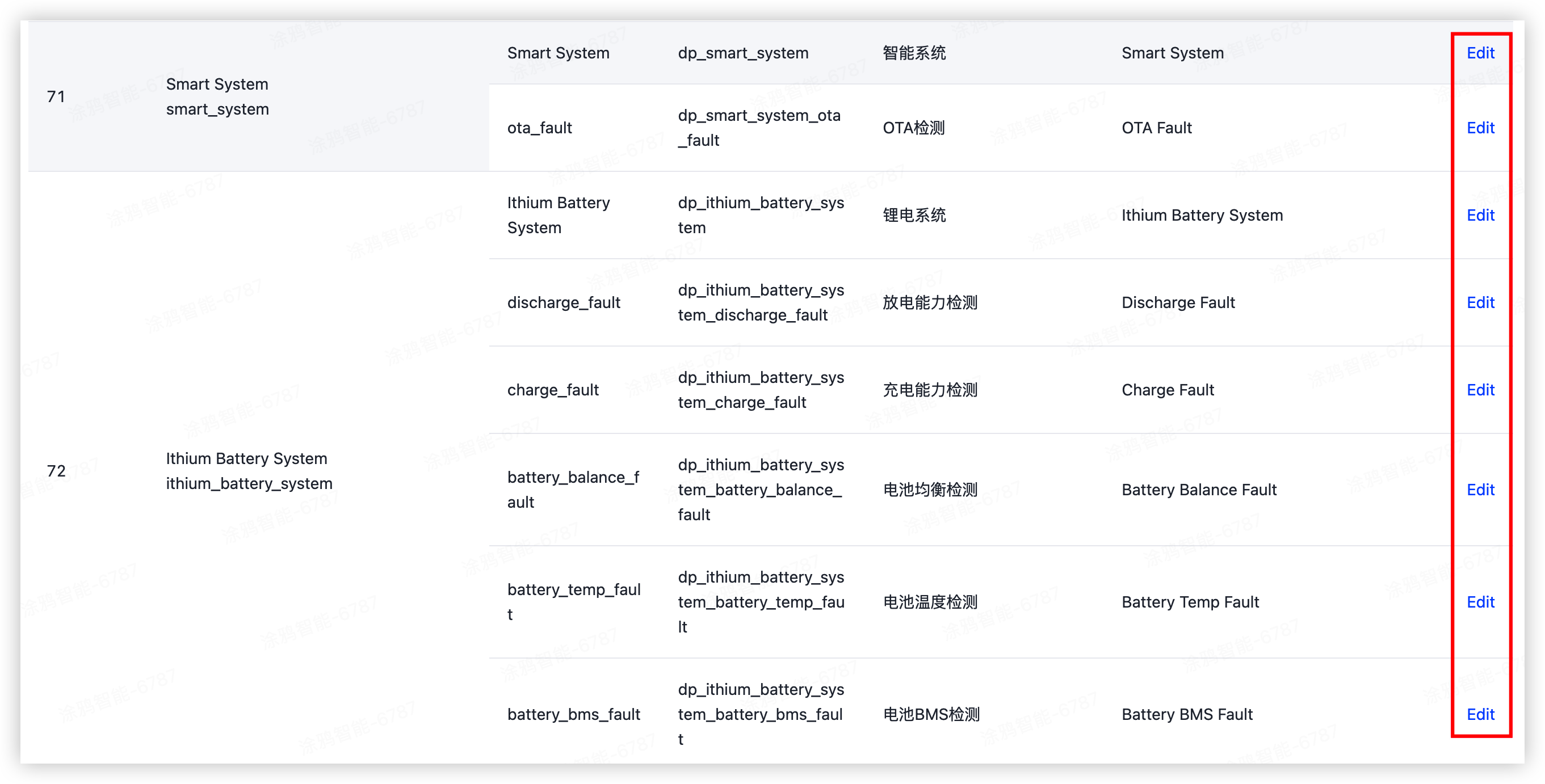
User-triggered inspection and device-triggered reporting
User-triggered inspection
-
The user taps Vehicle Inspection or Reinspect in the app, and the app sends
fault_detection=1. -
After receiving the command, the device runs a local inspection, and then reports
fault_detection=1and all fault DPs simultaneously. -
The app uses the time when it receives
fault_detection=1as the inspection time and counts the reported faults. -
After the app sends the command, it starts a 60-second timer. Report all data within 60 seconds, or the app returns an error.
Device-triggered reporting
When a vehicle fault occurs, the device can automatically report fault DPs. You can configure FAQ entries and message push for fault information on the Tuya Developer Platform. When triggered, the cloud pushes notifications to the app message center and the system notification bar. This requires the product to have the notification push service enabled.
For more information about device notification push, see Configure Push Notification.
Trip records
Key differences between Bluetooth vehicles and 4G vehicles
| Dimension | Bluetooth vehicle | 4G vehicle |
|---|---|---|
| Location source | Phone GPS | Cellular module location on the device |
| Reporting channel | Reported by the app | Reported by the device and stored in the cloud |
| How to enter trip records | Tap Start Riding manually | Tap ride navigation and enter the virtual dashboard |
| Flow | Map navigation > Start riding > Virtual dashboard > Report (cloud fills timestamps) > Exit | Map navigation > Virtual dashboard > Report (cloud fills timestamps) > Exit |
If the cellular module has no SIM card or remains inactive, the app generates trip records based on Bluetooth logic. After the cellular module activates successfully, the app generates records based on cellular logic.
DP reporting logic for Bluetooth vehicles
Trigger
The app generates trip records from Start Riding or End Riding button taps. If the user directly returns to the homepage or terminates the process, trip records appear after a short delay.
Built-in app filtering logic
-
The app reports GPS locations only when the device reports a non-zero speed. When speed is 0, the app does not report GPS locations.
-
Trips shorter than 100 m do not generate trip records. This prevents accidental taps.
-
GPS drifts indoors. The app filters GPS points with speed 0 during trip generation, but not during riding.
Device-side requirements
Report related DPs on changes. Packing is not required:
-
start = 1(already reported) -
Speed
-
Single mileage
-
Battery level
Data source for single riding time and average speed
-
If you select Single Riding Time and Single Average Speed in the DP list on the Tuya Developer Platform, the app prioritizes the values reported by the device.
-
If you do not select these two DPs, the cloud starts timing from the trip start point and calculates single-trip average speed by
Single Mileage / Single Riding Time.
DP reporting logic for 4G vehicles
Related DPs
Start (ACC=1), Single Mileage, Speed, Battery Level, GPS.
Trip start point
The cloud takes the point at which it receives start=1, Single Mileage, and GPS at the same time. At each start, the single mileage of the first point is 0.
Reporting sequence
-
Vehicle startup: Pack and report five DPs above. The device must report
start=1,Single Mileage, andGPS. Speed and battery level are optional. -
During driving: Continuously pack and report the five DPs. Tuya recommends reporting every 5 to 10 seconds. Use the default channel and prioritize cellular.
-
Vehicle power-off: Pack and report five DPs above. The device must report
start=0,Single Mileage, andGPS. Speed and battery level are optional.
Single riding time and average speed follow the same rules as Bluetooth vehicles.
Ride navigation (dashboard display)
Ride navigation starts when the user searches for a destination and then taps Start Riding. If the user directly taps Start Riding, the app records only a trip.
DP configuration

Parse direction codes
The turn arrow on the dashboard is driven by the direction code. The following table maps codes to turn types.
| Field | Value |
|---|---|
| Turn left | 2 |
| Turn right | 3 |
| Left front | 4 |
| Right front | 5 |
| Left back | 6 |
| Right back | 7 |
| Take a left U-turn | 8 |
| Go straight | 9 |
| Enter the roundabout | 11 |
| Leave the roundabout | 12 |
| Reach the destination | 15 |
| Turn left around the island, move within a roundabout in right-hand traffic, and circulate in an anticlockwise direction | 21 |
| Turn right around the island, move within a roundabout in right-hand traffic, and circulate in an anticlockwise direction | 22 |
| Go straight around the island, move within a roundabout in right-hand traffic, and circulate in an anticlockwise direction | 23 |
| Make a U-turn around the island, move within a roundabout in right-hand traffic, and circulate in an anticlockwise direction | 24 |
Map and navigation selection
Selection by region and platform
| Purpose | Region | Platform | Service provider |
|---|---|---|---|
| Map | Mainland China | Android | Amap |
| Map | Mainland China | iOS | Apple Maps |
| Map | Overseas | Android | |
| Map | Overseas | iOS | Apple Maps |
| Navigation | Mainland China | Android | Amap |
| Navigation | Mainland China | iOS | Amap |
| Navigation | Overseas | Android | Mapbox |
| Navigation | Overseas | iOS | Mapbox |
Apple Maps does not require a map key. Other map and navigation services require region-specific keys. Enter the keys in the app console.
Resource links:
Troubleshoot invalid map keys
When a map key is incorrect, expired, or rate-limited, the app commonly shows the following:
- Maps unavailable: map configuration is not set.
- Route planning failed: MD5 security code verification failed.
Troubleshoot in the following order:
- Key validity: Confirm the console key is not expired.
- SHA1: Confirm the signing certificate SHA1 is allowlisted.
- Network allowlist: Confirm IP or domain restrictions are correct.
- Build type: Confirm you are not mixing Debug and Release keys.
Geofence
See Vehicle Geofence
Push notifications
The Tuya cloud device message service triggers push notifications in the app message center and system notification bar.
- See Configure Push Notification
- Flow: Device reports DPs > Cloud matches message templates > Cloud pushes to the app and system notification bar.
Self-check list:
-
In Product Configuration > Device Notification/Alert Service, confirm that the target DP has a message template configured, including multilingual text.
-
On the device side, confirm that the DP report is visible to the cloud (you can see the DP value change in the product debugging panel).
-
In the app, go to Me > Message Center > Notifications Settings, confirm that the switch for the corresponding category is on and that the system notification permission is granted.
-
If push still fails—for example, messages are sent but not received—contact your Tuya project contact or submit a service ticket. Tuya support can help query message sending records and UID push status.
Debug app versions do not have a message push channel. Use a Release build to test push delivery.
Cellular reports the Bluetooth version number
The cellular module reports the Bluetooth version number in these cases:
- Cellular startup: Query BLE version → BLE responds → report after the server connection is up.
- After a peripheral OTA via cellular: Query BLE version again → BLE responds → report.
Except for these two scenarios, the cellular module does not automatically report the Bluetooth version number by default. The version number returned by the BLE module is retained only in the cellular module’s memory.
General troubleshooting
The app cannot scan the device
Troubleshoot as follows:
-
Standard integration (MCU SDK): The module is not initialized. See Basic Features and Module Debugging Assistant to complete initialization.
-
TuyaOS: Confirm broadcasting is enabled.
-
Search online for nRF Connect usage if needed.
-
Pairing status:
0x41(not paired): The device has not been bound to an account. The app can discover it through standard search and start pairing. This is common after factory reset or unbinding. The first byte of Service Data is0x41.0x49(paired): The device has been bound to an account. You must unbind it first before the app of a new account can find and connect to it.
-
Pairing mode:
0x06(self-discovery + QR code pairing): The app can discover the device through device list search and also supports QR code pairing. When the first byte of Manufacturer Data is0x06, the device usually supports this capability.0x08(QR code pairing): The app does not discover the device through standard search. The user can only complete pairing by scanning the QR code. If nRF Connect can find the device but the app list cannot, confirm the mode is0x08first.
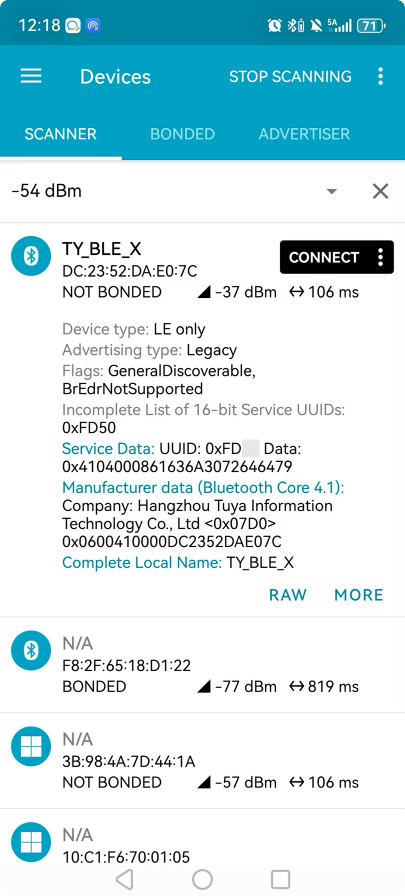
Pairing fails
Possible causes:
-
After pairing succeeds, the app immediately sends a command (
0x00) to query the device model. If the device does not respond within the timeout, the app disconnects. Check the device-side logic for the0x00command. -
The device has strong binding enabled and has not been unbound from the old account. See Still bound to Account A.
Still bound to Account A
If Account A is still bound, Account B can discover the device but cannot pair. Tuya divides the binding relationship between users and devices into three levels: strong binding, medium binding, and weak binding. The level is configured on the PID and can be changed at any time, taking effect immediately. Cross-region strong binding requires device removal plus re-activation before the new rules apply.
| Level | Definition | Typical scenario |
|---|---|---|
| Strong binding | The current user must unbind the device in the app before another user can pair it. The cloud rejects cloud reset API calls from the device. | IPC, door lock, and electric bicycles with high security requirements |
| Medium binding | Less restrictive than strong binding. Commonly used when products are unbound through service tickets after resale. | — |
| Weak binding | A local device reset is enough for a new account to pair. | Appliances without security sensitivity |
Special cases for strong binding
-
No restriction before user binding: A device that calls
activeand activates successfully but has not bound a user can activate again. -
Same-home administrator exemption, effective from May 18, 2023: If the pairing user has administrator permissions for the home that contains the device, the user can directly activate the device again without unbinding first.
-
The cloud distinguishes devices by UUID: The same physical device with different UUIDs is treated as two devices by the cloud. Different physical devices with the same UUID are treated as one.
-
Forced pairing is rejected: The app prompts in both the same region and cross-region: The device is bound by another user, and you cannot pair.
How to unbind
-
Self-service in the app (recommended and faster): Log in with the bound account, go to device details, and tap Unbind Device or Unbind and Clear Data.
-
Via Tuya support: If you cannot contact the old account owner, a test sample is missing, or the customer has left the company, submit a service ticket and provide the PID, UUID, and MAC address. Tuya can help unbind the device in the backend.
Strong binding behavior
Account A connects to the device.
  └─ The device is locally reset after disconnection.
       └─ The device broadcasts as "unbound".
            └─ Account B discovers the device but cannot connect (app disconnects).
                 └─ Account A cannot connect from the original screen, but can "Add Device" and pair successfully.
                      └─ After Account A performs "Unbind" or "Unbind and Clear Data", Account B can connect.
Weak binding behavior
Account A connects to the device.
  └─ The device is locally reset after disconnection.
       └─ The device broadcasts as "unbound".
            └─ Account B discovers the device and connects successfully.
Troubleshooting
Confirm strong binding is enabled. You can view the binding level attribute of the PID on the product configuration page.

Phone still reconnects automatically after local unbinding
This is usually an HID issue. See Phone still reconnects automatically after local unbinding in HID proximity unlock.
Unable to pair after unbind: hardcoded authorization license
-
Root cause: The customer directly hard-coded the triplet, including PID, UUID, and Authkey, in code and enabled an independent authorization process. Authorization fails and invalidates the authorization triplet written in code.
-
Solution: Replace it with a valid triplet and authorize again. The long-term solution is to avoid hard-coding the triplet and complete the standard flashing process based on Flashing and Authorization.
Recover a lost pairing QR code
-
Get the MAC address or SN of the device.
-
Regenerate the QR code with the QR code generation tool on the platform.
-
Attach the laser-printed SN sticker to the device.
Bluetooth cross-region pairing
Cross-region here means the device is produced in Region A and activated and used in Region B.
-
Key rules:
-
Enable the two advanced capabilities, shared device cross-region activation and Bluetooth cross-region synchronization, on the order PID. Do not enable them on the PID after activation.
-
The post-activation PID is known only after activation, but both flags are evaluated at pre-activation discovery, so the system checks the order PID.
-
-
If the two flags are incorrectly enabled on the PID after activation, check the following items:
-
On the product configuration page, confirm the PID matches the authorization PID.
-
Contact your Tuya project contact to check the device order PID and authorization status. This involves an internal authorization information query tool.
-
Bluetooth is unstable or disconnects frequently
Troubleshoot in the following order:
-
Antenna and shielding: Check for metal shielding over the antenna and interference from nearby components (for example, inductors).
-
MCU interrupt load: Look for frequent interrupts in the application (for example, a high-frequency timer interrupt). High-frequency interrupt can starve the Bluetooth stack and cause dropped connections.
-
Interrupt callback duration: Reduce the code running time in interrupt callbacks to avoid blocking the Bluetooth protocol stack.
Is this page helpful?
YesFeedbackIs this page helpful?
YesFeedback